How To Setup Payroll in QuickBooks Desktop?

Dec 29, 2025

Admin |

Estimated Read Time : 5 MIN

Have you ever thought why payroll in QuickBooks Desktop is important? QuickBooks Desktop payroll is important as it automates calculations and payments, simplifies tax filing, and integrates accounting features to reduce your manual work, ensure accuracy, and save time.

This blog covers everything that would require you to set up your payroll in the QuickBooks application. Walk through this guide and get the most out of it.

Learn to set up the Payroll process in QuickBooks

Set up a pay schedule for your employees 

  • Click on the Employees and then Payroll Center.
  • Click on the Payroll Schedule drop-down and hit New.
Set up a pay employee
  • Enter your details and name to schedule and choose the periodic time to pay your employees as per your schedule.
  • Once you finish the remaining fields, click on OK.
  • Click on Yes or No if you are willing to assign the new schedule to your employees.

Update a pay schedule 

  • If your requirements demand that you change the date while creating payroll, click on the Enter Payroll Information window
  • To inform you, this change would only impact the current pay period. Update all upcoming payroll schedules, apply the steps below:
  • Click on Employees and then Payroll Center.
  • Choose the payroll schedule you want to update on the Create Paychecks.
Create Paychecks
  • Click on Edit Schedule from the Payroll Schedules.
  • You can make the required changes/updates in the Edit Payroll Schedule window.
  • Click on OK.

QuickBooks Desktop Payroll

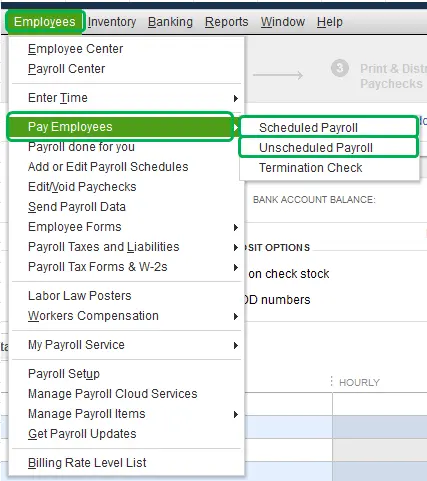
Click on Employees > Pay Employees.

Choose from the following payroll types and jump to step 4 if you are going to run an unscheduled payroll.

  • Scheduled Payroll
  • Unscheduled Payroll
  • Termination Check.

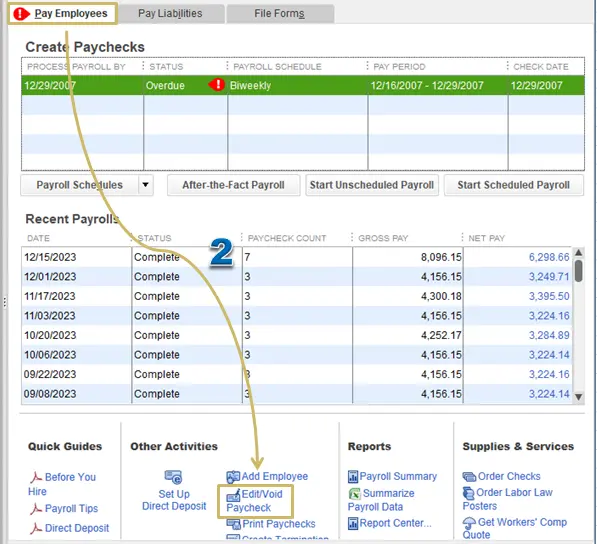
Choose the required schedule and click on Start Scheduled Payroll.

Ensure the following:

  • Pay Period Ends date
  • Check Date
  • QuickBooks Bank Account.

Now, you can select the employees you would like to pay.

Enter the hours using:

  • Using the manual grid.
  • Automatically using time sheets.
  • Click on Open Paycheck Detail to see everyone’s paycheck details.
  • Click on Save & Next to jump to the next employee.
  • Or, click on Save & Close to navigate back to the Enter Payroll Information window.
  • Click on Continue.
  • Review the Check/Direct Deposit printing options.
  • Click on Create Paychecks after you confirm the amounts for each employee.
Click on Create Paychecks
  • If you would like, you can print paychecks either now or later. 

Set up your Printing Preferences

  • Navigate to the File and click on Printer Setup.
  • Click on Check/Paycheck in the Form Name drop-down.
  • Click on the Settings tab and select your Printer Name.
  • Now, select Printer Type.
  • Select your Voucher, Standard, or Wallet’s check style.
print checks window
  • There are additional options that you can select to print your company name and address, logo or image.
  • Click OK.

Set up your pay stubs

  • Navigate to the File and click on Printer Setup.
  • Click on Pay stub in the Form Name.
  • Click on your Printer Name > Printer Type.
print set up
  • Hit OK.

Set up Time tracking in QuickBooks Desktop Payroll

  • Click on Edit and choose Preferences.
  • Choose the desired Time & Expenses.
  • Select Company Preferences.
Choose Time and Expenses
  • When you get the option of the “Do You Track Time?” section, click on Yes.
  • Choose the day your work week begins on the First Day of Work Week.
  • Click on OK and save the changes.

Set up your employees for time tracking

  • Click on Employees and choose Employee Center.
choose Employee Center
  • Click twice on your employee’s name and select Payroll Info.
  • Click on Use time data to create paychecks and hit OK.
  • Repeat steps 2 & 3 for applicable employees.

Conclusion

Payroll in QuickBooks Desktop would automate the process of calculations and payments, simplify tax filing, and integrate with your accounting to save your time and ensure accuracy. Thank you for being with us! 

For more information, contact our QuickBooks specialist at Call Us : +1(866)500-0076

Frequently Asked Questions

What are the benefits of using payroll in the QuickBooks Desktop application?

  • Automated calculations: The software is designed to automatically calculate employee earnings, payroll taxes, and deductions, reducing manual data entry and errors.
  • Streamlined payments: You can pay employees using free direct deposit or print paychecks directly from your computer.
  • Simplified tax management: It tracks your payroll tax liabilities, sends payment reminders, and can electronically file and pay taxes through services like E-File & Pay.
  • Automatic tax form filling: With a subscription, federal and most state tax forms are automatically filled in, making the filing process much easier.

How do I run a payroll?

  • Collect information: Gather employee hours and any tips or bonuses.
  • Calculate gross pay: Multiply hours by the hourly wage for hourly employees, or divide the yearly salary by the number of pay periods for salaried employees.
  • Withhold taxes and deductions: Deduct federal, state, and local taxes, plus any other deductions.
  • Process payments: Issue payments and pay stubs. 

Where should I contact if I get my payroll fixed in my QuickBooks Desktop? 

To fix any issue in your QuickBooks Desktop payroll, reach out to our QuickBooks professional at Call Us : +1(866)500-0076

About The Author

Lana Creston

Lana Creston is an experienced technical and accounting writer with a total of 9 years of experience. She currently works on QuickBooks accounting and technical guides at QuickBookSupportNet. Lana has a passion for reading and writing about various technical topics, especially exploring new accounting methods and software, while continuously expanding her expertise in the ever-evolving field of finance and technology.

Quick, clear, and hassle-free QuickBooks assistance.

Get a Free Consultation with Our QB Tax Experts
Connnect with Our Certified QuickBooks Professionals - Dial Tollfree: +1(866)500-0076