How to Troubleshoot QuickBooks Error 1920 Instantly? 

Mar 11, 2026

Admin |

Estimated Read Time : 5 MIN

If you rely on QuickBooks to manage your day-to-day accounting, payroll, and financial reporting, running into installation issues can bring your workflow to a sudden halt. One such frustrating issue is QuickBooks error 1920. This error typically occurs during the installation or update of QuickBooks Desktop and is often accompanied by a message stating that the QuickBooks Database Manager Service failed to start. When this happens, users may be unable to access company files in multi-user mode, disrupting business operations.

In this blog, we’ll walk you through everything you need to know about error code 1920, including its common causes, warning signs, and—most importantly—instant troubleshooting steps to resolve it quickly and get your accounting system back on track.

What Causes QuickBooks Install Error 1920? 

QuickBooks install error 1920 can be triggered by several underlying issues. The most common causes include:

  • Windows services required by QuickBooks fail to start during installation.
  • Damaged or corrupted QuickBooks installation files.
  • Insufficient admin permissions to install or run services.
  • Antivirus or firewall is blocking the installation processes.
  • Corrupt or outdated Windows operating system files.
  • Incomplete or interrupted QuickBooks installation.
  • Conflicts with other background applications or Microsoft components.

Proven Methods to Troubleshoot QuickBooks Error 1920 When Installing 

Here are effective steps you can follow to resolve QuickBooks Install Error 1920 and complete the installation successfully: 

General Solutions 

The steps below will work whether you are getting an error in single-user or multi-user mode:  

1. Configure Windows services

  • Press Windows + R to open the Run dialog box.
  • Enter services.msc and hit Enter. You can also type services.msc into the Windows search bar to find it.
  • In the Services window, locate the QuickBooksDBXX service that corresponds to your QuickBooks version:
    • QuickBooks 2020: QuickBooksDB30
    • QuickBooks 2019: QuickBooksDB29
    • QuickBooks 2018: QuickBooksDB28
  • Double-click the appropriate QuickBooksDBXX service.
  • Change the Startup Type to Automatic and confirm the Service Status shows Running or Started.
  • Open the Recovery tab.
  • In the First failure dropdown, choose Restart the Service. Repeat this selection for Second failure and Subsequent failures, so the service restarts automatically if it stops.
  • Click OK to apply the changes.
  • Restart your computer to complete the process.

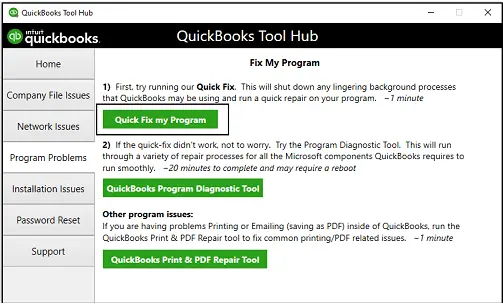
2. Run Quick Fix my Program

The Quick Fix tool will close any background processes that QuickBooks is currently running and perform a brief repair of the program.

Important Note: Download and install QuickBooks Tool Hub (1.6.0.8) in the most recent version available.

  • Open the QuickBooks Tool Hub. 
  • Click on Program Problems.
  • Choose Quick Fix my Program.
Fix My program
  • Once the repair is complete, launch QuickBooks Desktop and access your company file.

3. Run the QuickBooks Install Diagnostic tool

If there was an issue during QuickBooks installation, you may experience errors when using the program. You can resolve common installation problems by running the QuickBooks Install Diagnostic Tool.

  • Launch the QuickBooks Tool Hub and go to Installation Issues.
  • Click the QuickBooks Install Diagnostic Tool, then allow it to complete the scan. The process may take up to 20 minutes.
QuickBooks Install Diagnostic Tool
  • After it finishes, restart your computer. Then open QuickBooks Desktop and access your company file.
  • Make sure to update QuickBooks to the latest version so you have the newest fixes and security updates installed.

4. Update Windows 

Make sure the Windows operating system is up-to-date: 

  • Press the Windows logo key to open the Windows Start menu. 
  • In the search field, type Settings and press Enter
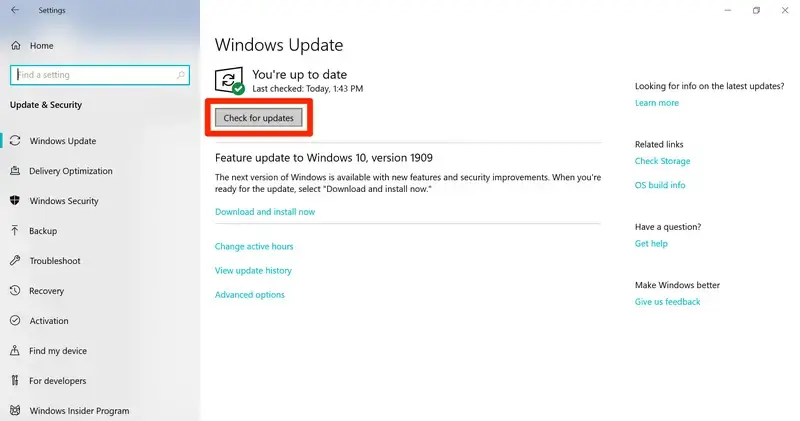
  • Choose Windows Update.
  • Click on Check for Windows updates
Windows update
  • If it shows the updates are available, choose Download & Install. Your computer will automatically download and install the software updates. 
  • When prompted, restart your computer to apply the software updates. 

5. Configure Windows Firewall or antivirus applications 

Configuring Windows Firewall for QuickBooks Desktop can fix error 1920 by allowing QuickBooks to connect to Intuit servers. Add exceptions for key files like QBW32.exe and QBUpdate.exe, and ensure ports 80 and 443 are open. Also, check your antivirus settings and add QuickBooks as an exception or temporarily disable it to prevent connection issues.

Case I: If you’re trying to install or update QuickBooks

Follow these instructions when installing a new version of QuickBooks or updating the version you currently have.

1. Uninstall QuickBooks Desktop

  • Press Windows + S, then type Control Panel in the search field and open it.
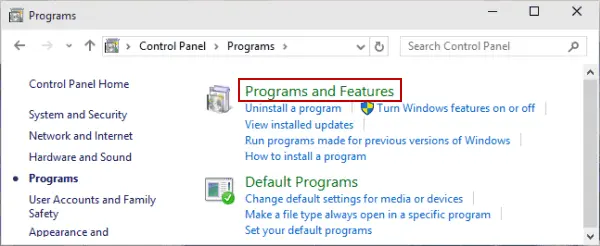
  • Click on Programs and Features (or choose Uninstall a Program, depending on your view).
Programs and Features
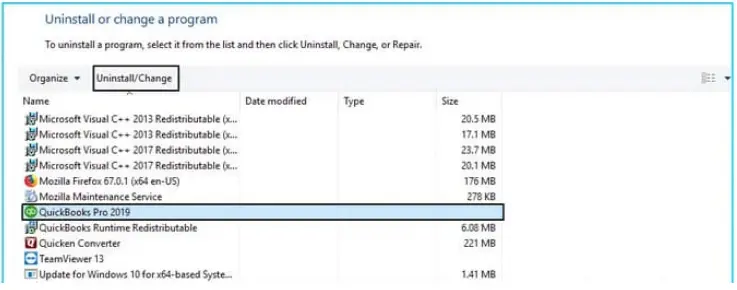
  • From the list of installed applications, find and select QuickBooks Desktop [version].
  • Choose Uninstall/Change, then follow the prompts displayed on your screen to complete the process.
uninstall or change a program

2. Rename the installation folders

Important Note:  If the Application Data or Program Data folder isn’t visible, turn on the option to show hidden files and folders in Windows, or use the Windows search feature to locate the files. If you have other Intuit programs installed, make sure you only uninstall or rename the specific QuickBooks version folder located inside C:\Program Data\Intuit, so you don’t affect other Intuit applications.

  • Navigate to the QuickBooks installation directories using the reference chart provided below.
Windows 10/8/7Windows Vista
C:\Program Data\IntuitC:\Program Data\Common Files\Intuit
C:\Users\[Username]\AppData\Local\IntuitC:\Program Files\Intuit
C:\Program Files\Common Files\IntuitC:\Program Data\Intuit
C:\Program Data\Common Files\IntuitC:\Users\\AppData\Local\Intuit
C:\Program Files\IntuitC:\Program Files\Common Files\Intuit
  • Press Windows + R on your keyboard to open the Run dialog box.
  • Type in (or copy and paste) the folder path, then press Enter.
  • Once the folder opens, right-click on it and select Rename.
  • Add .OLD to the end of the folder name to rename it.

3. Install QuickBooks Desktop

After preparing your system and renaming the old installation folders, you can proceed to install QuickBooks Desktop. Run the installation file as an administrator, follow the on-screen prompts, and choose the installation type that fits your setup—either Express for default settings or Custom if you need to change the installation location. 

Case II: If you’re trying to update QuickBooks Database Server Manager on the server computer

Follow these instructions if QuickBooks isn’t installed on your server, but you’re sharing your company file across the network through the Database Server Manager.

1. Uninstall the QuickBooks Database Server Manager

QuickBooks Database Server Manger
  • Click Uninstall/Change, then follow the on-screen steps to complete the process.

2. Rename the installation folders

Important Notes: If the Application Data or Program Data folder isn’t visible, enable the option to show hidden files and folders in Windows, or use the Windows search feature to locate them. If other Intuit programs are installed on your computer, be sure to uninstall or rename only the specific QuickBooks version folder located in C:\ProgramData\Intuit, so the other applications remain unaffected.

  • Access the QuickBooks installation directories and use the chart below as your guide.
Windows 10/8/7Windows Vista
C:\Program Data\IntuitC:\Program Data\Intuit
C:\Program Data\Common Files\IntuitC:\Program Data\Common Files\Intuit
C:\Users\[Username]\AppData\Local\IntuitC:\Users\\AppData\Local\Intuit
C:\Program Files\IntuitC:\Program Files\Intuit
C:\Program Files\Common Files\IntuitC:\Program Files\Common Files\Intuit
  • Press Windows + R on your keyboard to launch the Run window.
  • Type (or paste) the folder path into the field and press Enter.
  • When the folder opens, right-click on it and select Rename.
  • Change the folder name by adding .OLD at the end.

3. Reinstall QuickBooks Database Server Manager

After renaming the installation folders, reinstalling QuickBooks Database Server Manager ensures that the program creates fresh, uncorrupted folders. This step helps prevent conflicts with old files and can resolve errors like 1920 during installation. 

Conclusion 

Finally, we are wrapping up this comprehensive guide on the possible causes and effective troubleshooting methods for QuickBooks error 1920.  By carefully applying the solutions discussed above, you can resolve the error efficiently and restore seamless access to your company files.

If the problem persists or seems complex, it’s always a smart move to seek professional assistance. For additional support, don’t hesitate to consult a QuickBooks ProAdvisor. Dial +1 (866) 500-0076 and speak with a certified expert today!

Frequently Asked Questions 

What is qbcfmonitorservice error 1920?

QuickBooks error 1920 (QBCFMonitorService failed to start) is a common installation or update error occurring when the Database Server Manager cannot start, often caused by firewall restrictions, damaged installation files, improper system shutdowns, or insufficient user permissions.

Why won’t my QuickBooks update install?

QuickBooks updates may fail to install due to unstable internet, blocked access by antivirus/firewall, incorrect date/time settings, or lack of administrative permissions. 

How to fix QuickBooks database installation error 1920?

To fix QuickBooks Error 1920, which occurs when the Database Server Manager fails to start during installation or updates, start by restarting the Windows Installer service via services.msc and ensuring you have administrator permissions.

What causes error code 1920 in QuickBooks?

QuickBooks error code 1920 occurs when the QBCFMonitorService fails to start during installation or updates, usually due to damaged installation files, incorrect Windows registry entries, or firewall/anti-virus restrictions. It often stems from a failure to connect to the company file. 

About The Author

Lana Creston

Lana Creston is an experienced technical and accounting writer with a total of 9 years of experience. She currently works on QuickBooks accounting and technical guides at QuickBookSupportNet. Lana has a passion for reading and writing about various technical topics, especially exploring new accounting methods and software, while continuously expanding her expertise in the ever-evolving field of finance and technology.

Quick, clear, and hassle-free QuickBooks assistance.

Get a Free Consultation with Our QB Tax Experts
Connect with Our Certified QuickBooks Professionals - Dial Tollfree: +1(866)500-0076