How to Fix QuickBooks Error 6131 0 When Opening a Company File?

Feb 25, 2026

Admin |

Estimated Read Time : 5 MIN

Managing your finances in QuickBooks Desktop requires smooth access to your company file. However, users may sometimes encounter QuickBooks error 6131, 0, which can interrupt daily accounting tasks. This error usually appears while opening or creating a company file, displaying messages like:

Error 6131, 0: QuickBooks has encountered a problem and needs to close.”
QuickBooks is unable to open this company file.

The issue often occurs due to a damaged company file, a corrupted installation, or a misconfigured hosting environment. In this guide, we’ll explore the causes and provide step-by-step solutions to resolve error code 6131, 0 quickly and effectively.

What Causes QuickBooks Company File Error 6131 0? 

In this section, we’ll examine the key factors that can prevent your company file from opening in multi-user mode and lead to QuickBooks error code 6131, 0

  • Using an outdated QuickBooks Desktop 
  • Possible data damages or network connectivity issues 
  • Hosting might be enabled on the local computer 
  • Damages or corruption to the .ND and .TLG files  
  • Incorrect or damaged installation of QuickBooks 
  • The company file might be in too many folders 
  • Conflicts between the background processes and the payroll update 
  • Not having enough Windows file and folder permissions
  • Windows Firewall or anti-virus might be blocking QuickBooks 

Top 9 Fixes for QuickBooks Error 6131 0 When Opening a Company File 

Below, we will explore methods to help you resolve all the problems we discussed above and ensure you can open the company file seamlessly without QuickBooks error 6131 0 appearing on your screen. 

1. Update QuickBooks Desktop

Using an outdated version of QuickBooks means missing out on the latest security patches and features. It can cause incompatibility with Windows, which might hamper other QuickBooks processes, including opening a company file on the network. Update QuickBooks Desktop to the latest release and ensure the software is secure and provides a seamless experience. 

2. Run QuickBooks File Doctor 

The QuickBooks File Doctor verifies the company file for potential data damage and network connectivity issues, then runs a quick repair.  

Important Note: Make sure to download and install QuickBooks Tool Hub (1.6.0.8) in the latest version available. 

  • Launch the QuickBooks Tool Hub. 
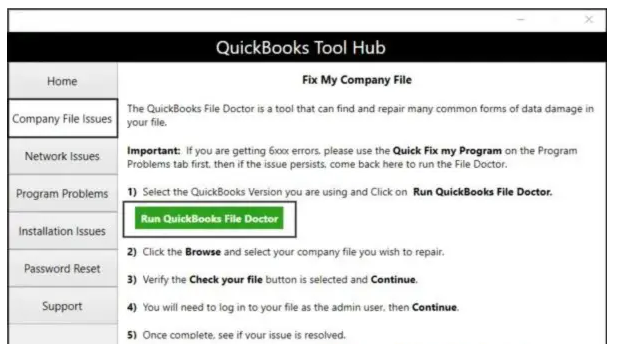
  • In the left pane, choose Company File Issues
  • Click on Run QuickBooks File Doctor. It usually takes one minute or more to open the file doctor. 
Run QuickBooks File Doctor

Note: If the QuickBooks File Doctor doesn’t open, search for QuickBooks Desktop File Doc and open the tool manually. 

  • In QuickBooks File Doctor, choose your company file from the drop-down menu. If you don’t see the company file, click Browse and search to find it.
  • Click Check your file (the middle option only), then Continue.
  • Enter the QuickBooks admin password to allow access and click Next

If you still encounter issues after running the QuickBooks File Doctor, proceed with the steps below. 

3. Check if Hosting is on for all workstations

It’s recommended to use only one computer as the server to host your company’s files.  

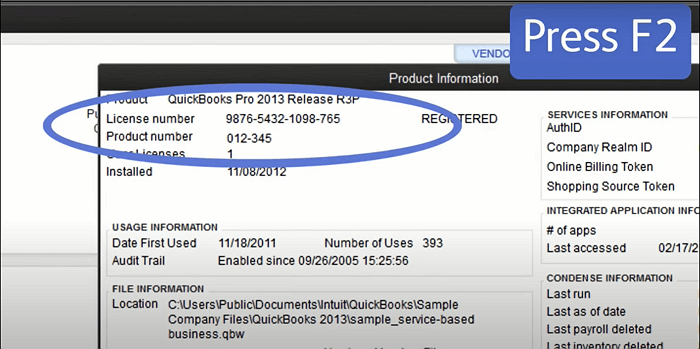
  • Open the Product Information by pressing F2
License Information and a product key
  • Look for Local Server Information. Th hosting should be turned off on each workstation. 

4. Rename the .ND and .TLG files, and run the Database Server Manager from the QuickBooks Tools Hub

.TLG (Transaction Log) and .ND (Network Data) are configuration and support files automatically generated by QuickBooks Desktop to manage multi-user access and track data changes.

Renaming the .ND and .TLG files will automatically recreate themselves, resolving any potential data damage or corruption that might be hindering network access to the company file. Also, make sure to run the QuickBooks Database Server Manager to scan these files for hosting again. 

a. Rename the .ND and .TLG file

  • Locate the folder that has your company file. 
  • Look for the files with the same name as your company files, but with the .ND and .TLG extensions at the end. 
    • company_file.qbw.nd
    • company_file.qbw.tlg
  • Right-click each company file. 
  • Choose Rename. Add the word .OLD at the end of the company file name. 

Example: company_file.qbw.nd.OLD

b. Run the QuickBooks Database Server Manager

The QuickBooks Database Server Manager lets you host your QuickBooks company files on the network. Restart QBDBSM to scan your company file after renaming the .ND and .TLG files. 

Let’s run the QuickBooks Database Server Manager from the Tool Hub: 

  • Launch QuickBooks Tool Hub. 
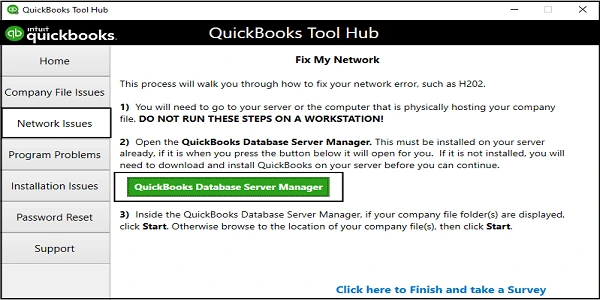
  • In the left menu bar, choose Network Issues.
  • Click on QuickBooks Database Server Manager. Install QuickBooks on the server computer if you haven’t already. 
QuickBooks Database Server Manger
  • In the QuickBooks Database Server Manager, click on Start Scan if you have your company file(s). If you don’t, click Browse, locate the company file, then select Start Scan
  • Open QuickBooks Desktop and try to sign in to your company file again. 

If the error persists, go to the next solution. 

5. Open a sample company file from a workstation

When you open a sample company file, it runs a test on your company file to determine whether the problem is with the company file or QuickBooks. If you fail to open a sample company file and get an error, it means the QuickBooks installation is damaged and needs to be repaired. 

  • Open a Sample File and then choose from the list of your sample company files. 
  • If you open the sample company file, go to the next solution. 

6. Repair the QuickBooks installation files

Let’s repair the incorrect QuickBooks installation and damaged or corrupted software installation files or folders using different tools in the Tool Hub. 

a. Run the Quick Fix my Program 

The Quick Fix my Program will shut down all open background processes used by QuickBooks. It will run a quick repair on your program.

  • Launch the QuickBooks Tool Hub. 
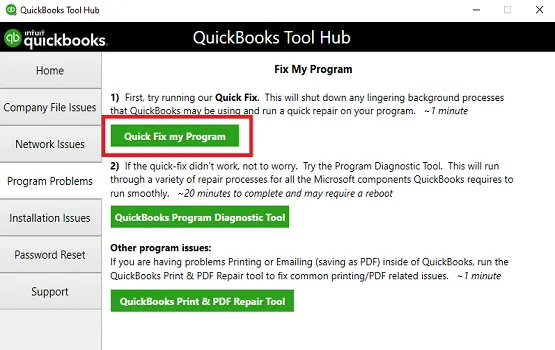
  • Choose Program Problems
  • Click on Quick Fix my Program
Quick Fix my Program
  • Open QuickBooks Desktop and then open your company file. 

b. Run the QuickBooks Install Diagnostic tool 

If something went wrong during the QuickBooks install, it can cause problems when you try to use it. Fix such common installation issues using the QuickBooks Install Diagnostic tool

  • Launch the QuickBooks Tool Hub. 
  • In the left menu bar, choose Installation Issues
  • Click on QuickBooks Install Diagnostic Tool. It can take up to 20 minutes to run; let it run until then. 
QuickBooks Install Diagnostic Tool
  • When the tool finishes, restart your computer, launch QuickBooks Desktop, and then open your company file. 
  • Update your QuickBooks Desktop to the latest release. This ensures you use the most recent fixes and security updates. 

6. Copy the QuickBooks file to the Desktop

Copy the file to your desktop and open it to check if the issue is related to the location of your company file.

  1. If the file opens from the desktop, the original folder where it was saved may be damaged.
  2. The file could also be stored in too many nested folders, exceeding the system’s file path limit.
  3. If the file still won’t open after moving it, it may be corrupted.

To do this:

  • Open the folder containing your company file.
  • Locate the file with the .QBW extension.
  • Right-click the file and choose Copy. Then, go to your desktop, right-click anywhere, and select Paste.
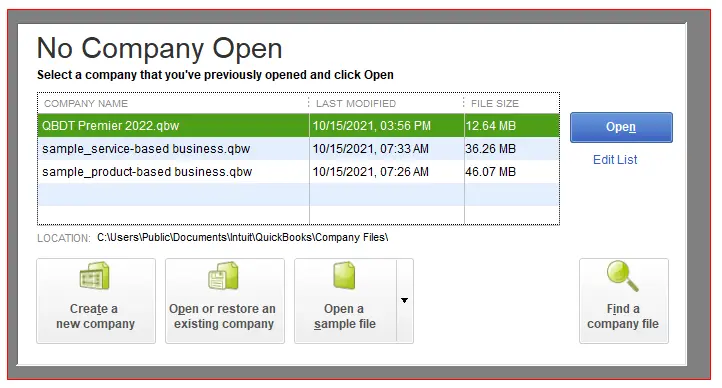
  • Press and hold the Ctrl key while opening QuickBooks to access the No Company Open window.
No Company Window
  • Click Open or restore an existing company, browse to your desktop, select the company file, and open it.

7. Close all QuickBooks processes

The QB processes running in the background might hamper the software update, triggering QuickBooks error 6131, 0. 

  • Sign in as an Administrator on the server computer. 
  • Launch the Task Manager by pressing Ctrl+Shift+Esc.
  • Click on Show processes for all users. Select Users.
  • Choose each QuickBooks process (QBW32.EXE, qbupdate.exe, and QBDBMgr.exe), then End Task.
  • Now, try to open your company file in multi-user mode. 

8. Check the folder permission manually

Incorrect file or folder permissions in Windows can prevent QuickBooks from accessing essential company and payroll files. This can disrupt payroll updates, cause errors during tax table downloads, and block paycheck processing. Ensuring you properly set up the folder and Windows access permissions helps maintain smooth payroll functionality, prevents update failures, and protects sensitive employee and tax data from access conflicts. 

9. Configure firewall ports and Anti-Virus Software

You may encounter errors if your firewall or antivirus program blocks access to specific QuickBooks programs or files. It’s best to configure your Windows firewall and set up an exception in your anti-virus software.

Note: Because Intuit does not develop antivirus applications, we’re unable to give detailed instructions on configuring this exception. For assistance, contact your antivirus software provider or consult their support resources.

Conclusion 

Understanding QuickBooks error 6131 0 is essential to keeping your accounting workflow smooth and uninterrupted. Since this issue is often caused by network or company file problems, timely troubleshooting can help restore access quickly and prevent further disruptions.

If the error continues, consider contacting certified professionals at QuickBookSupportNet. Dial the +1 (866) 500-0076 to connect with a QuickBooks ProAdvisor and get expert assistance right away.

Frequently Asked Questions 

What is QuickBooks Error 6131, 0?

QuickBooks error 6131, 0 is a company file error that usually occurs when QuickBooks is unable to open or access a company file. It often occurs in multi-user environments and is typically caused by network configuration issues, file corruption, or firewall restrictions.

Is error code 6131, 0 related to multi-user mode?

Yes, QuickBooks error 6131, 0 is directly related to multi-user mode and occurs when a company file is accessed locally rather than through the proper server hosting, or when network configuration files (.ND or .TLG) are damaged. 

What are the main causes of the company file error code 6131, 0?

QuickBooks error 6131, 0 typically occurs when the software cannot access the company file, often caused by local file hosting issues, damaged .ND or .TLG network data files or incorrect network configuration. 

Can a corrupted company file trigger company file error code 6131, 0?

Yes, a corrupted or damaged company file can trigger QuickBooks error code 6131, 0, which commonly occurs when QuickBooks cannot properly open, access, or initialize the company file (.QBW) or its related files.

How can the QuickBooks Tool Hub help resolve a company file error?

The QuickBooks Tool Hub resolves company file errors by providing a centralized dashboard to fix damaged data, network issues, and permission problems. Key tools include the File Doctor (for 6000-series errors), Quick Fix my File (for general corruption), and the Database Server Manager (for network H-series errors).

About The Author

Lana Creston

Lana Creston is an experienced technical and accounting writer with a total of 9 years of experience. She currently works on QuickBooks accounting and technical guides at QuickBookSupportNet. Lana has a passion for reading and writing about various technical topics, especially exploring new accounting methods and software, while continuously expanding her expertise in the ever-evolving field of finance and technology.

Quick, clear, and hassle-free QuickBooks assistance.

Get a Free Consultation with Our QB Tax Experts
Connect with Our Certified QuickBooks Professionals - Dial Tollfree: +1(866)500-0076