How to Fix QuickBooks Error 61686 | Update or Install Error 

Feb 10, 2026

Admin |

Estimated Read Time : 5 MIN

Whether you’re updating an existing version of QuickBooks or installing QuickBooks Desktop for the first time, the process can sometimes become complicated. One such obstacle is QuickBooks Error 61686, which may suddenly appear on your screen and interrupt the installation or update process.

No matter how many times you retry, the error may persist—indicating that manual troubleshooting is required. This interruption commonly occurs due to an outdated Windows operating system, damaged, corrupted, or missing Windows components essential for installation, or other related system issues.

In this detailed guide, we’ll walk you through the possible causes of QuickBooks Error 61686 and share effective troubleshooting steps to help you resolve it quickly.

What Causes QuickBooks Install Error 61686? 

QuickBooks error code 61686 usually appears when something goes wrong during installation or an update. It’s not one single issue—more like a few common troublemakers that trigger it: 

  • Windows OS might not be up-to-date 
  • Corrupted or missing Microsoft .NET Framework component
  • Incorrect installation or damaged program files
  • Damaged, incomplete, or mismatched Framework.xml file 
  • Corrupted or missing Microsoft MSXML components
  • Windows files or folders might be damaged or corrupted 
  • Outdated Windows device drivers
  • Malicious software or a virus is interfering with QuickBooks components
  • Third-party applications interrupt the software installation 

Fix QuickBooks EXEAdapter Error 61686 When Updating or Installing

Now that you know what causes QuickBooks error 61686, let’s move on to the instant methods to fix it and get QuickBooks running again.

1. Update Windows OS 

Updating Windows OS ensures the operating system is compatible and meets the minimum system requirements of QuickBooks Desktop. This ensures a smoother software installation or update: 

  • Press the Windows logo key to open the Windows Start menu. 
  • Type Settings in the search field and press the Enter key.
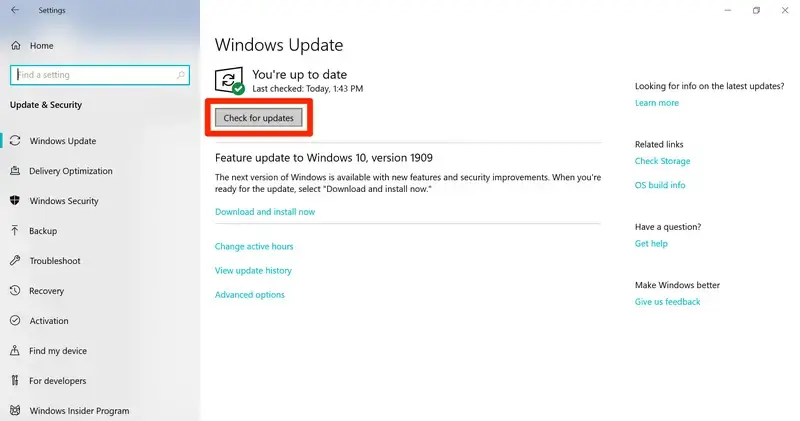
  • Go to Windows Update in the left menu bar. 
Windows update
  • Select Check for Updates to see whether the Windows updates are available. 
  • If the updates are available, click on Download & Install. The system will automatically download and install Windows updates.
  • Once completed, restart your computer to apply the changes. 

2. Repair the Microsoft .NET Framework component

Repair the Microsoft .NET Framework component to ensure it does not interact with the software incorrectly, which can hamper software installation or other processes and cause Windows Installer error 61686. 

  • Close any programs that are currently running.
  • Open the Windows Start menu.
  • Search for the Control Panel and open it.
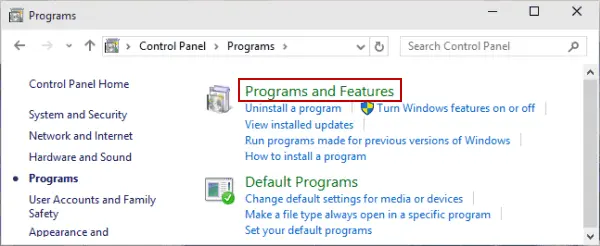
  • Navigate to Programs and Features.
Programs and Features
  • Click Uninstall a program (you won’t actually remove anything).
  • Select Turn Windows features on or off.
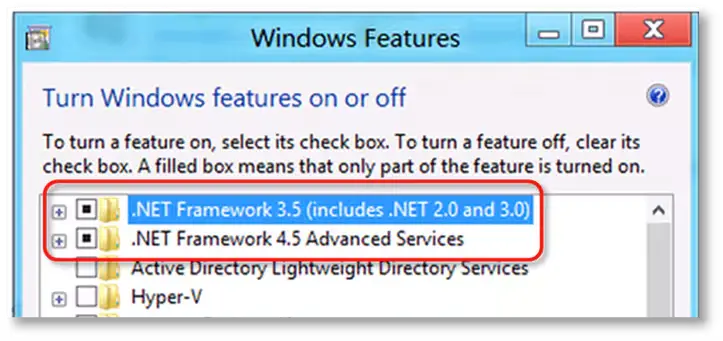
  • Locate .NET Framework in the list.

Review the settings for both .NET Framework 4.5 (or newer) and .NET Framework 3.5 SP1.

Note: The procedure is the same for .NET Framework versions 4.5 through 4.8.

a. Check NET Framework 4.5 (or later)

If you haven’t selected the checkbox for .NET Framework 4.5 (or later):

  • Mark the checkbox for .NET Framework 4.5 (or later) to enable it.
  • Click OK to save your changes.
  • Restart your computer.

If the checkbox for .NET Framework 4.5 (or later) is already selected: 

  • Mark the checkbox .NET Framework 4.5 (or later) to turn it off. Make sure not to turn it back on. 
  • Click OK to save the changes.
  • Restart your computer.
  • When signed back in to Windows, follow the steps on your screen to enable .NET Framework 4.5 again.
Windows Features

b. Check NET Framework 3.5 SP1

If you haven’t selected the checkbox for .NET Framework 3.5 SP1:

  • Mark the checkbox for .NET Framework 3.5 SP1 to turn it on.
  • Click OK to save the changes. 
  • Restart your computer.

If the checkbox for .NET Framework 3.5 SP1 is already checked:

  • Mark the checkbox for .NET Framework 3.5 SP1 to disable it. Make sure not to turn it back on. 
  • Click OK to save your changes.  
  • Restart your computer.
  • When you sign back in to Windows, make sure to turn the .NET Framework 3.5 SP1 back on.

If you encounter an error while enabling or disabling the .NET Framework, contact an IT specialist or Microsoft for assistance. The problem may be related to your operating system rather than QuickBooks.

3. Repair QuickBooks Desktop

Let’s repair the incorrect installation or damaged program files of QuickBooks Desktop: 

Note: You must download and install QuickBooks Tool Hub (1.6.0.8) to the latest release. 

a. Run Quick Fix my Program 

The Quick Fix my Program closes the background processes that QuickBooks uses, then runs a quick repair on the program:

  • Launch QuickBooks Tool Hub. 
  • Go to Program Problems in the left menu bar. 
  • Click on Quick Fix my Program.
  • Launch QuickBooks Desktop and open the company file. 

b. Run the QuickBooks Install Diagnostic tool 

If the QuickBooks installation went wrong or the program files got damaged, it can cause problems when trying to use it. Fix the common installation issues using the QuickBooks Install Diagnostic Tool.

  • Launch QuickBooks Tool Hub. 
  • Go to the Installation Issues menu. 
  • Click on QuickBooks Install Diagnostic Tool. The tool may take up to 20 minutes to finish; wait until then. 
QuickBooks Install Diagnostic Tool

4. Rename the Framework.xml file

Renaming the Framework.xml resets corrupted configuration settings, forcing QuickBooks to recreate a clean file and restoring proper access to the company file.

  • Close QuickBooks Desktop if it is open.
  • Press the Windows logo key + R to open the Run window.
  • Type %appdata% in the search field and press the Enter key.
  • Open the Intuit folder from the list.
  • Open the QuickBooks (your version) folder.
  • Locate the Framework.xml file in the folder.
  • Right-click the Framework.xml file and select Rename.
  • Change the file name to Framework.old and press Enter.
  • Reopen QuickBooks Desktop to automatically create a new Framework.xml file and resolve framework-related issues.

5. Repair the Microsoft MSXML component

Corrupted Windows components interact with running software incorrectly, hampering ongoing operations such as software installation. Let’s repair the Microsoft MSXML component to fix these related system issues:

Register MSXML if you use a 64-bit operating system

  • Launch the Windows Start menu. 
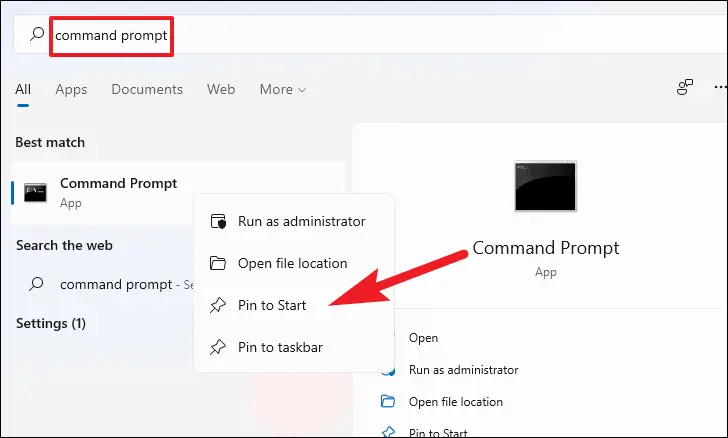
  • In the search field, type cmd
  • Right-click on CMD and choose Run as Administrator.
run as administrator
  • Type cd\windows\syswow64 in the C: prompt. 
  • Now, type regsvr32 MSXML6.dll again and press Enter.
  • When done, try to install QuickBooks Desktop again. 

Register MSXML if you use a 32-bit operating system

  • Launch the Run command by pressing the Windows + R keys together. 
  • In the Run prompt, type cmd and press Enter
  • Type regsvr32 MSXML6.dll again and then press Enter.
  • Install your QuickBooks Desktop again.

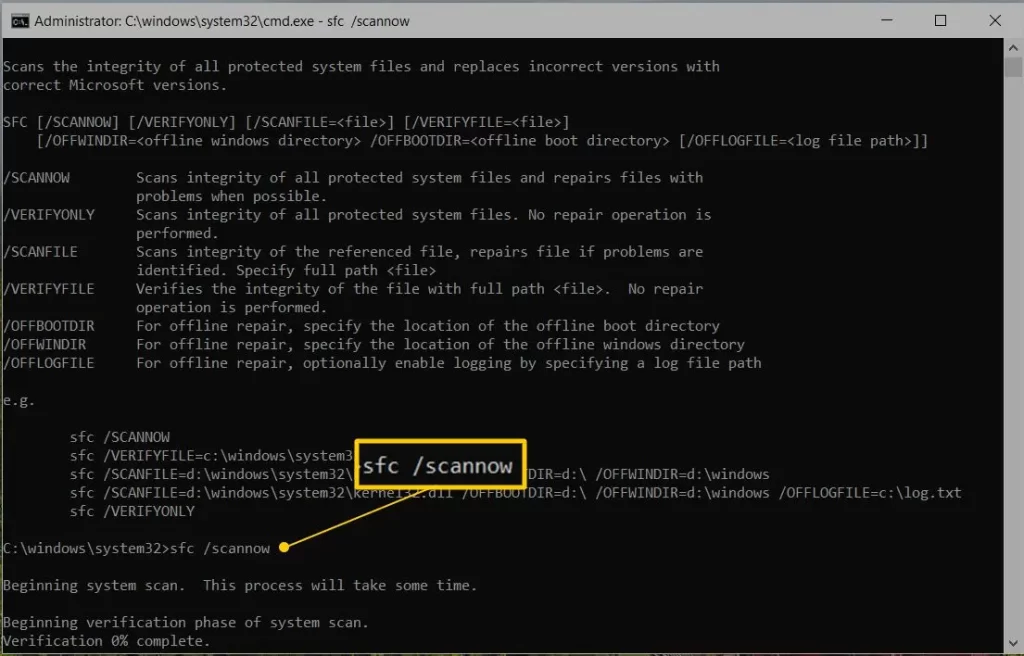
6. Run the SFC scan 

The SFC scan verifies Windows files and folders for possible corruption or damage and runs a quick repair if it detects any issues. 

  • Open the Quick Link menu by pressing Windows + X
  • Choose Command Prompt (Admin) from the menu.
    NOTE: You can also run the System File Checker (SFC) using Windows PowerShell with administrator privileges.
  • When prompted by User Account Control (UAC), click Yes
  • In the command prompt, type SFC /scannow and press Enter.
sfc scannow
  • The System File Checker scans Windows system files for integrity issues and automatically fixes any problems it finds.
  • Once the scan is complete, restart your computer.

7. Update the Windows device drivers

Make sure your system hardware communicates properly with the operating system so it doesn’t interrupt the QuickBooks installation and trigger QB error code 61686. 

  • Right-click the Start menu and choose Device Manager.
  • In Device Manager, click the arrow next to the device type you want (for example, Printers) to see the list of devices.
  • Find the device that needs a driver update.
  • Right-click the device and select Update driver.
  • Choose Search automatically for updated driver software. Windows will look for and install any available updates.
  • If no updates are found, select Search for updated drivers on Windows Update and follow the on-screen instructions.
  • When finished, click Close.

8. Run the Windows Malicious Software Removal tool

The Windows Malicious Software Removal Tools run a scan to identify and remove malicious software that may be preventing necessary system files from functioning or installing properly.

  • Press the Windows logo key + R to open the Run dialog box.
  • Type mrt in the field and press the Enter key.
  • If prompted by User Account Control, click Yes to allow the tool to run.
  • The Windows Malicious Software Removal Tool window will open—click Next to continue.
  • Select the scan type (Quick Scan, Full Scan, or Customized Scan) and click Next.
  • The tool will scan your computer for malicious software. This may take some time depending on the scan type.
  • Once the scan is complete, follow any on-screen instructions to remove detected threats.
  • Click Finish to close the tool after the process is completed.

9. Clean install QuickBooks Desktop

A clean installation of QuickBooks Desktop involves removing or deleting the existing program files and folders and then reinstalling them. This will fix any problems related to a damaged or corrupted installation, resolving QB error 61686 and ensuring smooth updates. It also restores stability, improves performance, prevents conflicts, and safeguards the integrity of company data.

Conclusion 

A fresh software installation or QuickBooks updates are both crucial, but can be challenging if you are getting QuickBooks error 61686. Updating Windows, repairing the Microsoft .NET Framework, repairing QuickBooks Desktop, and taking other steps will help you resolve the error promptly.

If you get stuck or need further assistance, consult QuickBooks professionals at QuickBookSupportNet. Dial +1(866)500-0076 to talk to a QB ProAdvisor now!

Frequently Asked Questions 

What is error 61686 when installing QuickBooks Desktop? 

Error 61686 during QuickBooks Desktop installation is an EXEAdapter error, typically caused by damaged Microsoft .NET Framework components, a corrupted Framework.xml file, or malicious or virus interference. 

What to do when the QuickBooks installation fails?  

When the QuickBooks installation fails, immediately restart your computer, run different tools such as Quick Fix my Program or QuickBooks Install Diagnostic tool from the Tool Hub. Moreover, make sure Windows is compatible and up to date, and then try reinstalling QuickBooks Desktop again. 

Why won’t my QuickBooks update install?

QuickBooks updates may fail to install due to network instability, insufficient administrative permissions, firewall/antivirus interference, or corrupted installation files.

How do I fix QuickBooks Desktop installation errors?

To fix QuickBooks Desktop installation errors, restart your computer, update Windows, run the SFC scan, use tools in QuickBooks Tool Hub such as Quick Fix my Program and QuickBooks Install Diagnostic tool, repair Windows components, and then try to install QuickBooks Desktop again.

About The Author

Lana Creston

Lana Creston is an experienced technical and accounting writer with a total of 9 years of experience. She currently works on QuickBooks accounting and technical guides at QuickBookSupportNet. Lana has a passion for reading and writing about various technical topics, especially exploring new accounting methods and software, while continuously expanding her expertise in the ever-evolving field of finance and technology.

Quick, clear, and hassle-free QuickBooks assistance.

Get a Free Consultation with Our QB Tax Experts
Connect with Our Certified QuickBooks Professionals - Dial Tollfree: +1(866)500-0076