Set up Chart of Accounts in QuickBooks & learn Import/Export

Jan 6, 2026

Admin |

Estimated Read Time : 5 MIN

Setting up a chart of accounts in QuickBooks is an expensive task. In this guide, you will learn how to set up a chart of accounts along with the import and export of data. Business owners, accountants, and freelancers have been looking for a complete guide on the chart of accounts in QuickBooks, and with this fact in mind, we carefully crafted this blog to provide you with concrete information and solutions. 

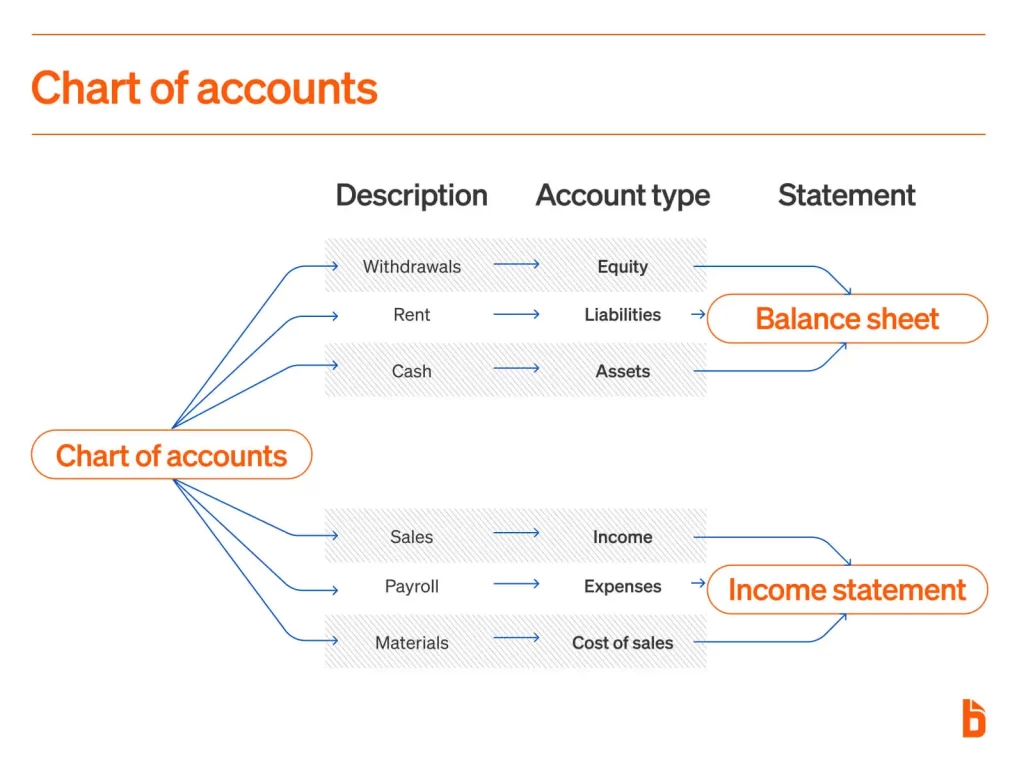
Chart of accounts

We usually update our pages regularly with the updates from Intuit. You can bookmark this guide for further use! 

What is Chart of Accounts?

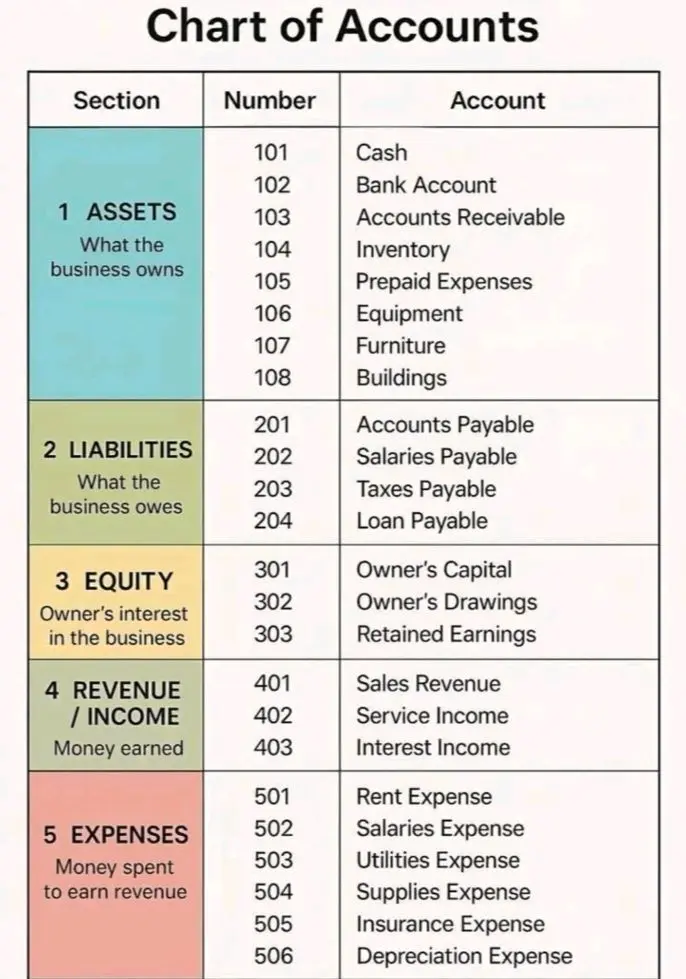
A chart of accounts is a list of the financial account numbers and names mentioned in the company’s general ledger. In the chart of accounts, there are four categories: assets, liabilities, income, and expenses.

Chart of account List

If you really want to understand the balance sheet and income statement, you would first understand the components that comprise the chart of accounts.

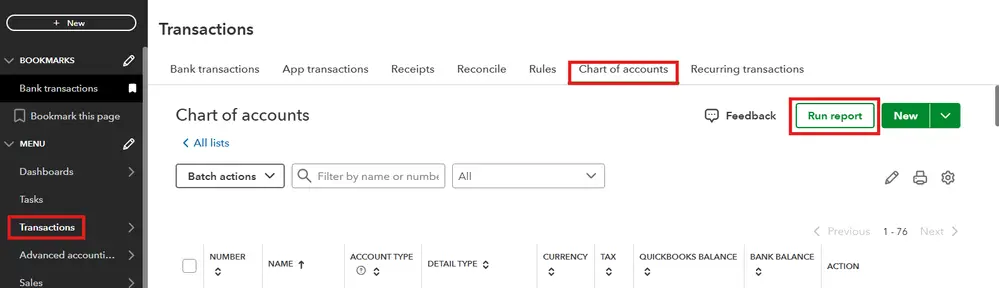
How to export the chart of accounts in QuickBooks?

  • Navigate to the Transactions.
  • Choose Chart of Accounts and click Run report.
Choose Chart of Accounts and click Run report
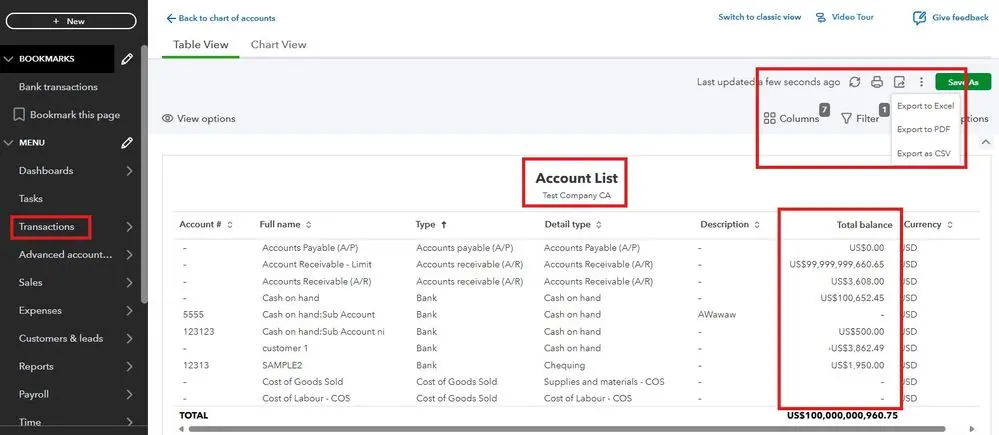
  • Customize the required details and then click on Export icon.
  • Now, click on Export to Excel.
click on Export to Excel

The Chart of Accounts organizes a company’s assets, liabilities, income, and expenses. If you are looking to add an account, edit an existing account, or edit an account’s history, follow this guide till the end! 

Import your chart of accounts to QuickBooks Online 

Step 1: Format your spreadsheet

  • Using an Excel CSV file, you can import your chart of accounts. In this guide, we will share with you the simple steps so you can import the chart of accounts to your QuickBooks.
  • Open your existing spreadsheet of accounts.
  • Or, you can create a new one.
  • Ensure to have these columns in your spreadsheet:
Account NameType Detail TypeNumber
  • In case you use numbers to set your accounts, it is necessary to add an Account Number column. You can simply skip if you do not use account numbers.
  • You can add a Currency column if you have different currency accounts.
  • Having a subaccount? You can add it in the account name column with the format: Main account: subaccount.
  • Is everything good to go? You can save your spreadsheet in Excel or CSV format
 Account Number Account Name TypeDetail Type
 112720Checking Account-Bank of AmericaBankChecking
Money Market – First National Bank BankMoney Market
410790Product Sales Revenue IncomeSales of Product Income
500780Cost of Materials Cost of Goods SoldSupplies & Materials

Step 2: Upload your spreadsheet

  • Log in to your QuickBooks Online account.
  • Click on Settings and select Import Data.
  • Click on Chart of Accounts.
  • Wants to upload a file?:
  • In your PC, browse the file and choose it. Then, open the file.
  • In Google Sheets, click on Connect to log in to your Google account.
  • Now, select the required file and then click on Select.
  • Finally, hit Next

Step 3: Map your spreadsheet fields to QuickBooks fields.

Map your account once you upload your spreadsheets. This results in the correct import of the data.

Click on the Your File drop-down and match the names to the QuickBooks Online field for:

Detail Type Account NameAccount NumberType Currency

You can select No Match with the exception of Account Name if there is a field that do not match the column in your spreadsheet. 

Step 4: Review and import your accounts

  • Give a final watch before you import your accounts.
  • Ensure to add accounts and detail types.
  • If there is a red-highlighted field, take your cursor there and check what needs to be fixed.
  • Now, you can uncheck any account that must not be saved or deleted.
  • Click on Import if you find everything good.

Step 5: Enter opening balances for accounts 

  • Navigate to the Settings and click on the Chart of Accounts.
  • Fetch your credit card and bank account.
  • Click on the Action drop-down and click on Edit.
  • You can choose the time to start tracking your finances.
  • Enter the amount in your account column and determine the as-of date in the Balance field.
  • Finally, click on Save.

Delete the chart of accounts in QuickBooks Online

If you are looking to delete the chart of accounts, follow the steps shared: 

  • Click on the gear icon.
  • Select Chart of Accounts under the Your Company section.
  • Select the account that you want to delete.
  • In the Action column, choose the drop-down and click on the Delete button.
  • Finally, click on Yes and delete the required file.

Set up a chart of accounts using the QuickBooks Online template

Your chart of accounts is a set of lists that comprise your company’s accounts and balances. 

Step 1: Download the QuickBooks Online template

Download the QuickBooks Online template

  • Navigate to Bookkeeping and click onthe Chart of Accounts.
  • Select Import using the drop-down arrow.
  • Click on Download a sample file.
  • Explore the template 

Now, you are required to choose the template as per your requirements. This would help you in improving accuracy and save your time setting up your chart of accounts. 

  • Customize the account
  • Let us customize the chart of accounts! What you need to do is:
  • Add new accounts and rename the template.
  • Kee your file type as .xlsx or .csv. 

Setting the account hierarchy 

  • Your header will be the Name of your new account.
  • In the row, you are required to copy the header name and add a colon at the end.
  • In the same row, after the colon, add the sub-account name.
  • You can use the same account type for both accounts. 
Setting the account hierarchy

Fixing and resolving import errors

ErrorHow to fix
Account numberUse a unique number for this account.
Account nameUse a unique name for this account.
Account typeChoose an option from the preset list to ensure this account is set up correctly.
Detail typeChoose an option from the preset list to ensure this account is set up correctly.
Tax rateChoose an option from the preset list to ensure this account is set up correctly.
CurrencyChoose an option from the preset list to ensure this account is set up correctly.
Opening balanceUse a number value for this field, or leave blank if no balance is needed.
DateWe don’t recognise that date format. Double-check the details and try again.

Sample accounts for your new chart of accounts

Account nameAccount TypeDetail Type
Billable Expense IncomeIncomeService/Fee income
Contractor Expenses (non-salary)ExpensesExternal services
FBT LiabilitiesCurrent liabilitiesBAS payable
Freight & Delivery – COSCost of SalesShipping, Freight and Delivery – COS
Fuel & oilsExpensesAuto
Gas and electricityExpensesUtilities
Gifts and donationsExpensesCharitable contributions
GST Liabilities PayableCurrent liabilitiesBAS payable
InsuranceExpensesInsurance
Interest expenseExpensesInterest paid

Conclusion

This guide brought you exclusive information and solutions on the chart of accounts in QuickBooks. Since we have covered the setup and import/export of the chart of accounts in QuickBooks, you can click on the link to get the details of how to delete the chart of accounts in QuickBooks.

For more information related to QuickBooks, contact our senior QuickBooks specialist from QuickBookSupportNet at Call Us : +1(866)500-0076.

Frequently Asked Questions

1. What is a Chart of Accounts in QuickBooks?

A chart of Accounts is a list of accounts that every business needs to categorize their transactions as assets, liabilities, income, expenses and equity. The Chart of Accounts is considered the backbone of the business. With the Chart of Accounts, you can outdo your financial goals. 

2. How do I set up a Chart of Accounts in QuickBooks Online?

Follow the steps to share the Chart of Accounts in QuickBooks Online:

  • Go to Settings and click on Chart of Accounts.
  • Now, choose New and then select the account type, detail type, and name.

You can base your setup on a sample chart of accounts for QuickBooks or an industry-specific preset such as construction, property management, or rental properties.

3. Does QuickBooks offer a Chart of Accounts template?

Yes. QuickBooks provides built-in Chart of Accounts templates. You can also download or create a QuickBooks Chart of Accounts template in Excel for bulk editing or importing. Industry-specific samples like non-profit, construction, or property management are available as well.

4. How do I import a Chart of Accounts into QuickBooks Online?

If you are looking to import a Chart of Accounts in QuickBooks Online:

  1. With an Account Name, Type, detail type, and number, prepare an Excel or CSV file.
  2. Now, click on Settings and select Import Data.
  3. Select Chart of Accounts and upload your file.

5. How do I export the Chart of Accounts from QuickBooks or QuickBooks Online?

If you are looking to export the Chart of Accounts in QuickBooks Online, apply the shared steps below:

  1. Click on the Settings.
  2. Select Chart of Accounts.
  3. Click on Run Report and then Export to Excel.

For QuickBooks Desktop:

  1. Open Chart of Accounts.
  2. Click on Reports and select Account Listing.
  3. Now, export it to Excel or create a PDF

If you create a PDF, it would help you when you need a QuickBooks Chart of Accounts list PDF. In another case, when you want to migrate your data.

6. How do I print the Chart of Accounts in QuickBooks Desktop or Online?

For QuickBooks Desktop:

  1. Click on the Reports and select List.
  2. Now, select Account listing and finally hit on Print.

For QuickBooks Online:

  1. Open the chart of Accounts.
  2. Click on Run Report and hit Print.

It would help you in getting a hard copy for reviews or audits. 

7. How do I delete a Chart of Accounts in QuickBooks Online?

You cannot delete accounts entirely, but you can make an account inactive. To delete/inactivate a Chart of Accounts in QuickBooks Online, click the gear icon next to the account, then select Make Inactive. This keeps historical data intact but removes the account from active use.

8. How do I edit the Chart of Accounts in QuickBooks Online?

It is easy to edit the Chart of Accounts in QuickBooks Online:

  • Go to Settings and click on Chart of Accounts.
  • Select Edit and then adjust the name, account number or detail type
  • This would help you in customizing your Chart of Accounts numbering or renaming categories. 

9. How do I merge accounts in the QuickBooks Online Chart of Accounts?

You can easily merge accounts in QuickBooks Online. Simply edit one account and change its name to exactly match the account you are looking to merge it with. Once you do so and click on Save, QuickBooks will ask you to confirm the merge of the accounts. Additionally, this would help you in cleaning up any duplicates available after the import of data. 

10. Can I have sample Chart of Accounts examples for QuickBooks?

QuickBooks provides several sample Chart of Accounts options:

  • Sample non-profit Chart of Accounts
  • Construction company Chart of Accounts
  • Property management Chart of Accounts
  • Rental Property Chart of Accounts

You can also find downloadable QuickBooks Chart of Accounts examples, templates, and lists in Excel or PDF to guide your setup.

About The Author

Lana Creston

Lana Creston is an experienced technical and accounting writer with a total of 9 years of experience. She currently works on QuickBooks accounting and technical guides at QuickBookSupportNet. Lana has a passion for reading and writing about various technical topics, especially exploring new accounting methods and software, while continuously expanding her expertise in the ever-evolving field of finance and technology.

Quick, clear, and hassle-free QuickBooks assistance.

Get a Free Consultation with Our QB Tax Experts
Connnect with Our Certified QuickBooks Professionals - Dial Tollfree: +1(866)500-0076