What Causes QuickBooks Error 15106 & How to Fix it?
Feb 17, 2026
Admin |
Estimated Read Time : 5 MIN
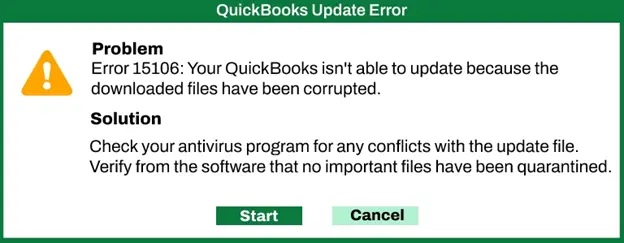
Keeping QuickBooks up to date is important, especially when you are running payroll or managing daily transactions. But sometimes, while updating, you may suddenly see QuickBooks Error 15106 on your screen. It usually pops up with messages like:
Error 15106: The update program cannot be opened
Error 15106: The update program is damaged
This error typically shows up when your antivirus blocks the update process or when you are not logged in as the Windows administrator. The good news? It is fixable. Let’s walk through the right solutions to fix error 15106 in QuickBooks Desktop and get your updates running smoothly again.
Look for the folder named downloadqbXX, where XX represents your QuickBooks version year.
Right-click the folder and choose Rename.
Add .old as an extension at the end, for example: downloadqb18.old.
Once done, reopen QuickBooks Desktop and try updating again.
Additional Tip: Reinstall in Selective Startup Mode
If you are still facing QuickBooks Error 15106 and there’s no antivirus installed, the issue may be caused by background programs interfering with the update.
In that case:
Switch Windows to Selective Startup mode.
Reinstall QuickBooks Desktop.
Then attempt the update again.
This process prevents other applications from blocking QuickBooks updates.
Update your QuickBooks Version: QuickBooks Desktop for Windows
Check Your Current Version
Before updating, confirm whether you are already on the latest release to prevent Error Code 15106 in QuickBooks Desktop.
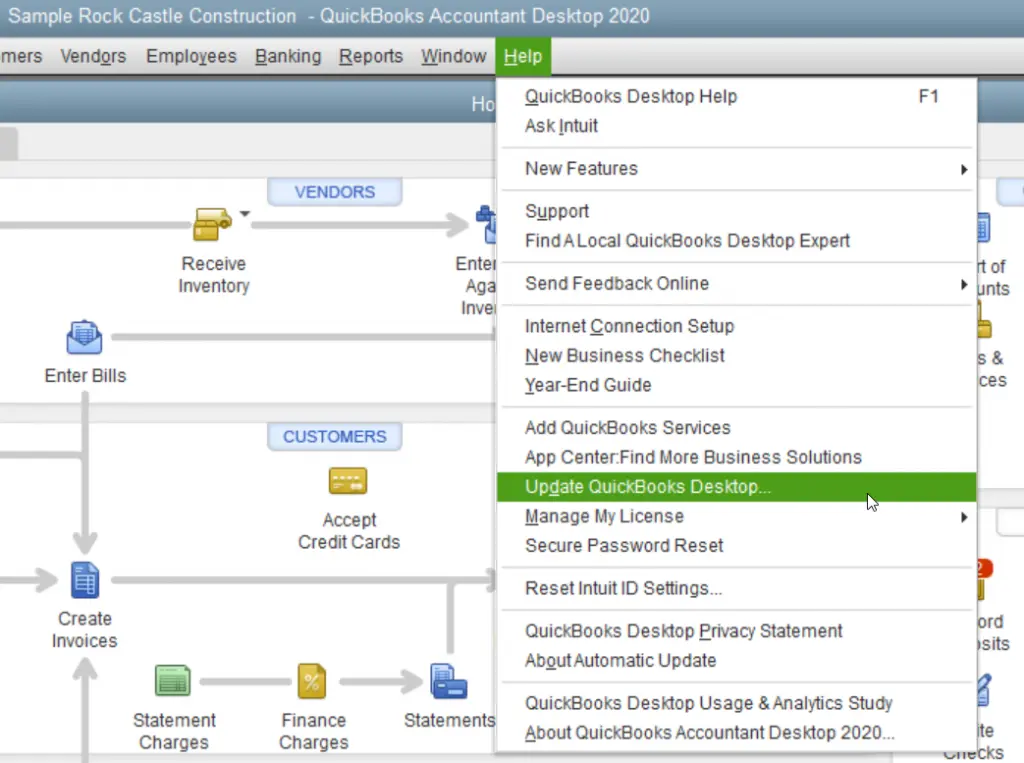
Launch QuickBooks Desktop.
To open the product information window, press F2 or use Ctrl + 1.
Check your current version and release number.
Compare it with the latest available release:
QuickBooks 2024: R18_60
QuickBooks 2023: R17_35
If the application you are using is outdated, proceed with the update.
If you use Database Server Manager, ensure that it is updated as well.
QuickBooks Desktop for Mac
Check Your Release
Open QuickBooks Desktop for Mac.
To open the Product Information window, press Command + 1.
Compare your release number with the latest version:
QuickBooks Mac Plus 2024: R10.2.
QuickBooks Mac Plus 2023: R7.6.
If your version is outdated, update it using one of the methods below to resolve error 15106 in QuickBooks Desktop.
Update Within QuickBooks
Navigate to the QuickBooks menu.
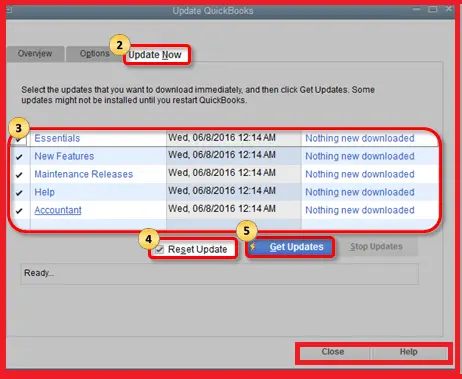
Click on Check for QuickBooks Updates, then select Install.
Finally, you can relaunch QuickBooks.
To avoid this QuickBooks Desktop Error Message Code 15106 in the future, choose the option to automatically download and install updates.
Update QuickBooks Desktop for Mac Manually
If the in-product update doesn’t work or the release number doesn’t change:
Go to the QuickBooks Downloads & Updates page.
Select the standard setup.
Choose your Country, Product, and Version (Year).
Click Search.
Select Get the latest updates.
Open the downloaded file and install it.
Restart your computer.
Conclusion
We believe that the QuickBooks Error 15106 is fixed, and you must be running your payroll smoothly. However, in any case, if you are still struggling to resolve the QuickBooks Error code 15106, contact our senior QuickBooks expert at +1 (866) 500-0076.
There is no reason to take any risk by yourself since these solutions are enough to prove that the error requires an advanced solution from an expert. If the standard solutions did not work, rest assured, our team will take care of everything related to the QuickBooks error. Also, ensure that you are updating your QuickBooks software regularly.
Frequently Asked Questions
What is QuickBooks Error 15106?
QuickBooks Error 15106 usually appears when you try to update QuickBooks Desktop or download a payroll update. The error message may say:
The update program cannot be opened, or
The update program is damaged.
This typically happens when your antivirus blocks the update file or when you are not logged in as the Windows administrator.
Why does error 15106 occur in QuickBooks Desktop?
There are a few common reasons behind this issue:
You are not signed in as a Windows admin user.
Your antivirus software is blocking the QuickBooks update.
The update folder (downloadqbXX) is damaged.
Background applications are interfering with the update process.
Identifying the exact cause helps you fix error 15106 in QuickBooks Desktop more quickly.
Is it safe to rename the downloadqbXX folder?
Yes, it is safe. Renaming the folder by adding .old does not delete your company data. It simply allows QuickBooks to create a new update folder.
Do I need to reinstall QuickBooks to fix error 15106?
In most situations, you would not need to reinstall QuickBooks. Running it as an administrator or disabling antivirus software usually resolves the problem. Reinstallation in Selective Startup mode is recommended only if basic steps do not work.
Will this error affect my company file data?
No, QuickBooks Error 15106 only affects the update process. Your company file remains safe. However, you should resolve the issue promptly to keep your payroll tax tables and software up to date.
What should I do if the error still doesn’t go away?
If you have tried all the solutions and the error still appears:
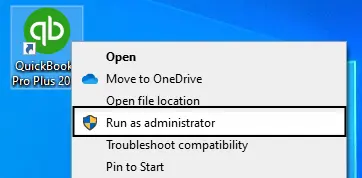
You need to make sure you are logged in as a Windows administrator.
Check that no security software is blocking QuickBooks.
Consider reinstalling QuickBooks in Selective Startup mode.
Reach out to a QuickBooks expert for advanced troubleshooting.
About The Author
Lana Creston is an experienced technical and accounting writer with a total of 9 years of experience. She currently works on QuickBooks accounting and technical guides at QuickBookSupportNet. Lana has a passion for reading and writing about various technical topics, especially exploring new accounting methods and software, while continuously expanding her expertise in the ever-evolving field of finance and technology.
Effortlessly handle data tasks or get expert assistance with: