Steps to Write Off Bad Debt in QuickBooks Desktop & Online

Oct 30, 2025

Admin |

Estimated Read Time : 5 MIN

Wondering how to write off bad debt in QuickBooks and more? Don’t worry, this comprehensive guide discusses the steps on how you can record the unpaid debts owed by your customers in both versions of QuickBooks. 

Dealing with bad debt can be a challenge for businesses, but QuickBooks makes it easier to manage and write off unpaid debts. Whether you’re using QuickBooks Online or QuickBooks Desktop, understanding the correct process is key to maintaining accurate financial records. Let’s dive into the steps for both versions of QuickBooks!  

Learn How to Write Off Bad Debts in QuickBooks Desktop and Online 

With the below instructions, you’ll be able to stay compliant with accounting standards, reduce your taxable income, and ensure your financial statements reflect your true business performance. Let’s dive into the steps to write off bad debts in both versions of QuickBooks!

Read More – QuickBooks Balance Sheet Out of Balance

1. Write Off Bad Debt in QuickBooks Desktop

Let’s write off debt in QuickBooks Desktop with these simple steps: 

a. Add an expense account to track the bad debt

  • Open QuickBooks Desktop. 
  • Go to Lists in the top menu bar. 
  • Choose Chart of Accounts.
  • Select the Account menu and choose New.
  • Click on Expense and then Continue.
  • Enter the Account Name, such as Bad Debt.
  • Finally, select Save and Close.

b. Close out the unpaid invoices

  • Go to the Customers menu. 
  • Select Receive Payments.
Receive Payments
  • Enter your customer’s name in the Received from field.
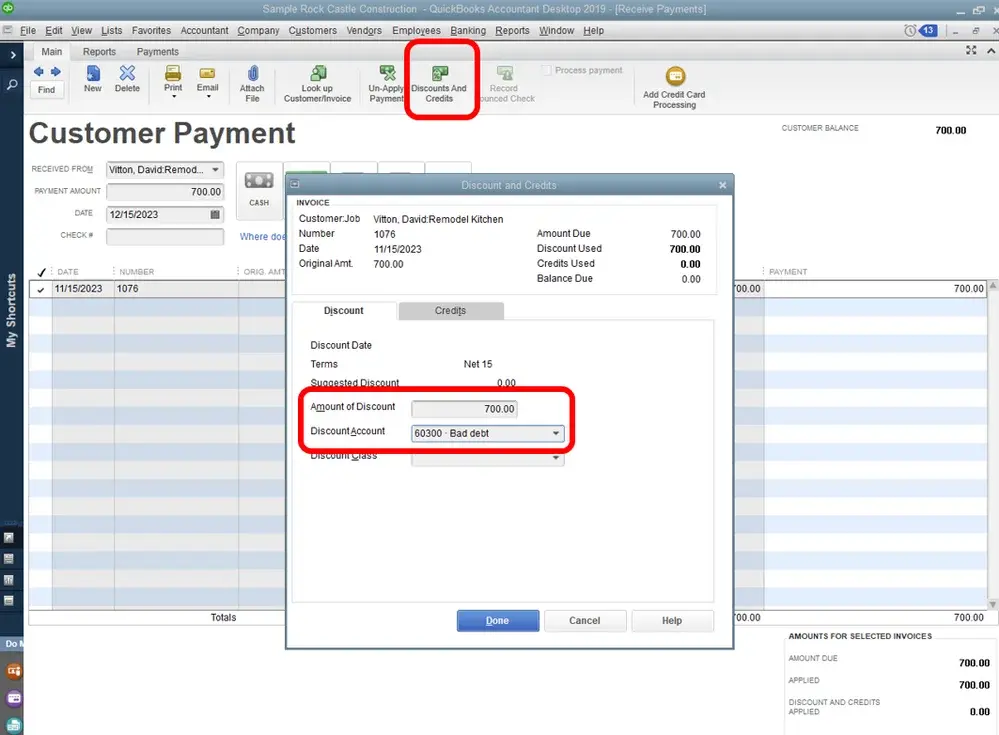
  • Enter $0.00 for Payment Amount.
  • Hit on Discounts and credits.
Clear Unpaid Invoices
  • Enter the amount you wish to write off in the Amount of Discount field.
  • For Discount Account, select the account you just added in Step 1, then click Done
  • Select Save and Close.

2. Write Off Bad Debt in QuickBooks Online 

First, set up the bad debt expense account and features, then record your bad debt in QuickBooks Online. 

a. Check your ageing accounts receivable

Use the Accounts receivable ageing detail report to review other invoices or receivables that must be considered as bad debt.

Follow this link to complete the steps in the product 

  • Look for the Accounts receivable ageing detail report and open it.
  • See which outstanding accounts receivable need to be written off.

b. Create a bad debt expense account

Create a Bad Debts expense account if you haven’t created one already.

Follow this link to complete the steps in product

  • Select New account to create a new account. 
  • Select Expenses from the Account type drop-down.
  • From the Detail type drop-down, choose Bad Debts. 
  • Enter Bad debts in the Account name field.
  • Finally, click Save.

c. Create a bad debt item

You must create a non-inventory as a place-holder for the bad debt. This is not a real item, but it just keeps the accounting balanced.

Follow this link to complete the steps in product 

  • Go to New.
  • Select Non-inventory item.
  • Enter Bad debts in the Name field. 
  • Mark the checkbox for I sell this product/service to my customers.
  • Select Bad debts under the Income account drop-down.
  • Finally, click Save and close.

d. Create a credit note for the bad debt

  • Click on + New or + Create.
  • Choose Credit note.
  • Select your customer under the Customer drop-down.
  • From the Product/Service section, choose Bad debts.
  • Enter the amount you are writing off in the Amount column. 
  • Enter Bad Debt in the Message displayed in the statement box.
  • Finally, click Save and close.

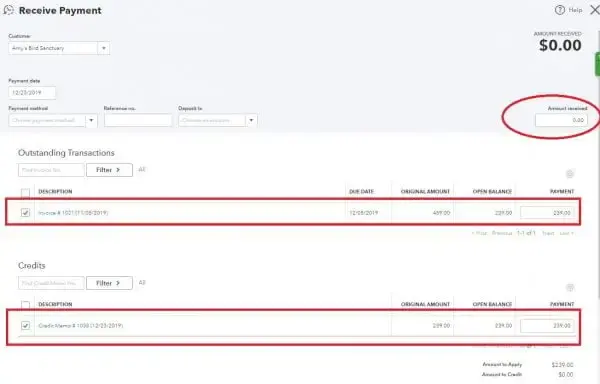
e. Apply the credit note to the invoice

  • Click on + New or + Create.
  • Choose Receive payment under Customers.
  • Under the Customer drop-down, select the customer for whom you are applying the credit note.  
  • Choose the invoice under the Outstanding Transactions section.
  • Go to the Credits section and choose the credit note. 
  • Finally, click Save and close.

f. Run a bad debts report

To check whether all receivables are tagged as bad debt, run an Account QuickReport. Here’s how to do this:

Follow this link to complete the steps in product

  • Select Run report in the Action column of the bad debts account.

Note: You can easily specify a bad-debt entity apart from other customers simply by adding a note to their name. Here’s how to do this:

Follow this link to complete the steps in product

  • Choose your customer’s name. 
  • Click on Edit.
  • Enter Bad Debt or No Credit after the customer name in the Customer display name field.
  • Finally, click Save.

Conclusion 

We are ending this blog with details on how to write off bad debt in QuickBooks Desktop and QuickBooks Online. Hopefully, you have created an account and marked the debt as bad debt in your QuickBooks version for better financial management.

For further assistance, we recommend you consult with QuickBooks professionals. Dial +1(866)500-0076 to talk to an expert right away!

Frequently Asked Questions 

  1. What are bad debts in QuickBooks?  

In QuickBooks, a bad debt is an unpaid amount that is uncollectible and written off as a loss. It occurs when a debtor fails to repay the money due to financial hardship, bankruptcy, or insolvency. Businesses treat bad debts as an expense, which reduces their profit, while for individuals, uncollected debts can negatively impact their credit score.  

  1. Can I write off bad debts in QuickBooks Desktop?

Yes, QuickBooks Desktop allows you to write off bad debts under the Amount of Discount field. You can do it using the Receive Payments feature to record as a discount, allocating that discount to a “bad debt expense” account you’ve set up without actually deleting the invoice. 

  1. How do I find bad debts in QuickBooks? 

To find bad debts in QuickBooks, first run the Accounts Receivable report to identify uncollectible invoices. When done, write them off as a credit memo for each customer and apply it to the outstanding invoice, often by creating a bad-debt expense account and a corresponding item to facilitate the process. 

  1. What type of expense is a bad debt? 

Bad debt is an operating expense, typically categorized as a selling, general, and administrative (SG&A) expense. It represents the amount of money a company has determined it will not collect from its accounts receivable. 

  1. How to record bad debts in QuickBooks Online? 

To record bad debts in QuickBooks Online, you need to review invoices and set up the account using the Accounts Receivable Aging Report. Now, create a credit note for the bad debt, apply it to the invoice, and then run the Bad Debts report.

About The Author

Lana Creston is an experienced technical and accounting writer with a total of 9 years of experience. She currently works on QuickBooks accounting and technical guides at QuickBookSupportNet. Lana has a passion for reading and writing about various technical topics, especially exploring new accounting methods and software, while continuously expanding her expertise in the ever-evolving field of finance and technology.

Quick, clear, and hassle-free QuickBooks assistance.

Get a Free Consultation with Our QB Tax Experts
Connnect with Our Certified QuickBooks Professionals - Dial Tollfree: +1(866)500-0076