How to Fix a QuickBooks Balance Sheet Out of Balance
Jan 26, 2026
Admin |
Estimated Read Time : 5 MIN
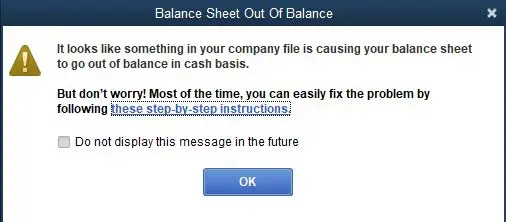
A balance sheet is one of the most critical financial reports in QuickBooks, as it reflects the true financial position of your business at a given point in time. The total value of your assets should always match the combined total of your liabilities and equity. QuickBooks Desktop users encounter situations where the balance sheet goes out of balance, leading to confusion during audits, tax preparation, or financial reviews.
Damaged transactions, incorrect dates, data corruption, or improperly linked accounts results in a QuickBooks balance sheet out of balance. Ignoring this issue can result in misleading financial statements and poor business decisions. From running reports on the correct accounting basis to identifying and repairing problematic transactions, this guide covers everything you need to restore accuracy to your financial statements. Before you begin, it is strongly recommended to create a backup of your company file.
Learn to fix your QuickBooks balance sheet when it is out of balance in QuickBooks Desktop
Now, we are moving forward with the steps to fix the balance sheet issues.
Step 1: Run the report on an accrual basis
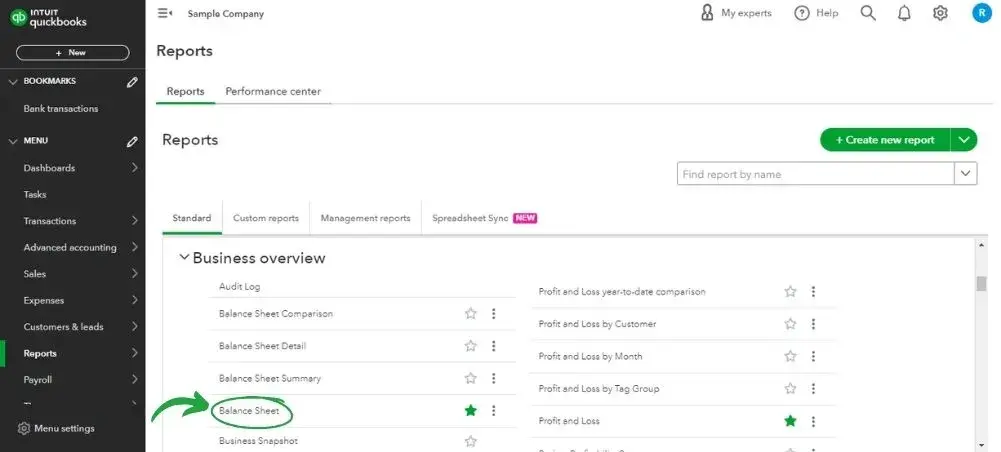
In the Reportsmenu, click on Company & Financial.
Choose Balance Sheet Summary and click on CustomizeReport.
Click on Accrual on the Displaytab.
Finally, hit OK.
You may need to rebuild your company file if your balance sheet is out of balance. Continue to sub-step 2 if it is out of balance on a cash basis only, or if, even after rebuilding, it remains out of balance.
Note:- Ensure whether the balance sheet is out of balance only on the accrual basis or on both cash and accrual basis.
Step 2: When your balance sheet is out of balance, find the date.
Navigate to the Reports menu.
Click on Company & Financials.
Select Balance Sheet Summary and choose CustomizableReport.
Within the Display tab menu, click on Select All in the Dates option drop-down.
Enter the ReportBasis section and select Accrual if your balance sheet is out of balance, or select Cash.
From the Displaycolumns in the Columnssection, choose Year and click OK.
You can make a comparison of your Total Assets Vs. TotalLiabilities & Equity.
Make a check when your balance sheet goes out of balance.
After you find the year, you need to follow the same steps to confirm the exact date.
In step 2, repeat the same steps six times and click on Month from the Displaycolumns’ drop-down.
Repeat sub-step two from 1st to 6th and select the Week.
Repeat the steps again, and this time select Day.
Finally, you can check the date of your report when it went out of balance and continue to step 3.
Step 3: Find the transactions that lead to the balance sheet being out of balance.
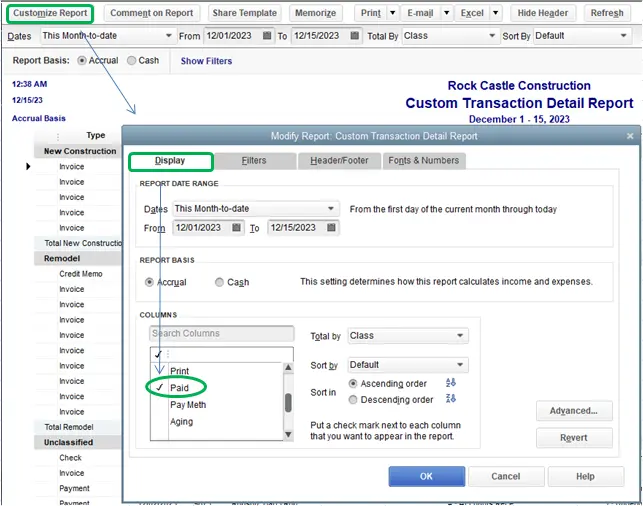
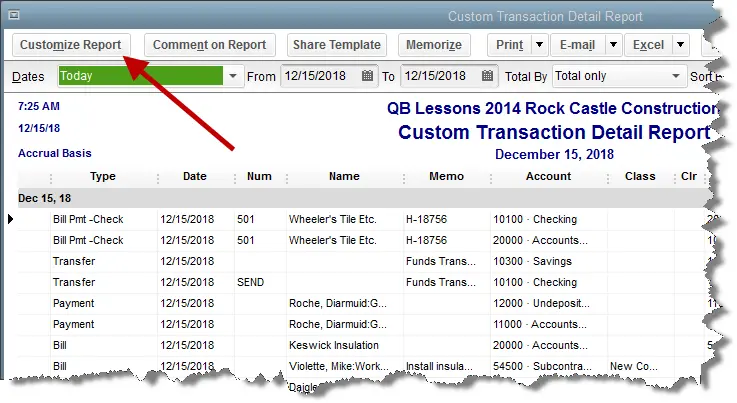
Click on the Reportmenu and choose Custom Report.
Select TransactionsDetail.
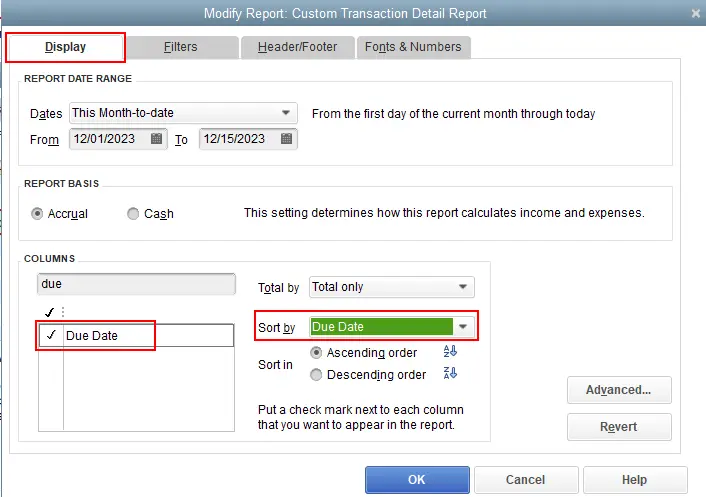
Look for the Report Date Range section on the ModifyReport window.
Select or enter the date you find the report went out of balance in the From and Tofields.
Navigate to the Report Basis section and select Accrual if you find that your balance sheet is out of balance in accrual-only, or you can select Cash.
Uncheck Account, Split, Clr, and Clas in the Columnssection.
When you do so, it will make the report easy to read.
Click on the Paid Amount column and select OK.
The amount that is out of balance should equal the ending balance in the Paid Amount.
You can check the report and find the transaction(s) that would add up to this amount.
Step 4: Re-date the transactions
You can change the dates if you find that the transaction(s) are causing the problem. Note down their current dates.
You can edit the date for each transaction to a day 20years in the future.
Refresh the report after you save each transaction.
In case you found the correct transactions, the paid amount must now be zero after refreshing the report.
You need to locate the transactions that you must have dated in the future, and you could date them back to their original date. Note:- Using and applying these re-dating steps would re-link the transaction and can repair it.
Step 5: Delete and re-enter the transactions
You must delete and re-enter the dates if changing the dates on the transaction(s) failed to fix the problem.
Step 6: Run a Vendor Report
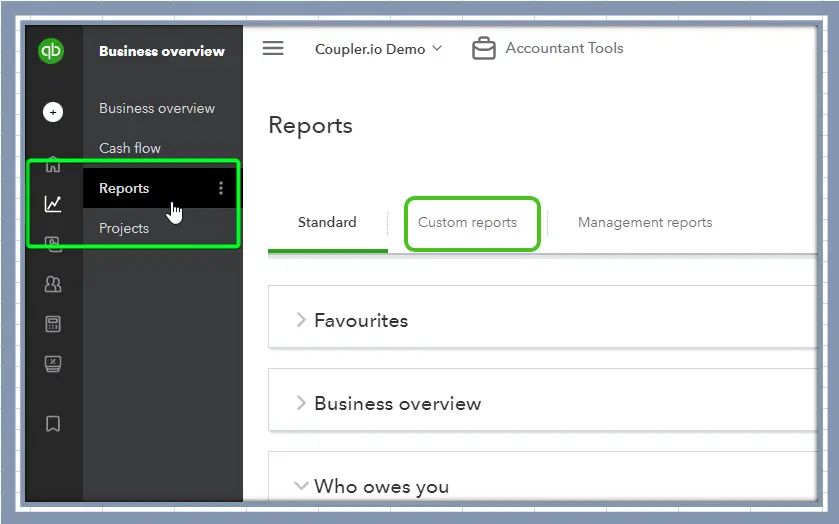
Navigate to the Reports menu.
Click on Custom Reports.
Choose Transaction Detail, and a Modify Report window will open up.
In case it does not open, click on Customizable Report and navigate to the Display tab.
In the Display tab:
Set up your Report Basis to Accrual.
Set up the From and Tofields to the day you found the balance sheet went out of balance.
Frame settings according to Total by Customer.
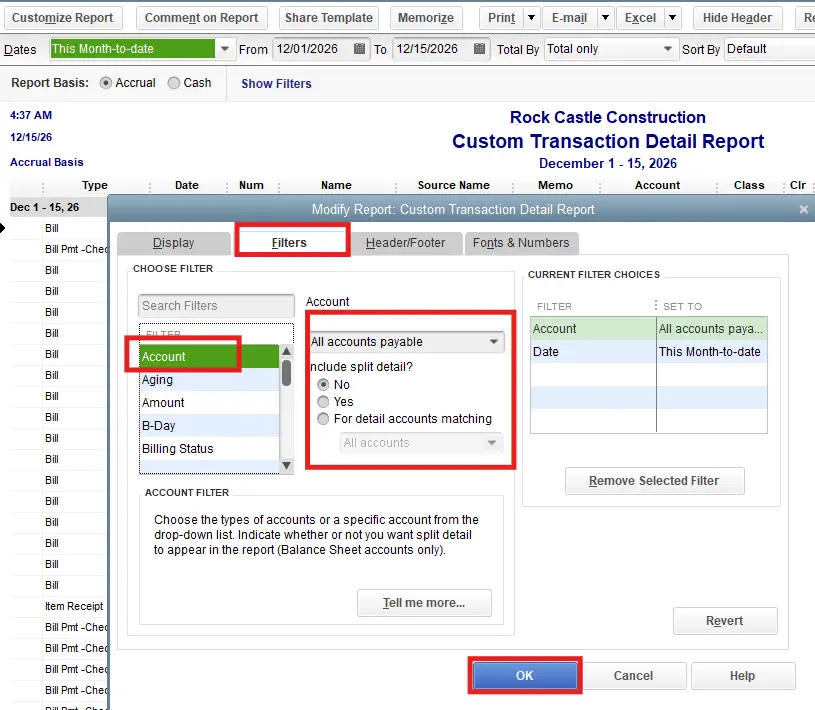
Filter tab:
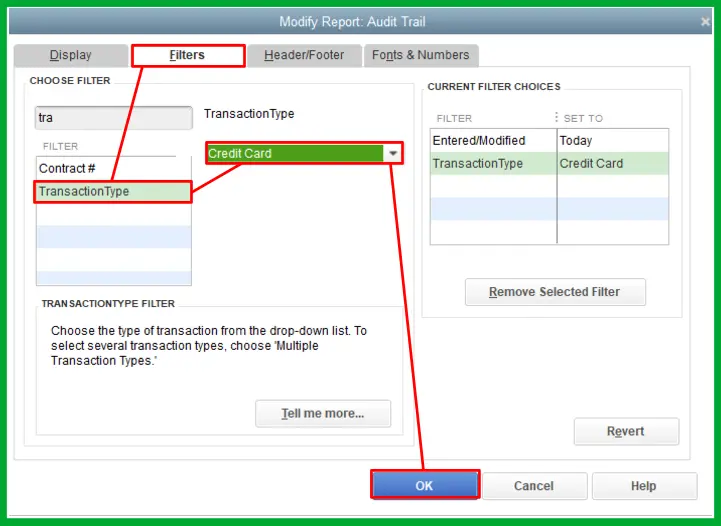
Select TransactionType on the Filterslist.
Click on Multiple Transactions from the Transaction Type drop-down.
Mark Bill, BillCredit, and BillPayment, and finally hit OK.
Find the vendor with a non-zero sub-total, if the total is the amount that leads the Balance Sheet to go out of balance. The concerned vendor has damaged transactions.
You can add other transactions to the Transactions Type filter, such as Journal Entries, if the total is non-zero and not the amount by which the balance sheet went out of balance on this date.
Click on the Reportsmenu and choose Custom Reports.
Click on Transaction Detail.
The Modify Report window will pop up automatically, and if it does not, you can click on CustomizeReport.
Now, navigate to the Displaytab.
With the Displaytab:
Set the Report Basis to Accrual.
Choose all from the Dates drop-down.
On the account list, set it to Totalby.
Mark Item from the Columns list.
Click OK.
Now, navigate to the bottom of the report.
In case the last group of transactions has the Account column blank and has the heading No accnt, these transactions have no accounts assigned to them.
To fix this:
Navigate to the Listsmenu and click on Itemlist.
Select EditItem.
Change the Account type and click OK.
Repeat steps b and c, and change the Account back to the original account.
Click OK and repeat step d for each transaction that does not have an account.
Conclusion
A QuickBooks balance sheet out of balance is a serious and requires complete care when addressed systematically. You already know that maintaining an accurate balance sheet is essential for reliable bookkeeping, tax preparation, and financial planning. Regular data backups, cautious editing of historical transactions, and periodic report reviews can help prevent this issue from occurring in the future.
If the balance sheet still remains out of balance after following all troubleshooting steps, the issue may require advanced data repair. In such cases, you need to contact the QuickBookSupportNet team at +1(866)500-0076. You can save time, protect your data, and ensure your financial records remain accurate and compliant.
Frequently Asked Questions
What is a Balance Sheet?
A balance sheet is a company’s financial statement that shows the company’s financial conditions at a certain point in time. A balance sheet contains details about a company’s assets, its liabilities, and the owners’ stake in the organization.
What happens if I get my data damaged?
If your specific forms of data were damaged, use these steps to recover them:
Backup your QuickBooks company file.
Click on the Listsmenu and choose Chart of Accounts.
Right-click on the option Uncategorised Expense and click on Quick Report.
Click on Customize Report and select All from the Dates drop-down.
Navigate to the Filterstab.
Click on PostingStatus.
Click on Either and hit OK.
Now, continue with repairingeach transaction.
Keep on repeating step 7 to verify each transaction.
Where should I contact if I want to outsource to resolve the QuickBooks Balance Sheet being out of balance?
If you are looking to outsource this error and want your data to be protected while fixing the issue, contact our senior QuickBooks specialist at +1(866)500-0076
How does data corruption affect the QuickBooks balance sheet?
Data corruption can cause transactions to post incorrectly, lose account associations, or appear with blank account fields. This directly impacts balance sheet accuracy. You can fix minor issues by running the Verify and Rebuild Data tool. However, if you are dealing with critical issues, you may require QuickBooks expert from QuickBookSupportNet for data repair services.
What role do journal entries play in a balance sheet out-of-balance issue?
Incorrect or unbalanced journal entries can directly cause the balance sheet to go out of balance. If debit and credit totals do not match on a journal report for a specific date, it means there is a damaged or improperly entered journal transaction that needs rectification.
How can I prevent my QuickBooks balance sheet from going out of balance in the future?
Nobody wants to face such issues, so do you, so in such a case, you need to regularly back up your company file, avoid unnecessary edits to historical transactions and review balance sheet reports periodically.
About The Author
Lana Creston is an experienced technical and accounting writer with a total of 9 years of experience. She currently works on QuickBooks accounting and technical guides at QuickBookSupportNet. Lana has a passion for reading and writing about various technical topics, especially exploring new accounting methods and software, while continuously expanding her expertise in the ever-evolving field of finance and technology.
Effortlessly handle data tasks or get expert assistance with: