Fix QuickBooks POS Invalid Product Number Error | Complete Guide 

Feb 23, 2026

Admin |

Estimated Read Time : 5 MIN

If you’re seeing the QuickBooks POS invalid product number error, it can quickly interrupt your daily sales and create confusion at checkout. This issue usually appears when the product license number entered in QuickBooks Point of Sale is incorrect, expired, or not properly registered. As a result, the software may restrict access or stop certain features from working. 

Understanding why this error occurs is the first step toward fixing it efficiently. In this guide, we’ll explain the common causes behind the invalid product number message and walk you through practical solutions to resolve it and restore your POS system smoothly.

Why I Fail to Activate QuickBooks POS?  

If you can’t activate QuickBooks Point of Sale, the most common reasons are:

  • Incorrect license or product number 
  • License already used on another system
  • Damaged or corrupted qbregistration.dat file 
  • Incorrect installation or damaged program files 
  • Windows admin user might be damaged or doesn’t have enough permissions
  • Possible damage or corruption to the Windows MSXML components 
  • Incorrect date and time settings 

How to Fix the QuickBooks POS Invalid Product Number?

The QuickBooks POS Invalid Product Number error usually appears when QuickBooks Point of Sale cannot recognize or validate an item’s product number (PLU/UPC/ALU). This may happen due to corrupted item data, incorrect settings, barcode issues, or database damage.

Here’s a step-by-step guide to fix it:

1. Change the license number

You don’t need to uninstall and reinstall the software to update the license number. Here’s how to do it:

a. QuickBooks Desktop for Windows

  • Go to the Help menu in QuickBooks.
  • Click Manage My License, then choose Change My License Number.
  • Enter the new license number, select Nextthen click Finish.

b. QuickBooks Desktop for Mac

  • Open the QuickBooks menu and select Manage My License.
  • Choose Deauthorize This Computer.
  • When prompted, click Deauthorize and Quit.
  • Restart QuickBooks and complete the registration steps again, entering the new license number when prompted.

2. Change the QuickBooks product code (Windows users only)

a. Uninstall and then reinstall QuickBooks

If your company uses the Pro, Premier, or Enterprise edition on five or fewer computers, the most effective way to update the product code is to uninstall and then reinstall the software.

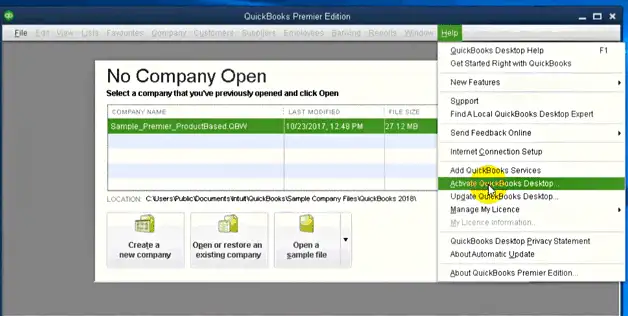
When done, let’s activate your QuickBooks Desktop. 

  • Open QuickBooks Desktop. 
  • Go to the Help menu. 
  • Choose Activate QuickBooks Desktop.
Activate-QuickBooks-desktop
  • Follow the steps on your screen to verify the information. 

b. Manually edit your qbregistration.dat (for QuickBooks Enterprise)

If QuickBooks Desktop Enterprise is installed on five or fewer computers, it’s usually best to use the reinstallation method mentioned earlier. However, if Enterprise is set up on more than five machines, reinstalling on each device may take considerable time.

As an alternative, you can update the product code by modifying the “qbregistration.dat” file. This file stores the product and license information for all QuickBooks versions installed on the computer.

Note: If you’re unsure about making these changes, it’s advisable to consult an IT professional for assistance.

Open your qbregistration.dat file through QuickBooks

  • Open QuickBooks.
  • Press F2 (or Ctrl + 1) and then F3 (or Ctrl + 2) to access the Tech Help window.
  • Go to the Open File tab, choose QBREGISTRATION.DAT, and click Open File. The file will open in Notepad.
  • Back up the qbregistration.dat file before making any changes. This step is critical, as even a small typo can prevent QuickBooks from opening properly.
  • In Notepad, click File and select Save As.
  • Choose Desktop as the location, then click Save.
  • Close the file.
  • Open the file again from the Tech Help window.
  • Exit QuickBooks, but leave the qbregistration.dat file open in Notepad.

Edit your qbregistration.dat file

  • Open the qbregistration.dat file in Notepad.
  • Click Edit, then choose Replace, or press Ctrl + H on your keyboard.
  • Enter your old product number in the Find what field.
  • Type the new product number in the Replace with field, using the format XXX-XXX.
  • Click Replace All to update the entries.
  • Go to File, select Save, and then close the file.

Check your product code

  • Launch QuickBooks.
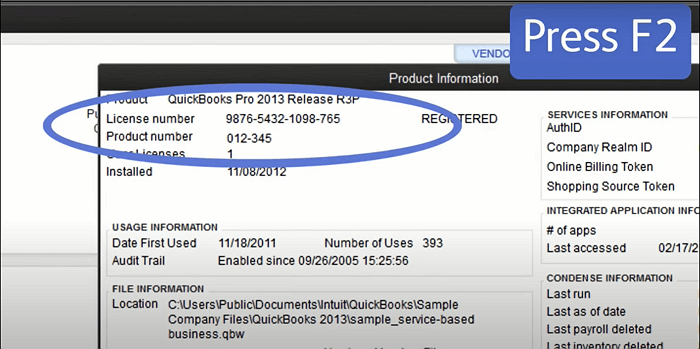
  • Press F2 on your keyboard to open the Product Information window.
License Information and a product key
  • Review the Product Number field to confirm that the new product code appears.

If the product code hasn’t updated, restart your computer and check again. If the old code is still displayed after rebooting, proceed with the reinstallation steps outlined earlier.

3. You have entered incorrect license/product numbers errors

Verify that your license number and product code are correct and correspond to each other.

If you purchased QuickBooks Desktop online:

If you bought QuickBooks Desktop from our website, check your purchase confirmation email for your license number and product code. If you can’t find them, you can sign in to your Customer Account Management Portal to get them.

If you purchased QuickBooks from a retail store:

Check the original CD packaging and look for the sticker that displays the license number and product code.

4. Run the 3371 Error Fix from the Tool Hub 

The 3371 error fix in QuickBooks resolves “Could not initialize license properties” errors (often accompanied by status code -11118) by deleting or resetting the EntitlementDataStore.ecml file. 

Note: Make sure to download and install QuickBooks Tool Hub (1.6.0.8) in the most recent version available. 

  • Exit QuickBooks.
  • Open QuickBooks Tool Hub and choose Installation Issues.
  • Click 3371 Error Fix, then select OK.
  • Relaunch QuickBooks Desktop and open your company file.

5. Repair QuickBooks Desktop

Repairing QuickBooks Desktop fixes the POS “Invalid Product Number” error (often Error 176109) by repairing corrupted installation files, refreshing the entitlement data, and resetting damaged licensing configuration files.

a. Run Quick Fix my Program 

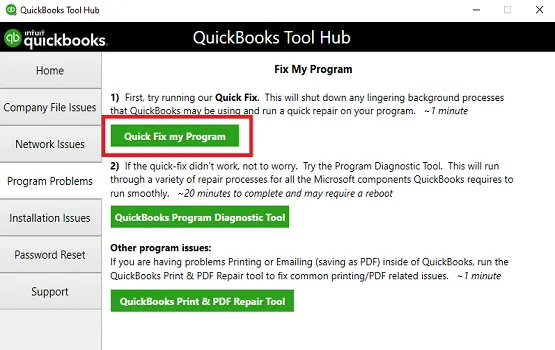
The Quick Fix feature will close any background processes used by QuickBooks and perform a brief repair of the program.

  • Open QuickBooks Tool Hub.
  • Select Program Problems.
  • Click Quick Fix my Program.
Quick Fix my Program
  • Once it completes, launch QuickBooks Desktop and open your company file.

b. Run the QuickBooks Install Diagnostic tool 

If there was an issue during installation, it may cause errors when using QuickBooks. Running the Install Diagnostic Tool can resolve common installation problems.

  • Open QuickBooks Tool Hub and choose Installation Issues.
  • Select QuickBooks Install Diagnostic Tool and allow it to run (this may take up to 20 minutes).
  • After the tool finishes, restart your computer.
  • Open QuickBooks Desktop and access your data file.
  • Update QuickBooks to the latest release to ensure you have the newest fixes and security updates installed.

6. Create a new Windows admin

Creating a new Windows administrator user is a common troubleshooting step to fix QuickBooks license errors, activation failures, and 3371 errors caused by corrupt Windows user profile permissions. 

  • Open the Settings app on your Windows computer.
  • Go to Accounts and select Other users (you can also access this section directly through the Other Users shortcut).
  • Under Add other user, click Add account.
  • Enter the sign-in details for the new user:
    • If the person already has a Microsoft account, type in their email address.
    • If they don’t have one, use their email address to create a new Microsoft account. Enter the email they use most often and choose Sign up for a new email address.
    • If you select I don’t have this person’s sign-in information, you can either create a new Microsoft account or choose Add a user without a Microsoft account to set up a local account.
  • After creating the account, sign out of Windows and log back in using the new user profile.
  • Check if the issue is resolved. If it is, you can continue using the new admin account or delete it and return to your original user profile.

7. Reactivate MSXML

Only proceed with these steps if you’re an IT professional, an experienced Windows user, or working with a Microsoft support specialist. Make sure to follow the instructions that match your system type.

If you have a 64-bit computer:

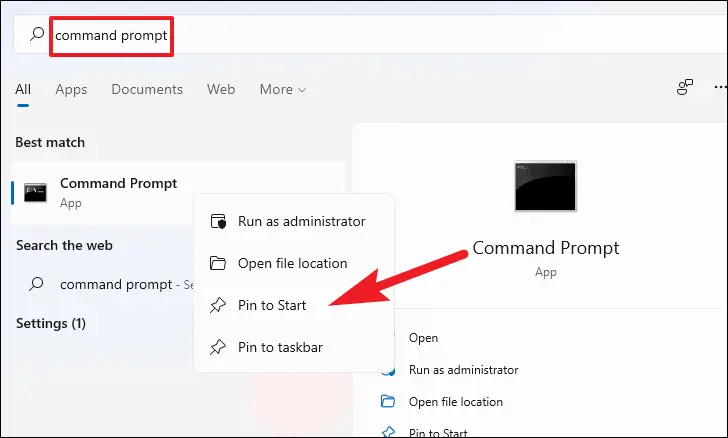
  • Open the Start menu and type cmd.
  • Right-click Command Prompt, then choose Run as Administrator.
run as administrator
  • At the C:\ prompt, type cd\windows\syswow64 and press Enter.
  • Type regsvr32 MSXML4.dll and press Enter.
  • Then type regsvr32 MSXML6.dll and press Enter.

If you have a 32-bit computer:

  • Press Windows key + R to open the Run dialog box.
  • Type cmd and press Enter.
  • Enter regsvr32 MSXML4.dll, then press Enter.
  • Enter regsvr32 MSXML6.dll, then press Enter.

After completing these steps, try activating and opening QuickBooks again. If it launches successfully, the issue should be resolved.

8. Check your date and time settings

Make sure your system has the accurate date and time settings on your computer: 

  • Exit QuickBooks Desktop.
  • On your Windows taskbar, right-click the clock and choose Adjust date/time.
  • Verify that the displayed date and time are accurate. If they’re correct, skip to the next troubleshooting step. If not, proceed with steps 4 through 8.
  • Click the Date & Time tab and update the year to the current one.
  • Click Apply, then OK to save the changes.
  • Reopen QuickBooks Desktop and navigate to the Help menu.
  • Click Activate QuickBooks, then choose Begin Registration.
  • Type in your validation code and click Next to complete the process.

9. Manually activate QuickBooks

Try manually activating your QuickBooks Desktop: 

  • While QuickBooks is running, press Ctrl + P on your keyboard to open the manual activation screen.
  • Type in your validation code.

If the code still won’t go through, proceed to Solution 2.

10. Manage my license

Check and manage your license number again to ensure the activation details are accurate: 

  • Click Help, select Manage My License, then choose Change My License Number.
  • Replace the current license number with all zeros.
  • Skip entering the validation code and click Finish.
  • Go back to Help, then Manage My License, and select Change My License Number again.
  • Re-enter your correct license number. 
  • When prompted, provide the validation code and click Finish to complete the process.

Conclusion 

In conclusion, the QuickBooks POS invalid product number error can interrupt your daily business operations if left unresolved. By identifying the root cause and applying the correct troubleshooting steps, you can quickly restore smooth functionality. 

If the issue persists, contacting a certified QuickBooks ProAdvisor for expert assistance is the best way to ensure a fast and reliable resolution. Dial +1 (866 )500-0076 now!

Frequently Asked Questions 

Why am I getting an ‘invalid product number’ error in QuickBooks POS?

An “invalid product number” error in QuickBooks POS (often Error 176109) occurs during activation due to incorrect license credentials, damaged entitlement files, or a lack of Windows admin rights.

How to fix QuickBooks error 176109 (invalid product number)?

QuickBooks error 176109 (Invalid Product Number) in Point of Sale (POS) is usually fixed by deleting the damaged Entitlement Client folder to reset activation files. Other effective solutions include renaming the WSActivity file to OLDWSActivity, running the QuickBooks Tool Hub, or a clean reinstall of the POS software. 

How do I update my QuickBooks product number?

To update your QuickBooks Desktop product or license number, go to the Help menu, select Manage My License, and choose Change My License Number. Follow the prompts to enter the new information.

Is QuickBooks POS being discontinued?

Yes, Intuit discontinued QuickBooks Desktop Point of Sale (POS) v19.0 on October 3, 2023. All related support, including payments, gift card services, mobile sync, and store exchange, was disabled on that date. While existing software may still run, it no longer receives updates or security patches. 

About The Author

Lana Creston

Lana Creston is an experienced technical and accounting writer with a total of 9 years of experience. She currently works on QuickBooks accounting and technical guides at QuickBookSupportNet. Lana has a passion for reading and writing about various technical topics, especially exploring new accounting methods and software, while continuously expanding her expertise in the ever-evolving field of finance and technology.

Quick, clear, and hassle-free QuickBooks assistance.

Get a Free Consultation with Our QB Tax Experts
Connect with Our Certified QuickBooks Professionals - Dial Tollfree: +1(866)500-0076