Top Ways to Fix the QuickBooks Unable to Create PDF Error
Oct 16, 2025
Admin |
Estimated Read Time : 5 MIN
If you’ve ever faced the frustrating QuickBooks unable to create PDF error, you’re not alone. This issue can disrupt your ability to save and share important documents in PDF format, which is crucial for both electronic record-keeping and communication.
Typically, the error is caused by insufficient permissions or damaged components within QuickBooks, preventing the program from generating PDFs. In this guide, we’ll walk you through the possible reasons behind this error and provide a step-by-step solution to help you get back on track quickly and easily.
Here’s why you might be unsuccessful in saving a file, form, or template as a PDF in QuickBooks Desktop:
General print & PDF repair issues
Incorrect temp folder permissions
Insufficient permission to the QuickBooks components
The form or template you are printing might be corrupted
Outdated or incorrect print spooler service properties
Damaged or not having permissions to the XPS Document Writer
Learn How to Resolve the QuickBooks Unable to Create PDF Error
In this section, we will explore the different methods to resolve the root causes responsible for the QuickBooks unable to create PDF error. Perform these steps with extreme care:
Let’s fix common PDF and temp folder permissions in the steps below:
a. Restart your computer
Restarting a computer fixes QuickBooks PDF issues by closing corrupted background processes and refreshing system resources, allowing QuickBooks to properly utilize the Microsoft XPS Document Writer and other necessary components to generate PDFs.
b. Reset your temp folder permissions
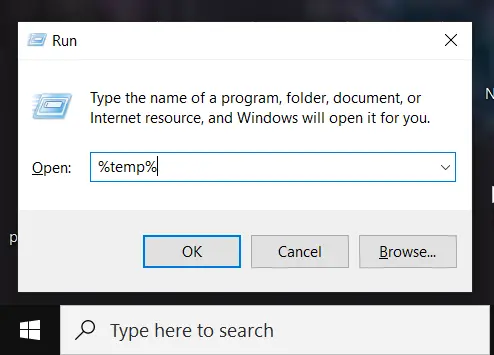
Launch the RUN command by pressing the Windows + R keys.
In the Run prompt, type %TEMP%.
Press the Enter key.
Right-click anywhere on the temp folder.
Choose Properties.
Go to Security.
Make sure all the user names and groups have Full Control in Security.
Once the permission is set to Full Control, try to save a PDF again.
c. Test if you can print to your XPS (only for Save as PDF and Email issues)
QuickBooks utilizes the components of the XPS Document Writer (a Microsoft Windows product) to save files as PDFs. Test to see if you can print or save a PDF using the XPS Document Writer.
Launch Notepad.
Name it as Test.
Go to File and then Print.
Choose the MicrosoftXPS Document Writer.
Click Print.
Note: If you don’t see the XPS Document Writer, you must allow your computer to print to your XPS printer.
Type a filename and save it to your desktop.
Move to your desktop and check the XPS Document you printed using Notepad.
If you fail to print using the XPS printer outside of QuickBooks or when saving a PDF file, you must reach out to an IT professional or QuickBooks ProAdvisor on +1(866)500-0076.
Allow your computer to print to your XPS printer
Open the Windows Control Panel.
Now, switch to Category View.
Go to Programs.
Hit on Turn Windows features on or off in Programs and Features.
Select Microsoft XPS Document Writer in the list of services.
Here’s how to create a new template or form for printing in QuickBooks Desktop:
Create a new template of the form you are printing.
Modify the template on your transaction.
Finally, create a .pdf.
4. Update the Print Spooler service properties
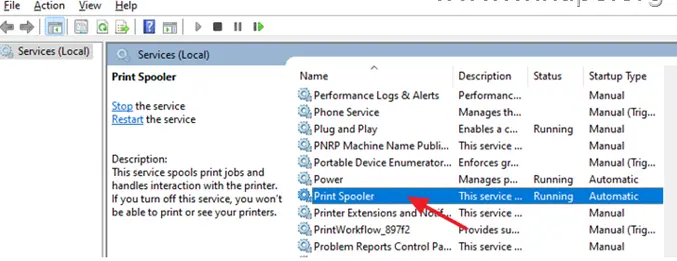
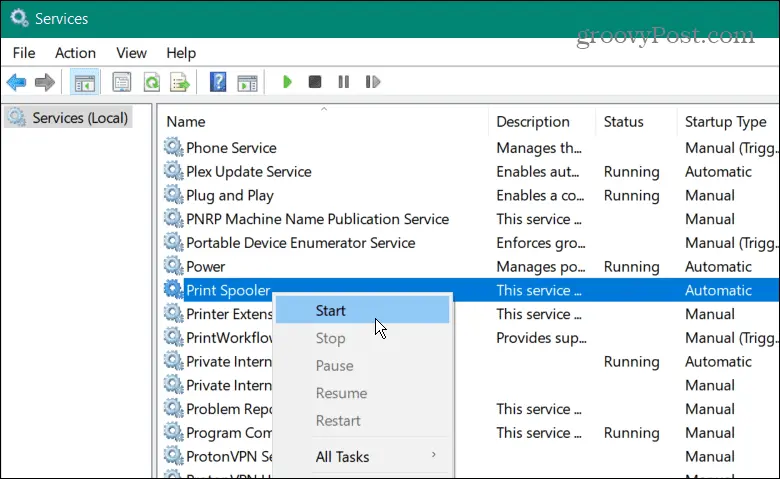
QuickBooks Desktop relies on the Windows Print Spooler service and the Microsoft XPS Document Writer to convert files into PDFs. Let’s update the properties with the following steps:
If the Reconcile window disappears or doesn’t show
If QuickBooks freezes after selecting “Reconcile” from the Banking menu, but PDF functions still work, the reconcile window might be off-screen.
Check all open windows to see if the reconcile window is listed.
Choose Close All and try reconciling again.
If the error persists during reconciliation, seek additional support for unrecoverable errors. For ongoing issues, contact your IT specialist or Microsoft for further assistance.
Test, reinstall, and adjust permissions for XPS Document Writer
Note: These suggestions are only applicable to the Windows OS, not Terminal Services.
If you fail to print using the XPS Printer outside QuickBooks, you must reach out to an IT professional or Microsoft for help.
Here are a few things you must consult an IT professional:
Make sure all the XPS services are enabled.
Press Windows + R to open the Run command.
Type optionalfeatures and click OK.
Look for the Microsoft XPS Document Writer and ensure that it’s selected.
Click OK.
Test the XPS Document Writer and try printing outside QuickBooks.
Modify the security software settings.
Security software like Norton Antivirus or McAfee Firewall may block .xps file creation. Check your security software settings to ensure .xps files are not being blocked.
Adjust user permissions for the XPS Document Writer.
If a Windows user lacks permission to print to the XPS Document Writer, QuickBooks can’t convert to a .pdf. Admin rights may be needed to modify these permissions.
Conclusion
In conclusion, we’ve covered detailed steps on how to fix the “QuickBooks unable to create PDF” error. Printing documents and reports is crucial, whether for sharing with employees, clients, or for manual record-keeping.
If the steps above don’t resolve the issue, it’s time to reach out to a QuickBooks ProAdvisor for a faster, more personalized solution. Dial our +1(866)500-0076 and speak with an expert today for immediate assistance!
Frequently Asked Questions
How to fix QuickBooks detected a component required to create PDF files is missing?
To fix a missing PDF component in QuickBooks, try using the QuickBooks Tool Hub, which includes the PDF & Print Repair Tool, or enable the Microsoft XPS Document Writer in Windows Features.
You can also try running a repair on your QuickBooks installation via the Control Panel.
How to create a PDF on QuickBooks?
Creating a PDF in QuickBooks is a standard function, and the steps depend on whether you are using QuickBooks Online or QuickBooks Desktop. For any form or report, the general process involves using the Print or Download options under any report or document.
How do I fix print and PDF problems in QuickBooks?
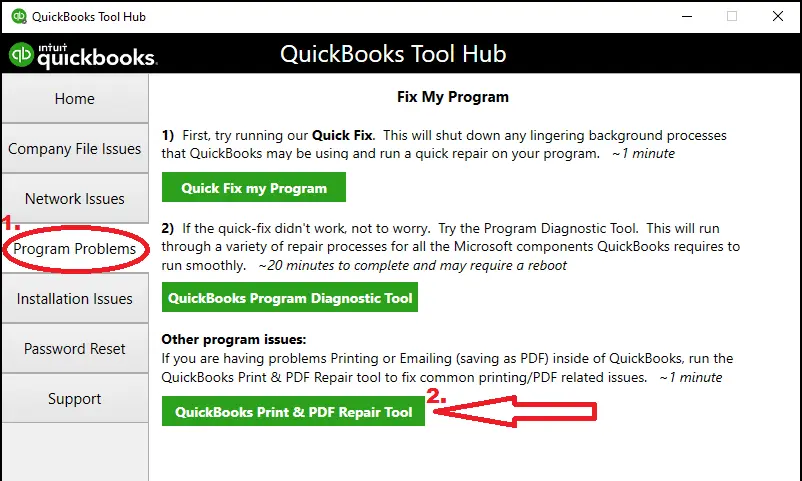
To fix the print and PDF problems in QuickBooks, update Print Spooler service properties, run the QuickBooks Print & PDF Repair tool, reset the temp folder permission, and the corrupted template for the form of the document you are printing.
Why is my QuickBooks not attaching PDFs?
Your QuickBooks is not attaching PDFs due to issues like outdated software, incorrect Online Delivery settings, an incompatible or damaged PDF reader, or system problems like a corrupted temporary folder or printer driver issues.
About The Author
Lana Creston is an experienced technical and accounting writer with a total of 9 years of experience. She currently works on QuickBooks accounting and technical guides at QuickBookSupportNet. Lana has a passion for reading and writing about various technical topics, especially exploring new accounting methods and software, while continuously expanding her expertise in the ever-evolving field of finance and technology.
Effortlessly handle data tasks or get expert assistance with: