A Detailed Guide to Troubleshoot QuickBooks Error H505
May 16, 2026
Admin |
Estimated Read Time : 5 MIN
When hosting a company file in QuickBooks or running other processes, it’s important to meet the specific requirements for smoother performance. Failing to meet these requirements may trigger QuickBooks error H505 in multi-user mode, accompanied by the following warning message:
“This company file is on another computer, and QuickBooks needs some help connecting.“
If you encounter this issue and are unsure how to proceed, refer to this detailed guide or seek help from experts to ensure the hosting mode works smoothly. Otherwise, you won’t be able to collaborate with your team on the same company file over the network.
Top 7 Solutions to Troubleshoot QuickBooks Error H505 When Hosting
If the above steps do not resolve the company file error H505, you will need to perform expert-recommended troubleshooting steps mentioned below in detail.
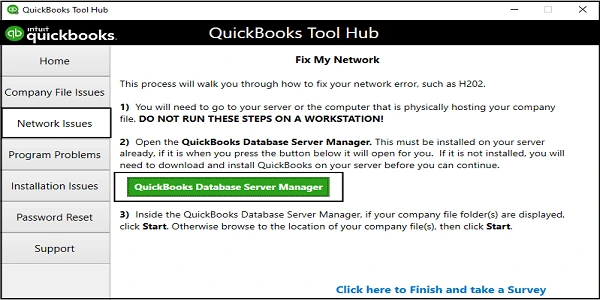
1. Run QuickBooks Database Server
The server computer is your main computer that hosts your company’s files; others are just connected to your network, known as workstations.
Select Start Scan in the QuickBooks Database Server Manager only if you see your company file folder(s). If you don’t, click Browse and locate the company file location and then select Start Scan.
The QuickBooks Database Server Manager will automatically repair the firewall permissions. When done, select Close.
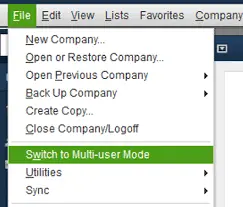
Now, open QuickBooks on each workstation where you error code H505. Go to File > Switch to Multi-userMode. If you are using a server computer as a workstation, make sure to check it too.
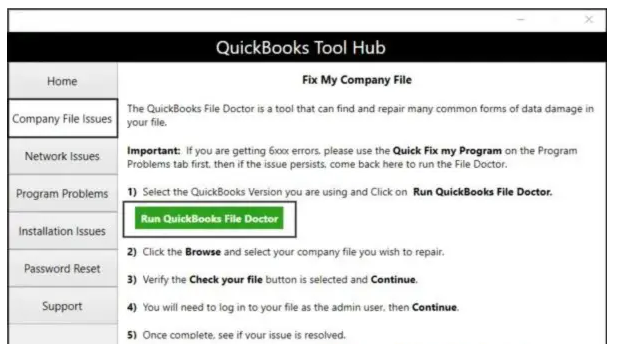
2. Run QuickBooks File Doctor
The QuickBooks File Doctor tool verifies the company file data for possible damage and network connectivity issues. If it detects anything, it also runs a quick repair.
Note: If the QuickBooks File Doctor does not open, type QuickBooks Desktop File Doc in the search and open it manually.
Now, choose your company file from the drop-down menu in QuickBooks File Doctor. If you don’t, click Browse to find your company file.
Select Check your Network > Continue.
Enter the QB admin password to allow the access and click Next.
If you can switch to a multi-user network without any issues, everything if fixed.
3. Make sure the hosting settings are correct
If you see error H505, it means one or more workstations are set to be the server for QuickBooks. The only server is the main computer that hosts your company file, not the connected ones.
Make sure the Host Multi-User option is turned off on all the workstations, as these computers don’t host your company file on the server. The hosting should be turned on only for the server.
Note: Consider doing these steps before opening a company file.
Open QuickBooks on the workstation where you see H505.
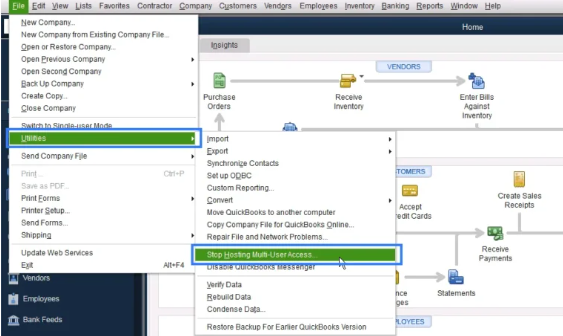
Do not open the company file. Instead, go to File and select Utilities.
If you see the option “Host Multi-User Access,” don’t select it. Go to your next workstation, as this one isn’t causing the problem.
If the option is Stop Hosting Multi-User Access, select it.
Repeat the same steps on all workstations where you see error code H505.
Once you check on all workstations, move to the server computer, as this is the computer that hosts your company file.
Open QB Desktop on the server computer.
Navigate to File and select Utilities.
Select the Host Multi-User Access only; if this isn’t the option, skip it.
4. Check the services on your server
Important for the Full Program option: If you utilize the full version of QuickBooks on your server PC, first turn on multi-user hosting. Open QB Desktop on the server computer. Go to File > Utilities. Select the Host Multi-User Access option, or if you see Stop Hosting Multi-User Access, don’t select it.
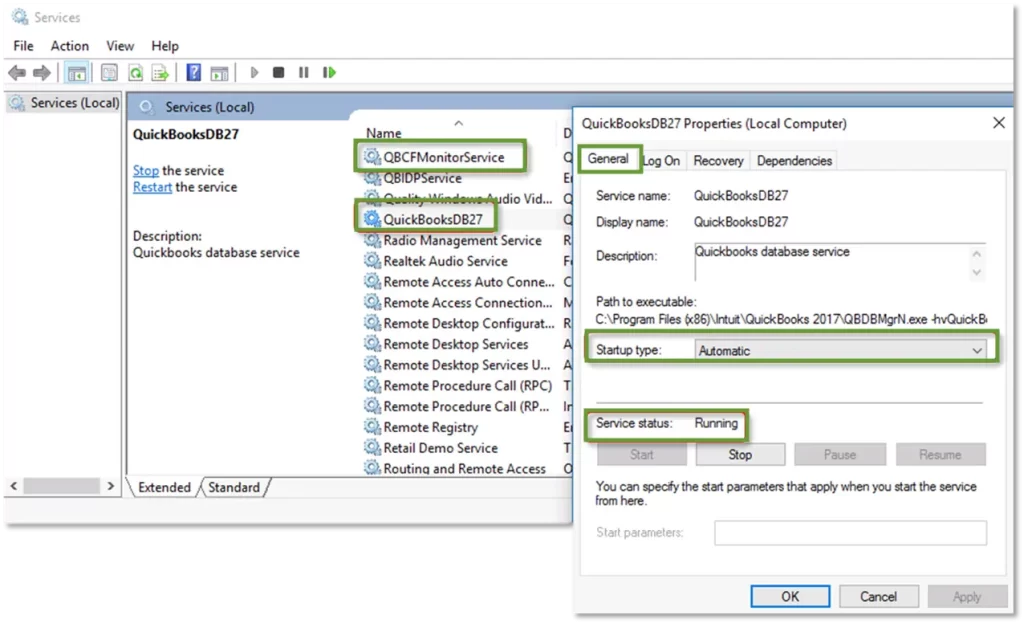
You must ensure that the QuickBooks services are running on the server computer. Follow the steps below for QuickBooksDBXX and repeat the same procedure for QBCFMonitorService.
Open the Windows Start menu.
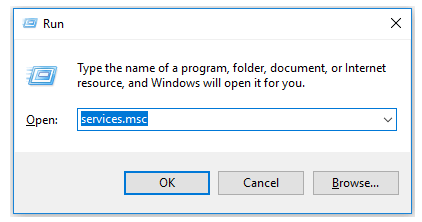
In the search, type Run and press Enter.
In the Run window, type “services.msc,” then press Enter.
Look for QuickBooksDBXX on the list and double-click on it. XX is the version of QuickBooks plus 10. Example: QuickBooks 2023 is QuickBooksDB33.
For the Startup type, choose Automatic.
Ensure the Service Status is either Running or Started. If it’s neither, select Start.
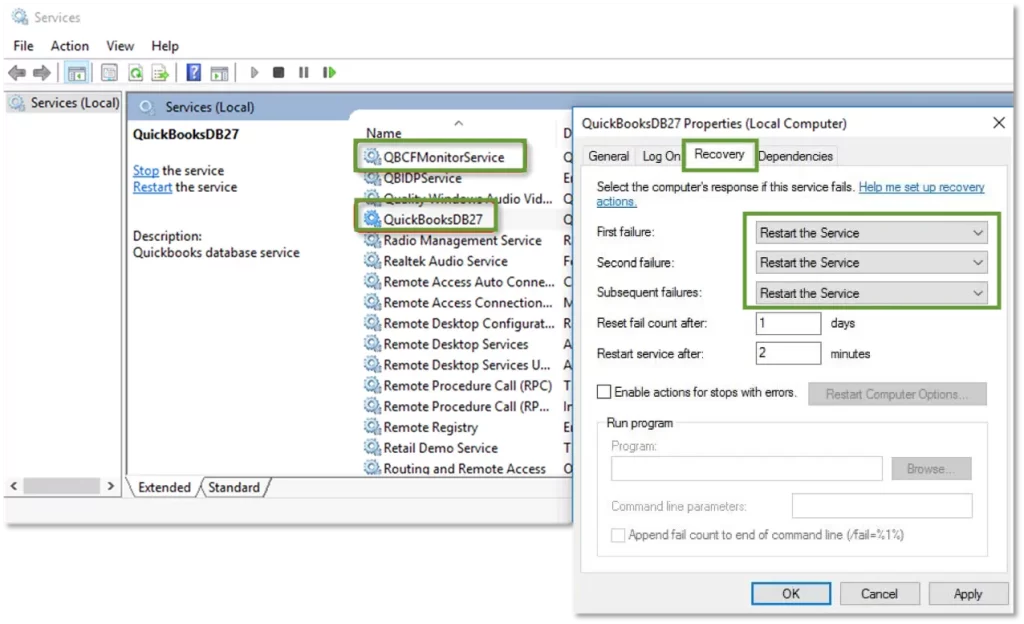
Navigate to the Recovery tab.
Click Restart the Service from the following drop-down menus: First failure, second failure, and subsequent failures.
Select Apply and click OK to save the changes.
Repeat the same steps for QBCFMonitorService.
When done, open QB on each workstation. Go to File > Switch to Multi-user Mode. If the company file opens correctly in the multi-user mode, the problem is fixed.
5. Add services to your Windows admin group on your server
Admin permissions are required to access hosting settings or make admin-level changes in QuickBooks, and the same applies to QuickBooksDBXX and QBCFMonitorService, which are required to host the company file successfully. This ensures they have the necessary access to communicate across the network, enabling workstations to connect to the company file. Thus, set up a folder and Windows access permissions to fix QuickBooks error H505.
6. Configure your firewall settings on your server
Windows Firewall is an in-built system security application that controls both inbound and outbound traffic on all ports by default. This ensures your computer’s safety from malware and cyberattacks and protects your data. If the firewall is considered a threat to QuickBooks, it may block all the ports used by QuickBooks processes. To unblock, you will need to configure Windows Firewall for QuickBooks Desktop.
7. Ping your server from a workstation
When you ping a server from a workstation, it runs a test to verify the network connection. Try to ping your server from each workstation, getting error H505.
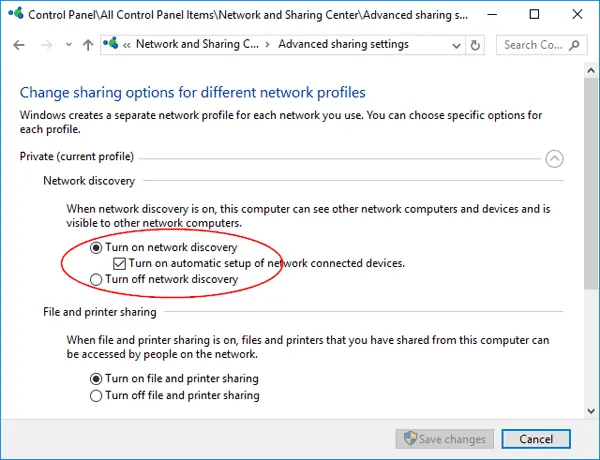
To start, enable Network Discovery on the server computer and any workstations where you see error code H505:
Open the Windows Start menu on the server and workstations.
In the search, type “Network” and open the Network and Sharing Center.
Choose Change advanced sharing settings.
Now, turn on network discovery, which should be selected in the Network discovery and File and printer sharing sections.
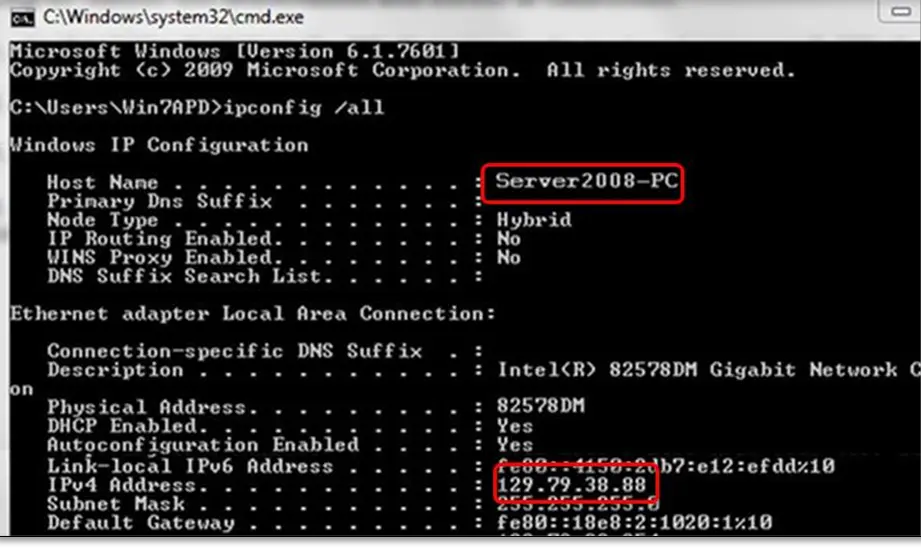
Now, get the server name from your server:
Open the Windows Start menu on the server.
In the search, type Run and open Run.
In the Run window, type “CMD” and press Enter.
Type “ipconfig/all” into the CMD window and then press Enter.
In the Windows IP Configuration section, look for the Host Name. The server name should be on the right.
Note down the hostname, or simply copy it to a Word document so you have quick access.
Move back to the workstation to test the server. You should get in touch with Windows or IT professionals for these complex steps.
Open the Windows Start menu.
Type “Run” in the search and select Run.
In the Run window, type CMD and press Enter.
Enter “ping [your server name],” and press Enter. When writing this, avoid using the brackets around the server name.
Repeat the same steps on each workstation where you encountered error H505.
If you see every packet answered without drops, your server seems healthy. Continue ahead and jump over to solution number five.
If you notice missing packets or delayed replies, pause immediately. Contact a qualified IT expert to receive help with your network.
Conclusion
If you are experiencing QuickBooks error H505 when hosting, this detailed guide will help you identify the root cause and troubleshoot the error. You can even try the same steps for other series errors, such as H101, QB Error H202, and H303.
Frequently Asked Questions
What is QuickBooks multi-user mode?
QuickBooks multi-user mode is like cloud hosting, but on the desktop version. Once you switch the desktop to multi-user mode, you can host the company file in the cloud and collaborate with your team in real time for easy access.
Why am I getting error H101, H303, and H505?
Errors H101, H303, and H505 are multi-user mode errors that occur due to incorrect hosting settings, an outdated QB version, insufficient admin rights, or incorrect Windows Firewall settings.
How to fix QuickBooks not allowing multi-user admin mode?
To fix QuickBooks not allowing multi-user admin mode, ensure only one computer hosts the company file, and on other computers/workstations, set “Stop Hosting Multi-User Mode.” Also, be sure to run QuickBooks Database Server Manager for an uninterrupted connection.
How to stop hosting a company file in QuickBooks Desktop?
To stop hosting a company file in QuickBooks Desktop, switch the software to single-user mode. For this, go to File > Utilities and select Stop Hosting Multi-User Mode.
About The Author
Lana Creston is an experienced technical and accounting writer with a total of 9 years of experience. She currently works on QuickBooks accounting and technical guides at QuickBookSupportNet. Lana has a passion for reading and writing about various technical topics, especially exploring new accounting methods and software, while continuously expanding her expertise in the ever-evolving field of finance and technology.
Effortlessly handle data tasks or get expert assistance with:
Data Automation
Conversion & Migration
Integration
Tax Filing & Compliance
QuickBooks Desktop 2023 is ending — Upgrade QuickBooks Desktop 2023 to 2024 for continued performance and support.