How to Fix the QuickBooks Online Login Problems? 

Dec 19, 2025

Admin |

Estimated Read Time : 5 MIN

Browser issues are common when using QuickBooks Online, leading to problems like login failures, slow page loads, or difficulty exporting data. You might encounter issues like; 

  • QuickBooks repeatedly asks you to sign in despite multiple attempts
  • Trouble viewing forms (like payroll or invoices), or 
  • Even trouble loading specific pages

These problems often stem from outdated browsers, excessive cookies, or cached data. In this guide, we’ll walk you through the possible causes behind these QuickBooks Online login problems and performance issues, and provide step-by-step solutions to resolve them and ensure smooth, uninterrupted access to your QuickBooks account. 

Why Do I Can’t Login to QuickBooks Online? 

Here’s a list of possible reasons why you might not be able to log in to QuickBooks Online: 

  • Incorrect login credentials 
  • Common browser-specific issues 
  • Excessively stored cookies and caches 
  • Using an incorrect password 
  • Browser extensions might be blocking access 

Resolving the QuickBooks Online Login Problems With Easy Steps 

Below is a list of multiple methods that will help you resolve the QuickBooks Online Login Problems and allow you to run the business processes smoothly: 

1. Use a private or incognito browser 

Open your browser in private or incognito with these steps:

  • Mozilla Firefox: CTRL + Shift + P
  • Microsoft Edge: CTRL + Shift + N
  • Google Chrome: CTRL + Shift + N
  • Safari: Command + Shift + N

2. Clear the browser’s cookies and caches 

Clear excessively stored cookies and cache to resolve QuickBooks Online login issues:

a. Firefox

  • Click on the menu button. 
  • Select Settings
  • Choose the Privacy & Security panel.
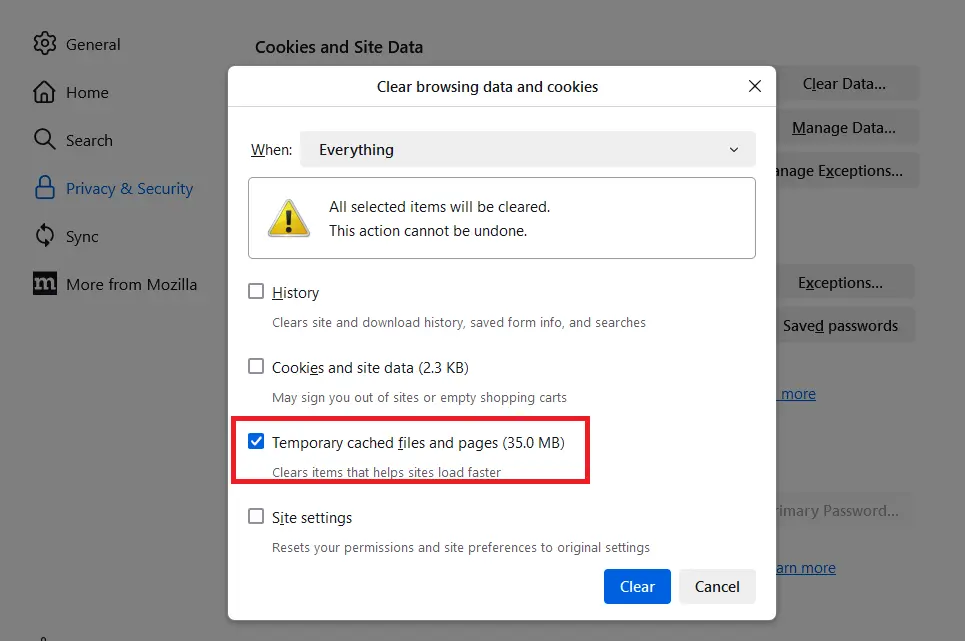
  • In the Cookies and Site Data section, hit Clear Data…
  • This will open the Clear browsing data and cookies.
Clear browsing data and cookies
  • From the drop-down menu next to When:, choose Everything
  • Make sure to select only the Temporary cached files and pages is check-marked.
  • Hit the Clear button.
  • Exit the Settings page.
  • All the changes you’ve made will automatically be saved. 

b. Google Chrome

  • Open Google Chrome on your computer. 
  • Select More at the top right corner. 
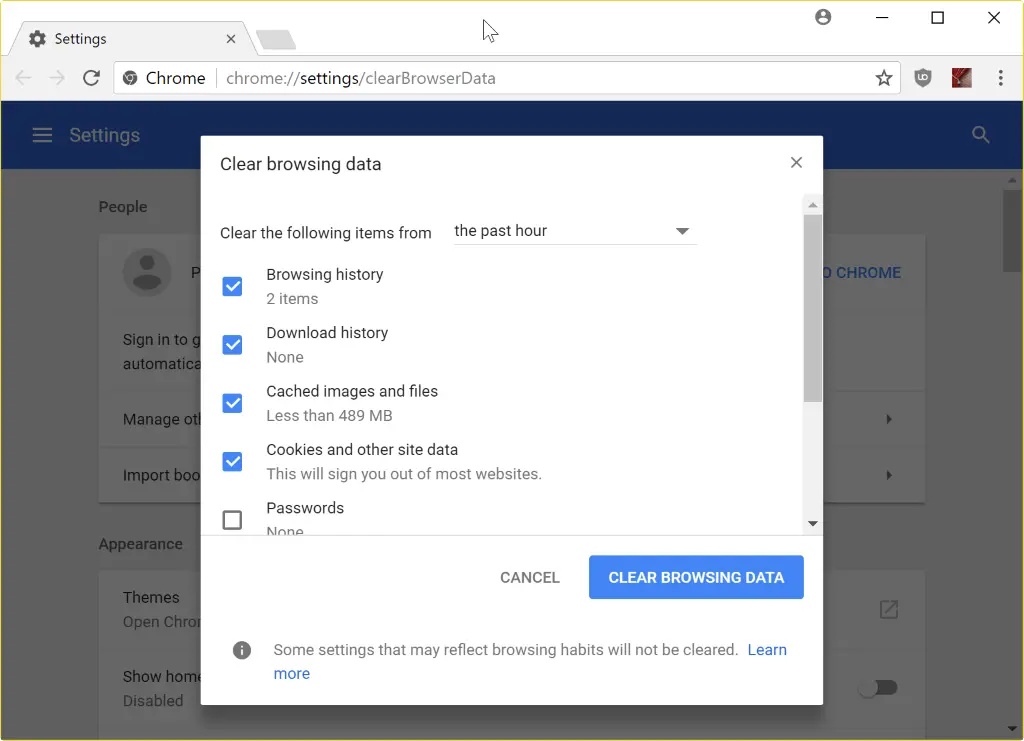
  • Click Delete/Clear browsing data.
Clear browsing data google chrome
  • Choose a time range, such as Last hour or All time.
  • Select the information type you wish to remove.
  • Click Delete data.
  • If you delete cookies while signed in to Chrome, you won’t be signed out of your Google Account.

c. Safari for Mac

  • Open Safari on your Mac.
  • Go to History > Clear History, then click the pop-up menu.
  • Select how far back you want to clear the browsing data. 

d. Safari for iPad and iPhone

  • Go to Settings at the top. 
  • Choose Apps and click Safari
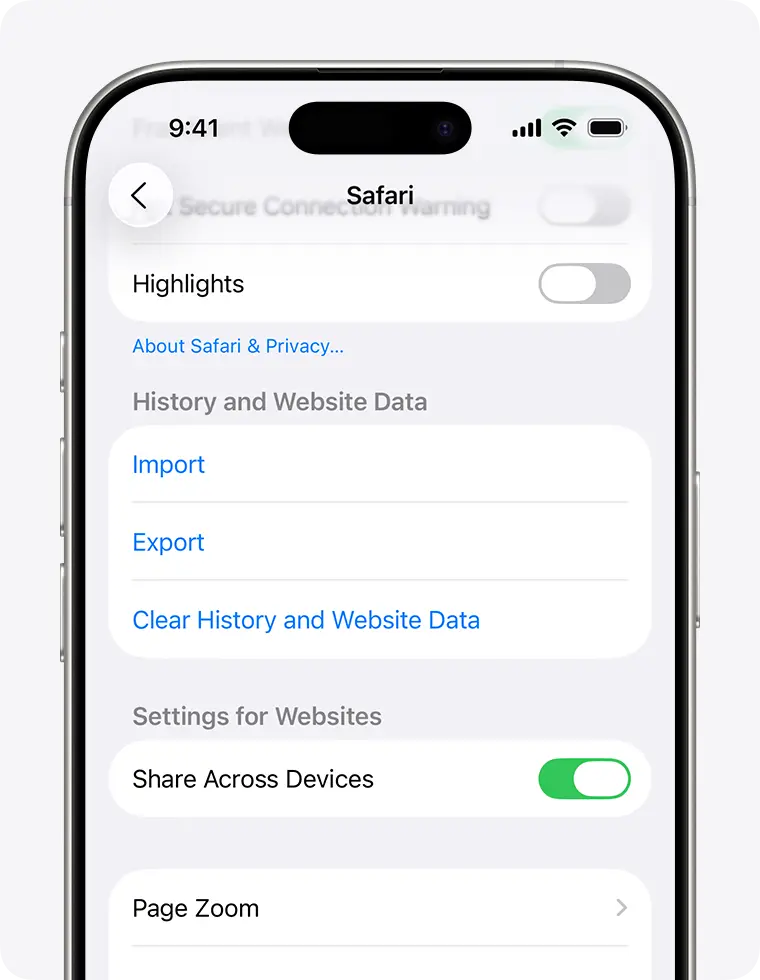
  • Scroll down and click on Clear History > Website Data.
Safari Clear History
  • Select the timeframe to clear, then tap Clear History. This won’t affect your AutoFill data. If the button is grayed out, there may be no data to clear, or you should review your Screen Time web content restrictions.

e. Microsoft Edge

  • Go to Settings and More at the top. 
  • Select Settings > Privacy, search, and services.
  • Hit on Clear browsing data, then select Choose what to clear next to Clear browsing data now.
  • Under Time range, select a specific time range from the drop-down menu.
  • Choose the types of browsing data you wish to clear. 

For example, you may wish to remove the browsing history and cookies while keeping passwords and form-fill data.

  • Finally, click Clear now.

3. Clear Intuit-specific cookies from your browser

Here’s how to clear Intuit-specific cookies for better QuickBooks Online performance:

a. Google Chrome 

  • Select the More ⋮ icon at the top.
  • Choose Settings.
  • Click Privacy and security.
  • Click Cookies and other site data.
  • Select See all cookies and site data.
  • In the search bar, type intuit to find the Intuit cookies. 
  • Hit on Remove all shown or the trash can icon.
  • Restart Google Chrome to apply the changes.

b. Mozilla Firefox

  • Select the Menu icon at the top. 
  • Choose Settings.
  • Click Privacy & Security.
  • Click Manage Data under Cookies and Site Data.
  • In the search field, type intuit to find the Intuit-specific cookies.
  • Select Remove All Shown.
  • Hit on Save Changes.
  • Restart Mozilla Firefox to save the changes.

c. Safari 

  • Open Safari.
  • Choose Safari beside the Apple icon to the top left.
  • Go to Preferences.
  • Select Privacy > Manage Website Data.
  • Type intuit in the search bar to find Intuit cookies.
  • Select Remove All > Remove Now.
  • Click Done.
  • Restart Safari to save the changes.

4. Add Intuit as a trusted site

Make sure Intuit is reliable and authentic by adding it as a trusted site:

a. Add Intuit: Google Chrome

  • Click the Customize and control Google Chrome ⋮ icon.
  • Select Settings.
  • In the left pane, choose Privacy and security, then Site settings.
  • Select Third-party cookies.
  • In the “Allowed to use third-party cookies” section, click Add.
  • Enter *.intuit.com and click Add to save.

b. Add Intuit: Safari

  • Open Safari and enter *.intuit.com.
  • Press Enter.
  • Click Bookmarks, then choose Add Bookmark…
  • From the drop-down, select Favourites under “Add this page to:“.
  • Click Add.

c. Add Intuit: Microsoft Edge

  • Click the … menu icon and choose Settings.
  • In the left pane, select Cookies and site permissions, then Manage and delete cookies.
  • Under Allow, click Add.
  • Enter *.intuit.com, then click Add to save.

5. Reset QuickBooks Online password

Make sure QuickBooks Online login problems aren’t caused by an incorrect password:

  • Open the QuickBooks Online signin page.
  • Hit on I forgot my user ID or Password at the bottom.
  • Enter your phone number and click Continue
  • Type the 6-digit code, then Continue.
  • Complete the prompts on your screen to retrieve your password or reset it.

6. Disable the browser extensions

You can uninstall a browser extension permanently as well as disable it until you sign in to QuickBooks Online.  

a. Uninstall an extension 

  • Open Google Chrome. 
  • Go to More
  • Select More Tools, then Extensions.
  • Next to the extension you wish to remove, select Remove.
  • Click Remove for confirmation.

Tip: To remove an extension that’s a button on the browser toolbar, right-click the button and select Remove from Chrome.

b. Disable an extension 

To temporarily stop using an extension: 

  • Open Google Chrome. 
  • Go to More.
  • Select More tools and then Extensions.
  • Turn off the extension you wish to disable. 

Bonus: Performing troubleshooting for download issues

If you are unsuccessful in saving a file or downloading a report in QuickBooks Online, the following steps will help you resolve the issue: 

a. For Google Chrome

  • Click on the menu (three dots) on Google Chrome’s toolbar. 
  • Select Settings
  • Scroll down and click on Show Advanced Settings.
  • Choose the Downloads section:
    • Click Change if you wish to select the default location to save the file you just downloaded. 
    • Click Ask where to save each file before downloading to be prompted to save the file to a specific location for each download.

b. For Mozilla Firefox

  • Go to the Tools menu. 
  • Select Options
  • Go to the General tab:
    • Click Browse to change the default location of the downloaded files.
    • Click Always ask me where to save files only if you wish to be prompted to select a specific location for each download. 

c. For Safari

  • Go to Preferences.
  • Select General
  • Click Other in Save Downloaded Files.
  • Choose the location to save the file. 
  • Hit Close

d. For Microsoft Edge

  • Click on the three dots in the upper-right corner. 
  • Select Settings
  • Go to Advanced Settings > View advanced settings.
  • Choose Ask me what to do with each download under Download

Conclusion 

In conclusion, common browser issues can make it difficult to log in to software like QuickBooks Online and perform related operations. This guide has highlighted the key reasons behind QuickBooks Online login problems and provided a range of troubleshooting steps to help resolve them.

If you continue to experience issues, we recommend reaching out to a QuickBooks professional for further assistance. Dial Call Us : +1(866)500-0076 to speak with an expert today!

Frequently Asked Questions 

How do I fix Intuit QuickBooks Online login problems?

To fix QuickBooks Online login problems, verify your credentials, clear your browser’s cache and cookies, try a different web browser or incognito window, and reset your password via the account recovery page

Why can’t I get into my QuickBooks Online account?

You may be locked out of your QuickBooks Online account due to a forgotten password, excessive failed login attempts, or a temporary account suspension. However, you might also encounter issues related to browser cache, incorrect login details, or an inactive/deleted account. 

How do I contact QuickBooks Online support?

To contact the QuickBooks Online support team, please fill out the Contact Us form or reach out to us directly on Call Us : +1(866)500-0076.

How do I reset my QuickBooks Online login information? 

Visit the https://accounts-help.intuit.com/app/intuit/L7hTPkLzL_US_en_US sign-in help page, enter your email, phone number, or User ID, and follow the on-screen instructions to receive a verification code via text or email to reset your password.

How do I log into my QuickBooks Online account?

Open your web browser, go to the official QuickBooks website, and click “Sign in.” Enter your email, user ID, or phone number, then select Sign in. On the next screen, enter the six-digit verification code sent to your email or phone, and then select Continue to access your account

About The Author

Lana Creston

Lana Creston is an experienced technical and accounting writer with a total of 9 years of experience. She currently works on QuickBooks accounting and technical guides at QuickBookSupportNet. Lana has a passion for reading and writing about various technical topics, especially exploring new accounting methods and software, while continuously expanding her expertise in the ever-evolving field of finance and technology.

Quick, clear, and hassle-free QuickBooks assistance.

Get a Free Consultation with Our QB Tax Experts
Connect with Our Certified QuickBooks Professionals - Dial Tollfree: +1(866)500-0076