What to Do When a QuickBooks Subscription Has Lapsed? 

Dec 19, 2025

Admin |

Estimated Read Time : 5 MIN

Have you just opened QuickBooks and found that you can’t access anything? Many users have recently reported seeing the following warning message when launching QuickBooks:

“QuickBooks subscription has lapsed. You will lose access to QuickBooks within 7 days. Add billing information to complete the payment and renew your subscription.”

This error can appear even if you’ve already renewed your subscription or have an active annual plan. To resolve it, first verify your subscription status and payment details in your CAMPs account. If everything looks correct, you’ll need to identify why QuickBooks is still showing ‘QuickBooks subscription has lapsed’ and follow the steps to update or refresh your subscription information within the software—without running into further errors.

Why is QuickBooks Subscription Has Lapsed? 

Let’s explore all the possible reasons why your QuickBooks subscription has lapsed even after making the subscription payment: 

  • Incorrect billing information or payment information may not have been updated
  • Outdated version of QuickBooks Desktop 
  • QuickBooks processes may hamper the subscription
  • Common installation issues 
  • Incorrect installation or damaged program files 
  • Internet connection settings might be incorrect 
  • Windows Firewall might be blocking QuickBooks 

How to Fix Subscription Has Lapsed Error in QuickBooks Desktop?

Pay for your QuickBooks subscription to manage your finances, accounting, and other processes continuously. However, if the subscription is not updated or you still cannot access the software, follow the steps below to resolve the ‘subscription has lapsed’ error in QuickBooks.

1. Update your billing info 

Update the payment details of your QuickBooks subscription in the Customer Account Management (CAMPs) portal.

  • Sign in to the Customer Account Management Portal (CAMPs) with all admin rights.
  • Go to QuickBooks Desktop from your products and services.  
  • Choose the details for the QuickBooks product. 
  • Next to the payment Method, click on Edit. Update your payment information. When done, click on Save and close
  • Launch QuickBooks Desktop.
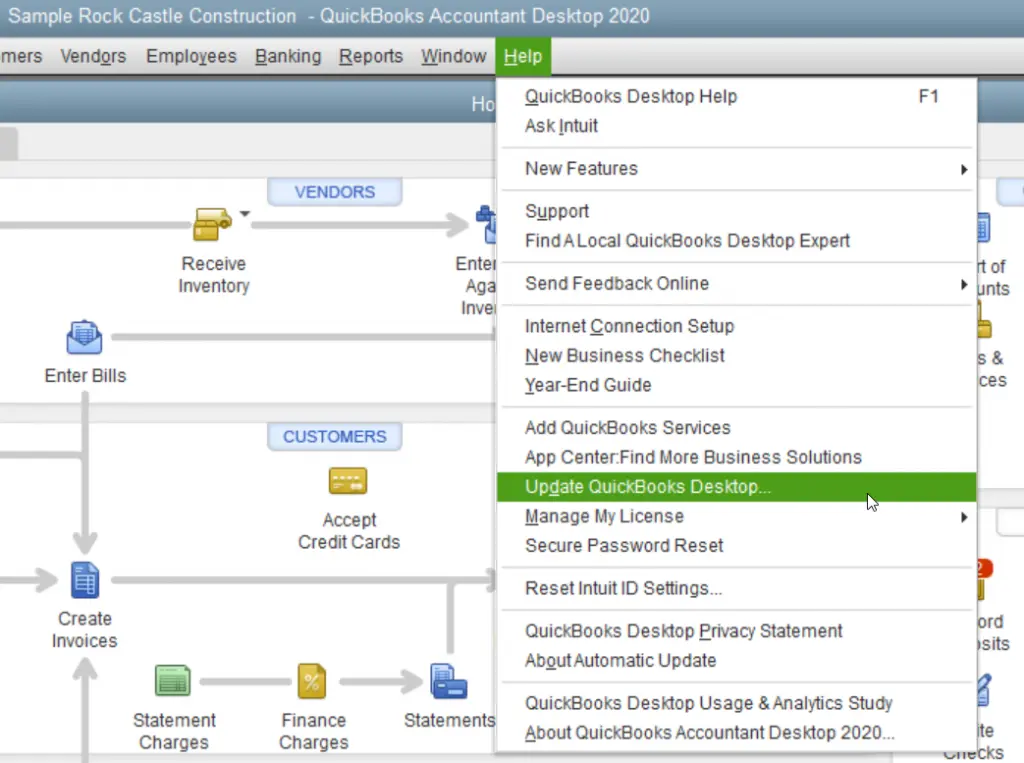
  • Navigate to the Help menu. 
  • Now, hover over Manage My License and click on Sync License Data Online.

If you still see QuickBooks subscription has lapsed, go to Solution 2. 

2. Install QuickBooks updates

If you fail to install the updates, follow the steps below to get your recent software updates. This often resolves subscription errors. It makes sure you have the latest features and fixes.

a. Download the update again

Repeat the steps a couple of times to see if the release number advances. 

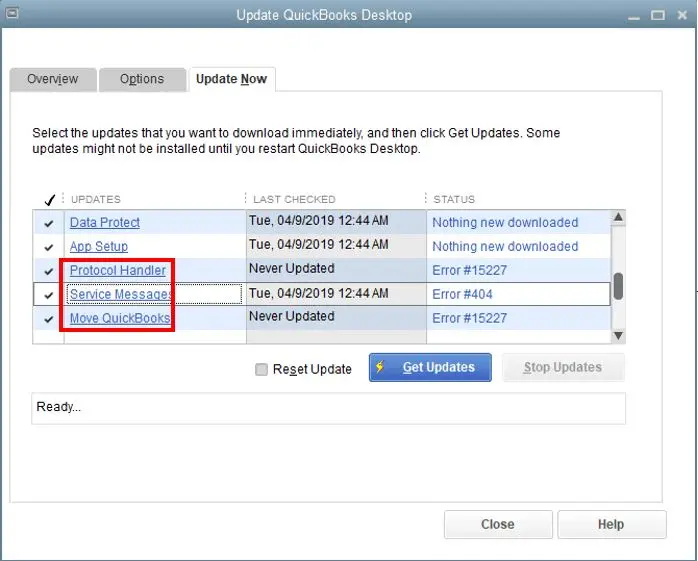
Update QuickBooks Desktop
  • Move to the Update Now tab. 
  • Hit on Get Updates.
Get Payroll Updates
  • Exit and open QuickBooks again to install the updates. 

b. End task on the following processes

  • Exit QuickBooks Desktop. 
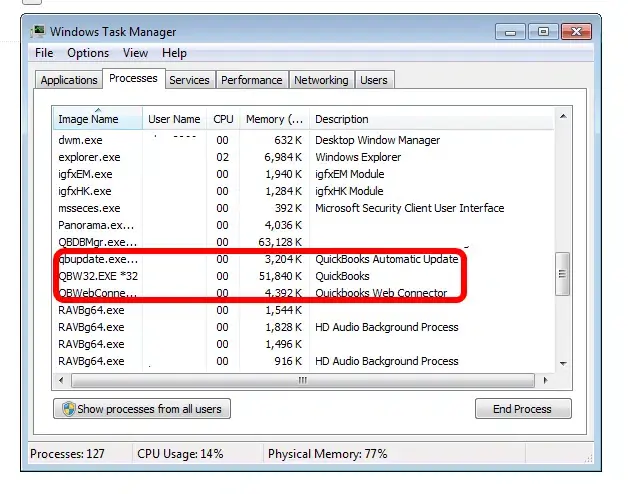
  • Right-click on the Windows taskbar and choose Task Manager
  • Go to the Details tab. 
  • Find the following background processes to select and click End Task for each: 
    • QBW32.exe or QBW.exe
    • QBCFMonitorService.exe
    • qbupdate.exe
    • QBDBMgr.exe or QBDBMgrN.exe
    • QBMapi32.exe
Windows task manager tab
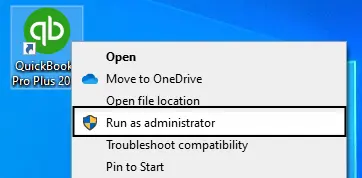
  • Right-click on the QuickBooks icon on Windows. 
  • Select Run as administrator.
Run as Administrator
  • Now, run the QuickBooks update again. 

You’re good to go if QuickBooks is up-to-date and the subscription status is active. Otherwise, go to Solution 3. 

3. Run the QuickBooks Install Diagnostic tool 

Incorrect installation of QuickBooks or damaged/corrupted QuickBooks program files may prevent you from connecting to our online services. Proceed with the steps to download, install, and use the QuickBooks Install Diagnostic tool. 

Note: Download and install QuickBooks Tool Hub in the latest version (1.6.0.8). You must close QuickBooks to use Tool Hub. For the best experience, we recommend using Tool Hub on Windows 11 (64-bit).

  • Launch QuickBooks Tool Hub. 
  • Navigate to Installation Issues
  • Hit on QuickBooks Install Diagnostic Tool. This will automatically repair the Windows or QuickBooks program files.
QuickBooks Install Diagnostic Tool
  • When the Diagnostic tool finishes, click OK.
  • Open QuickBooks Desktop and your company file. 

If you still encounter the subscription error, go to Solution 4.

4. Restore the product and license file

QuickBooks Desktop stores your product and license details on your hard drive. If that file gets damaged, it’s simple to restore.

  • Get the QuickBooks product and license information. If you do not have it, check the CAMPS portal.
  • Exit your QuickBooks Desktop.
  • Launch the Windows Start menu. 
  • In the search field, type Run and press the Enter key. 
  • Now, type C:\ProgramData\Intuit\Entitlement Client\v8 and then Enter. If this does not open a folder, enter C:\ProgramData\Intuit\Entitlement Client\v6 instead.
  • Find the EntitlementDataStore.ecml file, right-click it, and select Delete. Click Yes to confirm you want to delete it.
EntitlementDataStore.ecml file
  • Launch QuickBooks Desktop and the company file. 
  • Follow the steps on your screen to register QuickBooks again using the product and license information.

5. Check the internet connection settings 

If you still encounter a subscription error, you may need to adjust your Internet connection settings in QuickBooks Desktop. Follow these steps to verify your connection so QuickBooks can access online services.

Your Internet connection may be causing update problems.

To check your secure Internet connection, open a web browser and visit the Chase banking website.

If the Chase page doesn’t load, QuickBooks updates won’t work—contact your Internet service provider (ISP) for assistance.

If you can access the Chase site, open QuickBooks Desktop and follow these steps:

  • Go to the Help menu. 
  • Select Internet Connection Setup
Select Internet Connection Setup
  • Click on Use my computer’s Internet connection settings to establish a connection when this application accesses the Internet.
  • Select Next and click Advanced Connection Settings.
  • Navigate to the Advanced tab. 
  • Choose Restore Advanced Settings.
  • Select OK and click Done
  • Try to update QuickBooks Desktop again. 

Keep the following in mind:

  • Download accelerators can interfere with the QuickBooks update download process. Before downloading, make sure you have disabled the download accelerator. For more information, contact your ISP. 
  • If you use a dial-up connection, the minimum connection speed shall be of 28.8 kilobits per second (Kb/s).
  • If you use America Online (AOL), log in with your primary login name. If possible, disable Parental Controls. For more information, see AOL’s online support.

6. Internet security or personal firewall application settings

Incorrect internet security or firewall settings can interfere with QuickBooks updates or the subscription. 

Verify the configuration settings for Internet security and the personal firewall. Keep the ports 80 and 443 enabled, and also provide the access to the following files: 

  • AutoBackupExe.exe
  • Dbmlsync.exe
  • DBManagerExe.exe
  • FileManagement.exe
  • FileMovementExe.exe
  • IntuitSyncManager.exe
  • QBCFMonitorService.exe
  • QBDBMgr.exe
  • QBDBMgrN.exe
  • QBGDSPlugin.exe
  • QBLaunch.exe
  • QBServerUtilityMgr.exe
  • QBW32.exe
  • QuickBooksMessaging.exe

If all these ports are already in use by other processes (which is highly unlikely), the QuickBooks Database Server switches to a fallback port, 56719.

For details on setting up specific firewall ports for your QuickBooks Desktop version, see Configure firewall security settings for QuickBooks Desktop.

Conclusion 

Finally, we are ending this blog here! By following the troubleshooting steps above, you can resolve the QuickBooks subscription has lapsed issue and regain access to your software.

For any further issues, we recommend consulting QuickBooks professionals, available 24/7 to guide you. Dial Call Us : +1(866)500-0076 to talk to an expert now!

Frequently Asked Questions 

What is a QuickBooks subscription? 

A QuickBooks subscription requires recurring fees to access the Intuit-based cloud software or the desktop version, such as QuickBooks Desktop or QuickBooks Online. This allows users to manage their finances, collaborate in the cloud with a team, and automate various business, accounting, and payroll processes.   

What does QuickBooks subscription has expired mean? 

The “QuickBooks subscription has expired” message means you haven’t paid the recurring fee to continue using the software and its features. You must pay the required subscription fees for continuation.

Can I still use QuickBooks after my subscription expires?

No, you cannot access all the features in QuickBooks if your subscription expires, including payroll, online banking, and customer support. You will have a limited “view-only” mode for a period to access historical data, but you won’t be able to enter new transactions or make changes.

What happens if you don’t pay for a QuickBooks subscription?

If you stop paying for a QuickBooks subscription, you will lose access to the software and its services, which will prevent you from using it to manage your business finances.

For QuickBooks Desktop, you will lose access to the software, but you can still access your company data file, which may be readable again upon reactivation. For QuickBooks Online, your access will be suspended. 

How do I reactivate my QuickBooks subscription?

To reactivate your QuickBooks subscription, open QuickBooks Desktop, go to Help > Manage My License and click on Manage My Account. The subscription details will appear on your screen. Finally, follow the on-screen instructions for reactivation.

About The Author

Lana Creston

Lana Creston is an experienced technical and accounting writer with a total of 9 years of experience. She currently works on QuickBooks accounting and technical guides at QuickBookSupportNet. Lana has a passion for reading and writing about various technical topics, especially exploring new accounting methods and software, while continuously expanding her expertise in the ever-evolving field of finance and technology.

Quick, clear, and hassle-free QuickBooks assistance.

Get a Free Consultation with Our QB Tax Experts
Connnect with Our Certified QuickBooks Professionals - Dial Tollfree: +1(866)500-0076