Learn to Set up QuickBooks Web Connector

Oct 22, 2025

Admin |

Estimated Read Time : 5 MIN

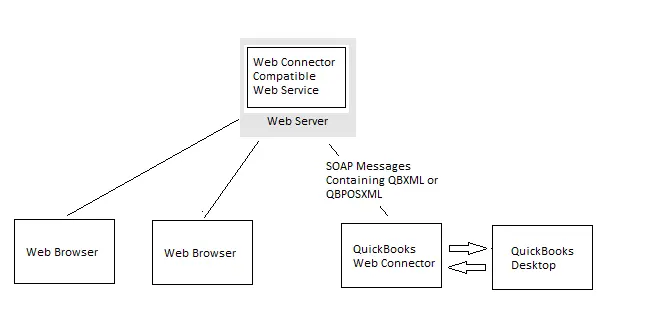
QuickBooks Web Connector is a Windows application that acts as a bridge and allows web-based applications to exchange data with QuickBooks Desktop products. 

The QB web connector app facilitates the automatic and scheduled transfer of data, including sales, invoices, or QuickBooks timesheets, between the web-based application and QB Desktop. 

Set up QuickBooks Web Connector

For a web service to integrate with Web Connector, it must implement a set of methods that are defined in the QuickBooks Web Connector WSDL. These methods allow the web service to communicate with the Web Connector using the same QBXML that the Desktop SDK and POS SDK use.

Adding a new Web service to the list of Web services that QBWC can communicate with is as easy for the user as downloading a file. (Files with a .qwc extension are XML files that describe a Web service designed to interact with QuickBooks and are opened automatically by the QBWC.) Users of QuickBooks’ online banking features will immediately recognize the user interface because it was based on the Quicken One Step Update feature.

Features of QuickBooks Web Connector:

  • It connects web services to the desktop.
  • Streamline your data flow.
  • Enhanced Security, more secure communication, and firewall ports. 

Set up QuickBooks Web Connector

Step 1: Install QuickBooks Web Connector

  • Close the QuickBooks Desktop program.
  • Visit the Intuit Developer site and download the latest Web Connector.
  • Right-click on the QBWebConnector2_R30_xxxxx zip file and click on Extract All.
  • Right-click on the QBWebConnectorInstaller.exe file in the extracted folder and click on Run as Administrator.
  • Proceed with the on-screen instructions and finish the installation.
  • Click on Allow devices to make changes to your computer and hit Next.
  • Click on I accept the terms in the license agreement on the License Agreement page.
  • Click on Next.
  • Click on Install in the Ready to Install Program page.
Install QuickBooks Web Connector
  • Tap on Finish.

If you get an error after you install Web Connector

In case you received an error while installing the web connector, you are required to uninstall and reinstall the web connector.

  • Press Windows + R key.
  • Enter Control Panel in the run window and hit OK.
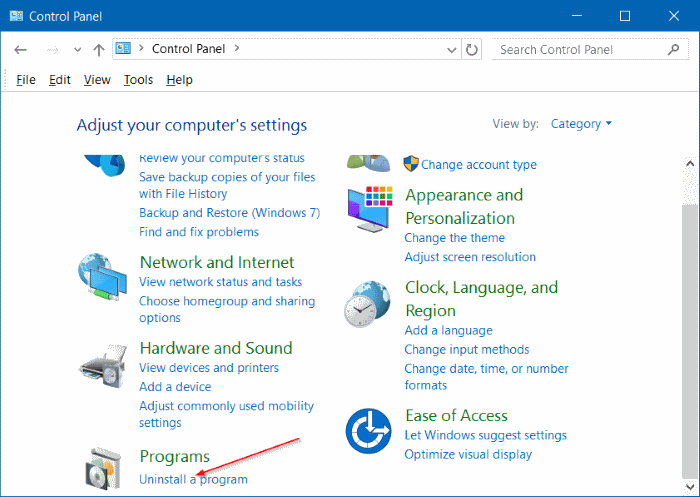
  • Click on Uninstall a program.
control-panel-uninstall-program
  • Choose Web Connector and click on Uninstall.
  • It could happen that there will be no QuickBooks Web Connector in the control panel. In this case, delete the QBWebConnector folder in:
    • C:\Program Files(x86)\Common Files\Intuit\QuickBooks\
    • C:\Program Files\Common Files\Intuit\QuickBooks\
  • Install Web Connector

Set up Web Connector

Add an app

If you have your .qwc file from your third-party web app, you could connect it with QuickBooks.

  • Launch QuickBooks
  • Navigate to File and click on App Management.
  • Choose Manage Web Apps.
  • Click on Set up next to the app that is required to be set up.
  • If you do so, it will direct you to the app’s website. Now, log in to it.
  • Click on Connect to QuickBooks within the app’s website.
  • Launch QuickBooks Desktop and click on Done within the Access Confirmation screen.
  • Finally, complete your setup.

Manage an app

Ensure to log in to QuickBooks as an admin and log in to your Intuit Account.

  • Launch QuickBooks.
  • Navigate to the File menu.
  • Click on App Management and choose Manage Web Apps.
  • Click on Connected apps to view apps and make any changes required.

Delete an app

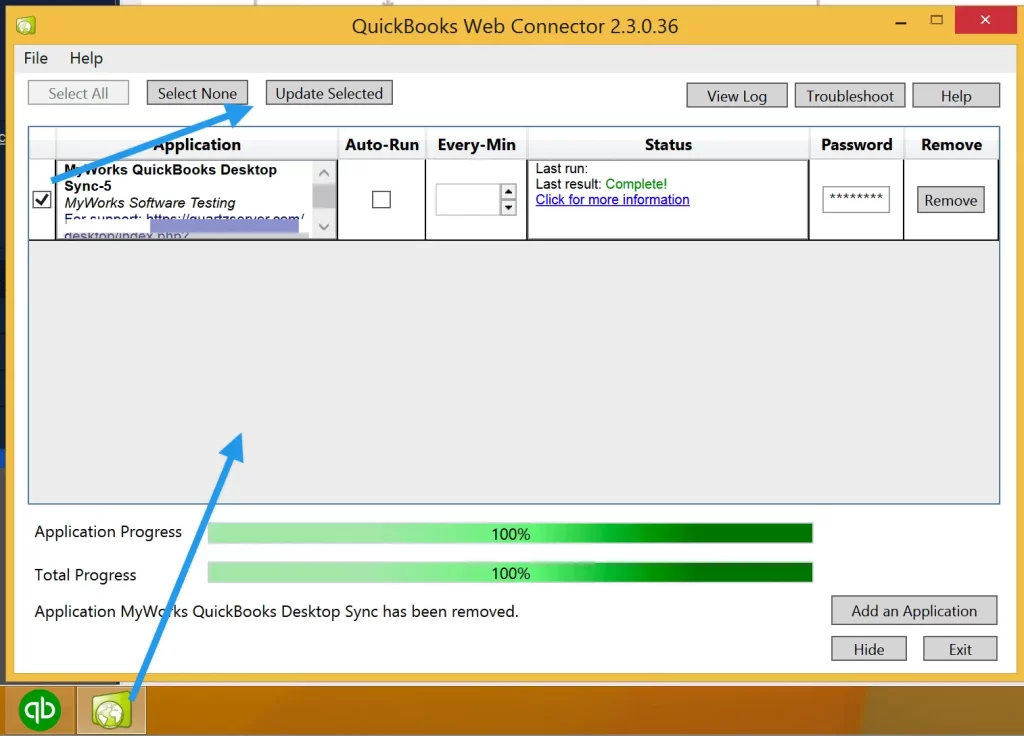
You have a choice to delete an app that is no longer required in Web Connector. After you delete the app, the data exchange will be stopped with QuickBooks Desktop.

Step 1: Delete the app from Web Connector

  • Launch QuickBooks.
  • Sign in to your company file with the app connected as an admin.
  • Go to File and click on Manage web apps.
  • Choose the app you want to remove.
  • Finally, click on Remove.

Step 2: Delete the app from the QuickBooks Preferences

  • Go to Edit and click on Preferences.
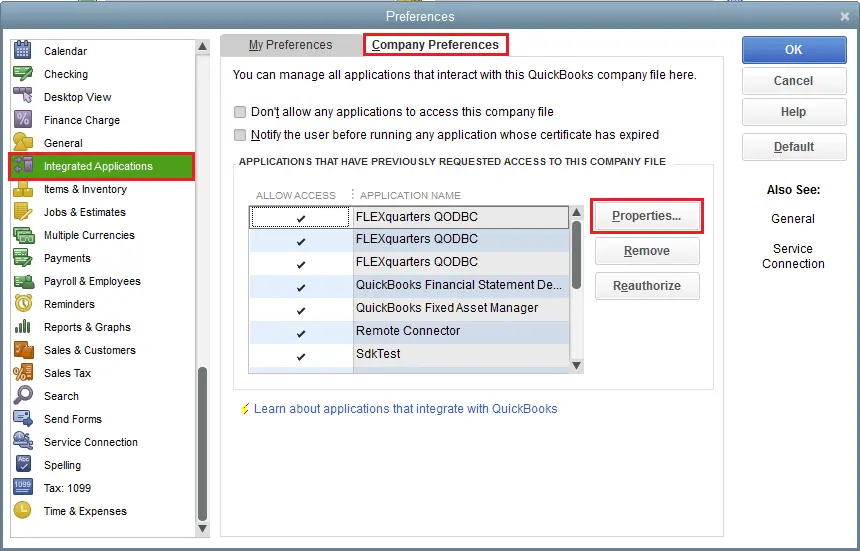
  • Click on Integrated Applications and choose Company Preferences.
choose Company Preferences
  • Choose the app you wish to remove.
  • Click on Remove and hit OK.
  • Launch the Web Connector and navigate to Connected Apps.
  • Select Remove if the app that was removed from Integrated Applications is listed.
  • Transfer the App to your device.
  • Launch QuickBooks and go to the File menu.
  • Click on App Management.
  • Choose Manage Web Apps and select Connected apps.
  • Click on Transfer App to my device.
  • Now, the app will transfer to your new device.

You need to make sure that the data is transferred.

Fix Web Connector error QBWC1039

Learn how to fix QuickBooks Web Connector error 1039 in QuickBooks Desktop. There are various reasons behind this error. Let’s fix it:

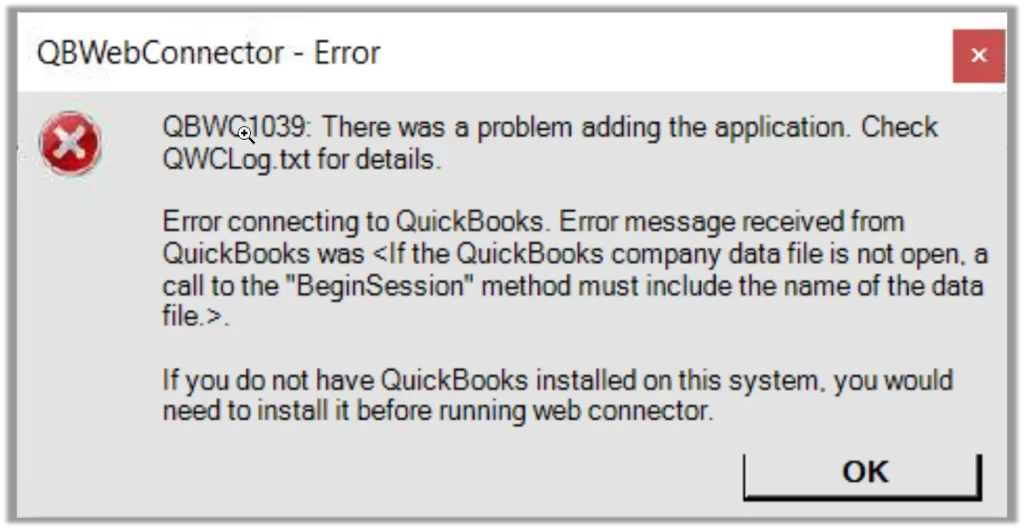
QBWC 1039: If the QuickBooks company data file is not opening.

QBWC 1039

Two reasons behind this error:

While you rename your company file, or move it to some other location, or if it does not work with the third-party application.

If your QuickBooks Web Connector is not configured properly when QuickBooks is closed.

Configure Web Connector to run when QuickBooks is closed.

  • Sign in to your QuickBooks as an Admin.
  • If it is set in Multi-user mode, navigate to the File menu.
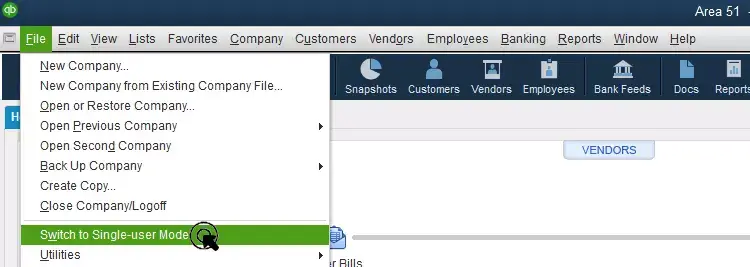
  • Click on Switch to Single-user Mode.
  • Click on the Edit menu and select Preferences.
choose Company Preferences
  • Select Integrated Applications and choose Company Preferences.
  • Select the third-party application and click on Properties.
  • Check Allow this application to log in automatically.
  • Click on Yes in the Authorization window.
  • Choose User for login and hit OK.

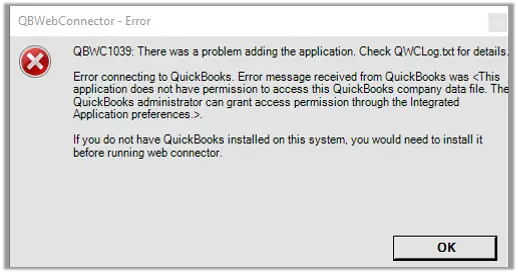
QBWC1039: The application does not have permission to access the QuickBooks company data file.

QBWC1039
  • Sign in to QuickBooks as an admin.
  • Navigate to the file menu (if QuickBooks is in Multi-user mode).
  • Click on Switch to Single-user mode.
Switch-to-Single-user-Mode
  • Click on the Edit menu and select Preferences.
  • Select Integrated Applications and click on the Company Preferences tab.
  • Uncheck the box next to Don’t allow any applications to access this company file.
  • When an SDK App Authorization pop-up appears, click on Yes.
  • Check your third-party application and allow it access.
  • Finally, click OK.

Conclusion

QuickBooks Web Connector is an important application developed by Intuit that connects web-based applications with your QuickBooks Desktop products, such as QuickBooks Financial Software and QuickBooks Point of Sale. Any QuickBooks User requires the web connector to ease their workflow and achieve their goals.

We believe in providing you with excellent knowledge of QuickBooks Web Connector. If you are looking for more info, contact our QuickBooks Specialist at +1(866)500-0076

Frequently Asked Questions

What is QuickBooks Web Connector for?

The QB web connector is a Microsoft Windows application that connects your web-based applications with your QuickBooks Desktop products. 

How to fix QuickBooks Web Connector Error 1039 (QBWC 1039)? 

To fix the QBWC1039, follow these steps to get it resolved: 

  • Sign in to QuickBooks as an admin.
  • Navigate to the file menu (if QuickBooks is in Multi-user mode).
  • Click on Switch to Single-user mode.
  • Click on the Edit menu and select Preferences.
  • Select Integrated Applications and click on the Company Preferences tab.
  • Uncheck the box next to Don’t allow any applications to access this company file.
  • When an SDK App Authorization pop-up appears, click on Yes.
  • Check your third-party application and allow it access.
  • Finally, click OK.

Where can I find the QuickBooks web connector app?

QuickBooks Desktop web connector is located in the C:\Program Files if you want to find the simple copy-paste “Web Connector” in your desktop’s search box.

How many types of connections are there in QuickBooks?

QuickBooks has three types of connect:

  1. Web Connect
  2. Direct Connect
  3. Aggregation

How can I import a Web Connect file into QB Desktop?

  • Select File.
  • Click on Utilities and select Import.
  • Choose Web Connect Files
  • Click on the created Web Connect file. 

About The Author

Lana Creston is an experienced technical and accounting writer with a total of 9 years of experience. She currently works on QuickBooks accounting and technical guides at QuickBookSupportNet. Lana has a passion for reading and writing about various technical topics, especially exploring new accounting methods and software, while continuously expanding her expertise in the ever-evolving field of finance and technology.

Quick, clear, and hassle-free QuickBooks assistance.

Get a Free Consultation with Our QB Tax Experts
Connnect with Our Certified QuickBooks Professionals - Dial Tollfree: +1(866)500-0076