QuickBooks Direct Deposit Not Working | Let’s Process Your Paychecks
May 5, 2026
Admin |
Estimated Read Time : 5 MIN
Direct deposit allows you to electronically process paychecks to your employees’ or contractors’ bank accounts within 2-3 business days. QuickBooks Desktop also leverages this feature to provide a faster, more secure gateway, eliminating paper checks, automatically recording payments in the ledger, and supporting both payroll and contractor payments.
If your QuickBooks direct deposit is not working, it can delay the paycheck and even lead you to handle everything manually. To ensure speed, security, faster check processing, and improved bank reconciliation, you must understand why the problem occurs and how to automate direct deposit seamlessly. Let’s walk you through a guide to answer all your queries and resolve any potential errors promptly.
Why Did My Payroll Direct Deposits Not Go Through in QuickBooks?
Below is a curated list of things you can do to help you understand why your payroll direct deposit didn’t go through in QuickBooks Desktop, and to help you identify the necessary solutions:
Using an outdated version of QuickBooks or the payroll services
Direct deposit might not be activated
You may have forgotten to schedule the funding time.
Incorrect bank account or employee information
Server/connection issues with the bank
Your employee’s banking information might be inaccurate
How to Fix When QuickBooks Direct Deposit Is Not Working Promptly?
Once you understand what might be hampering direct deposit, using the relevant methods will be easier when QuickBooks direct deposit is not working.
Here are some of the suitable steps you must perform to get past the problem and ensure the direct deposit processes without any delays:
1. Update QuickBooks Desktop and the payroll service
An up-to-date version of QuickBooks Desktop ensures you use the most recent features and security patches, which not only enhance security but also enable faster accounting and financial operations, such as direct deposit. So, make sure you use the most recent version of QuickBooks Desktop, and the same applies to the payroll services.
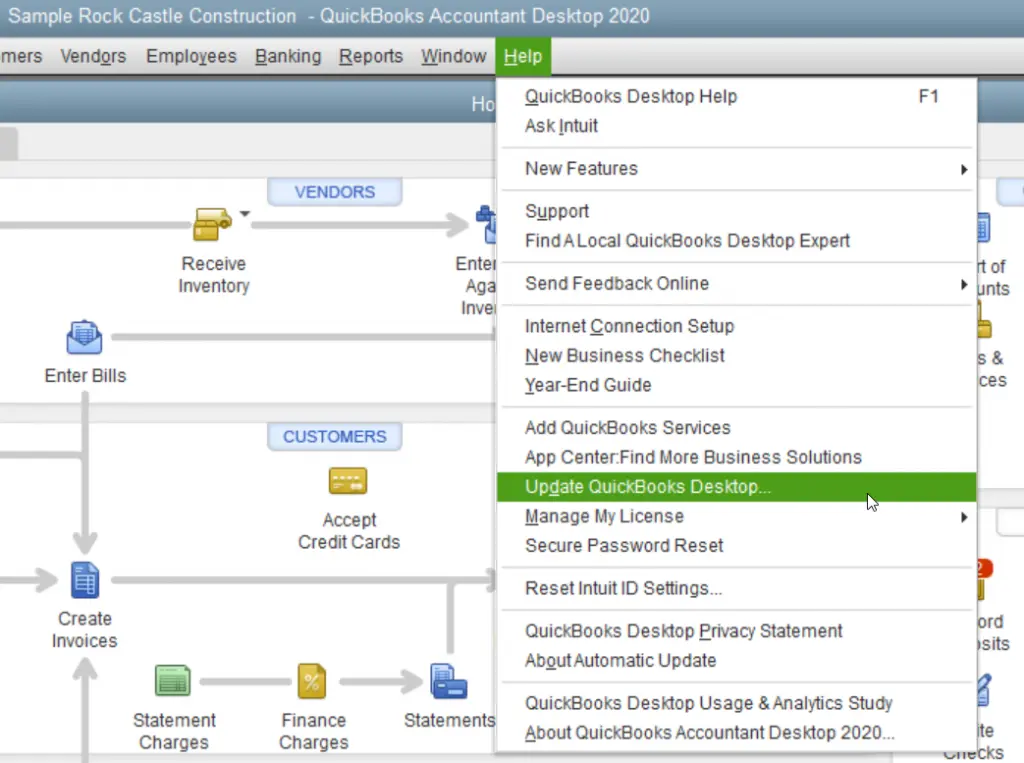
If you are unaware of how to update the payroll services, proceed with the steps below:
Launch QuickBooks Desktop.
Navigate to the Help menu.
Choose Update QuickBooks Desktop.
Now, move to the Employees tab.
Click on Get Payroll Updates from the drop-down menu.
Finally, select the Download latest updates option.
2. Activate Direct Deposit
Before you set up direct deposit in QuickBooks, make sure the feature is enabled. If it hasn’t been enabled yet, you can follow these steps to turn it on and proceed with the setup:
Start by opening QuickBooks Desktop, then press F2 (or Ctrl + 1) to bring up the Product Information window.
Next, press F3 (or Ctrl + 2) to access the Tech Help screen.
From there, click on the Open File tab to view system-related files.
Locate the qbw.ini file and double-click it to open it in a text editor.
Scroll through the file until you find the section labeled [QBLICENSE] PAYROLL_BUNDLE_STATE=Y.
Change the value from Y to N to reset the payroll activation state.
Save the changes by clicking File in the top-left corner and selecting Save.
Return to QuickBooks Desktop and reopen WF Invites or PTC to continue.
Once the Payroll Activation screen appears, repeat a similar process with the .qbw file. This time, instead of changing the value, completely delete the line [QBLICENSE] PAYROLL_BUNDLE_STATE=Y from the file.
After completing these steps, you should be able to successfully activate direct deposit and continue with the setup process without interruptions.
3. Verify the funding time
QuickBooks offers different funding time options that control how quickly Intuit processes and deposits employee paychecks after submission. Below are the commonly available options:
Same-day funding: Available with Premium or Elite subscriptions, this option ensures employees receive their pay on the very same day you submit payroll to Intuit.
Next-day funding: With this setting, payments are processed and deposited into employees’ bank accounts on the following day.
Two-day funding: Selecting this means employees will receive their paychecks two days after payroll is submitted.
Five-day funding: This option delays the deposit, with funds reaching employees’ accounts five days after submission.
If your employees are not receiving payments on time, it’s important to review the funding time currently selected in QuickBooks.
To check or update the funding time in QuickBooks Online:
Sign in to your QuickBooks Online company and click on the Gear (Settings) icon.
Go to Payroll Settings and locate the Direct Deposit section.
Review the funding time displayed and update it if necessary to better suit your payroll schedule.
If the issue with direct deposit persists even after adjusting the funding time, you may need to move on to additional troubleshooting steps.
4. Check the bank account and company information
Start by confirming that you’ve provided accurate and complete information to Intuit. This includes:
Your company’s name, address, and EIN
The principal officer’s details, such as date of birth, Social Security number, and home address
Your bank account information, including account number, credentials, or routing number
If you’re still unable to set up direct deposit in QuickBooks, it may be because your account hasn’t been fully verified. This can happen if there are insufficient funds, so it’s important to check your bank balance. If everything appears to be in order, but QuickBooks Payroll direct deposit still isn’t working, you can proceed to the next troubleshooting step.
5. Reconnect bank account
To resolve direct deposit issues, you can try reconnecting your bank account by following these steps:
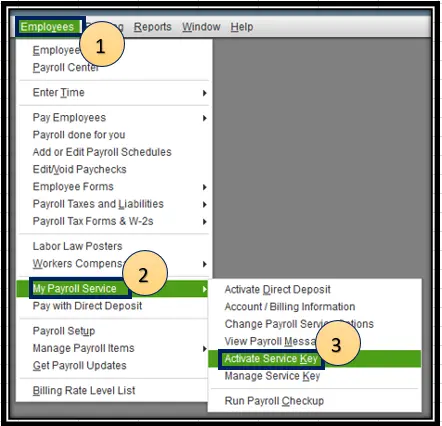
Open your QuickBooks company file and go to the Employees menu.
Select My Payroll Service, then click Activate Direct Deposit.
Choose Getting Started, click Start under the Business tab, and then select Next.
Enter the principal officer’s details and click Next.
Select the option to add a new bank account.
Enter your bank’s name and online banking login details, or provide your routing and account numbers if prompted.
Create a PIN that you’ll use each time you send payroll. Make sure it’s easy to remember and keep it noted somewhere secure.
Re-enter the PIN for confirmation and click Submit.
Click Next, then select Accept andSubmit.
If prompted, verify the principal officer’s SSN and click Submit.
Once completed, try setting up direct deposit again. If you’re still experiencing issues with QuickBooks Desktop or QuickBooks Online direct deposit, the next step is to review the employee’s information.
6. Review the employee’s banking information
Accurate employee information is essential for successful direct deposit processing, as even minor errors can result in failed transactions or delayed payments. Ensuring that all details—such as bank account numbers, routing numbers, and personal information—are correctly entered and regularly verified helps maintain smooth and reliable payroll operations.
An Overview Table for QuickBooks Direct Deposit Not Working
Description
You may encounter issues with direct deposit not working in QuickBooks. This can happen if the QuickBooks Desktop software is outdated.
Causes Behind it
Other possible reasons include missing or incorrect employee or contractor banking details, selecting a pay date that falls on a holiday, using a closed bank account, or entering incorrect account information. The problem may also occur if payroll is submitted after the cutoff time or if there is a temporary issue with the bank or financial institution’s server.
Ways to Fix
To fix this, make sure QuickBooks Desktop and payroll are updated, ensure direct deposit is properly enabled, check and confirm funding times, reconnect the bank account if needed, and verify that all banking details are accurate.
Conclusion
Failure to process direct deposits not only delays payments to your employees or contractors but also hampers bank reconciliation and the recording of financial data. With this detailed guide, you should be able to understand why “QuickBooks direct deposit not working” and how to resolve the issue.
If the issue persists or you need further assistance, we recommend consulting a QuickBooks ProAdvisor at 866-500-0076. Dial the toll-free number to connect with certified experts and get help with your issue right away.
Frequently Asked Questions
Why is my direct deposit not working in QuickBooks?
Direct deposit issues in QuickBooks often occur due to inactive payroll subscriptions, incorrect employee bank details, insufficient funds, or missing the 5 PM PT cutoff time. Common fixes include updating software to the latest version, re-verifying employee routing/account numbers, and ensuring your bank account is fully verified with Intuit.
How to enable direct deposit on QuickBooks?
To enable direct deposit in QuickBooks, set up your company bank account, verify it via bank login or test deposits (usually within 2 days), and enter employee/contractor bank details. This involves navigating to the payroll settings, activating the service, and verifying the account with QuickBooks to process payments.
How to correct direct deposit in QuickBooks?
To correct a direct deposit in QuickBooks, you can void, delete, or reverse the payment within the paycheck list page if done before the payroll cutoff time. For processed payments, QuickBooks Online supports direct deposit reversals. For pending or incorrect bank details, you may need to update employee information and re-run payroll.
How to fix a deposit in QuickBooks?
Fixing a deposit in QuickBooks generally involves deleting the incorrect deposit via the bank register, which returns the funds to the “Undeposited Funds” account. You can then re-record the deposit with the correct details using the + New button > Bank Deposit, ensuring the amount matches bank statements.
About The Author
Lana Creston is an experienced technical and accounting writer with a total of 9 years of experience. She currently works on QuickBooks accounting and technical guides at QuickBookSupportNet. Lana has a passion for reading and writing about various technical topics, especially exploring new accounting methods and software, while continuously expanding her expertise in the ever-evolving field of finance and technology.
Effortlessly handle data tasks or get expert assistance with: