
If your payroll service has been paused or discontinued, getting back on track is simple when you know the right steps. In this guide, we’ll walk you through how to reactivate your payroll subscription so you can resume running payroll, managing employees, and staying compliant with tax requirements.

Whether you’re using QuickBooks Online or QuickBooks Desktop, this introduction will help you understand what to expect and how to restore your payroll access quickly and efficiently.
Table of Contents
ToggleAn active QuickBooks payroll subscription allows businesses to streamline operations such as payroll, HR, taxation, filing tax returns on time, and, most importantly, direct deposits, as well as compliance. The integrated payroll services with a subscription enable faster, more accurate payroll processing, including same-day direct deposit, and provide employee self-service tools for pay stubs and W-2s.
QuickBooks Payroll supports automatic tax calculations and filings using up-to-date tax rates within the software, reducing manual effort and enabling seamless tax management. However, an inactive subscription can disrupt this process, causing delays in tax calculations and filings and potentially forcing businesses to resort to manual and more complicated methods.
Tax rates are updated automatically within the system, so businesses don’t have to track changes manually. This helps avoid errors in deductions and ensures compliance with current laws. If the subscription is inactive, tax tables may become outdated, leading to incorrect payroll calculations and possible penalties.
With an active subscription, payroll calculations are handled automatically, reducing the chances of human error and ensuring employees are paid correctly and on time. It also helps manage different pay schedules and employee types easily. Without an active plan, payroll processing may become slower and more prone to mistakes.
An active QuickBooks Payroll subscription allows businesses to pay employees through direct deposit, including options like next-day or same-day deposits. This improves convenience for both employers and employees. If the subscription lapses, direct deposit services are disabled, requiring manual payment methods such as checks.
QuickBooks provides access to detailed payroll reports such as employee earnings, tax summaries, and deductions. These reports help in tracking expenses, preparing financial statements, and making informed decisions. With an inactive subscription, access to these reports may be limited or restricted, affecting business insights.
Getting your payroll service back up and running is simple – just follow the steps below based on your QuickBooks version to resume payroll processing.
If you are not sure which payroll service you use, here’s how to find your subscription:
QuickBooks Online Payroll offers three plans: Core, Premium, and Elite. To identify your plan, log in to your QuickBooks Online account:
Before you can resume paying employees and filing taxes, you’ll need to restore your payroll subscription by following the appropriate steps for your QuickBooks service.
If you’re using QuickBooks Desktop Payroll Assisted and need to restart your payroll service, reach out to support for assistance.
There are thee different methods available to reactivate your subscription. Before getting started, ensure your version of QuickBooks Desktop is up to date and supported.
You could reactivate the payroll subscription directly from the Intuit’s website.
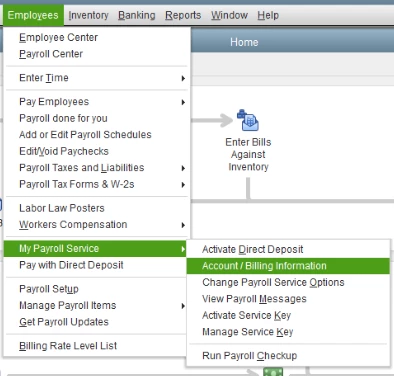
The easiest way to reactivate your payroll service is within your QuickBooks Desktop company file:
You can also reactivate your payroll subscription online:
Note: It can take up to 24 hours for the reactivation process to complete. Once done, your subscription status will display as Active.
Once your payroll service is reactivated, you may need to go through the payroll setup again. Be sure to review all payroll details, including employee information and tax settings.
An active payroll subscription lets you seamlessly process direct deposit, calculate taxes, and file them on time, ensuring compliance. With the detailed information above, you will learn how to reactivate your payroll subscription after it expires. We hope you can process your payroll operations without interruption now!
For further assistance, we recommend consulting with QuickBooks professionals at +1(866)500-0076. Call the toll-free number to connect with certified experts and enjoy assistance at each step!
How do I reactivate my payroll subscription?
To reactivate a QuickBooks Payroll subscription, update your payment details in the billing section, then select “Resubscribe” or “Reactivate“. For Desktop, go to Employees > My Payroll Service > Account/Billing Information. For Online, navigate to Settings > Subscriptions and billing.
How to reactivate QuickBooks payroll subscription?
To reactivate a QuickBooks payroll subscription, log in to your Intuit Account (or via the Employees menu > My Payroll Service > Account/Billing Info in Desktop), locate the inactive subscription, click Resubscribe, and update payment details. Allow up to 24 hours for reactivation and perform a payroll update to sync data.
How do I reactivate my payroll service?
Reactivate your QuickBooks payroll by navigating to Employees > My Payroll Service > Account/Billing Info in the desktop application, signing in to your Intuit account, and choosing Resubscribe. Allow up to 24 hours for reactivation.
How do I resubscribe to QuickBooks enhanced payroll?
To resubscribe to QuickBooks Desktop Enhanced Payroll, go to the Employees menu, select My Payroll Service, and click Account/Billing Information. Sign in to your Intuit account, locate your status, and select Resubscribe. Follow the on-screen prompts to confirm payment information and complete the activation.
Lana Creston is an experienced technical and accounting writer with a total of 9 years of experience. She currently works on QuickBooks accounting and technical guides at QuickBookSupportNet. Lana has a passion for reading and writing about various technical topics, especially exploring new accounting methods and software, while continuously expanding her expertise in the ever-evolving field of finance and technology.
How to Fix QuickBooks Outlook Is Not Responding
Nov 13, 2026