Integrate BigCommerce and QuickBooks Online using OneSaas

Jun 1, 2026

Admin |

Estimated Read Time : 5 MIN

Managing an online store involves much more than just selling products. From tracking orders and managing inventory to handling invoices and accounting, business owners often spend a lot of time switching between different platforms. This is where integrating BigCommerce with QuickBooks Online using OneSaas can make a real difference.

By connecting these platforms, businesses can automate the flow of sales, customer, and financial data without relying on manual updates. It helps reduce errors, saves time, and keeps accounting records accurate and organized. Whether you run a small online store or a growing eCommerce business, this integration can simplify everyday operations and give you more time to focus on growth. In this blog, we’ll walk through how to easily integrate BigCommerce and QuickBooks Online using OneSaas and the benefits it can bring to your business.

What is BigCommerce? 

BigCommerce is an eCommerce platform that helps businesses create and manage online stores. It allows store owners to sell products online, manage inventory, accept payments, and handle orders from one place. 

It’s popular with small and growing businesses because it offers ready-made tools for designing websites, marketing products, and selling across platforms like Amazon, Instagram, and Facebook without needing deep technical knowledge.

Why Connect BigCommerce with QuickBooks Online? 

Connecting QuickBooks Online with BigCommerce helps businesses keep their sales and accounting data in sync automatically. Instead of manually entering orders, invoices, taxes, and customer details, the integration updates everything in QuickBooks in real time. 

This saves time, reduces mistakes, and makes it easier to track revenue, expenses, and overall business performance. For online store owners, it also helps simplify bookkeeping and gives a clearer picture of finances without extra manual work.

Steps to Integrate BigCommerce and QuickBooks Online using OneSaas Easily 

If you want to avoid manual data entry and keep your store and accounting records updated automatically, integrating BigCommerce with QuickBooks Online through OneSaas is a simple and practical solution. 

The setup process is straightforward and can help streamline daily business operations in just a few steps.

Connect your app to QuickBooks Online

Start by connecting the platforms you want to integrate. You can access setup guides for each supported system to help with the connection process. In this example, we’ll connect BigCommerce and QuickBooks Online. Once the connections are ready, click Configure to continue. 

Configure your integration

The setup process below will guide you through a series of options that determine how your BigCommerce and QuickBooks Online integration will function. A basic understanding of accounting is recommended to ensure the settings align with your business operations and accounting requirements.

a. If you need assistance at any stage, our Support team is available to help.

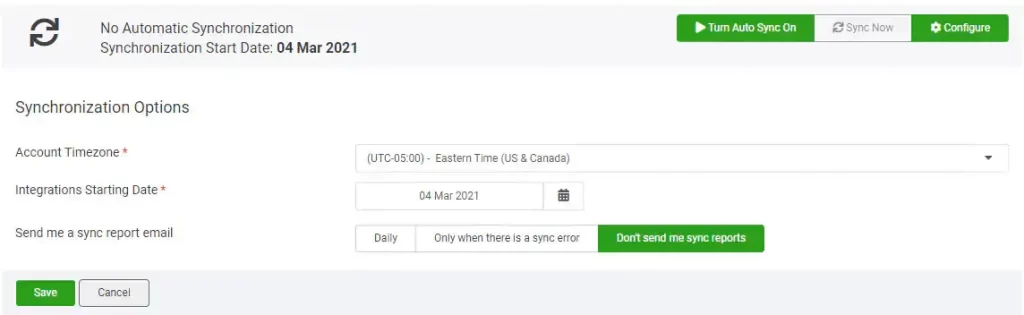
  1. Before configuring your workflows, you’ll first need to define your synchronization settings. The following setup steps are required before you can proceed:
  • Account timezone
  • Integrations starting date
  • Email sync report options
  1. You’ll see a list of primary workflows available for your integration setup. Each workflow is optional, so it’s important to review the options carefully before enabling them. In most cases, the sync can support the following:
  • Sales data from BigCommerce can be automatically synced to QuickBooks Online.
  • Product information from BigCommerce can also be transferred to QuickBooks Online.

b. If inventory tracking is enabled in QuickBooks Online, QuickBooks Connector can read the inventory data and automatically update stock levels in BigCommerce.

  1. Before you can begin configuring your workflows, you’ll need to complete the synchronization setup. The following synchronization settings must be configured first:
  • Account timezone
  • Integrations starting date
  • Email sync report options
Email sync report options
  1. You’ll be shown a list of core workflows available for setup. Since these workflows are optional, it’s important to review each one carefully before enabling it. In general, the integration supports the following capabilities:
  • Sales data from BigCommerce can be synced to QuickBooks Online.
  • Product details from BigCommerce can also be transferred to QuickBooks Online.

c. If inventory tracking is enabled in QuickBooks Online, QuickBooks Connector can use this data to automatically update inventory levels in BigCommerce.

Order syncing workflow

  1. Begin the setup by choosing the first workflow that will sync your BigCommerce orders with QuickBooks Online. These settings control the core behavior of the integration.
  • First, choose which BigCommerce order statuses should be imported into QuickBooks Online. Depending on how your business processes orders, you may also want to include statuses such as Pending or Awaiting Payment.
  • Next, decide how the orders should be created in QuickBooks Online. You can send them either as Sales Invoices or Sales Receipts, depending on the accounting method your business uses.
  1. You can then open the Default Product and Advanced Options sections to configure additional settings.
  • Order Number Prefix – Any prefix entered here will automatically be added to imported order numbers. For example, if the BigCommerce order number is 1234 and you set the prefix as BC-, the order will appear in QuickBooks as BC-1234.
  • Gift Card Product – This lets you assign a specific product item for gift card transactions, helping you track gift card sales separately in QuickBooks.
  • Assign Sales to Class / Location – These settings allow you to map sales to a default class or location in QuickBooks Online. This feature is available only if classes or locations have already been enabled in your QuickBooks account.
  • Customer Record Options – Since QuickBooks requires a customer profile for every sales transaction, you can choose how customer records are created. The default setting uses the original customer name, but if your customers usually purchase on behalf of a company, you can choose to use the customer’s organization name instead. Another option is to group transactions under a generic online sales customer.
  • Automatic invoice numbers – This option allows you to disregard the BigCommerce order number completely and use the sequential numbering convention within your accounting system. Alternatively, if you don’t want any customer records to be created within your accounting system at all, you can select the Generic online sale customer option. This means all sales will be synced to your accounting system against a generic BigCommerce customer record. You can read more about how this works here.
  • Discount Product – You can assign a specific discount item to record and track discounts applied to sales transactions separately in QuickBooks Online.
  • Rounding Off Product – This item is used whenever there is a small rounding difference between the BigCommerce order total and the QuickBooks invoice or sales receipt total.
  • Use Shipping Item – If you charge customers for shipping, you can map those charges to a dedicated shipping item. This makes it easier to monitor revenue earned from shipping fees.
  • Use Default Customer Message – Enabling this option allows QuickBooks Online to use the default message saved in its invoice template, instead of importing notes from BigCommerce.
  • Allow Credit Card Payments – Turn on this setting if you want customers to be able to make payments using credit cards for synced transactions.
  • Due Date Offset – If an order does not already include a due date, the app will automatically calculate one using the transaction date plus the offset value you set here. If no offset is provided, the transaction date itself will be used as the due date.
  1. The integration also provides an option to sync refunded or canceled orders from BigCommerce. During this setup, you’ll need to choose a fallback account that will be used for refund transactions. You can also define a custom refund number prefix, which will be added before each refund receipt number to make it easier to identify.
  • Order Status for Refunds – Select the BigCommerce order statuses from which refunded or canceled orders should be imported into your accounting system.
  • Product Matching Between BigCommerce and QuickBooks Online – To ensure orders sync correctly, all products in BigCommerce should have unique SKUs assigned.
  1. For QuickBooks Online, there are two available product matching methods:
  • Name Matching – Matches the SKU field from BigCommerce with the *Name* field in QuickBooks Online.
  • SKU Matching – Matches the SKU field from BigCommerce directly with the SKU field in QuickBooks Online.
  1. Next, you’ll be directed to the Tax Configuration section. Here, each tax rule created in BigCommerce must be linked to the corresponding sales tax code in QuickBooks Online.
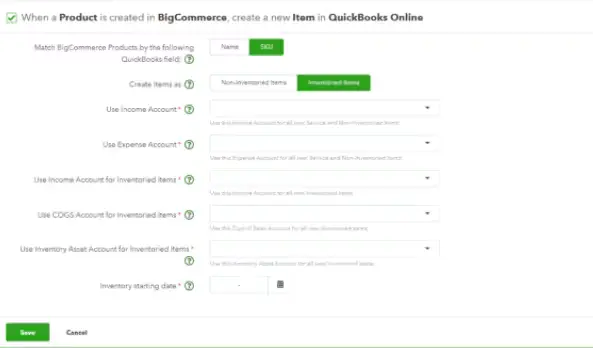
  2. If you want the integration to automatically create new products in QuickBooks Online, you can enable the product creation option.
  • For inventory items, the app can assign a Cost of Goods Sold (COGS) account during product creation, but it does not sync the actual COGS value.
  • For non-inventory items, you’ll need to manually choose the appropriate Income and Expense accounts.
  1. The Send Payments from BigCommerce to QuickBooks Online setting allows payment information from BigCommerce to be recorded against sales transactions in QuickBooks Online. You can also map individual payment methods to separate clearing accounts if required. If you’re uncertain which clearing accounts to use, it’s best to consult your accountant.
  2. Once all settings are configured, select Save to complete the setup.

Order syncing workflow

  1. Begin the setup process by selecting the first workflow to sync your BigCommerce orders with QuickBooks Online. These configuration settings control the core behavior of the integration.
  • Choose the BigCommerce order statuses the app should use when retrieving sales to sync into QuickBooks Online. Depending on how your business operates, you may also want to include orders with statuses such as Pending or Awaiting Payment.
  • Next, decide how your BigCommerce orders should be recorded in QuickBooks Online. You can choose to sync orders as either Sales Invoices or Sales Receipts, depending on what best suits your accounting workflow.
  1. To access additional configuration settings, select Default Product and Advanced Options.
  • Order number prefix: Any prefix you enter here will be added to all orders imported from your BigCommerce account. For example, if an order number is 1234 in BigCommerce and you set the prefix to BC-, it will appear in QuickBooks Connector as BC-1234 and be sent to QuickBooks Online in the same format.
  • Gift card product: Similar to shipping and discount items, you can assign a dedicated product for gift card sales to help track them separately.
  • Assign sales to class / Assign sales to location: These settings let you assign a default class or location within QuickBooks Online. This feature is specific to QuickBooks Online and will only work if you have classes or locations set up in your company file.
  • Customer assignment options: Most accounting systems require a customer record for each sales invoice. Here, you can choose how customers are recorded:
  • Original customer: Uses the customer details from BigCommerce.
  • Customer’s organization: Uses the company name provided by the customer instead of their individual name.
  • Generic online sale customer: Assigns all transactions to a single generic customer record for online sales.
  • Automatic invoice numbers: This option lets you ignore the original BigCommerce order numbers and instead use the sequential invoice numbering system from your accounting platform. If you prefer not to create individual customer records in your accounting system, you can choose the Generic Online Sale Customer option. With this setting enabled, all sales will be synced under a single generic BigCommerce customer profile. You can learn more about how this feature works in the related documentation.
  • Discount product: Assign a dedicated discount item to help track discounts applied to your sales transactions.
  • Rounding off product: This item is used whenever there is a small rounding difference between the order total in BigCommerce and the total shown in a QuickBooks Online invoice or sales receipt.
  • Use shipping item: If you charge customers for shipping, you can assign a dedicated shipping item to record these charges separately. This makes it easier to track shipping-related revenue.
  • Use default customer message: Enable this option to use the default message template saved in QuickBooks instead of importing notes from BigCommerce orders.
  • Allow credit card payments: Turn on this setting to allow credit card payments for synced transactions.
  • Due date offset: If a transaction does not already have a due date, one will be automatically assigned based on the transaction date plus the selected due date offset. If no offset is specified, the transaction date itself will be used as the due date.
  1. You also have the option to sync refunded orders from BigCommerce. As part of this setup, you’ll need to choose a fallback account that will be used to process refund payments. You can also define a custom refund number prefix, which will be added before each refund receipt number.
  • Under Order Status, select the BigCommerce order statuses the app should use to identify refunded or canceled orders that need to be synced to your accounting system.
  1. To ensure your sales sync correctly with QuickBooks Online, all BigCommerce products should have unique SKUs assigned.

Note: QuickBooks Online integrations support two different product matching methods:

  • Name: Matches the SKU from BigCommerce with the product Name field in QuickBooks Online.
  • SKU: Matches the SKU from BigCommerce with the SKU field in QuickBooks Online.
  1. You’ll be directed to the tax configuration page, where you’ll need to match each tax set up in BigCommerce with the corresponding sales tax in your accounting system. You can also learn more about how tax configuration works.
  2. If you’d like QuickBooks Connector to automatically create new products in QuickBooks Online, you can enable this setting. For inventory items, the app can assign a Cost of Goods Sold (COGS) account when creating products, but it won’t sync the product’s COGS value or cost price.
  3. For non-inventory items, you’ll need to choose the appropriate Income and Expense accounts manually.
  4. The “Send payments from BigCommerce to QuickBooks Online” settings allow you to decide whether payment details from BigCommerce should be linked to your sales records in QuickBooks Online. If you use multiple payment methods and want each one mapped to a separate clearing account, you can configure this using the “Map individual payment methods” option. If you’re unsure which clearing accounts to select, it’s best to check with your accountant.
  5. Once everything is configured, click Save.

Product creation workflow

This feature allows QuickBooks Connector to import all your BigCommerce products and automatically create them in QuickBooks Online. Some users prefer to create products only when they appear in completed sales, while others choose to sync their full BigCommerce catalog right away.

Product creation workflow

Note: If you want specific products to use different income or expense accounts, these settings will need to be configured directly in QuickBooks Online after the products have been created by the app.

  • Once completed, select Save. You can also learn more about product integration for additional details.

Product creation workflow

This option allows QuickBooks Connector to import all your BigCommerce products and create them in QuickBooks Online. Some users choose to create products only when they appear in actual sales, while others prefer to sync their entire BigCommerce product catalog from the start.

Note: If you need different products to be linked to separate income or expense accounts, those account settings will need to be configured directly in QuickBooks Online after the products have been created by the app.

  • Once finished, select Save. You can also learn more about how product integration works.

Stock syncing workflow

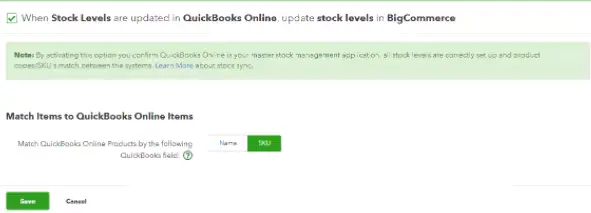
If you want to sync stock level data from QuickBooks Online to your BigCommerce products, simply choose the final workflow option.

  • Stock level syncing is not supported with QuickBooks Online France.

Important: Enable this setting only if your stock levels have already been configured in QuickBooks Online before setting up the integration. Otherwise, your existing stock quantities in BigCommerce may be overwritten. For more details, refer to our stock control process documentation.

  • Finally, click Save.
Stock syncing workflow

Stock syncing workflow

To sync stock level data from your QuickBooks Online account to your BigCommerce products, simply choose the final workflow option.

  • Stock level configuration is not supported for QuickBooks Online France.

Important: Only enable this feature if your stock levels are already configured in QuickBooks Online before starting the integration. If not, your existing BigCommerce stock levels could be overwritten. You can read more about how stock control works in our documentation.

  • Once you’re ready, click Save.

Sync BigCommerce with QuickBooks Online

Your account is now set up to sync data across all your apps. With auto-sync enabled, your data will update automatically every hour, and you can also run a manual sync anytime by selecting “Sync Now” from the Synchronization Options at the top of the Manage tab.

After accepting the QuickBooks Connector terms and conditions, you’ll be able to enable automatic hourly syncing.

Summing Up 

Integrating BigCommerce with QuickBooks Online through OneSaas helps businesses simplify everyday operations by automatically connecting sales and accounting data. Instead of manually entering orders, customer details, invoices, and payment information, the integration keeps everything up to date in real time across both platforms.

By automating essential processes, teams can focus more on customers, growth, and decision-making rather than on administrative tasks.

Frequently Asked Questions 

Does BigCommerce integrate with QuickBooks Online?

Yes, BigCommerce seamlessly integrates with QuickBooks Online. This automation eliminates manual bookkeeping and lowers human error by synchronizing store data like orders, customers, products, and taxes.

Is QuickBooks Desktop going away in 2026?

Yes, Intuit has stopped selling new Pro, Premier, and Mac subscriptions to new customers. Existing Desktop subscribers and those using QuickBooks Enterprise can continue using and upgrading their software.

Why don’t accountants like QuickBooks Online?

Accountants often dislike QuickBooks Online (QBO) because its user-friendly interface allows business owners to easily make and hide mistakes. Professionals prefer accounting software with stronger internal controls, strict audit trails, and robust tools capable of handling highly complex, multi-entity financial transactions.

Can GnuCash replace QuickBooks?

Yes, GnuCash can replace QuickBooks for very small businesses, sole proprietors, and technically-minded users who only need basic bookkeeping. However, scaling businesses or those who rely on automation, payroll processing, and easy tax-filing integrations will find it lacks QuickBooks’ advanced capabilities.

About The Author

Lana Creston

Lana Creston is an experienced technical and accounting writer with a total of 9 years of experience. She currently works on QuickBooks accounting and technical guides at QuickBookSupportNet. Lana has a passion for reading and writing about various technical topics, especially exploring new accounting methods and software, while continuously expanding her expertise in the ever-evolving field of finance and technology.

QuickBooks Desktop 2023 is ending — Upgrade QuickBooks Desktop 2023 to 2024 for continued performance and support.

Get a Free Consultation with Our QB Tax Experts
!-->