Let’s Convert QuickBooks Pro or Premier to Enterprise 

Jan 27, 2026

Admin |

Estimated Read Time : 5 MIN

Are you looking to convert QuickBooks Pro or Premier to Enterprise?

Upgrading can be a smart move for your business. As we know, Intuit has discontinued QuickBooks Pro and Premier versions, leaving them with limited access and no updates for security or features. QuickBooks Desktop Enterprise, on the other hand, is a great solution for managing a growing business, offering cloud hosting and automation of various tasks.

In this blog, we’ll walk you through how to safely upgrade from QuickBooks Pro or Premier to QuickBooks Enterprise. Let’s dive into this comprehensive guide!

Why Would a QuickBooks Customer Want to Upgrade to Enterprise? 

The primary reason is the discontinuation of the QuickBooks Desktop Pro and Premier versions. You can access the features and manage your business only if you are an existing user; the subscription for new users has been discontinued.

However, QuickBooks Desktop Enterprise is also an advanced edition of QuickBooks Desktop, designed for small businesses and enterprises. It is a powerful, locally installed software that offers offline work capabilities, extensive reporting, industry-specific features, robust inventory management, and the ability to be customized and scaled for businesses with complex needs. 

Learn How to Upgrade QuickBooks Pro or Premier to Enterprise 

Explore the detailed steps to learn how you can convert QuickBooks Pro or Premier to Enterprise for better accounting and financial management:

1. Make sure your computers and server are compatible with QB Enterprise 

QuickBooks Desktop Enterprise requires you to meet the standard requirements for optimal performance and run the business operations uninterrupted. For this, check the system requirements for QuickBooks Desktop Enterprise 2024 and ensure that your systems and the server are compatible. 

2. Install QuickBooks Enterprise 

Here’s how to install QuickBooks Enterprise for the first time: 

  • Make sure your computer has an active internet connection.
  • Locate the file QuickBooks.exe.
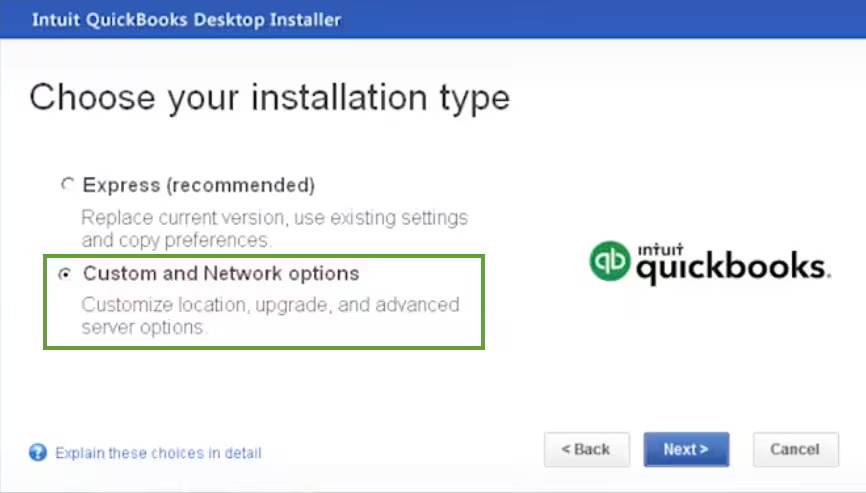
  • Select
    • Express install – This will save your preferences and install over the existing version of QuickBooks. To access your previous version, you’ll need to use the custom install option.
    • Custom and Network Options – This allows you to install the new version in a different location while keeping prior versions. However, your previous version’s preferences won’t carry over to the new version.
installation type
  • Click Next.
  • Select Install.
  • When done, choose Open QuickBooks.

Note: If you host your company file, make sure to install QuickBooks Database Server Manager too. 

3. Move your data from Pro or Premier to Enterprise

Here’s how you can move your company file from QuickBooks Desktop Pro or Premier to Enterprise with easy steps: 

a. Backup your company file 

Create a backup of the company file before proceeding: 

  • Go to File at the top. 
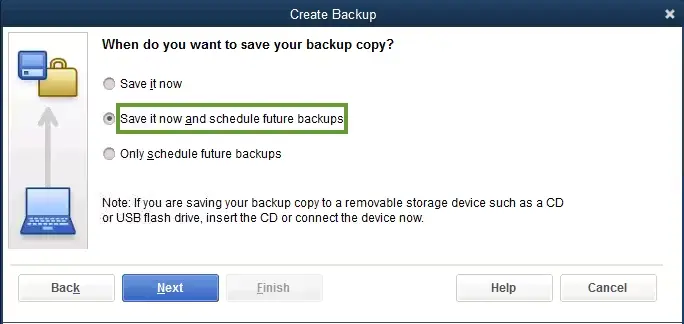
  • Choose Create Backup
Create a backup company file
  • Select a location to save the file, such as a different computer or server.

b. Update your company file

Now that your data is secure with the backup, it’s time to update the company file to ensure compatibility with QuickBooks Desktop Enterprise.

  • Launch QuickBooks Desktop Enterprise.
  • Open your company file. 
  • Type the admin password and click OK
  • Select I understand that my company file will be updated to this new version of QuickBooks, and then click Update Now.
  • Click OK to back up the recent data, and then follow the on-screen instructions to complete the backup of your company file.  
  • Hit Yes to update the company file.

Fix the update issues 

i. Fix QuickBooks Enterprise errors

  • Go to File at the top. 
  • Choose Utilities, then click on Restore Backup for an Earlier QuickBooks Version.
  • Select the three dots … next to the Backup filename option.
  • Look for the QuickBooks backup made during the update process and select it. Click Open. The default location of the file is where you saved the last backup copy. 
  • Click on three dots …  next to the Restored filename field.
  • Choose the folder where you want to save the restored company file in the Save In list. It is recommended to save it on your desktop. 
  • Type a unique name for the restored file in the File Name field to avoid overwriting the existing company file. Then, click Save
  • Click OK.

ii. Fix errors in your previous version of QuickBooks

  • Go to File at the top menu bar. 
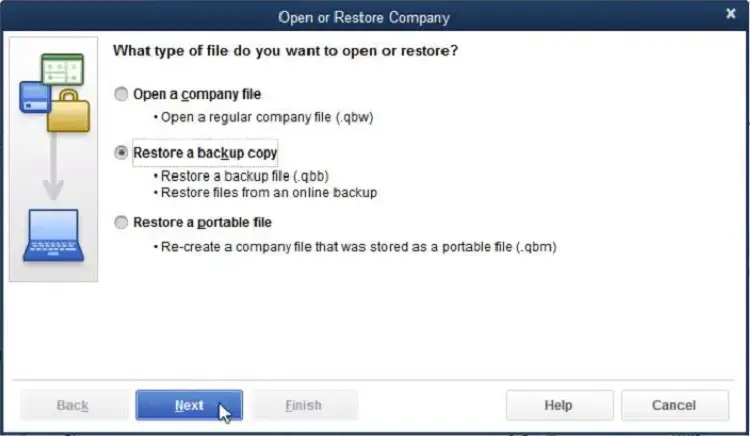
  • Choose Open or Restore Company.
Open or Restore Company
  • Click on Open a company file.
  • Open the file you just restored. 
  • Move back to the File menu. 
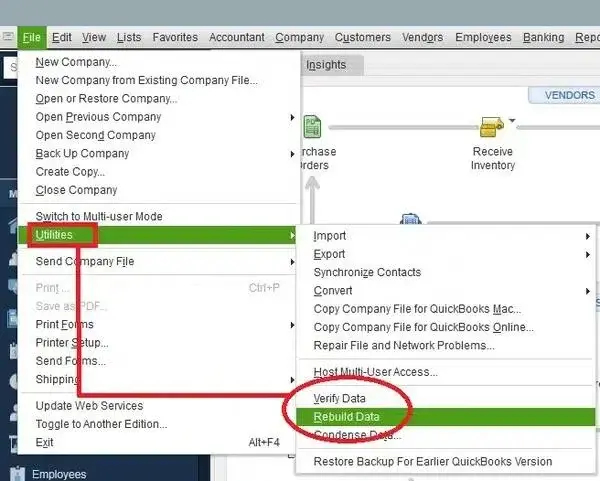
  • Select Utilities, then click Rebuild Data
Rebuild Data
  • Follow the on-screen prompts.  

Note: The Rebuild Data Utility will prompt you to create a new backup. Choose a unique file name (e.g., pre-update12.qbb). Avoid overwriting any current backups.

  • Once the rebuild is finished (this may take time based on file size), close your previous version of QuickBooks.
  • In QuickBooks Enterprise, go to File, then Open or Restore Company.
  • Locate and select the newly rebuilt company file from your desktop, then click OK.

c. Set permission list 

QuickBooks Enterprise offers the same look, feel, and features as your previous version, ensuring you work in a familiar environment.

Configure lists and user permissions

Your existing lists (vendors, items, customers, etc.) will transfer seamlessly to Enterprise, without the data limits found in other versions.

For instance, QuickBooks Pro and Premier allow a maximum of 14,500 names and list items, including customers, vendors, and employees. These restrictions do not apply to Enterprise.

Additionally, you can customize user permissions and support up to 30 concurrent users.

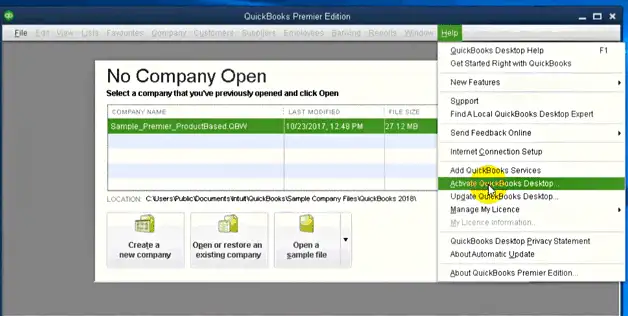
d. Activate QuickBooks

When activating QuickBooks Enterprise Solutions, you will get the recent updates and other advantages, such as technical support. Activate your QuickBooks Desktop for Windows: 

To activate QuickBooks:

  • Launch QuickBooks. 
  • Go to Help at the top. 
  • Choose Activate QuickBooks Desktop.
Activate-QuickBooks-desktop
  • Follow on screen steps to verify the information. 

Conclusion 

Whether you’re looking to convert QuickBooks Pro or Premier to Enterprise or simply want to explore the benefits of its advanced features, the transition can significantly improve your financial and accounting management. With robust automation, hosting capabilities, and more, QuickBooks Desktop Enterprise stands out as the superior choice.

We highly recommend consulting with a QuickBooks ProAdvisor for further assistance. Dial our +1(866)500-0076 to connect with an expert who can guide you through the process!

Frequently Asked Questions 

How to convert QuickBooks Premier to Enterprise?

To convert QuickBooks Desktop Premier to Enterprise, first Download QuickBooks Enterprise on your computer, then open your company file with the Enterprise software. The program will automatically convert the file and save the changes to the Enterprise-friendly format.

What is the difference between QuickBooks Pro, Premier and Enterprise?

QuickBooks Pro, Premier, and Enterprise differ primarily in their scale and advanced features: Pro is for small businesses, Premier adds industry-specific tools and better inventory management, and Enterprise offers robust, scalable solutions for large businesses with more users, complex inventory, and integrated payroll and reporting.

Should I upgrade to QuickBooks Enterprise?

Yes, it would be a great choice to upgrade QuickBooks Enterprise if you are outgrowing QuickBooks Pro or Premier and need advanced features like complex inventory management, support for more users, better reporting and customization, or management of multiple business entities.

How much does QuickBooks Enterprise cost?

The pricing for QuickBooks Desktop Enterprise starts at $ 2,210 per year. It varies depending on the subscription you choose, such as Platinum pricing, which starts at $ 2,717 per year, and so on. It is best to consult a QuickBooks expert for the pricing. Dial +1(866)500-0076 to connect to an expert.

About The Author

Lana Creston

Lana Creston is an experienced technical and accounting writer with a total of 9 years of experience. She currently works on QuickBooks accounting and technical guides at QuickBookSupportNet. Lana has a passion for reading and writing about various technical topics, especially exploring new accounting methods and software, while continuously expanding her expertise in the ever-evolving field of finance and technology.

Quick, clear, and hassle-free QuickBooks assistance.

Get a Free Consultation with Our QB Tax Experts
Connect with Our Certified QuickBooks Professionals - Dial Tollfree: +1(866)500-0076