A Detailed Troubleshooting Guide on QuickBooks Error 1646

Dec 18, 2025

Admin |

Estimated Read Time : 5 MIN

QuickBooks error 1646 typically occurs when you’re installing, uninstalling, or updating QuickBooks and is usually caused by issues with Windows components.

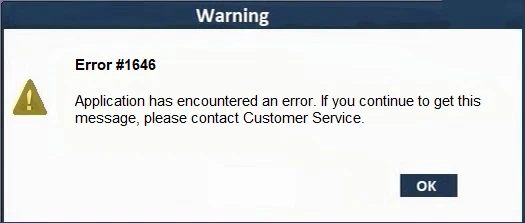
This error happens when the system files are damaged, outdated, or corrupted, preventing the “quickbooks.msi uninstallation of the update package from being completed.” The error message that appears may state, “Uninstallation of the update package is not supported.”

QuickBooks Error 1646

In this blog, we’ll take a look at the causes behind install error code 1646 and walk you through how to fix it.

What Causes Install Error 1646 in QuickBooks? 

Here’s a list of different reasons why you may encounter QuickBooks error 1646 when installing

‘quickbooks.msi uninstallation of the update package is not supported’: 

  • Outdated Windows OS 
  • Incorrect installation or damaged QB program files 
  • Damages or corruption of the Microsoft .NET Framework or Microsoft MSXML
  • Third-party programs may interfere with QuickBooks

How to Fix QuickBooks Error 1646 When Installing or Uninstalling? 

Once you’ve determined why your QuickBooks installation is failing and you see error code 1646, follow the sections below to fix it and make the software installation easier:

1. Update Windows 

An outdated Windows OS can cause incompatibility issues with software and hardware, leading to performance problems such as slowness or crashes. Here’s how to update Windows OS: 

  • Launch the Windows Start menu. 
  • In the Windows search, type Settings and press Enter
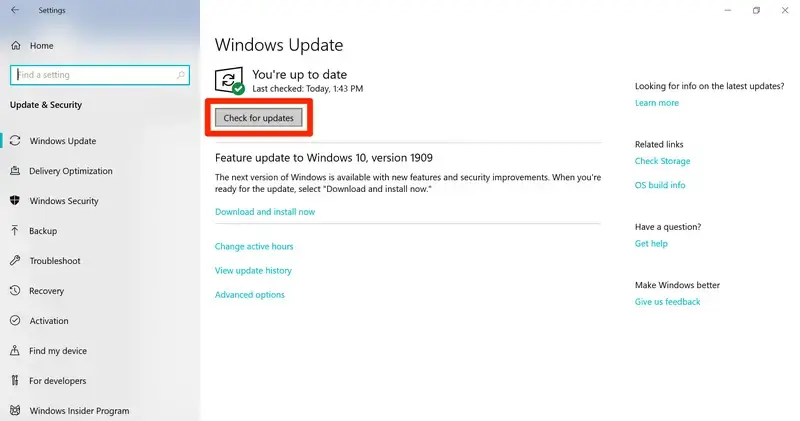
  • Go to Windows Update and click on Check for Updates
Windows update
  • If the updates are available, select Download & Install. Now, the download and install process will finish automatically. 
  • When done, restart your computer to apply the update. 

2. Repair QuickBooks Desktop 

Let’s repair the QuickBooks Desktop installation or program files using the different tools, such as Quick Fix my Program, QuickBooks Install Diagnostic tool in the Tool Hub: 

Note: Download and install QuickBooks Tool Hub (1.6.0.8) in the latest release. We recommend using the Tool Hub on Windows 11 (64-bit) for the best experience. 

a. Run Quick Fix my Program 

The Quick Fix my Program will shut down the QuickBooks processes that run in the background. This will run a quick repair on the program. 

  • Open QuickBooks Tool Hub. 
  • Go to the Program Problems menu. 
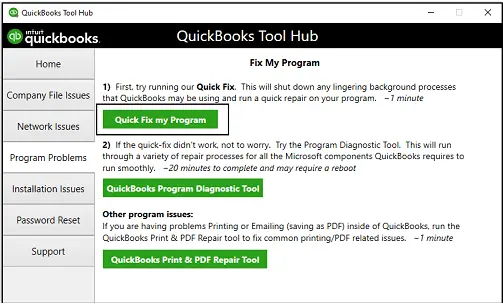
  • Click on Quick Fix my Program.
Fix My program
  • Launch QuickBooks Desktop and then your company file. 

b. Run QuickBooks Install Diagnostic tool 

If something went wrong during the QuickBooks install, it could cause problems when you try to use it. Run the QuickBooks Install Diagnostic Tool to fix common install issues.

  • Launch the QuickBooks Tool Hub. 
  • Go to the Installation Issues menu.
  • Click on QuickBooks Install Diagnostic Tool. The tool may take up to 20 minutes; wait until then. 
QuickBooks Install Diagnostic Tool
  • Once the tool finishes, restart your computer, then open QuickBooks Desktop and open your company file. 
  • Keep QuickBooks Desktop up to date to ensure you have the latest fixes and security updates. 

3. Manually fix Windows components 

Repair Windows components, the Microsoft .NET Framework, or Microsoft MSXML that are required for software installation, uninstallation, or update. Any damages or corruption can cause an MSI error:

a. Repair or reinstall Microsoft .NET Framework

The steps below apply only to Windows 10 or later. 

  • Exit all open programs. 
  • Launch the Windows Start by pressing the Windows icon.
  • In the search, type Control Panel and press Enter
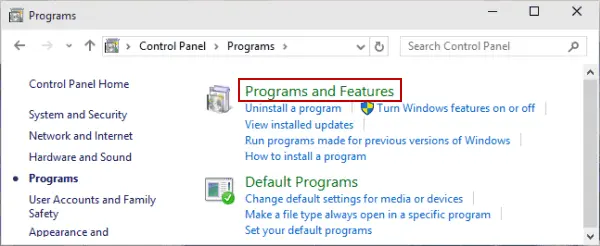
  • Navigate to Programs and Features
Programs and Features
  • Click on Uninstall a Program. Don’t worry, we are not uninstalling anything here. 
  • Hit on Turn Windows features on or off.
  • Look for .NET Framework on the list of services. 
  • Now, verify the settings for both .NET Framework 4.5 (or later) and .NET Framework 3.5 SP1.

Note: The steps to resolve .NET. Frameworks 4.5, 4.6, 4.7, and 4.8 are the same.

i. Check NET Framework 4.5 (or later)

If you haven’t selected the .NET Framework 4.5 (or later) checkbox:

  • Select the .NET Framework 4.5 (or later) checkbox to enable it. 
  • Click OK to save the changes. 
  • Restart your computer.

If you the .NET Framework 4.5 (or later) checkbox already checked: 

  • Mark the checkbox for .NET Framework 4.5 (or later) to turn it off. Don’t turn it back on.
  • Save the changes by clicking OK.
  • Restart your computer.
  • After signing into Windows, follow the same steps to turn on .NET Framework 4.5 again.

ii. Check NET Framework 3.5 SP1

If you haven’t selected the .NET Framework 3.5 SP1 checkbox:

  • Mark the checkbox for .NET Framework 3.5 SP1 to enable it. 
  • Click OK to save the changes. 
  • Restart your computer.

If you haven’t selected the .NET Framework 3.5 SP1 checkbox:

  • Mark the checkbox for .NET Framework 3.5 SP1 to disable it. Do not turn it back on.
  • Click OK to save the changes. 
  • Restart your computer.
  • Once you sign back into Windows, repeat the steps to enable .NET Framework 3.5 SP1.

b. Repair Microsoft MSXML

Register MSXML on a 64-bit operating system using these steps.

  • Press the Windows logo key to open the Windows Start menu. 
  • In the search, type cmd and press Enter.
  • Right-click on cmd and choose Run as Administrator.
  • In the C: prompt, type cd\windows\syswow64.
  • Type regsvr32 MSXML6.dll and press Enter again.
  • Install your QuickBooks Desktop.

Register MSXML on a 32-bit operating system using these steps.

  • Launch the Run prompt by pressing the Windows+R keys.
  • In the Run, type cmd and press Enter
  • Type regsvr32 MSXML6.dll, then press Enter again.
  • Install QuickBooks Desktop.

If the issue persists, contact an IT professional for assistance.

4. Use Selective Startup to install QuickBooks Desktop

To ensure that no other apps interfere with the QuickBooks installation, switch to Selective Startup. If you are not comfortable performing these steps, contact your computer manufacturer or a Windows expert.

Before starting up: 

a. Switch to Selective startup

  • Press the Windows+R keys on the keyboard to open the Run command
  • In the Run prompt, type msconfig, then click OK
  • Go to the General tab, then choose Selective startup and Load system services.
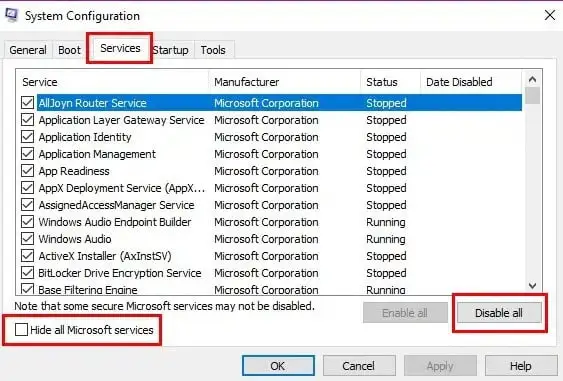
  • Move to the Services tab. 
  • Select the Hide all Microsoft Services option.
Hide-all-Microsoft-services
  • Click on Disable all.
  • Clear the checkbox for Hide all Microsoft services.
  • From the list of services, choose Windows Installer
  • Click OK
  • Select Restart on the System Configuration window.

b. Uninstall or install QuickBooks Desktop

  • Reinstall QuickBooks Desktop.
  • Open the Run command by pressing Windows+R
  • In the Run, type msconfig, then click OK
  • Move to the General tab, then choose Normal startup
  • Click OK.
  • Select Restart on the System Configuration window.

Conclusion 

QuickBooks error 1646 can make it difficult to install, uninstall, or update the software, leading to frustration and delays. By following this guide, you can effectively identify the root causes and resolve the issue quickly and efficiently.

For additional support or more advanced troubleshooting, contact QuickBooks ProAdvisors. Dial the Call Us : +1(866)500-0076 to speak with an expert now and get personalized assistance!

Frequently Asked Questions 

What is error 1646 when installing QuickBooks MSI? 

Error 1646 during QuickBooks Desktop MSI installation may occur if the Windows OS is outdated or corrupted. Additionally, the incorrect installation or damage to the downloading folder may also cause the problem.

Why do I get an error when I install QuickBooks? 

You may get an error when installing QuickBooks due to a damaged or incomplete previous installation, corrupted Windows components such as the .NET Framework, insufficient administrator rights, or interference from third-party programs.

How do I fix a QuickBooks registration error?

To fix the QuickBooks registration error, try repairing QuickBooks Desktop using the Quick Fix my Program or the QuickBooks Install Diagnostic tool. If that doesn’t work, delete or rename the EntitlementDataStore.ecml file to replace it with a new one. 

How do I fix the install error 1646 in QuickBooks? 

To fix error 1646 when installing QuickBooks, make sure to update Windows and repair Windows components, such as Microsoft MSXML or the .NET Framework. Moreover, you can use QuickBooks Tool Hub to repair or reinstall QuickBooks Desktop in selective startup.

About The Author

Lana Creston

Lana Creston is an experienced technical and accounting writer with a total of 9 years of experience. She currently works on QuickBooks accounting and technical guides at QuickBookSupportNet. Lana has a passion for reading and writing about various technical topics, especially exploring new accounting methods and software, while continuously expanding her expertise in the ever-evolving field of finance and technology.

Quick, clear, and hassle-free QuickBooks assistance.

Get a Free Consultation with Our QB Tax Experts
Connnect with Our Certified QuickBooks Professionals - Dial Tollfree: +1(866)500-0076