A Detailed Guide to Fix QuickBooks Unexpected Error 5

Jan 16, 2026

Admin |

Estimated Read Time : 5 MIN

Even a small technical glitch can interfere with accounting workflows, data accessibility, and overall productivity, making it essential to handle QuickBooks services and file permissions with care.

When these processes are disrupted, users may encounter QuickBooks unexpected error 5. This error often arises due to permission restrictions, registry conflicts, or access issues within the QuickBooks Database Service, preventing users from opening or working on company files.

In this guide, we’ll briefly discuss what unexpected error 5 means, the reasons behind its occurrence, and the most effective ways to fix it—helping you restore QuickBooks functionality and keep your business running without interruptions.

What Causes Unexpected Error 5 in QuickBooks Desktop? 

Unexpected error 5 in QuickBooks Desktop usually means “Access is denied” mainly due to insufficient permissions, and other issues we are discussing below: 

  • Possible data damage or corruption in your company file 
  • Common network connectivity issues 
  • UAC settings might be interrupting 
  • The company file user might be damaged 
  • The .ND file might be corrupted 
  • Not having enough admin or Windows permissions 
  • QuickBooks POS might not be up-to-date 
  • Incorrect installation or damage to the installation files

Top Fixes for QuickBooks Unexpected Error 5 in Call to NetShareGetInfo for Path

Here are the top proven fixes for QuickBooks Unexpected Error 5: “Call to NetShareGetInfo for Path … failed”.

This specific message means Windows is blocking QuickBooks from accessing a network share due to permissions or network configuration issues. Let’s resolve the error promptly by following the steps below: 

1. Verify and Rebuild your company file data 

The Verify and Rebuild Data utilities verify the company file for possible data damage and then rebuild the data promptly. 

a. Verify the company file data 

Let’s run the Verify utility to scan the company file for possible data damages or errors: 

  • Navigate to Window
  • Choose Close All
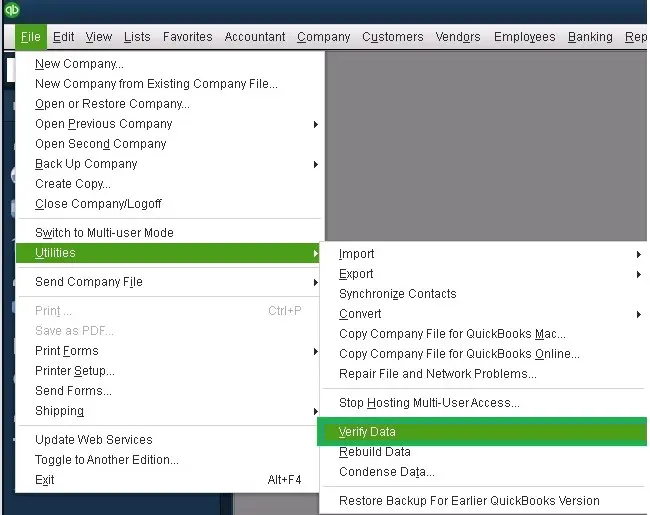
  • Navigate to File and choose Utilities.
  • Click on Verify Data
verify and rebuild company file data

Results:

  • “QuickBooks detected no problems with your data”: Your file is in good condition, and no further action is required.
  • An error message: Look up the exact error message on the QuickBooks Desktop support website to find steps to resolve it.
  • “Your data has lost integrity”: The file contains data damage. Continue by rebuilding your company file data to correct the issue.

b. Rebuild your company file data

If the verify tool finds data damage, use the rebuild tool to repair your company file. A backup is required before you can rebuild.

Note: If you use Assisted Payroll, contact us before you rebuild your data.

  • Go to File at the top. 
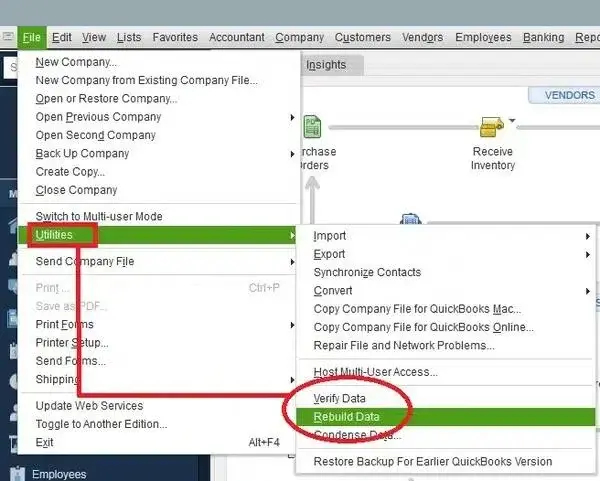
  • Select Utilities and then Rebuild Data.
Rebuild Data
  • QuickBooks will ask you to create a backup copy before rebuilding. 
  • Click OK.
  • Choose the location where you want to save the backup copy and click OK. Make sure not to replace the existing backup copy. 
  • Enter a new name in the File name and click Save
  • When you the “Rebuild has completed” message, click OK

2. Run QuickBooks File Doctor 

The QuickBooks File Doctor verifies the company file for possible data damage and the software for network connectivity issues.

Important Note: Download and install QuickBooks Tool Hub (1.6.0.8) in the latest version available. For the best experience, use Windows 11 (64-bit).
  • Launch the QuickBooks Tool Hub. 
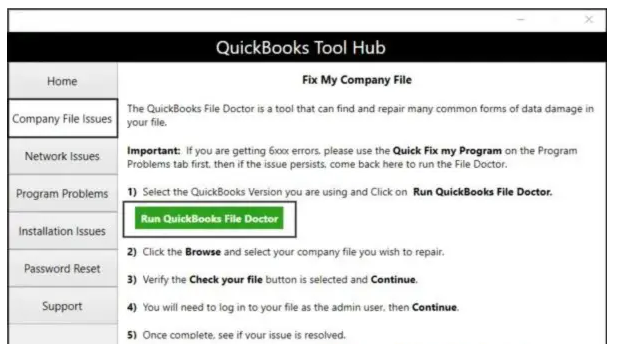
  • Go to Company File Issues in the left menu.
  • Click on Run QuickBooks File Doctor. The file doctor may take a minute or more to open; wait until then.
Run QuickBooks File Doctor

Note: If you fail to open the QuickBooks File Doctor, search for QuickBooks Desktop File Doc in the Windows search and open it manually.

  • In QuickBooks File Doctor, choose your company file from the dropdown menu. If you don’t see the company file, click Browse and search to find your file.
  • Choose Check your file > Continue.
  • Enter the QuickBooks admin password to allow the access and click Next. 

The scan duration depends on your file size and may take up to 10–15 minutes. The scan might report it was unsuccessful even though it resolves your issue. After the scan completes, open QuickBooks, and your company file.

3. Turn off the UAC settings

When you turn off UAC settings, Windows security no longer blocks QuickBooks processes, allowing you to troubleshoot the QuickBooks unexpected error 5. 

  • Press the Windows+R keys on your keyboard. 
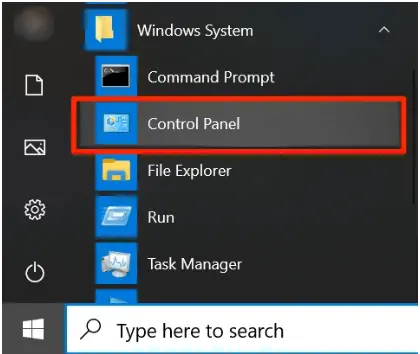
  • In the Run prompt, type Control Panel and press Enter
select control panel
  • Choose User Accounts and then User Accounts (Classic View).
  • Click on Change user account control settings. (If you see a UAC prompt, click Yes to continue). 
  • Now, move the slider: 
    • Choose Never Notify then click OK to disable UAC entirely mode
    • Choose Always Notify then click OK to enable UAC mode (Note: when prompted by UAC, click Yes in order to proceed.)
  • Restart your computer.

4. Recreate a company file user

Let’s recreate the company file user by following the steps below:

a. Remove the user 

Note: Only the Primary Contact can remove a user.

  • Sign in to My Account
  • If you need help with signing in, check My Account: Login help.
  • On the prompted Manage your QuickBooks page, choose your product or service that you want to manage. 
  • Verify that you have the correct account.
  • Scroll down to the Authorized Users section.
  • Choose the name of user that you need to delete or remove. 
  • Click on Remove User.
  • In case the user hasn’t taken any action on the sent invitation email, select the Cancel Invite option. 
  • Finally, click Remove

b. Add the user again

Note: Only a primary contact has the authority to invite a user to the account. 

  • Sign in to My Account. 
  • If you need help with signing in, check My Account: Login help.
  • Choose the product or services that you are managing on the Manage your QuickBooks page.
  • Make sure the account is correct. 
  • Scroll down to the Authorized Users section.
  • Click on Invite a User.
  • Enter the required Contact Info: 
    • Name
    • Email
    • Phone number
  • Click on Send Invite. The person will receive an email invite to join the account.

5. Rename the .ND file

Renaming the .ND file will replace the older with the new one when you open a company file in QuickBooks: 

  • Locate the QuickBooks company file folder. 
  • Find the .ND file with the same name as your company file. 

Note: If the .ND file doesn’t exist. Open the QuickBooks company file on the computer where the file resides to create it.

6. Allow the File Share access 

To resolve QuickBooks unexpected error 5 caused by insufficient Windows permissions, ensure the QuickBooks company file folder has full read/write access. Update folder permissions, enable sharing, and grant access to all QuickBooks users and services as outlined in the guide to properly set up Windows folder access and file sharing.

7. Update QuickBooks POS

Update QuickBooks POS to overwrite old, potentially corrupted system files with fresh ones, which might be causing the unexpected error 5. 

  • Log in to your QuickBooks Point of Sale account using Admin credentials.
  • From the top menu bar, click Help.
  • Select Software Updates, then click Updater Preferences.
  • In the Updater Preferences window, open the General tab.
  • Check Automatically download updates.
  • Select Notify me so you receive alerts when updates are available.
  • Click OK to apply the settings.
  • Return to HelpUpdates.
  • Click Check for Updates and install any available updates.

8. Clean install QuickBooks Desktop

Clean installing QuickBooks Desktop involves removing all the files or folders by erasing the hard drive and then downloading QuickBooks Desktop again from the scratch. This helps to remove old files, junk, malware, and corrupted settings, resulting in a faster, more stable, and efficient system.

Conclusion 

Finally, we are at the end of this blog, covering why you see QuickBooks unexpected error 5 and the detailed troubleshooting steps to resolve it. By repairing the damaged data, running the File Doctor, and following other steps, you can successfully open the company file.

If the error persists or you need professional assistance, it is recommended to contact QuickBooks professionals at QuickBookSupportNet. Dial +1(866)500-0076 to talk to an expert now!

Frequently Asked Questions 

What is QuickBooks unexpected error 5? 

QuickBooks unexpected error 5 is a company file error that usually occurs when you don’t have sufficient Windows access, there are invalid paths, the antivirus is blocking access, or the database is damaged. 

What causes ‘Got unexpected error 5’ in QuickBooks?

The primary reason you see unexpected error 5 is insufficient Windows access permissions. However, other factors can also be responsible, such as data damage, outdated QuickBooks POS, firewall, or antivirus interruption.

Is unexpected error 5 Call to NetShareGetInfo for Path a Windows or QuickBooks issue?

The “Unexpected error 5: Call to NetShareGetInfo for Path” is primarily a QuickBooks issue, but its root causes often lie in underlying Windows networking, permissions, or file system problems, especially in multi-user environments, affecting how QB accesses company files on a server.

Can I fix Unexpected Error 5 Call to NetShareGetInfo for Path without reinstalling QuickBooks?

Yes, you can often fix QuickBooks “Unexpected Error 5: Call to NetShareGetInfo” without reinstalling by using the QuickBooks Tool Hub to run programs/installation fixes, ending QuickBooks processes, or addressing network/sharing issues like renaming .ND files or ensuring proper folder permissions. 

About The Author

Lana Creston

Lana Creston is an experienced technical and accounting writer with a total of 9 years of experience. She currently works on QuickBooks accounting and technical guides at QuickBookSupportNet. Lana has a passion for reading and writing about various technical topics, especially exploring new accounting methods and software, while continuously expanding her expertise in the ever-evolving field of finance and technology.

Quick, clear, and hassle-free QuickBooks assistance.

Get a Free Consultation with Our QB Tax Experts
Connect with Our Certified QuickBooks Professionals - Dial Tollfree: +1(866)500-0076