A Detailed Guide to Troubleshoot QuickBooks Error 61
Feb 5, 2026
Admin |
Estimated Read Time : 5 MIN
Encountering errors while performing general QuickBooks Desktop operations or opening a company file is fairly common.
While some issues are temporary, others—such as QuickBooks Error 61—require immediate attention, as they can prevent you from continuing your work smoothly. This error may occur due to several reasons, including incompatibility with the Windows operating system, damaged program components, or data corruption. Identifying the root cause and applying the correct troubleshooting steps is essential.
In this detailed guide, we’ll walk you through the possible causes of error 61 and the most effective solutions for an uninterrupted experience with QuickBooks.
Let’s see why you get QuickBooks error 61 when opening a company file or trying to run other software operations:
Outdated QuickBooks Desktop version
Data damage or corruption in the company file
Damaged or missing QuickBooks backup file
Corrupt or disabled Microsoft .NET Framework
Corrupted Windows system files
Improperly sorted or corrupted Chart of Accounts list
Top 6 Methods to Troubleshoot QuickBooks Error 61 Promptly
The following section outlines several methods to help resolve the underlying issues and ensure QuickBooks error 61 is resolved. Follow the methods below one by one carefully:
1. Update QuickBooks Desktop
An up-to-date version of QuickBooks Desktop ensures access to the latest features, bug fixes, and security patches. This helps resolve issues where you can’t open the company file due to incompatibility or outdated features, and it can also fix QuickBooks error code 61.
2. Make sure Windows OS is up-to-date
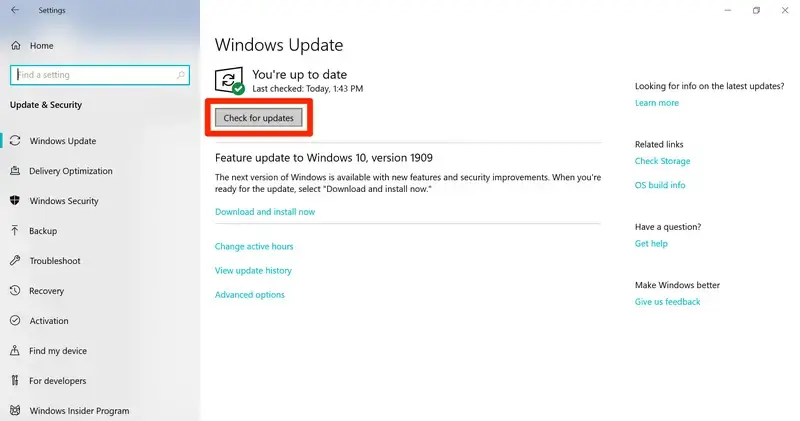
Using an older version of Windows can lead to compatibility issues with QuickBooks, which may prevent the software from opening company files or functioning properly. To avoid these problems, update your Windows operating system to the most recent version by following the steps below:
Launch the Windows Start menu.
In the search bar, type Settings and press Enter.
Choose Windows Update from the left menu bar.
To see whether the updates are available, click on Check for Updates.
If it shows the updates are available, click on Download & Install. This will automatically download and install the Windows updates.
When this is done, restart your computer to apply these updates.
3. Run the Verify and Rebuild Data tools
The Verify and Rebuild Data utilities verify the company file for possible damages and corruption and than runs quick repair. Let’s see how to use these utilities:
a. Verify your company file data
Run the Verify utility to scan the company file for possible errors or data damage.
Navigate to Window.
Choose Close All.
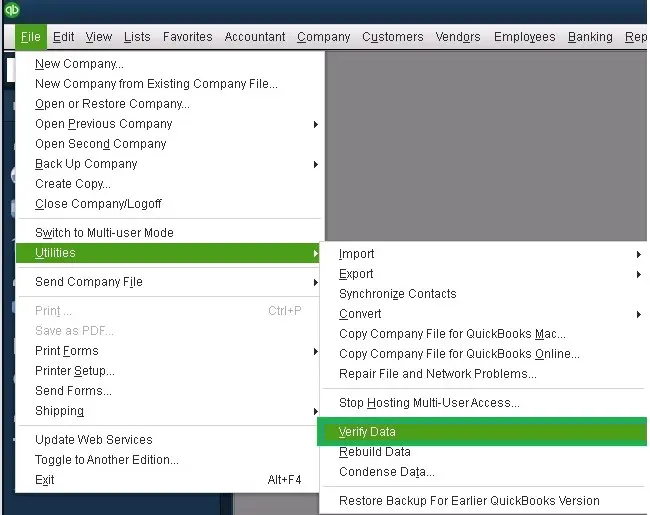
Go to File and click on Utilities.
Select Verify Data.
Results:
“QuickBooks found zero issues in your data”: Your file is healthy, and you don’t need to take any further action.
An error message: Look up the exact error message on our QuickBooks Desktop help site for steps on how to resolve it.
“Your data has lost integrity”: Data corruption was detected in the file. Continue to rebuild your company file data to correct it.
b. Rebuild the data damages
If the Verify tool discovers data damage, use the Rebuild tool to fix your company file. A backup must be created before the rebuild can begin.
Note: If you are using Assisted Payroll, contact us before rebuilding your data.
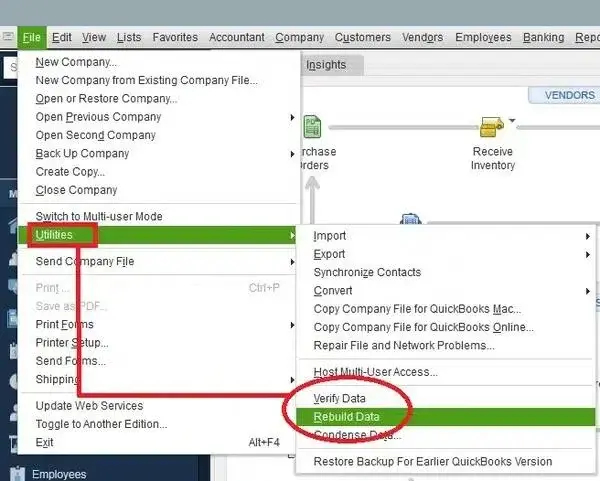
Go to File, then Utilities, and choose Rebuild Data.
QuickBooks will prompt you to create a backup before rebuilding your file.
Click OK.
Choose a location to save the backup, then select OK. Do not overwrite an existing backup file.
Enter a new name in the File name field and click Save.
Click OK when the message “Rebuild has completed” appears.
4. Restore a QuickBooks backup company file
If the Verify and Rebuild Data utility doesn’t fix the data damage or corruption, restore a copy of your QuickBooks backup file. Using a recent backup helps recover accurate information and prevents further issues, ensuring your company file returns to a stable, working condition as quickly and safely as possible.
5. Repair Microsoft .Net Framework
Repairing Microsoft .NET Framework fixes damaged or missing components QuickBooks relies on, restoring application functionality issues caused by .NET-related issues.
Close any applications that are currently running.
Open the Start menu in Windows.
Search for Control Panel and open it.
Navigate to Programs and then Programs and Features.
Click Uninstall a program (this won’t actually remove anything).
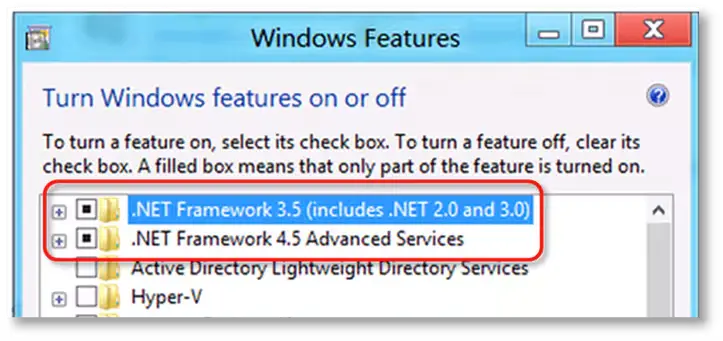
Select Turn Windows features on or off.
Locate .NET Framework in the list.
Verify that both .NET Framework 4.5 or newer and .NET Framework 3.5 SP1 are enabled.
Note: The procedure is the same for .NET Frameworkversions 4.5, 4.6, 4.7, and 4.8.
a. Check NET Framework 4.5 (or later)
If the .NET Framework 4.5 (or later) checkbox isn’t checked:
Mark the checkbox for .NET Framework 4.5 (or later) to enable it.
Click OK to save the changes.
Restart your computer.
If the .NET Framework 4.5 (or later) checkbox is already checked:
Mark the checkbox for .NET Framework 4.5 (or later) to turn it off. Make sure not to turn it back on.
Save these changes by clicking OK.
Restart your computer.
Once sign in to Windows, follow the steps on your screen to turn on .NET Framework 4.5 again.
b. Check NET Framework 3.5 SP1
If the .NET Framework 3.5 SP1 checkbox isn’t checked:
Select the checkbox to turn on .NET Framework 3.5 SP1.
Select OK to save your changes.
Restart your computer.
If the .NET Framework 3.5 SP1 checkbox is already checked:
Select the .NET Framework 3.5 SP1 checkbox to turn it off. Make sure not to turn it back on.
Click OK to save your changes.
Restart your computer.
Once you are signed back into Windows, turn on the .NET Framework 3.5 SP1 settings on again.
If an error appears while enabling or disabling the .NET Framework, contact an IT specialist or Microsoft support. The problem is likely related to your operating system rather than QuickBooks.
6. Run the SFC scan
SFC scan repairs corrupted Windows system files that interfere with QuickBooks operations, restoring required components and resolving QuickBooks error 61 caused by system-level file damage.
Press the Windows + X keys together to open the Quick Link menu.
From the menu, choose Command Prompt (Admin).
NOTE: You can also run System File (SFC)from the Windows PowerShell (Admin).
Click Yes on the User Account Control (UAC) prompt.
Type SFC /scannow in the command prompt window and press Enter.
The System File Checker utility verifies the Windows system files integrity and then runs a quick repair if detected anything.
When this process finishes, reboot your computer.
7. Rearrange your Chart of Accounts list
If QuickBooks error 61 continues to appear even after trying the standard troubleshooting steps, re-sorting the Chart of Accounts may help resolve the issue. Follow these steps to do so:
Open QuickBooks Desktop.
Click Lists, then select Chart of Accounts from the File menu.
Choose View, and click Re-sort List.
Return to your company file and check whether error 61 is resolved.
If the error persists, create a new account and merge it with the affected or corrupted account.
Conclusion
Interruptions when opening the company file or running QuickBooks Desktop can delay your accounting & bookkeeping processes. With this guide, you will learn what causes QuickBooks error 61 and the steps to troubleshoot it for an uninterrupted experience.
If the above steps don’t work or you get stuck somewhere, we suggest you consult QB professionals at QuickBookSupportNet. Dial +1(866)500-0076 to talk to an expert now!
Frequently Asked Questions
What is error code 61 in QuickBooks?
Error code 61 is a runtime issue that occurs when QuickBooks Desktop is unable to complete a task due to damaged program files, corrupted company data, or missing Windows components. It commonly interrupts normal operations within the software.
How do I fix a QuickBooks runtime error?
To fix a QuickBooks runtime error, first download and run the QuickBooks Tool Hub. Other effective solutions include updating Windows and QuickBooks, reinstalling the Microsoft Visual C++ Redistributable package, and closing conflicting background applications.
Will QuickBooks error 61 delete my data?
QuickBooks error 61, often associated with company file issues, network errors, or improper installation, typically causes freezing, crashing, or, in severe, unresolved cases, data corruption rather than immediate deletion.
Can Windows components cause error 61 in QuickBooks?
Yes, missing or damaged Windows components, especially Microsoft .NET Framework, can trigger error 61. Repairing these components often resolves the issue.
Can virus or malware infections cause error 61?
Yes, malware infections can damage QuickBooks program files and system settings, leading to QuickBooks error 61. Running a full antivirus scan is recommended.
About The Author
Lana Creston is an experienced technical and accounting writer with a total of 9 years of experience. She currently works on QuickBooks accounting and technical guides at QuickBookSupportNet. Lana has a passion for reading and writing about various technical topics, especially exploring new accounting methods and software, while continuously expanding her expertise in the ever-evolving field of finance and technology.
Effortlessly handle data tasks or get expert assistance with: