Sep 19, 2025
Admin |
Estimated Read Time : 5 MIN
QuickBooks freezing, suddenly closing, or showing QuickBooks has stopped working can be a real hassle. Sometimes, this may even trigger an error code or warning message on your screen stating the problem and what you must do in such a situation.
These glitches might come from a bad installation, Windows OS issues, or problems with the company file or software. Figuring out the culprit can feel overwhelming. Our guide dives into what’s causing these problems and gives clear steps to unfreeze QuickBooks Desktop. Let’s get started…
Table of Contents
ToggleFind out the possible reasons why QuickBooks keeps crashing in the section below:
In the section below, we will explore the steps you should take to unfreeze QuickBooks Desktop, ensuring that it does not shut down while you are working, so that you can perform accounting operations without any interruption.
| Note: For a seamless experience with QuickBooks, you must meet the specific requirements of the QuickBooks Desktop version you use. |
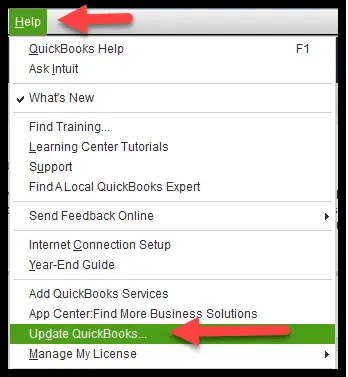
Be sure to keep your QuickBooks updated to the latest version so you have the latest security patches, bug fixes, software features, performance and stability improvements, and ensure the software is compatible with hardware and software components.

Verify the company file name to make sure that it doesn’t have any special characters, and that the file name isn’t lengthy. QuickBooks suggests you use a company file name with a 210-character limitation. Otherwise, it might damage the company’s file data or hamper the related processes.
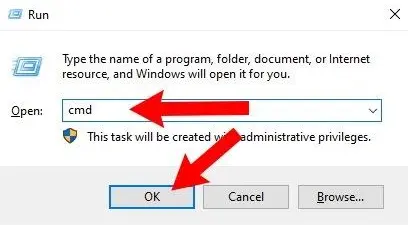
Run SFC scan to repair Windows OS by following the steps below:
NOTE: You can also run the System File Checker (SFC) from Windows PowerShell (Admin).
| Note: Renaming the QBWUSER.INI file will automatically erase all the company files you opened previously. Once done, you must open the company file again manually. |
To rename the file:
Users[Your username]AppDataLocalIntuitQuickBooks [year]
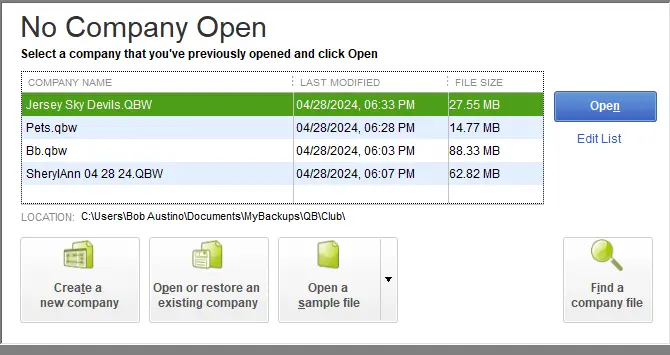
If the program opens after renaming either QBWUSER.ini or EntitlementDataStore.ecml, try opening the sample to see where the issue is.
If you can open a sample company but not your own, copy it to a different folder, then try opening a new location. If you can open the file, it means the file folder or permissions might be damaged.
If you still fail to sign in, the company file is surely damaged. Consider restoring the file backup instead.
If I can’t open the company file or QuickBooks won’t start, the QuickBooks installation is damaged.
Sometimes, QuickBooks reopens windows left open when closing the company file, which may lead to QuickBooks freezing on startup.
To open the company file without any background windows:

If the company file opens successfully, turn off the Save the desktop when closing preference.
The hard drive might not be read properly due to damage when opening QuickBooks. Let us unfreeze QuickBooks Desktop by following the steps below:

Only follow these steps if you are a tech expert, otherwise seek help from Microsoft support experts.
The steps below are applicable for Windows 10/11 or newer versions:

Review the settings for both .NET Framework 4.5 (or later) and .NET Framework 3.5 SP1.
Note: The steps to fix .NET. Framework 4.5, 4.6, 4.7, and 4.8 are the same.
Check NET Framework 4.5 (or later)
If you haven’t selected .NET Framework 4.5 (or later):
If the .NET Framework 4.5 (or later) option is already selected:
Check NET Framework 3.5 SP1
If the option .NET Framework 3.5 SP1 isn’t selected:
If the .NET Framework 3.5 SP1 option is already selected:
If you see errors when turning .NET Framework on or off, reach out to IT professionals or Microsoft.
Repairing and registering MSXML files is necessary to locate and use the Component Object Model (COM) objects it provides. Here’s how to do so:
Following the below steps if you use 64-Bit operating system

Following the below steps if you use 32-Bit operating system
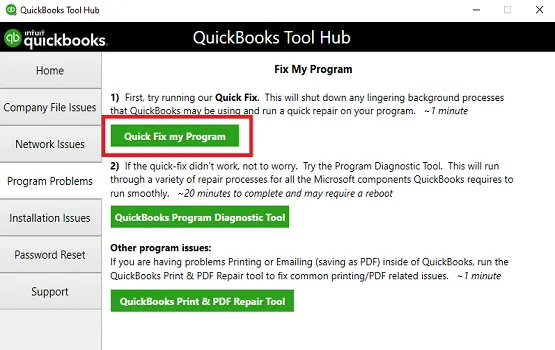
Here’s what you can do to repair the QuickBooks installation or the program files and unfreeze QuickBooks Desktop:
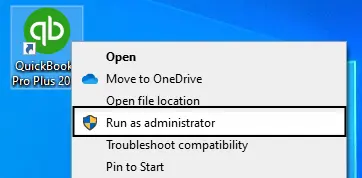
The Quick Fix my Program ends the background processes that might be lingering with current QB operations and runs a quick fix to the program.

Let’s repair the QuickBooks installation using the QB Install Diagnostic tool:

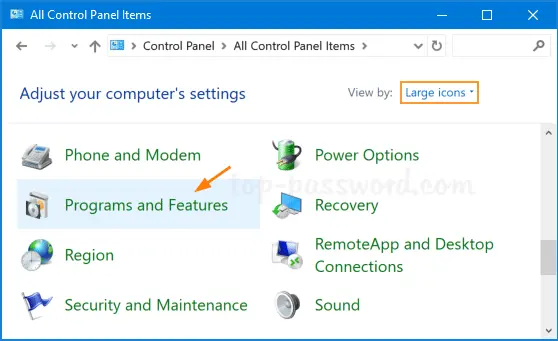
Reinstalling QuickBooks Desktop means removing and then installing QuickBooks Desktop. This will remove all the program files from your computer, ending all the processes in the background and ensuring a fresh installation of the software, resolving all the related problems and unfreezing QuickBooks Desktop.
If QuickBooks keeps freezing, it would be almost impossible to open the program and run any operations. This mainly happens due to outdated software, processes that are lingering with QuickBooks, or the outdated or damaged Windows OS. By going through this detailed guide, you can unfreeze QuickBooks Desktop and ensure a seamless and uninterrupted business operation.
For further assistance, reach out to a QuickBooks ProAdvisor on +1(866)500-0076, available 24/7 for you! Talk to an expert now!
How to unfreeze QuickBooks through Task Manager?
To unfreeze your QuickBooks Desktop through Task Manager by ending all the QuickBooks running processes. Once done, repair your QuickBooks using the QuickBooks Fix my Program and QuickBooks Install Diagnostic Tool.
Why is my QuickBooks Desktop freezing up?
QuickBooks Desktop might freeze up if the company file name is too long, if there is a corrupted installation of QuickBooks, or if the program files are damaged. Multiple background processes might hinder when opening QuickBooks, a damaged Windows OS, or hard drive issues.
What if QuickBooks has stopped working?
If QuickBooks has stopped working, you will need to identify the issue and run a quick check. Try running the Quick Fix my Program or QuickBooks Install Diagnostic Tool utility to resolve common software conflicts and data issues. If the issue persists, connecting with QuickBooks professionals is recommended.
Why is my company file not working in QuickBooks?
Your company file might not be working due to file corruption, outdated software, incorrect permissions, multiple locations, or the software might be damaged or corrupted. Other issues, such as conflicts with third-party software or background services, can also cause the problem.
Why is my QuickBooks not working on Windows 10?
QuickBooks not working on Windows 10 may be due to an outdated version of QuickBooks, a damaged or corrupted installation, conflicts with third-party software, or background services that are not aligned with QuickBooks’ current requirements.
Lana Creston is an experienced technical and accounting writer with a total of 9 years of experience. She currently works on QuickBooks accounting and technical guides at QuickBookSupportNet. Lana has a passion for reading and writing about various technical topics, especially exploring new accounting methods and software, while continuously expanding her expertise in the ever-evolving field of finance and technology.
Quick, clear, and hassle-free QuickBooks assistance.
Microsoft is ending support for the Windows 10 OS
Dec 13, 2025
QuickBooks for Mac: Everything You Need to Know
Dec 12, 2025
Learn How to Create and File QuickBooks 1099 Forms
Dec 10, 2025