How to Fix QuickBooks Error 12038 When Installing Updates?

Jan 14, 2026

Admin |

Estimated Read Time : 5 MIN

Software updates are essential for maintaining security, accessing new features, improving performance, and more—including QuickBooks Desktop. However, the update process isn’t always seamless, and many users encounter QuickBooks Error 12038 along the way.

This error typically occurs when QuickBooks is unable to connect to the internet or when Windows Firewall or other security applications block the connection. As a result, updates fail, disrupting your workflow.

To help you resolve this issue, we’ve created a detailed guide outlining the possible causes of QB Error 12038 along with step-by-step troubleshooting solutions to fix it quickly and efficiently. Follow along to ensure QuickBooks updates run smoothly and uninterrupted. 

What Causes Update Error 12038 in QuickBooks? 

Here are possible reasons QuickBooks might fail to connect and display QuickBooks error code 12038 during updates.

  • Incorrect date and time on your computer 
  • Not having the proper admin rights 
  • Internet connection settings might be interrupting the update
  • Your system does not meet the modern internet security standards
  • Interruption due to third-party programs or services 
  • Incorrect internet security or Windows Firewall settings

Troubleshoot QuickBooks Error 12038 When Trying to Install the Updates

Once you understand the root causes, identify which troubleshooting steps work best to resolve QuickBooks error 12038, as outlined below. Resolve the update error with the detailed steps mentioned below: 

1. Verify the system date and time on the computer

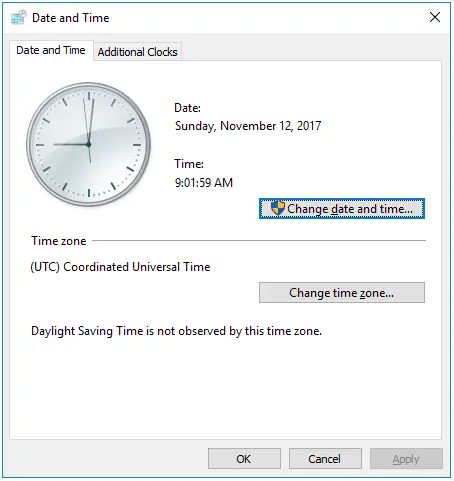
Incorrect date and time settings often interfere with time-based operations, such as updates, and can cause QuickBooks error 12038.

To verify the date and time on your computer: 

  • On your computer, right-click on the system clock.
  • Choose Adjust Date/Time.
  • Click on Change date and time.
Date and Time
  • Now, specify the correct date and time for accuracy.
  • Click OK twice.
  • Close and open QuickBooks Desktop again.
  • Try to run the QuickBooks software updates again.

2. Reset the QuickBooks updates 

Resetting QuickBooks updates forces a fresh update by clearing previous updates and resolving underlying issues. Run the update as an admin to make the changes required for a successful update: 

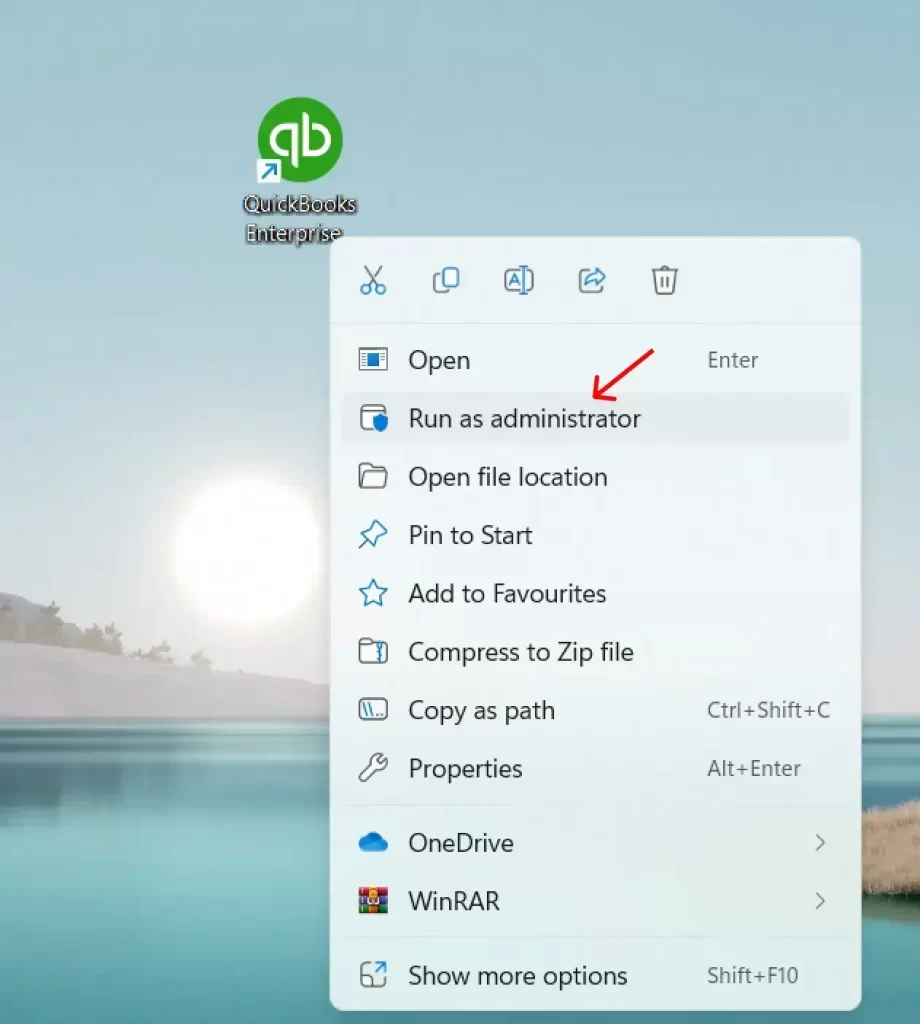
  • Right-click on the QB Desktop icon.
  • Select Run as Administrator.
run as administrator
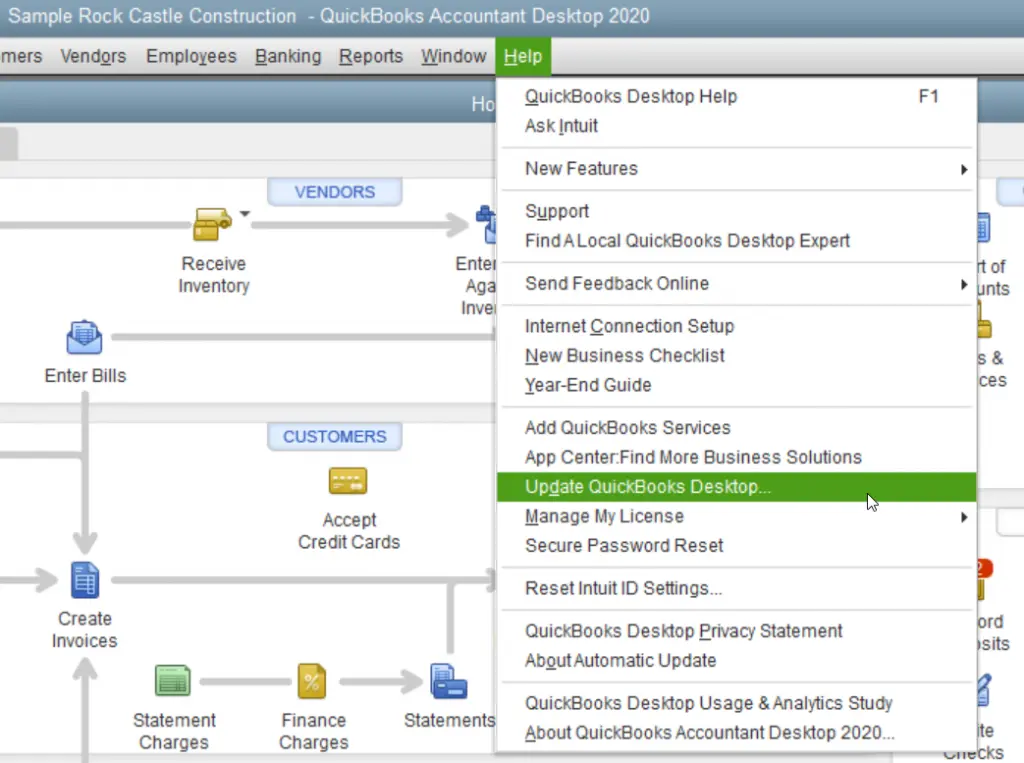
Update QuickBooks Desktop
  • In the window, select the Update Now tab.
  • Mark the checkbox for Reset Updates.
  • When done, reopen QuickBooks and click Yes to install the updates.

3. Check your Internet Connection Settings

Often, internet connectivity issues cause problems when running software updates.

Verify that your internet connection is secure, open a web browser, and visit Chase Banking.

If you can’t open the Chase Banking page, you won’t receive QuickBooks updates because your internet connection isn’t secure. Contact your internet service provider (ISP) for help.

If you can open the Chase banking, open QuickBooks Desktop, and do the following: 

  • Go to Help in the top menu bar. 
  • Choose Internet Connection Setup.
  • Now, click on Use my computer’s Internet connection settings to establish a connection when this application accesses the Internet > Next.
  • Hit on Advanced Connection Settings.
  • Go to the Advanced tab. 
  • Choose Restore Advanced Settings.
  • Select OK > Done.
  • Now try updating QuickBooks Desktop again.  

Important Note: Downloading accelerators on your computer can also interfere with the download process. Before you download the software updates, make sure to disable the download accelerator. For more information or help, contact your ISP.If you use a dial-up connection, the minimum connection speed should be 28.8 kilobits per second (Kb/s). If you use America Online (AOL) for the internet, log on to AOL with your primary credentials. Now, ensure that the Parental Controls settings are not enabled if possible. For more details, see AOL’s online support. 

4. Download and run the TLS 1.2 Utility

TLS 1.2 is an Internet Security protocol that ensures greater security and stability. Run the TLS 1.2 utility to ensure QuickBooks can access Intuit to process a specific program: 

Important Note: Download and install QuickBooks Tool Hub (1.6.0.8) to the latest release available. For a better experience, we recommend using the Tool Hub on Windows 10 (64-bit).

  • Launch QuickBooks Tool Hub. 
  • Go to Installation Issues in the left menu bar.
  • Choose the QuickBooks TLS 1.2 Tool from the bottom right corner.
  • Click OK to open the TLS tool. 
  • Now, click Yes to the EULA Agreement.
  • Select Run.
  • When done, select Exit.

5. Reinstall QuickBooks in Selective Startup 

Reinstalling QuickBooks Desktop in Selective Startup allows you to resolve the installation issue and uninstall the software without interruption from other apps. This also disables all the conflicting background processes and drivers, freeing up system resources.

Before you reinstall, make sure:

a. Switch to Selective startup

To ensure third-party apps do not interrupt the update, switch to Selective Startup. If you are not comfortable with the steps, get in touch with your computer’s manufacturer or dial +1(866)500-0076.

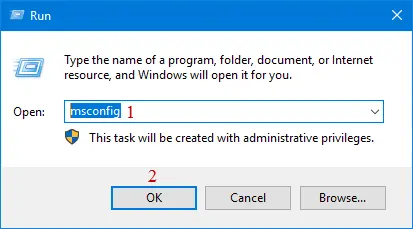
  • Press Windows + R on your keyboard. 
  • In the Run prompt, type msconfig, then press Enter
  • Go to the General tab. 
  • Choose Selective startup and Load system services.
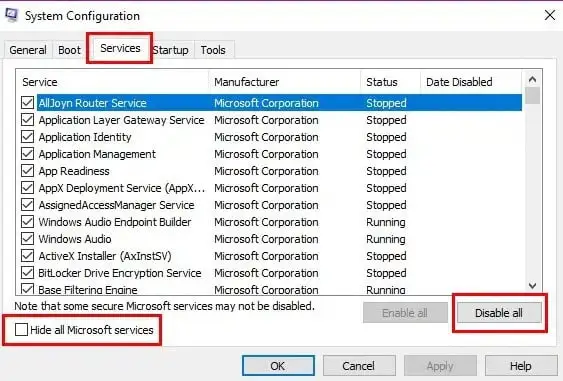
  • Move to the Services tab. 
  • Now, mark the checkbox for Hide all Microsoft Services.
  • Click on Disable all.
Hide-all-Microsoft-services
  • Uncheck the box for Hide all Microsoft services.
  • From the list of services, choose Windows Installer
  • Click OK.
  • Select Restart on the System Configuration window.

b. Uninstall or install QuickBooks Desktop

msconfig
  • Go to the General tab and choose Normal startup.
  • Click OK.
  • Select Restart on the System Configuration window.

6. Verify the Windows Firewall or system security applications 

Windows Firewall is a system security application that controls the ports for incoming and outgoing data. It works as a filter that only passes secure information, so it won’t damage your computer or harm your data. If it suspects anything wrong, such as a possible threat or a virus, it blocks all the programs from the source. 

To resolve this, you must create Windows Firewall exceptions for QuickBooks Desktop programs. Ports 80 and 443 need to be open, and access must be granted to the following files:

  • AutoBackupExe.exe
  • Dbmlsync.exe
  • DBManagerExe.exe
  • FileManagement.exe
  • FileMovementExe.exe
  • IntuitSyncManager.exe
  • QBCFMonitorService.exe
  • QBDBMgr.exe
  • QBDBMgrN.exe
  • QBGDSPlugin.exe
  • QBLaunch.exe
  • QBServerUtilityMgr.exe
  • QBW32.exe
  • QuickBooksMessaging.exe

If all these ports are occupied by other processes (which is highly unlikely), the QuickBooks Database server uses a fallback port, 56719.

Conclusion 

Finally, this guide explained the causes of QuickBooks error 12038 during updates and the most effective ways to troubleshoot it. Solutions such as updating QuickBooks with admin rights and configuring internet connection settings can also help resolve other 12XXX series errors.

If you encounter any issues or need professional assistance, you can contact QuickBooksSupportNet. Dial the toll-free number +1(866)500-0076 to speak with a QB ProAdvisor!

Frequently Asked Questions 

  1. What is error code 12038 in QuickBooks?

Error code 12038 in QuickBooks is a common update error that prevents you from installing the updates, often due to internet connectivity issues or when QuickBooks fails to connect to the Intuit servers because of Windows Firewall or other system security applications. 

  1. What is error code 12000 in QuickBooks?

Error code 12000 in QuickBooks is a series of errors you may encounter when trying to install a software update, including QB Error 12007, QuickBooks Error 12029, and others. 

  1. How to fix QuickBooks update stuck issue?

Run QuickBooks as an administrator, use different tools in the QuickBooks Tool Hub, such as Quick Fix my Program or QuickBooks Install Diagnostic tool, to repair the software. If nothing works, consider reinstalling QuickBooks Desktop in Selective Startup mode. 

  1. Is error 12038 the same as other update errors?

Error 12038 isn’t identical to all update errors but belongs to a common group (QuickBooks 12000 series) that signals connectivity issues preventing downloads, similar to errors 12007 or 12029. 

  1. What’s the role of SSL/TLS settings in QuickBooks?

SSL/TLS settings in QuickBooks play a critical role in ensuring data security, privacy, and integrity for all online communications. They establish an encrypted connection between the user’s computer/browser and Intuit’s servers, protecting sensitive financial information.

About The Author

Lana Creston

Lana Creston is an experienced technical and accounting writer with a total of 9 years of experience. She currently works on QuickBooks accounting and technical guides at QuickBookSupportNet. Lana has a passion for reading and writing about various technical topics, especially exploring new accounting methods and software, while continuously expanding her expertise in the ever-evolving field of finance and technology.

Quick, clear, and hassle-free QuickBooks assistance.

Get a Free Consultation with Our QB Tax Experts
Connnect with Our Certified QuickBooks Professionals - Dial Tollfree: +1(866)500-0076