
Sep 22, 2025
Admin |
Estimated Read Time : 5 MIN
Updating QuickBooks Desktop is essential, just like any other software, to access the latest features, security updates, bug fixes, and improved performance. However, users may encounter QuickBooks error 1328, which prevents them from installing, uninstalling, or updating the software. The error typically appears during an update with a message like:
“Error 1328. Error updating file C:\Config.Msi\PTXXX.tmp.”

If you’re facing this issue, don’t worry. This guide will walk you through the possible causes and effective solutions to fix error 1328.
Table of Contents
ToggleLet us find out all the possible factors that are interfering with the update, installation, start-up, and causing the QuickBooks error 1328:
Whether you are getting QuickBooks error code 1328 when updating, removing, installing, or opening, the steps below will help you resolve the root cause of the error. Explore the steps below and get past the error promptly:
Restarting your computer resets the internet connection settings, closes all background processes, and refreshes the temporary files, which may be hampering current QuickBooks operations, such as updating. This helps us resolve error code 1328 when updating.
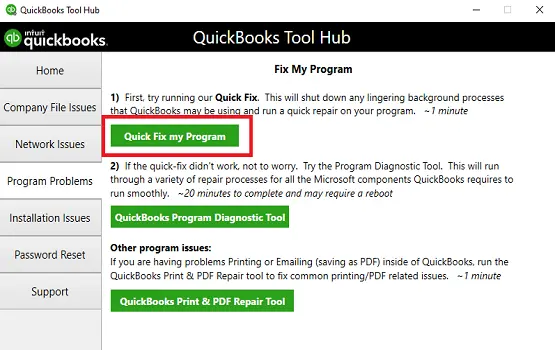
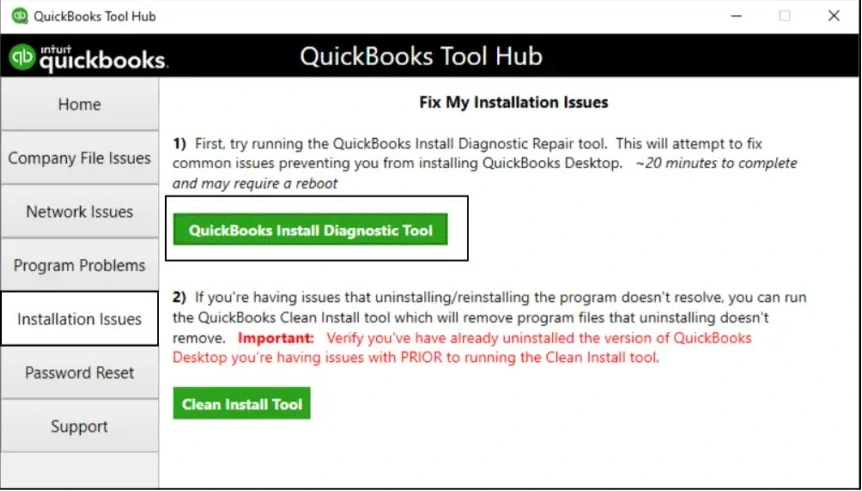
Incorrect installation of QuickBooks Desktop or damaged program files can often cause interruptions when running software processes. Let’s resolve this using different tools in the QuickBooks Tool Hub in the following steps:
Note: Ensure you have the QB Tool Hub at the latest available release, and we recommend using it on Windows 10 (64-bit).
The Quick Fix my Program will automatically close down the processes in the background that QuickBooks uses and will run a quick fix to your program.

If something went wrong during the installation or if the QuickBooks installation is corrupted, it can cause problems when trying to use it. Run the QuickBooks Install Diagnostic Tool to resolve these issues.

Select Ignore when you see the error message: “Error 1328. Error updating file C:\Config.Msi\PTXXX.tmp” on your screen by following these steps:
Repair the Windows registry to ensure you can update QuickBooks Desktop, uninstall, install, or open it without any errors on the screen:
NOTE: You can also run the System File Checker (SFC) from Windows PowerShell (Admin).
Clearing the cookies and caches refreshes the internet connection, ensuring you have a good connection to run the QB or other software processes. Proceed with the steps below to resolve the problems

Windows Firewall is a system security feature that works by filtering the ports. It controls what enters and exits the port, ensuring the system is protected from unwanted threats, viruses, or malware. If QuickBooks Desktop is considered a threat to your computer, you may encounter QuickBooks error 1328. Configure the Windows Firewall settings for QuickBooks Desktop to fix this and ensure you can get the software updates easily.
Reinstalling QuickBooks Desktop helps fix issues related to damaged or missing program files and folders. By removing the existing files and installing the software again, it restores essential components, ensuring smooth performance and resolving common errors. This process is often recommended when troubleshooting persistent technical problems with QuickBooks Desktop.
So, this was a detailed guide on how to troubleshoot QuickBooks error 1328 to ensure a seamless software update installation and more. We hope the information is all you need to get back to your business, and the error is fixed. However, if the error persists, it is recommended to connect with QuickBooks professionals at +1(866)500-0076. Talk to an expert now!
How do I fix a Windows installer error in QuickBooks?
To resolve a QuickBooks Windows installer error, first download and run the QuickBooks Tool Hub. Then, use the QuickBooks Install Diagnostic Tool to automatically repair any issues. If that doesn’t work, you can try solutions such as updating Windows, reinstalling the .NET Framework, or contacting your QB professionals at +1(866)500-0076.
How to uninstall and reinstall QuickBooks Desktop?
To uninstall QuickBooks Desktop, go to Control Panel > Programs and Features, select QuickBooks, and click Uninstall. After removal, download the latest QuickBooks setup from the official website or use your installation CD. Follow on-screen instructions to reinstall, then activate with your license and product numbers to restore access and functionality.
What is QuickBooks error 1328: Error updating file C:\Config.Msi\PTXXX.tmp?
QuickBooks error 1328, “Error updating file C:\\Config.Msi\\PTXXX.tmp,” indicates a Windows Installer issue where a temporary file needed for updating QuickBooks is corrupted, locked, or has permission issues.
How do I fix QuickBooks not updating?
To resolve the issue of QuickBooks not updating, follow these steps: Run QuickBooks as an administrator, verify and reset your internet connection, manually restart the update process, and reset the update by selecting “Reset Update” in the update options.
How do you troubleshoot software installation errors?
To troubleshoot software installation errors, start by restarting your computer, running the installer as an administrator, and checking system requirements and available disk space. If the problem persists, download a fresh copy of the installer, temporarily disable your antivirus, and try the installation again.
Lana Creston is an experienced technical and accounting writer with a total of 9 years of experience. She currently works on QuickBooks accounting and technical guides at QuickBookSupportNet. Lana has a passion for reading and writing about various technical topics, especially exploring new accounting methods and software, while continuously expanding her expertise in the ever-evolving field of finance and technology.
How to Fix QuickBooks Error 15311 During Updates
Oct 22, 2026