Instant Way to Troubleshoot the QuickBooks Fatal Error

Jan 10, 2026

Admin |

Estimated Read Time : 5 MIN

A fatal error means a non-recoverable error in a program or operating system that immediately causes the system or software to stop working, often called a crash. When this happens, all of your software processes will be hampered, and you may even lose the unsaved data. The same goes for QuickBooks: it may close unexpectedly or keep crashing each time you open it.

But the good news is that you can resolve the QuickBooks fatal error by identifying the root causes and specific troubleshooting steps, such as updating the software, Windows, and more. Let’s walk you through this guide and see what you can do to fix the fatal error in QuickBooks Desktop.

What Causes QuickBooks Fatal Error?

See why your software fails to start and QB crashes or closes suddenly due to a QuickBooks fatal error:

  • An outdated version of QuickBooks Desktop
  • Windows OS might not compatible or outdated
  • Damaged or corrupted hard drive
  • Damaged or missing data in the QBWUSER.INI file
  • Windows files might be corrupted or damaged
  • Incorrect installation or damaged program files
  • Issues with Windows components and how they interact with QB

Top 9 Ways to Resolve the Fatal Error in QuickBooks Desktop

Here are the troubleshooting steps to help you resolve the root causes of the fatal error in QuickBooks Desktop. Please follow these fixes carefully:

1. Restart your computer

Restarting your computer clears background processes or other temporary conflicts that may be interfering with the program’s normal operation. It also refreshes software connections and resets permissions, giving QuickBooks a fresh start without any conflicting elements that may be causing the error.

2. Update QuickBooks Desktop

Updating QuickBooks Desktop, make sure you use the recent software features, bug fixes, security patches, and that the software is compatible with Windows OS. This will resolve the conflicts caused by outdated Windows and ensure the fatal error is resolved.

3. Update Windows

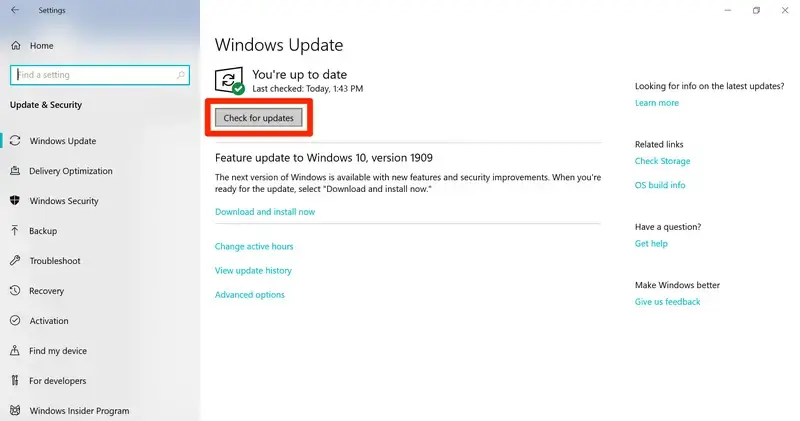
Incompatibility of Windows components with QuickBooks Desktop can cause a QuickBooks Fatal error. Update the operating system using the steps below to resolve the issue.

  • Launch the Windows Start menu.
  • In the search field, type Settings and press the Enter key.
  • Select Windows Update in the left menu bar.
Windows update
  • Hit on Check for Windows updates.
  • If you see the updates are available, choose Download & Install.
  • Once done, restart your computer to apply the updates.

4. Repair the hard drive

Run CHKDSK from File Explorer on Windows 11 to repair the hard drive on your computer:

  • Launch the Windows File Explorer and select This PC.
  • Right-click on the drive containning Windows OS (usually C:) and click on Properties.
  • Go to the Tools tab and click on Check.
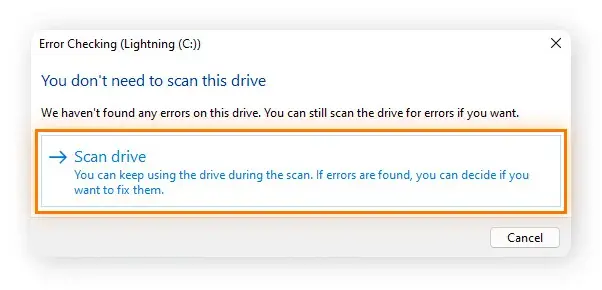
  • If the errors are detected, a prompt will appear saying: ‘You don’t need to scan this drive. If you want to scan the drive anyway, select Scan Drive.
scan drive
  • Once CHKDSK is finished, select Show Details to check the errors that are resolved, or simply click Close to close the window.

5. Rename QBWUSER.INI file

Renaming the QBWUSER.INI file may resolve the possible damages or missing data. Let’s learn how you can rename this file:

Note: Renaming the QBWUSER.INI file removes the list of your previously opened company files. You’ll need to manually reopen your company file.

To rename the file:

  • Locate the folder where the QBWUSER.ini file is saved. The default location is: Users[Your user name]AppDataLocalIntuitQuickBooks [year]
  • If you can’t find the folder, enable the hidden files and folders.
  • Right-click on the QBWUSER.ini file and select Rename.
  • Add .OLD at the end of the fila name such as QBWUSER.ini.old.
  • Name the EntitlementDataStore.ecml file again.
  • Try to open QuickBooks Desktop.

If renaming either the QBWUSER.ini or EntitlementDataStore.ecml file allows the program to open, try accessing a sample company file.

If the sample file opens but your company file doesn’t, move your file to a different folder and open it from there. (It’s best to use a local folder, not a network location.) If it opens, the issue could be a damaged folder or folder permissions.

If the file still won’t open, it’s likely damaged. In that case, restore an earlier backup of the file.

If you can’t open the sample company file or QuickBooks won’t launch, the installation may be corrupted. In that case, follow the steps in Solution 9, and try deleting the entitlement file.

6. Delete the entitlement data store file

The entitlement file stores product and license information for QuickBooks Desktop and verifies QuickBooks that the product is valid and activated. If the file is corrupted, you must repair following the below steps:

  • Press the Windows Start menu.
  • Type Run into the Windows search and press Enter.
  • In the Run prompt, type C:\ProgramData\Intuit\Entitlement Client\v8 and then Enter. If the QuickBooks folder does not open, type C:\ProgramData\Intuit\Entitlement Client\v6 instead. Note: If you still can’t find the V6 or V8 folder, open Windows file explorer and go to C:, ProgramData, Intuit, and then Entitlement Client. Make sure Hidden items is checked in file explorer.
  • Look for the EntitlementDataStore.ecml.
  • Right-click on same file and select Delete, then click Yes to confirm.
  • Open QuickBooks and your company file.
  • Follow the steps on your screen to register QuickBooks again.

7. Run the SFC scan

The System File Checker (SFC) is a built-in Windows tool that checks and repairs corrupted system files, helping fix problems that may prevent Windows from functioning properly.

  • Press the Windows + X keys on your keyboard.
  • From the Quick Link menu, select Command Prompt (Admin). NOTE: You can also run SFC from Windows PowerShell (Admin).
  • Click Yes on the User Account Control (UAC) prompt.
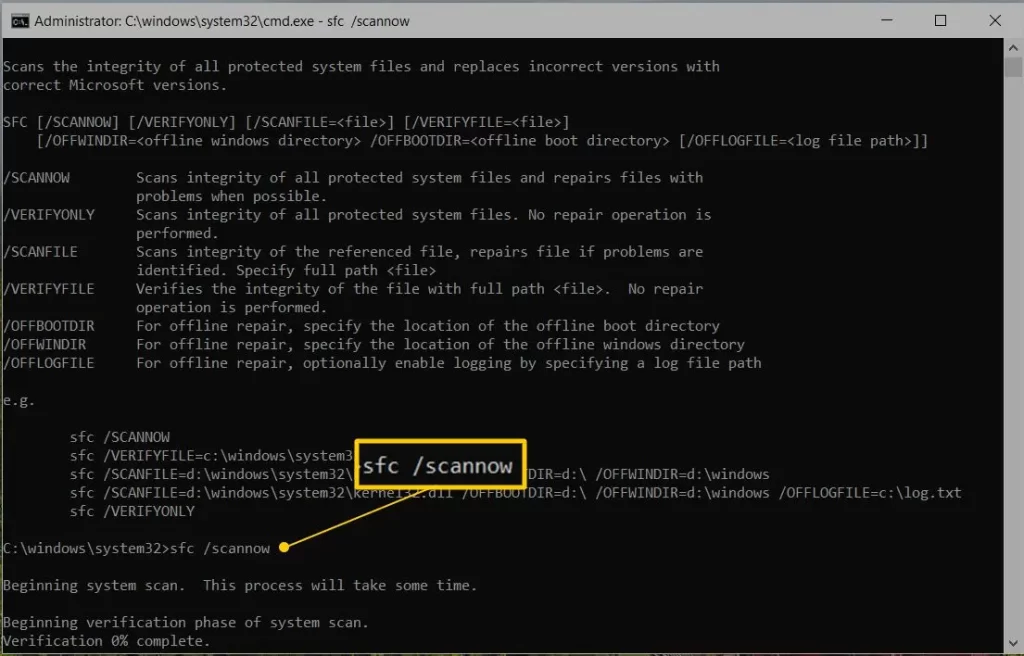
  • In the command prompt window, type SFC /scannow and hit Enter.
sfc scannow
  • The System File Checker will scan and repair any detected issues with Windows system files.
  • Once finished, restart your computer.

8. Verify and Rebuild the file data

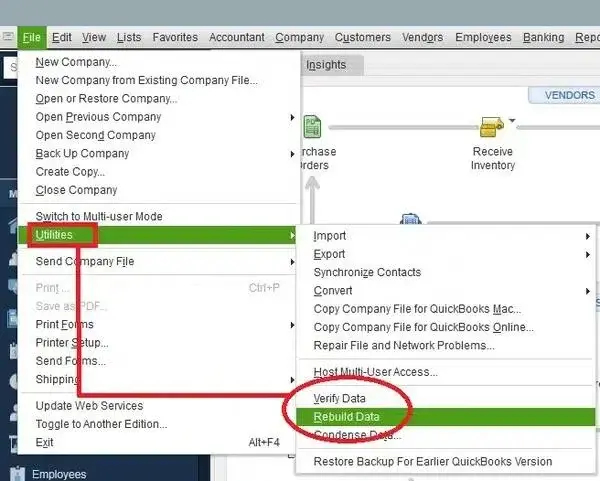
The Verify and Rebuild Data utility verifies potential data damage and then repairs the damage. Let’s learn how to run this utility:

a. Verify the file data

  • Go to Window and select Close All.
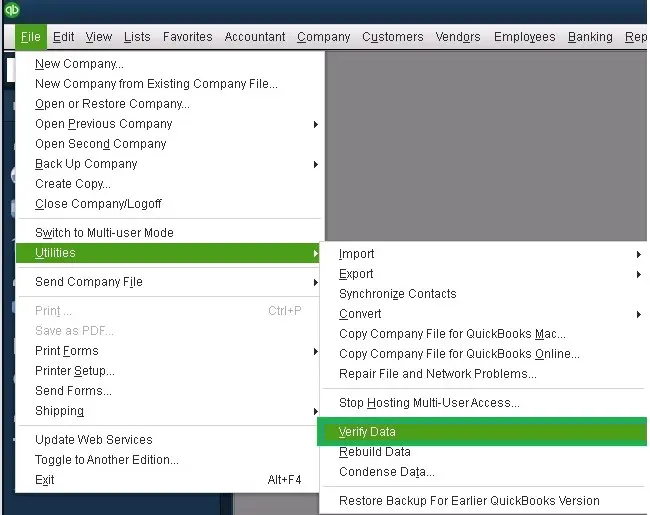
  • Select File at the top menu bar.
  • Choose Utilities.
verify and rebuild company file data
  • Hit on Verify Data. If you see:
    • QuickBooks detected no problems with your data—everything is clean, and no further action is needed.
    • An error message—check the QuickBooks Desktop support site for troubleshooting steps.
    • Your data has lost integrity—rebuild your data to resolve the damage.

b. Rebuild the data damages

  • Go to File at the top.
  • Choose Utilities, and then click on Rebuild Data.
Rebuild Data
  • QuickBooks might ask to create a backup before rebuilding the company file. Click OK, a backup is required you can rebuild.
  • Choose the location where you want to save the backup copy and click OK. Make sure not to replace the existing company file. Enter a name in File name and click Save.
  • When you see the message Rebuild has completed, click OK.
  • Go to File > Utilities then click on Verify Data again to verify the additional damages. .
    • If there are damages are detected, you will need to fix it manually. Search for the error in the qbwin.log and visit our site to find the suitable steps.
    • If the error can’t be found, consider restoring a recent backup.
  • If your error can’t be found, you can restore a recent backup. Go to File then select Open or Restore Company. Note: Do not replace the existing company file.You’ll need to re-enter the info into your company file since the backup was created.

9. Repair QuickBooks Desktop

The QuickBooks Tool Hub provides access to various tools like Quick Fix My Program and the QuickBooks Install Diagnostic Tool to help fix common installation or program file issues. Here’s how to use them:

Note: Download and install QuickBooks Tool Hub in the latest version (1.6.0.8). You must close QuickBooks to use Tool Hub. For the best experience, we recommend using Tool Hub on Windows 11 (64-bit).

a. Run Quick Fix my Program

The Quick Fix my Program will shut down any processes in the background that QuickBooks uses and runs a quick repair to the program.

  • Open the QuickBooks Tool Hub.
  • Go to Program Problems in the left menu bar.
  • Hit on Quick Fix my Program.
  • Launch QuickBooks Desktop and open the company file.

b. Run the QuickBooks Install Diagnostic tool

If there was an issue during the QuickBooks installation, it might lead to problems when using the software. Use the QuickBooks Install Diagnostic Tool to resolve common installation errors.

  • Open the QuickBooks Tool Hub.
  • In the left menu bar, select Installation Issues.
  • Click on QuickBooks Install Diagnostic Tool. The tool might take up to 20 minutes; let it run until then.
  • When done, restart your computer and open QuickBooks Desktop and then the company file.
  • Update QuickBooks Desktop to the latest release. This ensures you use the most recent fixes and security update.

10. Clean install QuickBooks Desktop

Clean installing QuickBooks Desktop removes all program files and folders related to the software but preserves your company files and financial data. This process replaces corrupted or missing files by downloading and installing fresh components, ensuring the software functions properly.

  • Uninstall QuickBooks Desktop again.
  • Launch the Windows Start menu.
  • In the search, type File Explorer and press Enter.
  • Look for the QuickBooks company file folder and open it. Usually, the QuickBooks file folder can be found in the following locations:
    • C:\ProgramData\Intuit\QuickBooks (year)
    • C:\Users\(current user)\AppData\Local\Intuit\QuickBooks (year)
    • C:\Program Files\Intuit\QuickBooks (year) – 64-bit version
    • C:\Program Files (x86)\Intuit\QuickBooks (year)
  • Right-click on the same folder and choose Rename.
  • Now, add the word “old” at the end of the folder name. This will prevent QuickBooks from opening it when you reinstall.
  • Reinstall QuickBooks Desktop.

If you get an access error message when you try to rename the folder:

  • Right-click on the Windows Taskbar.
  • Choose Task Manager in the Quick Link menu.
  • Move to the Processes tab.
  • Click on the Name column header to sort the processes list.
  • Select the following processes and click End process for each: QBDBMgrN.exe, QBDBMgr.exe, QBCFMonitorService.exe, Qbw32.exe.
  • Click Yes on the message that says, “WARNING: Terminating a process can cause undesired results…

Conclusion

In conclusion, we’ve covered a variety of potential causes behind the QuickBooks fatal error and provided troubleshooting steps to help you resolve the issue and get your software running smoothly. However, it’s normal to encounter challenges along the way.

If you need further assistance, we recommend you consulting to QuickBooks ProAdvisors, available at 1(866)500-0076. Talk to an expert now!

Frequently Asked Questions

How to fix qbw32 error in QuickBooks?

Refreshing QuickBooks Desktop will help you resolve the qbw32 error in QuickBooks. To do this, open Task Manager, go to Processes, and select the QuickBooks processes. Right-click on each and select End Task. This will change how QuickBooks interacts with Windows, resolving the associated issues.

Why do QuickBooks keep shutting down?

QuickBooks may keep shutting down due to outdated software or Windows, a corrupted or damaged company file, Windows Firewall or antivirus settings blocking it, or damaged program files.

How to fix QuickBooks Desktop crashing issue?

You will need to repair QuickBooks Desktop to fix the crashing issue. For this, download and install QuickBooks Tool Hub. In the tool, go to Program Problems > Quick Fix my Program to run a quick repair of the program and its Windows components. Run the QuickBooks Install Diagnostic tool.

How to fix a corrupted QuickBooks file?

To fix a corrupted QuickBooks company file, you will need to use the Verify and Rebuild Data utility. To do so, go to File> Utilities and click on Verify Data. If any data damage is detected, run the Rebuild Data tool from the File > Utilities menu.

What causes QuickBooks to freeze?

QuickBooks can freeze due to corrupted company files, outdated or damaged program files, or system-level issues like an overloaded hard drive or a damaged operating system.

About The Author

Lana Creston

Lana Creston is an experienced technical and accounting writer with a total of 9 years of experience. She currently works on QuickBooks accounting and technical guides at QuickBookSupportNet. Lana has a passion for reading and writing about various technical topics, especially exploring new accounting methods and software, while continuously expanding her expertise in the ever-evolving field of finance and technology.

Quick, clear, and hassle-free QuickBooks assistance.

Get a Free Consultation with Our QB Tax Experts
Connnect with Our Certified QuickBooks Professionals - Dial Tollfree: +1(866)500-0076