A Troubleshooting Guide for QuickBooks Crash Com Error

Apr 30, 2026

Admin |

Estimated Read Time : 5 MIN

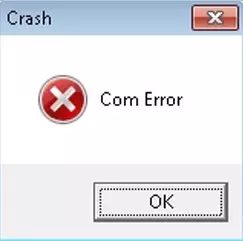
If you rely on QuickBooks Desktop to manage your business finances, encountering unexpected errors can be both frustrating and disruptive. One such issue that often catches users off guard is the “Crash: COM Error in QuickBooks Desktop.”

Com Error Message

The COM (Component Object Model) error is usually linked to communication failures between QuickBooks and other applications, such as Microsoft Outlook or system components. While it may seem like a complex technical glitch, it often stems from common issues like damaged files, incorrect settings, or outdated software.

In this blog, we’ll break down what causes the QuickBooks crash COM error, how it impacts your day-to-day operations, and most importantly, the practical steps you can take to resolve it quickly.

Possible Causes of ‘Crash: Com Error in QuickBooks Desktop’

To better understand the issue, it’s important to explore the possible causes of ‘Crash: Com Error in QuickBooks Desktop.’ Here’s a list of the possible factors causing QB Desktop to crash: 

  • You might be using an outdated version of QuickBooks Desktop
  • Microsoft Outlook might not be up-to-date or 
  • Microsoft Outlook isn’t set up as a default mail application
  • Not adding or having an email account to your Microsoft Outlook 
  • Common data sending errors between email providers 
  • Damaged or corrupted Microsoft Outlook email profile 
  • QuickBooks or Windows OS might not be compatible
  • Not having the proper admin rights to your Windows account 

Instant Fixes for QuickBooks Crash Come Error When Emailing, Opening or Exporting 

Let’s dive into the most reliable instant fixes for the QuickBooks crash com error when emailing, opening, or exporting to restore smooth functionality: 

1. Update QuickBooks

Not using an up-to-date version of QuickBooks Desktop can cause incompatibility with Windows and your preferred email app, such as Outlook, which may trigger a sudden software crash when sending data. Make sure you use an up-to-date and compatible version of QuickBooks Desktop. 

2. Update Microsoft Outlook

Updating Microsoft Outlook to the latest version can also help resolve the QuickBooks crash COM error by improving compatibility and fixing underlying bugs that may trigger the issue.

  • Launch Microsoft Outlook. 
  • Go to the File menu. 
  • Choose Office Account and then click on Update Options
  • Finally, click on Update Now and reopen Microsoft Outlook. 

3. Set up Microsoft Outlook as the default mail app

Follow these steps to make Outlook your default email application:

  • Open the Windows Start menu.
  • Type Control Panel and press the Enter key.
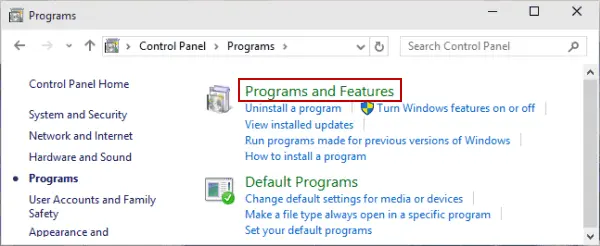
  • In Control Panel, click on Programs.
Programs and Features
  • Select Default Programs.
  • Click on Set your default programs.
  • Locate and select Mail from the list.
  • Choose Outlook and confirm your selection.

4. Add an email account to Microsoft Outlook

Follow these steps to add your email account to Outlook and start sending and receiving emails seamlessly:

  • Open the Windows Start menu.
  • Type Outlook and press the Enter key to launch Microsoft Outlook.
  • In Outlook, click on the File tab located in the top-left corner.
  • On the Info page, click Add Account to begin the setup process.
  • In the setup window, enter the email address you want to add and click Next.
  • Allow Outlook a moment to search for and automatically configure the server settings.
  • When prompted, click Connect.
  • Enter the password for your email account and click OK.
  • Follow any additional on-screen instructions, if prompted.
  • Once the setup is complete, click OK to finish and start using your account.

If QuickBooks is unable to find Microsoft Outlook, follow these steps to check if it’s listed as an email option:

  • Open the Windows Start menu.
  • Type QuickBooks and press the Enter key to launch the application.
  • Once QuickBooks opens, click on the Edit menu in the top navigation bar.
  • From the dropdown menu, select Preferences to open the Preferences window.
  • In the left panel, locate and click on Send Forms.
  • Click on the My Preferences tab on the right side of the window.
  • Look under the email options section to check if Microsoft Outlook is listed and available for selection.

Note: If Microsoft Outlook isn’t listed, restart your computer and repair QuickBooks. You may also need to create a new Windows user profile.

5. Toggle mail settings

Toggling the mail settings in Microsoft Outlook can help refresh the connection and ensure smoother communication between applications, resolving common issues such as the QB crash COM error. 

  • Open the Windows Start menu. 
  • Type Control Panel in the search and press Enter
  • Go to User Account.
  • Choose Mail and then click on Microsoft Outlook.
  • Click on Show Profile under Profile
  • Select Outlook.
  • If you have already selected the Always use this profile option, select Prompt for a profile to be used, then click Apply.
  • Now, select Always use this profile.
  • Click Apply, then OK.

6. Create a new Microsoft Outlook email profile

Creating a new email profile in Microsoft Outlook can help reset configuration issues and ensure a more stable and error-free email setup.

  • Make sure Microsoft Outlook is closed. 
  • Now, launch the Control Panel
  • Go to User Account and then choose Mail
  • Select Show Profiles in the Mail Setup window.
  • Then, click Add.
  • Enter your name in the Profile Name field. 
  • Click OK. 
  • Follow the on-screen instructions to add a new email account. 
  • Now, select Apply and click OK

Note: This won’t delete the existing Outlook profile. 

7. Run QuickBooks in compatibility mode

Running QuickBooks in compatibility mode can help ensure smoother performance by allowing it to operate more effectively with your system settings.

  • Find the QuickBooks Desktop icon on your Windows.
  • Right-click on the QB Desktop icon and choose Properties
  • Go to the Compatibility tab. 
  • Now, choose to run this program in compatibility mode.
  • Under the dropdown, choose Windows 7
  • Check the box for “Run this program as an administrator.”
  • Finally, select Apply and then click OK

8. Add a Windows admin user

Adding a new administrator user in Microsoft Windows can help provide the necessary permissions for smoother system access and improved application performance.

  • Open Settings on your computer. 
  • Ensure you are an admin user or have the required administrator rights. 
  • Go to Accounts and select Other users.
  • Then, click on Add account.
  • Choose to sign in with a Microsoft account email or select “I don’t have this person’s sign-in information” to create a local account. 
  • Now, log on to Windows with the new user.
  • When done, reopen QuickBooks Desktop. 

9. Repair QuickBooks Desktop

Intuit allows you to repair an incorrect QuickBooks Desktop installation or damaged program files using various utilities in the Tool Hub. Learn how to run a repair in the program to ensure the QuickBooks crash com error does not hamper your accounting operations.

Important Note: Make sure to download and install QuickBooks Tool Hub (1.6.0.8) using the most recent available version. 

a. Run Quick Fix My Program 

The Quick Fix My Program utility verifies processes running in the background and closes them if they interfere with QB operations. This will also run a quick repair on your program.  

  • Launch the QuickBooks Tool Hub. 
  • Go to Program Problems
  • Click on Quick Fix My Program.
  • When this is done, open QuickBooks Desktop and open your company file. 

b. Run the QuickBooks Install Diagnostic tool. 

If something went wrong during installation or different Windows components are causing issues, the QuickBooks Install Diagnostic tool runs a quick repair of the program and other Windows components to ensure a seamless installation.

  • Launch the QuickBooks Tool Hub. 
  • In the left menu bar, select Installation Issues
  • Click on QuickBooks Install Diagnostic Tool. The tool may take up to 20 minutes; let the tool run until then. 
QuickBooks Install Diagnostic Tool
  • When done, restart your computer.
  • Open QuickBooks Desktop, then open your company file. 
  • Finally, update QuickBooks Desktop to the latest version available to ensure you use the most recent fixes and security updates. 

Conclusion 

Finally, we are ending this blog by covering the detailed steps to resolve the QuickBooks crash COM error. By updating QB and Microsoft Outlook, creating a new Windows user account, or using other methods, you might be able to resolve the error and ensure the software functions smoothly.

If you need further assistance, we recommend consulting with QuickBooks ProAdvisors available at 866-500-0076. Dial the toll-free number and connect to a certified QuickBooks professional right away!

Frequently Asked Questions 

  1. Can Windows updates trigger Crash Com Error in QuickBooks?

Yes, certain Windows updates can change system components or permissions, which may disrupt QuickBooks’ communication with email services and lead to this error.

  1. Why does a crash com error happen during exporting reports to Excel?

The Crash Com error appears when exporting reports to Excel due to issues with Microsoft Excel integration, damaged Office components, or outdated QuickBooks/Office versions.

  1. Is reinstalling QuickBooks always necessary to fix the Crash Com Error?

No, reinstalling is usually a last resort. Most cases can be resolved by fixing Outlook settings, updating software, or repairing QuickBooks and Microsoft Office.

About The Author

Lana Creston

Lana Creston is an experienced technical and accounting writer with a total of 9 years of experience. She currently works on QuickBooks accounting and technical guides at QuickBookSupportNet. Lana has a passion for reading and writing about various technical topics, especially exploring new accounting methods and software, while continuously expanding her expertise in the ever-evolving field of finance and technology.

QuickBooks Desktop 2023 is ending — Upgrade QuickBooks Desktop 2023 to 2024 for continued performance and support.

Get a Free Consultation with Our QB Tax Experts
Connect with Our Certified QuickBooks Professionals - Dial Tollfree: +1(866)500-0076