How to Fix QuickBooks Error 404 “Page Not Found”?

Mar 5, 2026

Admin |

Estimated Read Time : 5 MIN

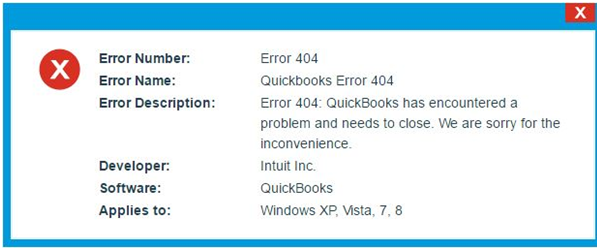
If you’re using QuickBooks and suddenly see Error 404 – “Page Not Found,” it usually means the software is unable to connect to an online service or load a required web page. This error commonly appears while accessing online features, opening certain company files, or running updates.

QuickBooks Error 404

In some cases, users may also notice messages like:

  • Code: NoSuchBucket
  • Message: The specified bucket does not exist
  • BucketName: www.macpayroll.com

Although the message may look technical, the issue is typically related to connectivity or temporary system glitches. In this guide, we’ll show you how to quickly fix QuickBooks error 404 and restore smooth access to your software.

What Causes QuickBooks Error Code 404? 

You may see error 404 in QuickBooks during updates, payroll processing, or when accessing web-based features.

Here are the common causes 

  • Unstable or slow internet connection
  • Corrupted browser cache or cookies
  • Windows Firewall of third-party system security applications 
  • Common server or web resource issues
  • Damaged program files or incorrect installation in QB Desktop 

Fix QuickBooks Error 404 When the Software Failed to Connect to the Server 

QuickBooks error 404 usually appears when QuickBooks Desktop and Online cannot connect to the internet server. This commonly happens during updates, payroll downloads, and other tasks we discussed above.

Below are proven troubleshooting steps to resolve it: 

1. Open your browser in the Private window 

Browse in the private window to make sure no stored cookies, caches, or other history hampers the browsing and causes error code 404: 

  • Google Chrome: Press Ctrl + Shift + N
  • Mozilla Firefox: Press Ctrl + Shift + P
  • Internet Explorer: Press Ctrl + Shift + P
  • Safari: Press Command + Shift + N

2. Make sure to use the supported browser

QuickBooks is compatible with the latest version and the two most recent prior releases of major web browsers. Older browser versions may not function properly and are not guaranteed to be supported.

The browsers listed below work on both desktop and mobile devices.

Note: Intuit doesn’t support Internet Explorer any longer.

  • Google Chrome: version 78 or newer
  • Mozilla Firefox: version 76 or newer.

Note: To preview and print forms on Mac OS, you’ll also need the Firefox PDF plugin.

  • Microsoft Edge: version 79 or newer
  • Safari: version 12 or newer (Mac only)
  • Opera: version 68 or newer
  • Samsung: version 10 or newer

3. Clear your browser’s cache 

Clearing your browser’s cache resolves QuickBooks error 404 by removing outdated, corrupted, or conflicting temporary files (cookies and cache) that prevent the browser from correctly loading updated, secure Intuit pages.

a. Firefox

  • Select the menu button and choose Settings.
  • Go to the Privacy & Security panel.
  • Scroll down to the Cookies and Site Data section, click Clear Data
  • This will open the Clear browsing data and cookies dialog.
  • Under the dropdown next to When:, choose Everything. Be sure to mark the option for Temporary cached files and pages.
  • Hit the Clear button.
  • Exit the Settings page. All the changes you have made will be saved automatically. 

b. Google Chrome

  • Open Google Chrome on your computer. 
  • At the top right, select More and then choose Delete browsing data.
  • Select a specific date range, such as Last hour or All time.
  • Choose the types of information you wish to remove. 
  • Click on Delete Data
  • When you clear cookies while still logged into Chrome, the browser automatically restores the Google cookies that maintain your sign-in. This ensures Chrome continues to function normally. To remove Google cookies completely, you need to sign out of Chrome before clearing them.

c. Safari for Mac

  • Open the Safari app on your Mac. 
  • Go to History > Clear History, then click the pop-up menu.
  • Choose how far back you wish to clear the browsing history.  

d. Safari for iPad and iPhone

Delete history, cache, and cookies

  • Go to Settings
  • Choose Apps, then Safari
  • Scroll down and click on Clear History and Website Data.
  • Select the time range you’d like to erase, then choose Clear History. This action won’t affect your AutoFill details. If the button appears disabled, there may be no history available to delete, or your Screen Time settings could be limiting web content changes.

Clear cookies and cache, but keep your history

  • Navigate to Settings
  • Choose Apps, then select Safari
  • Select Advanced, then choose Website Data.
  • Click on Remove All Website Data. If the button appears dimmed, there may be nothing available to delete, or your Screen Time web content settings could be preventing changes.
  • Select Remove Now to erase tracking data and information that websites use to remember your login details for quicker access.

e. Microsoft Edge

  • Open Settings and more > Settings > Privacy, search, and services.
  • Click Clear browsing data, then choose Choose what to clear under Clear browsing data now.
  • From the Time range drop-down, select the period you want to delete.
  • Pick the types of data you’d like to remove (refer to the table below for details).
  • For instance, you can delete browsing history and cookies while keeping saved passwords and autofill information.
  • Finally, select Clear now.

4. Clear Intuit-specific cookies from your browser

In most cases, clearing your browser’s cache is enough to fix the issue. However, if the problem continues, you can remove cookies related specifically to Intuit. Doing this refreshes site preferences that may be interfering with your QuickBooks experience.

Note: Be sure to delete only the cookies associated with Intuit.

a. Google Chrome 

  • Click the More (⋮) icon in the upper-right corner.
  • Choose Settings.
  • Go to Privacy and security.
  • Select Cookies and other site data.
  • Click See all cookies and site data.
  • Enter “intuit” in the search field to locate Intuit-related cookies.
  • Select Remove all shown or click the trash icon.
  • Restart Google Chrome to apply the changes.

b. Mozilla Firefox 

  • Click the Menu (☰) icon in the top-right corner.
  • Select Settings.
  • Choose Privacy & Security.
  • Under Cookies and Site Data, click Manage Data.
  • Type “intuit” in the search box and press Enter to filter the results.
  • Select Remove All Shown.
  • Click Save Changes.
  • Restart Mozilla Firefox to ensure the updates take effect.

c. Safari 

  • Open Safari and click Safari next to the Apple icon in the top-left corner.
  • Select Preferences or Settings.
  • Go to Privacy, then choose Manage Website Data.
  • Search for “intuit” to display related cookies.
  • Click Remove All.
  • Select Remove Now, then Done.
  • Restart Safari to complete the process.

5. Add Intuit as a trusted site

Adding Intuit to your browser’s list of trusted sites can help fix technical problems and reduce the chances of the browser restricting valid website features.

a. Add Intuit: Google Chrome

  • Click the Customize and control Google Chrome (⋮) icon.
  • Select Settings.
  • From the left menu, choose Privacy and security.
  • Click Third-party cookies.
  • Next to Allowed to use third-party cookies, select Add.
  • Enter intuit.com, then click Add to confirm.

b. Add Intuit: Safari

  • Launch Safari.
  • Type intuit.com into the address bar and press Enter.
  • Open the Bookmarks menu and choose Add Bookmark
  • In the drop-down beside Add this page to:, select Favorites.
  • Click Add to save.

c. Add Intuit: Microsoft Edge

  • Select the Settings and more (…) icon.
  • Click Settings.
  • Choose Cookies and site permissions from the left panel, then select Manage and delete cookies and site data.
  • Under the Allow section, click Add.
  • Enter intuit.com, then click Add to save your changes.

6. Configure Windows Firewall or other antivirus applications 

Windows Firewall is a built-in security application that monitors incoming and outgoing network traffic, allowing or blocking connections based on predefined rules. If it mistakenly blocks QuickBooks (QB) programs or ports, it can interrupt internet communication and trigger QuickBooks Error 404 when the software fails to access online services. Errors may occur if firewall or antivirus settings restrict specific QuickBooks files. Configure your Windows Firewall and set up an exception in your antivirus software for QuickBooks Desktop to restore proper access.

7. Repair QuickBooks Desktop 

If you are a QuickBooks Desktop user, you may encounter error code 404 when trying to download updates or using the Intuit services. To resolve this, make sure the QuickBooks installation or program files are not damaged using different utilities in the QuickBooks Tool Hub. 

Important Note: If you haven’t downloaded QuickBooks Tool Hub yet, make sure to get the most recent version available.

a. Run Quick Fix my Program 

The Quick Fix my Program will shut down the processes that QuickBooks uses in the background, then run a quick repair to your program.  

  • Launch the QuickBooks Tool Hub. 
  • In the left menu bar, choose Program Problems
  • Click on Quick Fix my Program.
  • Open QuickBooks Desktop and then open your company file. 

b. Run the QuickBooks Install Diagnostic tool 

If something went wrong during the QB installation, it can cause problems when trying to use it. Run the QuickBooks Install Diagnostic Tool to fix common install issues.

  • Launch the QuickBooks Tool Hub. 
  • Choose Installation Issues
  • Click on QuickBooks Install Diagnostic Tool. Let the utility run; it usually takes more than 20 minutes to finish. 
  • When done, restart your computer, open QuickBooks Desktop, and then your company file. 
  • Now, make sure you use the up-to-date version of QuickBooks to ensure you have the most recent fixes and security updates.

Conclusion 

Finally, we conclude this guide on QuickBooks error 404 and the common reasons behind server connection failures. By following the troubleshooting steps discussed above, you can quickly restore the connection in QuickBooks Desktop and continue your work without interruptions.

If the issue persists, consider contacting a certified ProAdvisor or reaching out to Intuit support for quick and reliable assistance.

Frequently Asked Questions 

How to fix QuickBooks error 404?

Resolve it by updating/repairing QuickBooks via the Control Panel, checking internet speed, resetting Internet Explorer settings to default, or using selective startup to disable interfering programs. 

What is the most common cause of a 404 error in QB?

The most common cause of a 404 error in QuickBooks is a network connectivity issue that prevents the software from communicating with Intuit’s servers, often during updates or online banking synchronization. 

Is QuickBooks error 404 a server issue?

Yes, QuickBooks error 404 is primarily a server-related, runtime, or network synchronization issue indicating the software cannot connect to Intuit servers or find a requested page. It often occurs during updates or data exchange, caused by weak internet, browser cache issues, or incorrect firewall settings. 

How can I prevent QuickBooks error 404 in the future?

You must ensure a stable internet, update software, and manage browser cache. Key preventive steps include regularly updating Windows/QuickBooks, clearing browser cookies, adjusting firewall settings, and verifying network stability. 

About The Author

Lana Creston

Lana Creston is an experienced technical and accounting writer with a total of 9 years of experience. She currently works on QuickBooks accounting and technical guides at QuickBookSupportNet. Lana has a passion for reading and writing about various technical topics, especially exploring new accounting methods and software, while continuously expanding her expertise in the ever-evolving field of finance and technology.

Quick, clear, and hassle-free QuickBooks assistance.

Get a Free Consultation with Our QB Tax Experts
Connect with Our Certified QuickBooks Professionals - Dial Tollfree: +1(866)500-0076