QuickBooks Something’s Not Quite Right Error | Here’s How to Fix 

Jan 16, 2026

Admin |

Estimated Read Time : 5 MIN

Are you unable to download transactions or even log in to your QuickBooks software? While performing routine tasks such as logging in, updating the software, opening a company file, or managing data, you may encounter the QuickBooks ‘Something’s Not Quite Right’ error.

This error indicates underlying technical issues in QuickBooks—commonly caused by browser cache problems, login conflicts, server glitches, or company file data corruption.

Let’s explore why this error appears and walk through detailed troubleshooting steps to restore smooth functionality in both QuickBooks Desktop and QuickBooks Online.

Causes of QuickBooks Something’s Not Quite Right Unexpected Problem

Here’s a list of possible reasons why “Something’s Not Quite Right – An Unexpected Problem Has Occurred” error in QuickBooks occurs in both the Desktop and Online versions: 

QuickBooks Online 

  • Excessively stored cookies and caches in the browser 
  • Incompatible or outdated web browser 
  • Browser extensions, add-ons, or saved site data blocking or altering QuickBooks scripts
  • Device-specific browser settings are interfering with QuickBooks functionality

QuickBooks Desktop 

  • Not having the proper set of admin rights 
  • Using an outdated version of QuickBooks Desktop
  • Possible data damage or corruption to the company file 
  • Windows Firewall might be blocking QuickBooks for security reasons 
  • Incorrect installation of QuickBooks 
  • Common issues or damages to the program files 

Do This When You See ‘Something’s Not Quite Right’ Error in QuickBooks Online

When the “Something’s not quite right” error appears in QuickBooks Online (QBO), it’s usually a temporary system, browser, or data-loading issue, not a data loss problem. Follow these steps in order—most cases are fixed within minutes.

1. Open QuickBooks in the private window

Try running QuickBooks Online in the private window to ensure nothing comes in between the software processes: 

  • Google Chrome: Ctrl + Shift + N
  • Mozilla Firefox: Ctrl + Shift + P
  • Microsoft Edge: Ctrl + Shift + P
  • Safari: Command + Option + P

2. Use a supported browser

Make sure the browser you use is up-to-date and meets the minimum requirements of QuickBooks Online: 

  • Google Chrome: Version 78 or newer
  • Mozilla Firefox: Version 76 or newer. 

Note: To preview and print forms on Mac OS, you’ll also need the Firefox PDF plugin.

  • Microsoft Edge: version 75 or newer
  • Safari: version 12 or newer (Mac only)

3. Clear the browser’s cookies and caches

If the browser is compatible and everything is fine, you must resolve the problem by clearing the excessive cookies and cache. Choose the browser you use and proceed with the suitable steps below: 

a. Firefox

  • Select the menu button at the top right corner. 
  • Choose Settings.  
  • Go to the Privacy & Security panel.
  • Scroll down to the Cookies and Site Data section, click Clear Data…

This will open the Clear browsing data and cookies dialog.

  • Next to When: dropdown, choose Everything
  • Now, mark the checkbox for Temporary cached files and pages.
  • Hit the Clear button. 
  • Exit the Settings page. All the changes you have made will be automatically saved. 

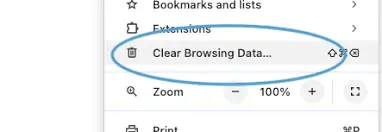
b. Google Chrome 

  • Open Google Chrome on your computer. 
  • Select More from the top right corner, then Delete browsing data.
  • Choose the specific time range, like Last hour or All time
  • Now, choose the types of information you wish to clear.
  • Click Delete data
  • If you clear cookies while signed in to Chrome, the browser refreshes the Google cookies that keep you signed in. This is to ensure that Chrome continues to function as you expected. To delete Google cookies, sign out of Chrome first.

c. Safari for Mac 

  • Open the Safari app on your Mac. 
  • Go to History > Clear History, then click the pop-up menu.
  • Choose the time range for how far back you wish to clear the browsing data.

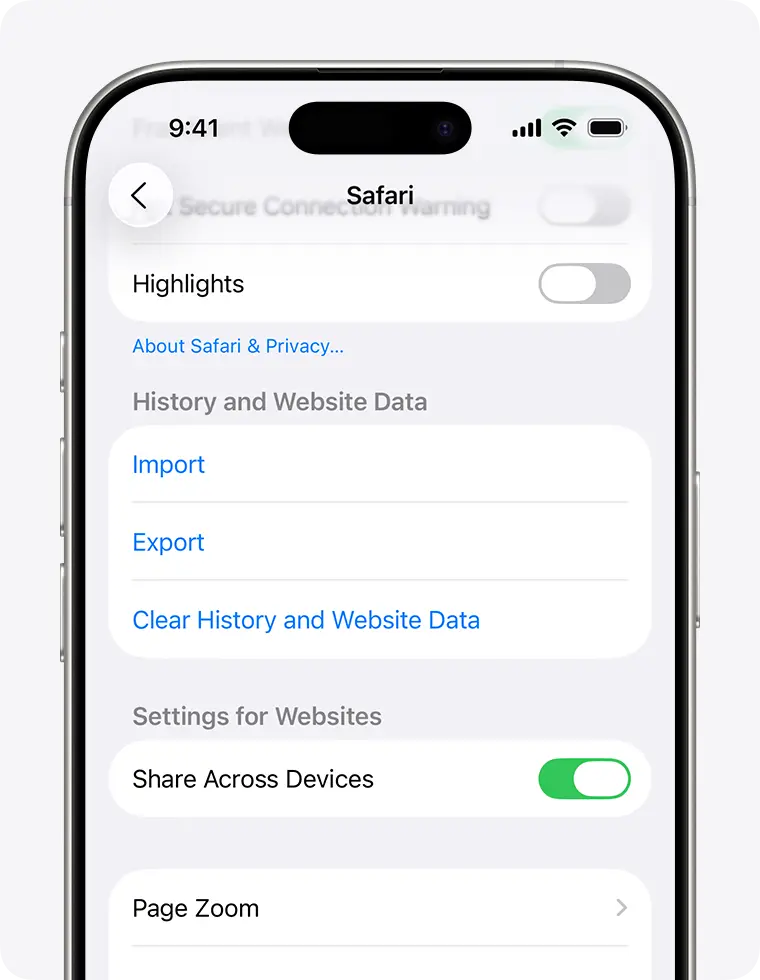
d. Safari for iPad and iPhone

  • Go to Settings
  • Select Apps and then choose Safari.
  • Scroll down and select Clear History and Website Data.
Safari Clear History

Verify the period you wish to erase, then tap Clear History. This will not affect your AutoFill details. If the button is gray, there may be no data to remove, or you may need to review your web content limits in Screen Time.

e. Microsoft Edge 

  • Go to Settings and More
  • Select Settings > Privacy, search, and services
  • Choose Clear browsing data and then click on Choose what to clear next to Clear browsing data now.
click Delete Clear browsing data
  • Choose a specific time range under the Time range drop-down menu. 
  • Choose the type of browsing data you would like to remove. For example, remove browsing data while keeping passwords and form-fill data.
  • Finally, click Clear now

4. Clear Intuit-specific cookies from your browser

Here’s how to clear only Intuit-specific cookies (without deleting everything) in the most common browsers. This helps fix login or loading issues with QuickBooks Online: 

a. Google Chrome

  • Select the More ⋮ icon at the top right corner.
  • Choose Settings.
  • Go to Privacy and security.
  • Click on Cookies and other site data.
  • Select See all cookies and site data.
  • In the search bar, type “Intuit” to find the Intuit-specific cookies. 
  • Click on Remove all shown or the trash can icon.
  • Restart Google Chrome to apply the changes.

b. Mozilla Firefox

  • Select the More ⋮ icon from the top right corner. 
  • Choose Settings.
  • Go to Privacy and security.
  • Click on Cookies and other site data.
  • Now, select See all cookies and site data.
  • In the search bar, type “Intuit” and press Enter to find the Intuit-specific cookies. 
  • Click Remove all shown or the trash can icon.
  • Restart Google Chrome to apply the changes.

c. Safari

  • Open the Safari browser. 
  • In the top left, choose Safari beside the Apple icon.
  • Choose Preferences or Settings.
  • Select Privacy, then click on Manage Website Data.
  • In the search bar, type “Intuit” to find the Intuit-specific cookies. 
  • Select Remove All, then click on Remove Now.
  • Select Done.
  • Finally, restart Safari to save the changes. 

How to Fix the QuickBooks Desktop Something’s Not Quite Right Error?

The QuickBooks Desktop ‘Something’s Not Quite Right’ error is fairly common. Here’s a structured way to fix it, from quickest to most advanced:

1. Run QuickBooks as an administrator 

Allow QuickBooks to make the required changes in your system with sufficient admin permissions: 

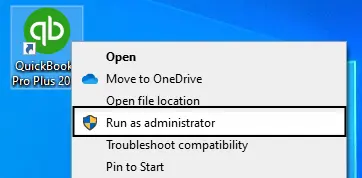
  • Locate the QuickBooks Desktop icon. 
  • Right-click on it.
  • Select Run as Administrator.
Run as Administrator

2. Update QuickBooks Desktop

Not using an up-to-date version of QuickBooks Desktop can cause compatibility issues with the Windows OS or other system components, resulting in the ‘QuickBooks Something’s Not Quite Right’ error. To fix this, make sure to update QuickBooks Desktop to the latest version available. 

3. Verify and Rebuild the file data

Let’s run the Verify and Rebuild Data utilities to resolve the common problems that might occur due to data damage or integrity issues:  

a. Verify the company file data 

Let’s scan the company file using the verify utility for possible errors or data damage: 

  • Navigate to Window
  • Choose Close All
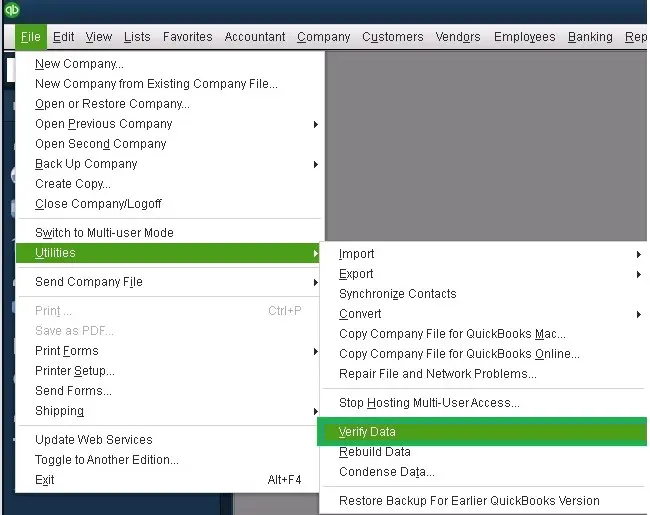
  • Go to File and select Utilities
  • Click on Verify Data
verify and rebuild company file data

Results:

  • “QuickBooks detected no problems with your data”: Your data is clean and safe; you don’t need to do anything else.
  • An error message: Check the error messages you see on our QuickBookSupportNet for the instructions on how to fix it. 
  • “Your data has lost integrity.”: Data damage is detected. Rebuild the company file data to fix the issue. 

b. Rebuild the damaged data 

If the verify tool detected the data damage, run the Rebuild utility to repair the company file. Back up your company file before rebuilding. 

Note: If you use Assisted Payroll, contact us before you rebuild the company file data. 

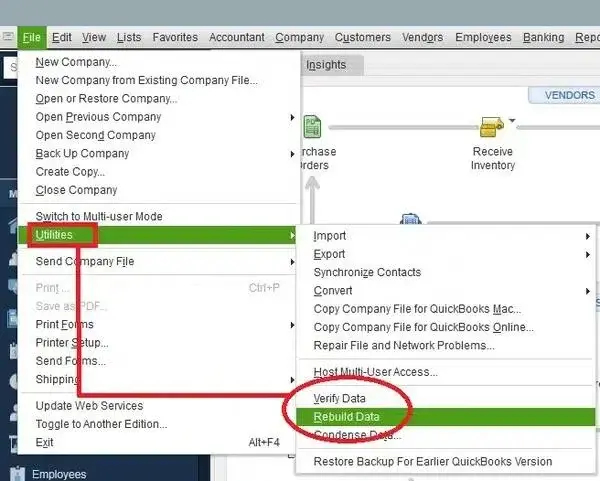
  • Go to File at the top menu bar. 
  • Select Utilities and then Rebuild Data
Rebuild Data
  • Now, QuickBooks will ask you to create a backup before rebuilding. 
  • Click OK.
  • Choose the location where you wish to save the backup copy. Click OK and make sure you are not replacing the existing backup copy. 
  • Enter a new name in the File name and click Save
  • When you get the “Rebuild has completed” message, click OK

4. Set up Windows Firewall settings for QuickBooks

Windows Firewall is a built-in system security feature that protects your system by controlling the ports for incoming and outgoing data. If it detects anything, the Firewall blocks all processes and their sources. You must configure the Windows Firewall settings for QuickBooks Desktop by creating an exception to resolve the error. 

5. Run the QuickBooks Install Diagnostic tool 

If something went wrong during the QuickBooks install, it could cause problems when you try to use it. Run the QuickBooks Install Diagnostic Tool to fix common install issues.

Important Note: Download and install the QuickBooks Tool Hub (1.6.0.8) in the most recent version. For an uninterrupted experience, use Windows 11 (64-bit).
  • Launch the QuickBooks Tool Hub. 
  • Go to Installation Issues in the left menu bar. 
  • Click on QuickBooks Install Diagnostic Tool. The tool usually takes up to 20 minutes; let it run until then.

  • When the process finishes, restart your computer, then open QuickBooks Desktop and open your company file.
  • Update QuickBooks Desktop to the most recent version. This will ensure you use the most recent fixes and security updates. 

Conclusion 

Seamless software functionality and compliance with system requirements are crucial for opening QuickBooks and performing basic operations, such as opening a company file, saving data, and more. This guide will help you ensure the ‘QuickBooks something’s not quite right’ error is fixed both in the Desktop and Online versions. 

If nothing works or you need professional assistance, we highly recommend seeking help from experts. Dial +1(866)500-0076 to talk to a ProAdvisor at QuickBookSupportNet now!

Frequently Asked Questions 

What does ‘QuickBooks something’s not quite right’ mean? 

The QuickBooks ‘Something’s Not Quite Right’ error indicates a temporary issue that prevents the software from functioning properly. It is commonly caused by browser-related problems in QuickBooks Online or firewall, permission, and system conflicts in QuickBooks Desktop.

Why is QuickBooks not working? 

QuickBooks may stop working due to internet connectivity issues, Windows Firewall or third-party security software restrictions, outdated software versions, or operating system instability.

What causes a QuickBooks unrecoverable error?

A QuickBooks unrecoverable error can be caused by corrupted company files, damaged program components, missing Windows or QuickBooks updates, or network and system-related issues.

Why does QuickBooks keep saying something went wrong?

QuickBooks may display the ‘Something went wrong’ message due to browser-related issues, invalid characters in company names or lists, outdated software, data corruption, internet connectivity problems, or security settings blocking connections.

Why does QuickBooks show ‘Something’s Not Quite Right’ after an update?

QuickBooks shows ‘Something’s Not Quite Right’ after an update, often due to corrupted or damaged program files, including restrictions caused by Windows Firewall or antivirus security settings, permissions issues, or conflicts with other background programs.

About The Author

Lana Creston

Lana Creston is an experienced technical and accounting writer with a total of 9 years of experience. She currently works on QuickBooks accounting and technical guides at QuickBookSupportNet. Lana has a passion for reading and writing about various technical topics, especially exploring new accounting methods and software, while continuously expanding her expertise in the ever-evolving field of finance and technology.

Quick, clear, and hassle-free QuickBooks assistance.

Get a Free Consultation with Our QB Tax Experts
Connect with Our Certified QuickBooks Professionals - Dial Tollfree: +1(866)500-0076