
A Troubleshooting Guide on QuickBooks Error 15270 When Updating

Apr 24, 2026

Admin |

Estimated Read Time : 5 MIN

QuickBooks error 15270 is part of the 15XXX series and typically occurs when downloading payroll or QuickBooks Desktop updates. This error usually appears when QuickBooks is unable to verify the digital signature certificate required for secure update installation.

To resolve this issue, it’s essential to identify the underlying causes that may be interrupting the update process. Once the root causes are understood, you can apply the appropriate troubleshooting steps to restore smooth and secure updates, ensuring compliance and uninterrupted functionality.

If you’re unsure where to begin, this guide will walk you through everything you need to know—from understanding the error and its causes to following step-by-step solutions for hassle-free updates.

What Triggers Error Code 15270 When Updating in QuickBooks?

To better understand how to fix this issue, it’s important to first look at the common causes behind QuickBooks error code 15270:  

  • Not having the administrator right when updating QB 
  • The Shared Download Drive might not be mapped
  • Incorrect IE settings  
  • Disabled QuickBooks File Copy Service 
  • Windows Firewall or security settings might be blocking the updates 
  • Incorrect installation or damaged QuickBooks program files

Troubleshoot QuickBooks Error 15270 When Updating QB or the Payroll Services 

Now that you’re aware of this update issue and error-triggering causes, let’s explore the most effective methods to resolve QuickBooks Error 15270 and restore smooth functionality: 

1. Download the updates as an administrator

Running software or payroll updates requires administrative privileges to make the necessary changes. Try downloading the updates with proper admin rights:  

  • Exit your company files and even QuickBooks Desktop. 
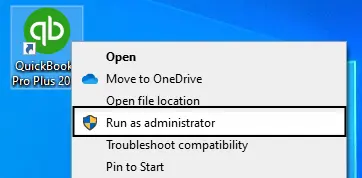
  • Right-click the QuickBooks Desktop icon, then click Run as Administrator.
Run as Administrator
  • When you see a prompt on the screen saying, “Do you want to allow this program to make changes to your computer?” click Yes.
  • Now, try downloading the most recent QuickBooks or the latest payroll tax table update again. 

2. Map the Shared Download drive

The Shared Download drive on the network may not be mapped, which can disrupt critical processes such as QuickBooks or payroll updates and trigger error code 15270. To resolve this issue, follow the steps below to map the shared download drive:

  • Press the Windows logo key on your keyboard. 
  • In the search field, type This PC and press Enter.  
  • Choose More (…), then click on Map network drive. If you don’t see the Map network drive option, then right-click on This PC and choose Map network drive.
  • Now, select a drive letter in Drive.
    • You can type in the complete path of the folder you want to map, or
    • You can enter just the path to the computer where the file is stored and then click Browse to locate the folder manually.
  • Click on Reconnect at sign-in to keep the drive mapped each time you sign in to your computer.
  • Finally, click Finish.

3. Configure the IE settings 

Properly configuring Internet Explorer settings ensures secure and uninterrupted updates for QuickBooks and related services.

Internet Explorer

Important Note: Internet Explorer is no longer supported by Windows or QuickBooks either; however, configuring it properly is required if you use previous versions of QuickBooks Desktop. 

a. Open Internet Explorer Settings

  • Press the Windows + R keys on the keyboard. 
  • In the Run field, type inetcpl.cpl and press Enter
  • Now, choose Internet Options

b. Set Security Levels

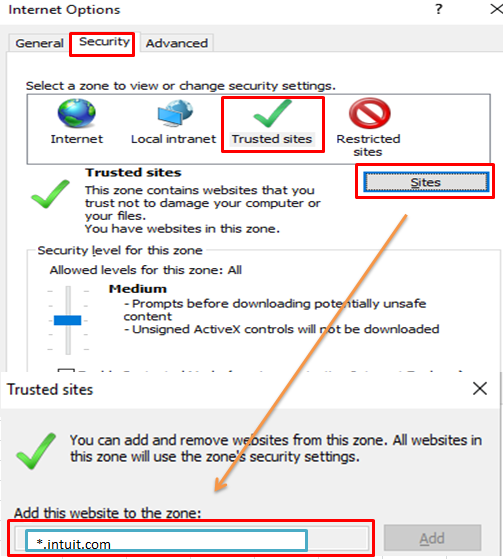
  • Navigate to the Security tab. 
  • Choose Trusted Sites, then click on Sites
  • Now, add the following URLs:
    • https://*.intuit.com
    • https://*.quickbooks.com
  • Click on Close
  • Set the security level to Medium.

c. Adjust Privacy Settings

  • Navigate to the Privacy tab.
  • Set the slider to Medium to adjust the privacy levels. 
  • Choose Advanced.
  • Check:
    • “Override automatic cookie handling.”
    • “Accept” for First-party cookies
    • “Accept” for Third-party cookies
  • Now, click OK.

d. Enable TLS Settings

  • Move to the Advanced tab.
  • Scroll down the cursor to.
  • Now, ensure that the following option is checked:
    • Use TLS 1.2 (Optional: TLS 1.1 if required)

e. Clear Browser Cache

  • Go to the General tab. 
  • Now, select Browsing History, then choose Delete.
  • Check:
    • Temporary Internet files
    • Cookies
    • Click Delete

f. Set Default Browser

  • Open the Programs section.
  • Select Make default if Internet Explorer isn’t already set as the default browser.
  • Restart your computer to ensure the changes take effect.

4. Enable the QuickBooks File Copy Service 

The QuickBooks File Copy Service (FCS) plays a critical role in handling update-related tasks and must be active. Here’s how to enable the QuickBooks File Copy Service and resolve QuickBooks error 15270: 

  • Press the Windows + R keys together to open the Run command
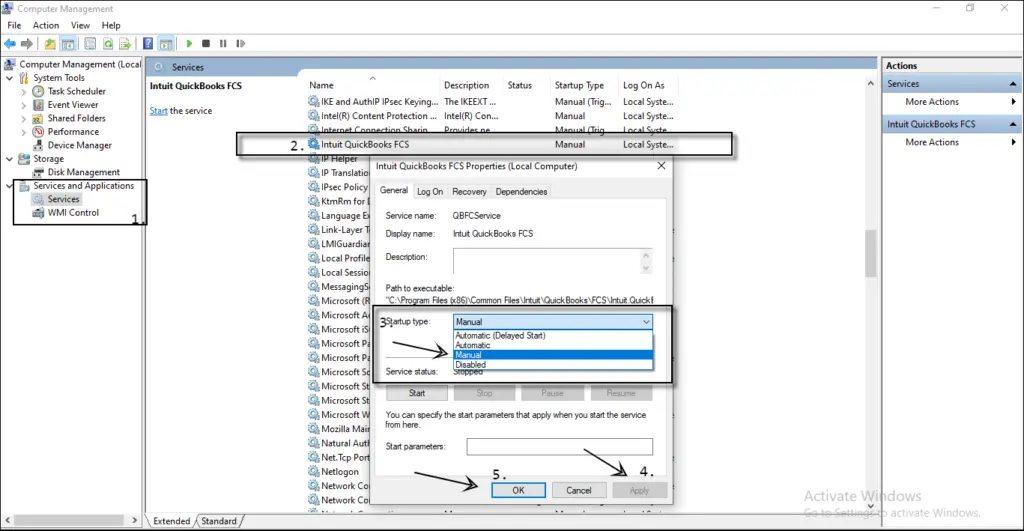
  • In the Run field, type COMPMGMT.MSC and hit OK.
  • This will open the Computer Management Window. 
  • Click on Services and Applications.
  • Mark the option for Services.
  • Now, scroll down the cursor until you see the Intuit QuickBooks FCS and double-click on it. 
  • Choose Startup type and click on Manual
  • Select Apply and click OK
QuickBooks Desktop FCS

Now, we recommend that you re-validate the payroll’s service key to refresh the connection.

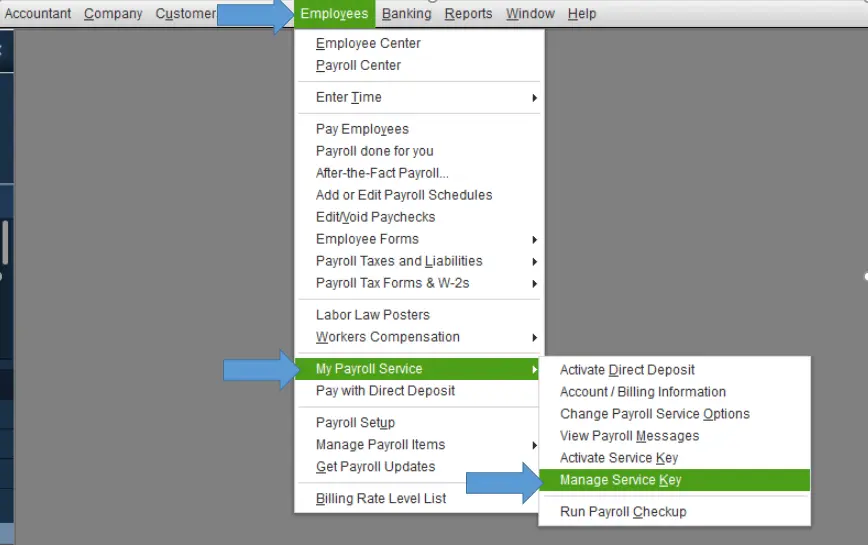
  • From the top menu bar, choose Employees
  • Select My Payroll Service.
My payroll service
  • Click on Activate Service Key
  • Now, highlight the current payroll under the Service Keys window and select Edit.
  • Click Next until Finish displays on your screen.
  • Finally, select Finish.

5. Configure Windows Firewall settings for QuickBooks 

Windows Firewall is a system security application that controls the ports of your computer for incoming and outgoing data. It works as a filter, allowing trusted connections while blocking potential threats. Proper configuration of Windows firewall settings for QuickBooks helps prevent error code 15270, ensures uninterrupted update downloads, and allows essential services to communicate without restrictions or delays.

6. Repair QuickBooks 

Repairing QuickBooks can resolve underlying issues that may be causing update errors like 15270. It refreshes the program components without affecting your company data:

Important Note: Download and install QuickBooks Tool Hub in the most recent version available (1.6.0.8). For the best experience, use Windows 11 (64-bit).

a. Run Quick Fix my Program

The Quick Fix my Program will shut down all background processes running on QuickBooks Desktop, then run a quick repair on the program. 

  • Launch QuickBooks Tool Hub. 
  • Go to Program Problems in the left menu bar. 
  • Click on Quick Fix my Program.
  • Launch QuickBooks Desktop and try installing the updates.

b. Run the QuickBooks Install Diagnostic Tool

If an error occurred during QuickBooks installation, it may cause issues when using the software. Running the QuickBooks Install Diagnostic Tool can help identify and resolve common installation problems.

  • Launch the QuickBooks Tool Hub. 
  • In the left pane, choose Installation Issues.
  • Hit on QuickBooks Install Diagnostic Tool. The tool might take up to 20 minutes to run; let it run until then. 
  • When done, restart your computer, then open QuickBooks Desktop and open your company file to verify whether the issue is resolved. 
  • Make sure to update QuickBooks Desktop to the most recent version available to ensure you use the latest fixes and security patches.

7. Re-install QuickBooks Desktop 

Reinstalling QuickBooks Desktop can help address QuickBooks error 15000 series issues, which are often linked to update or payroll disruptions. By performing a clean installation, you ensure that any corrupted or missing program files are replaced, allowing QuickBooks to function properly and reducing the chances of recurring errors during updates.

Conclusion 

In conclusion, QuickBooks error 15270 can disrupt your workflow by preventing successful payroll or software updates, often due to incomplete installations, incorrect settings, or issues with update configurations. While the error may seem frustrating, it is usually manageable with the right troubleshooting steps, such as verifying update settings, running QuickBooks as an administrator, or repairing the installation.

If you continue to face difficulties or prefer professional assistance, reaching out to QuickBooks experts can save time and effort. Simply dial our toll-free number (866)500-0076 to receive reliable support and ensure your QuickBooks runs smoothly without interruptions.

Frequently Asked Questions 

How to fix QuickBooks error 15270?

    QuickBooks Error 15270 is a payroll update connectivity issue usually caused by incorrect payroll setup, restrictive User Account Control (UAC) settings, or incomplete updates. Fix it by verifying your payroll subscription, resetting QuickBooks updates, running QuickBooks as an administrator, or using Quick Fix my Program. 

    Why is QuickBooks not updating?

      QuickBooks often fails to update due to unstable internet connections, blocked firewall/antivirus settings, incorrect system date/time, or insufficient user permissions. Common solutions include running the application as an administrator, checking internet security settings, using the QuickBooks Tool Hub to repair files, or manually downloading updates.

      How to update QuickBooks payroll?

        To update QuickBooks Payroll, select Employees > Get Payroll Updates in the Desktop version, select “Download Entire Payroll Update,” and click “Update“.

        For automatic updates, go to Help > Update QuickBooks Desktop, select Options, and ensure automatic updates are enabled.

        Why is my QuickBooks file copy service not working?

          QuickBooks file copy services (such as Accountant’s Copy Transfer or File Copy Service – FCS) often fail due to outdated software, large file sizes (>200 MB), network interruptions, or disabled Windows services. 

          What is error code 15276 in QuickBooks Desktop?

            Error code 15276 in QuickBooks Desktop is a commonly occurring error that occurs during payroll or software updates when a necessary file cannot be replaced, often stating: “The payroll update did not complete successfully.” Incorrect Internet Explorer settings, firewall restrictions, or a damaged QuickBooks installation usually trigger it. 

            How to fix QuickBooks error 15270?

              QuickBooks error 15270 is a payroll update connectivity issue usually caused by incorrect payroll setup, restrictive User Account Control (UAC) settings, or incomplete updates. Fix it by verifying your payroll subscription, resetting QuickBooks updates, running QuickBooks as an administrator, or using the QuickBooks Tool Hub to run Quick Fix my Program. 

              About The Author

              Lana Creston

              Lana Creston is an experienced technical and accounting writer with a total of 9 years of experience. She currently works on QuickBooks accounting and technical guides at QuickBookSupportNet. Lana has a passion for reading and writing about various technical topics, especially exploring new accounting methods and software, while continuously expanding her expertise in the ever-evolving field of finance and technology.

              QuickBooks Desktop 2023 is ending — Upgrade QuickBooks Desktop 2023 to 2024 for continued performance and support.

              Get a Free Consultation with Our QB Tax Experts