Do This If You Cannot Print Invoices in QuickBooks Desktop 

Mar 16, 2026

Admin |

Estimated Read Time : 5 MIN

Printing allows you to take copies of your invoices, reports, reconciled accounts, tax forms, and more for record-keeping, better financial management, and to maintain accuracy. If you cannot print invoices in QuickBooks Desktop, your business processes will be hampered, and the invoices you are trying to print may be damaged.

Corrupted printing components and incorrect setup or settings are common reasons this happens; however, other factors may also contribute to printing issues. Let’s explore all the reasons this interruption occurs and how you can resolve it promptly. 

Why can’t I print Invoices in QuickBooks?

Below is a list of reasons you cannot print invoices in QuickBooks Desktop. Let’s explore them one by one:

  • The printing setup might be incorrect in QuickBooks 
  • Incorrect printer 
  • Damages or corruption to the company file 
  • Incorrect QuickBooks installation or damage to program files 
  • Incorrect printing functionality 
  • Damages or corruption to the QBPrint.QBP file 

How to Fix the Printing Issues in QuickBooks Desktop Promptly? 

As discussed earlier, there are several reasons you may encounter printing issues in QuickBooks Desktop. Now, let’s proceed to the steps below to resolve the error using step-by-step instructions.

Before getting started, make sure 

1. Print from another program

Make sure you can print the documents from any program. In these steps, we will use Notepad. You may have different programs, but not QuickBooks. 

  • Press the Windows Start icon key. 
  • Type Notepad in the search and press Enter
  • Enter some text and go to File and select Print
  • Choose the accurate printer and click Print

2. Test the printer setup 

The following steps will help you test the printer’s setup.

a. Make sure the printer is set up correctly

  • Turn off the printer and restart your computer. 
  • Turn on the printer again. 
  • Check how the printer paper is loaded. It should be done correctly. 
  • Launch the Windows Start menu. 
  • Type Control Panel and double-click Printers and Faxes.
  • If your printer shows Offline, right-click on the printer and choose Use Printer Online.
  • Double-click on the printer and select Printer only if the print jobs are displayed in the queue. Then, click on Cancel All Documents.
  • Exit the window. 
  • Right-click on your printer and select Properties
  • Now, choose Print Test Page.

Note: If the printer is a network printer and the test page doesn’t print, network issues could be the cause.

b. Make sure the printer is the right one

  • Open QuickBooks Desktop. 
  • Go to the File menu and choose Printer Setup.
  • Choose the form you want to print. 
  • Here, the printer name must match the exact name of the printer you use. If not, you will need to correct the setup within your computer’s Printer Setup first. 
  • Navigate to Help in this area for more help on these settings. 

c. Print to a different printer

  • Go to File at the top menu bar. 
  • Choose Printer Setup
  • Select the form you wish to print.
  • Choose a different printer, such as a Microsoft XP printer.
  • Go to Help in this area for more help with these settings. 

3. Test your company file 

Examine your company file for possible damage, corruption, or other problems. If you find anything, follow the steps below to fix it:

a. Test your QuickBooks company file 

  • Try printing a different form, a standard form, or a report if you use the customized forms or memorized reports.
  • In QuickBooks, if you are printing a batch of forms, try printing a single form. If successful, try to print the smaller batches.
  • Open your QuickBooks company file and try printing the same type of form or report. If it works, repair the data damage in your company file and try printing your form again. 

b. Resolve data damage in your company file

Resolve the data damages using the Verify and Rebuild Data utility:  

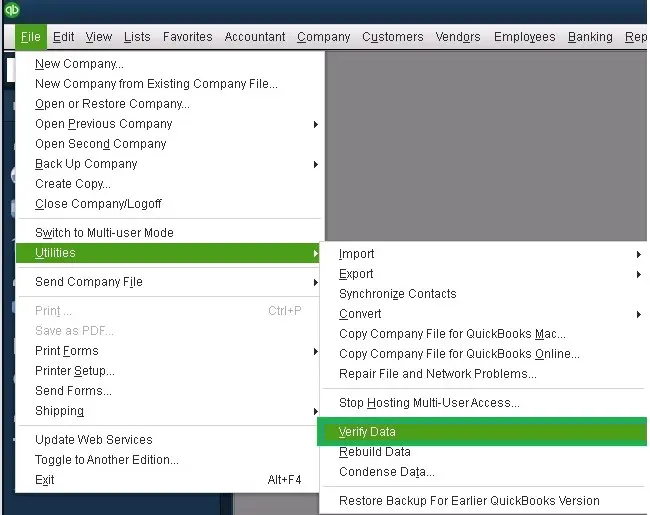
Verify the data file

  • Go to the Window, then select Close All.
  • Go to File, then select Utilities.
verify and rebuild company file data
  • Select Verify Data. If you see:
    • QuickBooks detected no problems with your data—your data is clean, and you don’t need to do anything else.
    • An error message—search for it on our QuickBooks Desktop support site for how to fix it.
    • Your data has lost integrity—Data damage was found in the file. Rebuild your data to fix it.

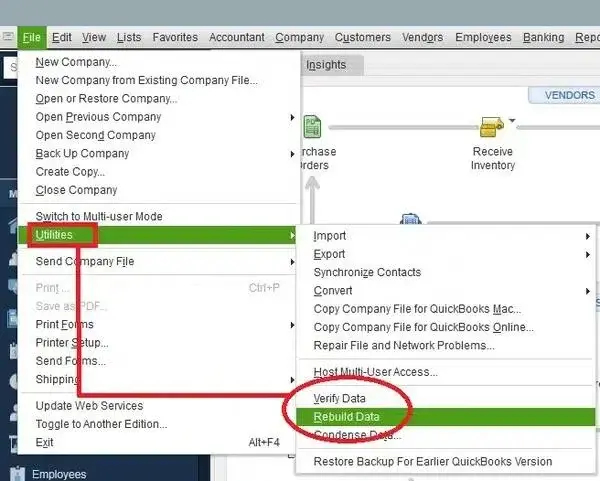
Rebuild the damaged data 

  • Go to File at the top menu bar. 
  • Choose Utilities and click on Rebuild Data.
Rebuild Data
  • QuickBooks will prompt you to create a backup; click OK. A backup is required before rebuilding the damaged data for data security. 
  • Choose a location to save the backup copy, then click OK. Do not replace the existing backup file. Type a new name in the File name and click Save
  • When you see the Rebuild has completed message, click OK.

If you still cannot print invoices in QuickBooks, go to the next solution. 

4. Repair the QuickBooks installation 

Let’s repair the QuickBooks Desktop installation or the program files using the different tools in QuickBooks Tool Hub: 

Note – Download and install QuickBooks Tool Hub (1.6.0.8). For the best experience, we recommend using Tool Hub on Windows 11 (64-bit).

a. Run Quick Fix on my program

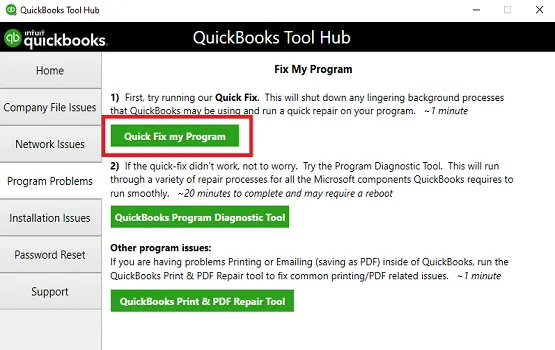
The Quick Fix my Program utility closes the QuickBooks processes in the background and then runs a quick repair on the program. 

  • Launch the QuickBooks Tool Hub. 
  • Go to Program Problems
  • Hit on Quick Fix my Program.
Quick Fix my Program
  • Open QuickBooks Desktop and then the company file.

b. Run the QuickBooks Install Diagnostic tool 

If something goes wrong during installation, it can hamper common QB operations or cause other problems. Run the QuickBooks Install Diagnostic Tool to fix the common installation issues: 

  • Launch the QuickBooks Tool Hub. 
  • Go to Installation Issues in the left menu bar. 
  • Hit on QuickBooks Install Diagnostic Tool. The tool might take up to 20 minutes; let it run until then. 
QuickBooks Install Diagnostic Tool
  • When this finishes, restart your computer and open QuickBooks Desktop, then your company file. 
  • Update QuickBooks Desktop to the latest release available to make sure you use the most recent security patches, features, and bug fixes. 

5. Run the QuickBooks Print & Print Repair Tool

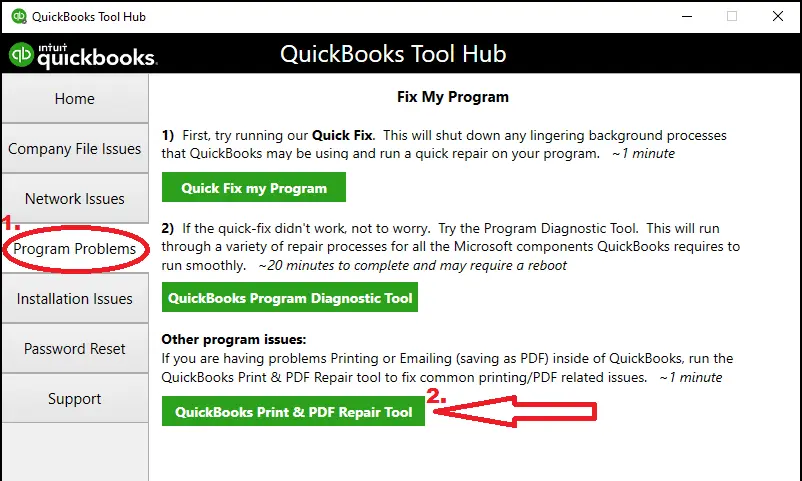
The QuickBooks Print & PDF Repair Tool is a utility that fixes problems that prevent you from printing invoices in QuickBooks and other printing and saving documents as PDFs, from QuickBooks Desktop.

  • Launch the QuickBooks Tool Hub. 
  • In the left menu bar, select Program Problems
  • Hit on QuickBooks PDF & Print Repair Tool. The tool might take more than a minute to run; wait until then. 
QuickBooks PDF & Print Repair Tool
  • When done, try to print or save as a PDF using QuickBooks Desktop again. 

6. Rename QBPrint.QBP file

Renaming the QBPrint.QBP file replaces the files with a new one, resolving all associated issues. You may also lose all the custom printer settings for forms and other documents. 

  • Look for the QBPrint.qbp file: 
    • Windows 10 and newer: C:\ProgramData\Intuit\QuickBooks 20xx (20xx represents the version of your QuickBooks.)
    • Server 2012 and newer: C:\Program Data\Intuit\QuickBooks YEAR and C:\Users\**remote user**\AppData\Roaming\Intuit\ YEAR VERSION\TSPrinterSettings 00000000000000000000000000000000

Note: Terminal Service users report duplicate Qbprint.qbp files appearing with stored client data; carefully check all folders for unusual copies.Tip: You may need to show hidden files and folders or use Windows Search to locate these files in Windows.

  • Now, rename the QBprint.qbp file.
    • Right-click on the Qbprint.qbp file for the QuickBooks Desktop version you use and select Rename
    • Add.OLD word at the end of the file name, such as QBPrint.qbp.old.
    • Launch QuickBooks Desktop. 
    • Navigate to File and choose Printer Setup
    • In the Form Name list, choose any of the transactions and click OK. This will automatically create a new Qbprint.qbp file. 
  • Note: You don’t need to do this for every transaction. 
    • Try to open and print your transaction again.

7. Re-install QuickBooks for Windows 

Reinstalling QuickBooks Desktop removes all version-specific files and folders, replacing them with fresh ones to resolve errors or issues that might cause PDF and printing problems in the software, ensuring smoother performance and improved functionality overall.

Conclusion 

In conclusion, printing invoices in QuickBooks Desktop ensures seamless record-keeping, efficient invoice processing, and a streamlined workflow. However, if you cannot print invoices in QuickBooks, the following information will help you identify the root causes and guide you through various steps, such as verifying your printer setup, repairing the data file, and more.

For further assistance, reach out to the QuickBooks Support Team at +1 (866) 500-0076 and talk to an expert today!

Frequently Asked Questions 

How do I print invoices from QuickBooks?

To print invoices from QuickBooks, go to Sales and choose Invoices. Locate the invoice, and if the transaction is already paid, click on Print. If not, select the drop-down arrow under Action and click on Print

How do I repair QuickBooks print and PDF?

To repair QuickBooks print and PDF components, you can access and run the QuickBooks Print and PDF Repair tool in QuickBooks Tool Hub. This runs a quick scan to identify what’s gone wrong and runs a quick repair promptly. If the error persists, consider renaming QBPrint.QBP file and make sure the printing setup is correct.

Why is my QuickBooks invoice template not printing correctly?

A QuickBooks invoice template may not print correctly due to a number of issues, including incorrect printer setup, corrupt template or company files, outdated software or drivers, and specific formatting errors.

How to reset the printer print settings in QuickBooks? 

To reset QuickBooks printer settings, first try renaming or deleting the QBPrint.qbp file, which will force QuickBooks to generate a new one. If that doesn’t work, use the QuickBooks Print and PDF Repair Tool to fix issues.

Why am I having trouble printing QuickBooks Desktop? 

Trouble printing from QuickBooks Desktop often stems from outdated printer drivers, a corrupted or incorrectly configured printer setup in QuickBooks, or general Windows and network issues.

Other causes can include problems with the system’s temporary files, user permissions, or a conflict with security software.

About The Author

Lana Creston

Lana Creston is an experienced technical and accounting writer with a total of 9 years of experience. She currently works on QuickBooks accounting and technical guides at QuickBookSupportNet. Lana has a passion for reading and writing about various technical topics, especially exploring new accounting methods and software, while continuously expanding her expertise in the ever-evolving field of finance and technology.

Quick, clear, and hassle-free QuickBooks assistance.

Get a Free Consultation with Our QB Tax Experts
Connect with Our Certified QuickBooks Professionals - Dial Tollfree: +1(866)500-0076