Dec 3, 2025
Admin |
Estimated Read Time : 5 MIN
The drop-down menu allows you to select customers, vendors, accounts, and other options when running specific operations in QuickBooks Desktop or Online. However, if your “drop-down menus are not working in QuickBooks“, it may stop you from completing transactions such as invoicing or printing checks.
An incompatible browser or incorrect DPI settings in Windows or QuickBooks can cause such display issues. In this detailed guide, we will explore the reasons the error occurs and the steps to troubleshoot it for seamless functioning.
Table of Contents
ToggleBelow is a list of multiple reasons why the drop-down menus are not working in QuickBooks. Let’s explore them one by one:
For QuickBooks Online
For QuickBooks Desktop
Drop-down menu problems are common display issues in both QuickBooks desktop and online. In the section below, we’ll discuss how to fix such problems in both versions. Proceed with caution below:
Explore the troubleshooting steps mentioned below to resolve the drop-down menu issues in your QuickBooks Online:
Generally, QuickBooks supports the current and two previous versions of your browser. Intuit does not support any old versions of your browser.
These are the browsers that are supported on both web and mobile devices:
Note: QuickBooks does not support Internet Explorer any longer.
Note: To preview and print forms on Mac OS, you’ll also need the Firefox PDF plugin.
See if opening QuickBooks Online in a private window resolves the issues:
The caches & cookies in your browser store files on your system that help load websites or programs faster on your next visit. Over time, this data becomes outdated, further complicating the running of web-based performance tests.
Proceed below to learn how to resolve the cookies & caches on your browser:


For example, you might want to remove the browsing history and cookies while saving the passwords and form fill data.
Clearing Intuit-specific cookies helps resolve technical glitches with Intuit products like QuickBooks, primarily by removing corrupted website preferences.
a. Google Chrome
b. Mozilla Firefox

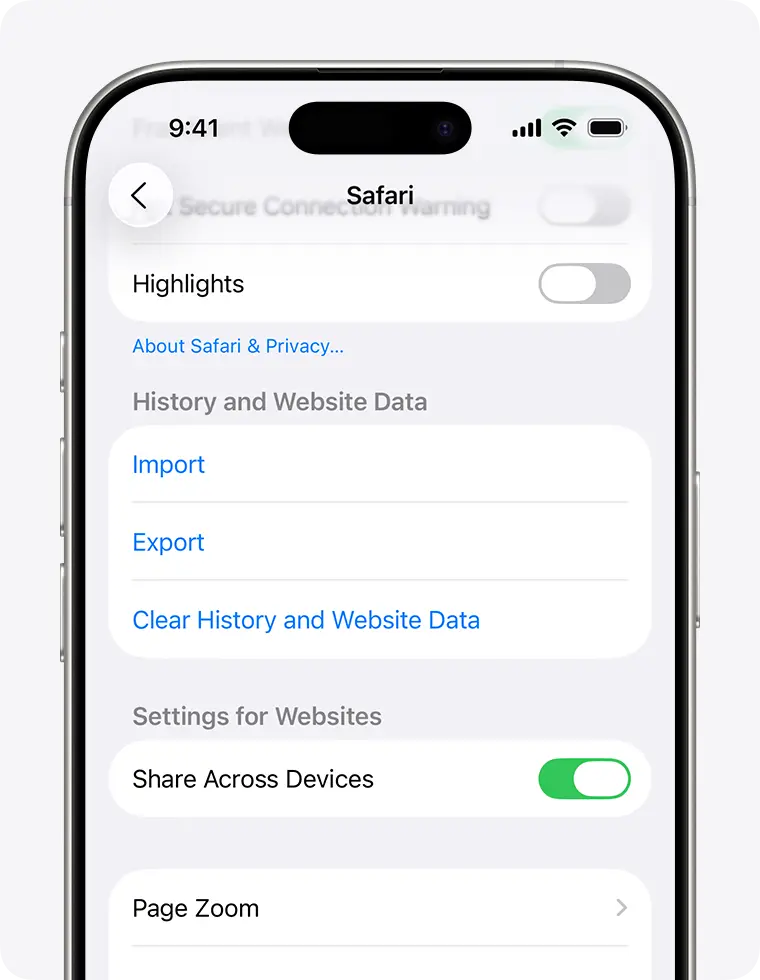
c. Safari

The steps below will help you fix the issues why the drop-down menu is not working in QuickBooks Desktop:
Admin rights allow you to make necessary changes for an update, such as adjusting system settings, granting permission to download files, or running installations. Ensure you have the correct permissions or run the QuickBooks Desktop updates as an administrator.
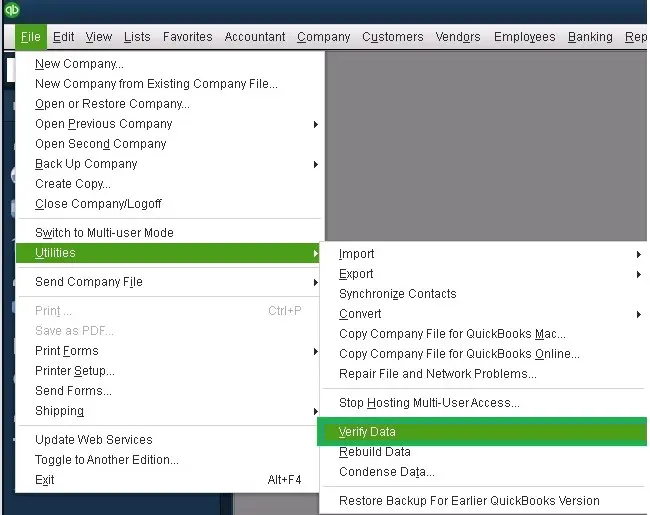
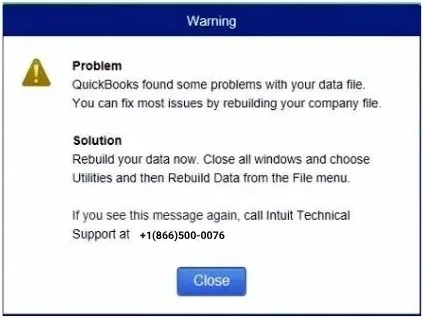
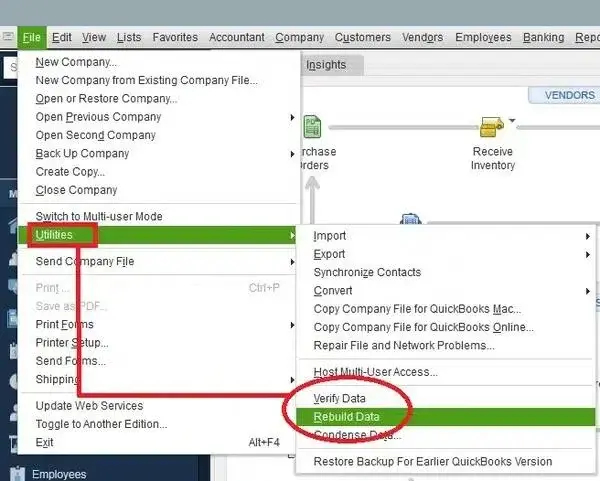
The Data Verify utility checks the integrity of your data in your company file and runs the data reconstruction tool to recreate or repair any damaged data. Learn how to run the tool using the steps below:


Read More – Verify and Rebuild Data in QuickBooks Desktop
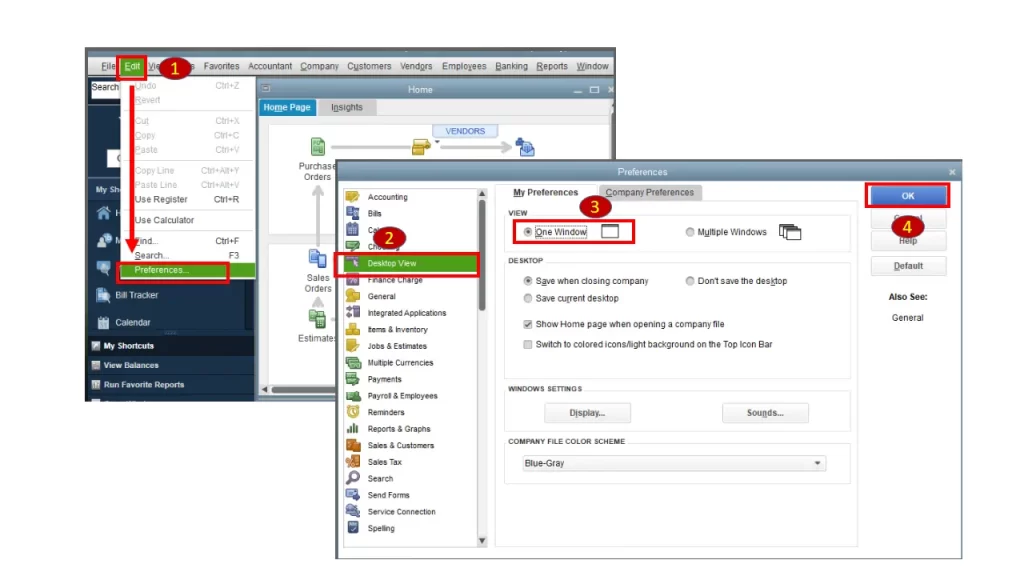
Before you adjust the Windows settings, modify the display and view preferences in your QuickBooks.

Let’s adjust the view preferences, which can be the reason why drop-down menus are not working in QuickBooks:

Exit QuickBooks, then open it again and open the company file. Check again for the display issues. Move to the next solution if drop-down menus are not working in QuickBooks.
QuickBooks functions best with the default Windows DPI settings. Changing these settings could cause display issues.
Important: Remember that modifying your Windows settings affects all applications on your computer, not just QuickBooks.
To reset the default display settings for Windows 10 and 8, follow Microsoft’s instructions:
The QuickBooks Install Diagnostic tool identifies installation issues with your QuickBooks and runs a quick repair to resolve them.

To run the utility, you must download and install QuickBooks Tool Hub to the latest release available and make sure to use it after closing QuickBooks Desktop. When done, access the tool and run the QuickBooks Install Diagnostic tool.
Clean installing QuickBooks Desktop removes damaged or corrupted program files and allows you to install the software fresh. This fixes issues caused by incorrect installations or file corruption, which can lead to drop-down menu problems in QuickBooks.
In conclusion, a drop-down menu is a necessary tool that lets you access different functionality and run the processes accordingly. If your drop-down menus are not working in QuickBooks, the information in the detailed blog must have helped you resolve the problem and ensure a smoother functioning of the software.
For further assistance, we highly recommend consulting with QuickBooks ProAdvisors for a quick resolution. Dial +1(866)500-0076 to talk to an expert now!
Why is my drop-down list not working in QuickBooks?
A QuickBooks drop-down list may not work due to browser issues, such as a corrupted cache or a corrupted company file. To fix this, try clearing your browser’s cache, opening a new incognito window, using a different browser, or logging in with a different username and password.
How do I edit a drop-down list in QuickBooks?
To edit a QuickBooks drop-down list, go to the Settings menu, select All lists, choose the list you want to edit, and then select Edit from the action menu.
How to activate the drop-down list in QuickBooks?
To activate a drop-down list in QuickBooks, first determine if you’re creating a new custom list or troubleshooting a non-working one. You can create a custom drop-down by going to Settings > Custom Fields (in QuickBooks Online) and choosing “Drop-down list” as the data type.
Where is the settings menu in QuickBooks?
In QuickBooks Online, the main settings are accessed by clicking the Gear icon in the top-right corner and selecting Account and Settings. For QuickBooks Desktop, go to the Edit menu, then select Preferences.
Why can’t I scroll down on QuickBooks?
You can’t scroll down in QuickBooks due to browser issues, mouse problems, or display settings, so you should try clearing your browser’s cache, checking your mouse for dirt or a low battery, or adjusting your screen resolution and zoom level.
Lana Creston is an experienced technical and accounting writer with a total of 9 years of experience. She currently works on QuickBooks accounting and technical guides at QuickBookSupportNet. Lana has a passion for reading and writing about various technical topics, especially exploring new accounting methods and software, while continuously expanding her expertise in the ever-evolving field of finance and technology.
Quick, clear, and hassle-free QuickBooks assistance.