A Detailed Guide to Resolve QuickBooks Error Code 1317

Mar 5, 2026

Admin |

Estimated Read Time : 5 MIN

Whether you are a new user or an existing one, installing software or updates can sometimes be challenging. Even a weak or unstable internet connection can interrupt the installation process and prevent updates from being completed successfully. In such cases, you may encounter QuickBooks error 1317, accompanied by the following warning message:

Error 1317: An error occurred while attempting to create the directory.

This error typically occurs when QuickBooks is unable to access the required folder for installation or an update. Insufficient user permissions, a corrupted installation folder, or interference from antivirus/security software may cause it. Learn about the suitable fixes and more in this detailed guide.

What Causes Install Error 1317 in QuickBooks?

Before applying any fixes, let’s explore the possible reasons behind QuickBooks install error 1317. Identifying the root cause can help you choose the most appropriate solution.

  • General connectivity or system issues 
  • Incorrect date and time settings on your computer 
  • Possible damage to the Windows file or folders 
  • Using an incompatible or outdated Windows OS 
  • Corrupted or missing Windows components 
  • Insufficient folder and Windows access permissions
  • Incorrect installation or damaged program files

Here’s How to Fix QuickBooks Error 1317 for a Smoother Installation

Now that we’ve explored the possible causes, let’s walk through the practical steps you can take to fix QuickBooks Error 1317 and complete the installation successfully. 

1. Restart your computer 

Restarting a computer can help resolve QuickBooks error 1317 by clearing temporary system memory, stopping background processes that may be locking company files, and resetting Windows installer components. A reboot refreshes system resources, reestablishes proper folder permissions, and releases any file path restrictions that may be preventing QuickBooks from accessing required directories.

2. Correct the date and time on your computer 

Make sure your computer’s date and time settings are correct, as inaccurate settings can interfere with connections required for software or the update installation.

  • Press the Windows logo key to open the Start menu.
  • Select Settings from the left panel.
  • Click Time & language, then choose Date & time.
  • In the Time & language > Date & time window:
    • To let Windows set the date and time automatically, turn Set time automatically On.
    • To manually adjust the date and time, turn Set time automatically off, then click Change next to Set the date and time. Enter the correct date and time in the pop-up window and select Change to confirm.

2. Run the SFC scan

Running the System File Checker (SFC) scan can help fix QuickBooks installation errors by detecting and repairing damaged or corrupted Windows system files that may be preventing the software from installing properly.

  • Press Windows + X to open the Quick Link menu.
  • Select Command Prompt (Admin) from the list.
    Note: You can also run the scan using Windows PowerShell (Admin).
  • When prompted by User Account Control (UAC), click Yes.
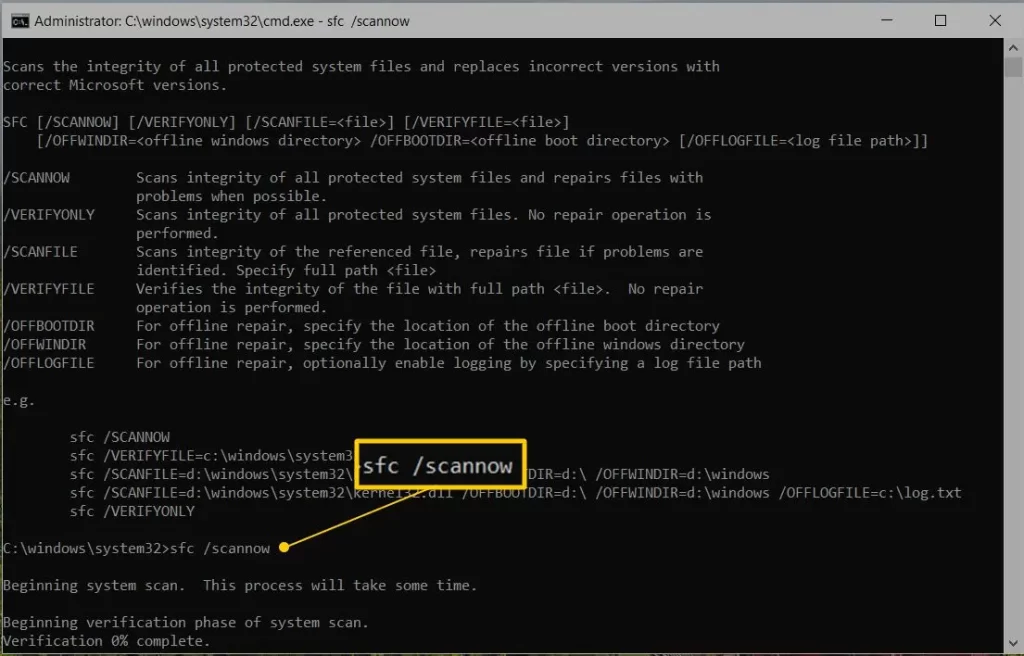
  • In the Command Prompt window, type: SFC /scannow, then press Enter.
sfc scannow
  • The SFC tool verifies the integrity of Windows operating system files and folders and automatically repairs any corrupted or missing files it detects.
  • Once the scan is complete, restart your computer to apply the repairs before attempting the installation again.

3. Update Windows 

An updated and compatible Windows operating system is essential for running QuickBooks smoothly and avoiding installation or performance issues. Follow these steps to install the latest Windows updates:

  • Open the Windows Start menu.
  • Type Settings in the search bar and press Enter.
  • From the left panel, select Windows Update.
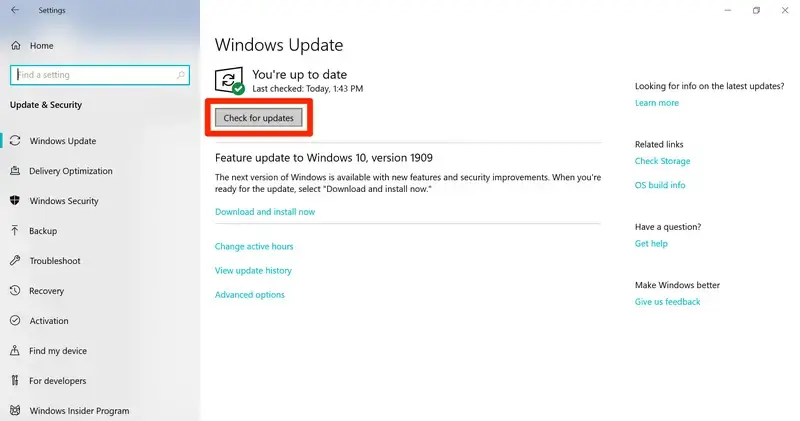
  • Click Check for updates and install any available updates.
Windows update
  • If updates are available, click Download & Install. Windows will automatically download and install the updates.
  • After the installation is complete, restart your computer to apply the changes.

4. Manually fix Windows components

If the QuickBooks Install Tool and Windows updates didn’t resolve the error, you may need to manually repair specific Windows components.

Only perform these steps if you are an IT professional, an experienced Windows user, or working under the guidance of Microsoft Support. Incorrect changes to Windows components can cause system instability or additional issues.

a. Repair or reinstall Microsoft .NET Framework

Follow these steps to check and enable the required .NET Framework components:

  • Close all open programs.
  • Open the Windows Start menu.
  • Type Control Panel in the search bar and open it.
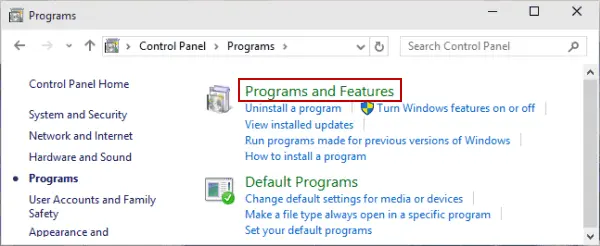
  • Select Programs and Features.
Programs and Features
  • Click Uninstall a program (this will not uninstall anything).
  • Choose Turn Windows features on or off.
  • Locate .NET Framework in the list.
  • Ensure that both .NET Framework 4.5 (or later versions) and .NET Framework 3.5 SP1 are enabled (boxes checked). 

Note: The steps to repair or enable .NET Framework 4.5, 4.6, 4.7, and 4.8 are the same.

If you make any changes, restart your computer to apply them.

Check NET Framework 4.5 (or later)

If the .NET Framework 4.5 (or later) checkbox isn’t checked:

  • Check the box to turn on .NET Framework 4.5 (or later).
  • Click OK to save your changes.
  • Restart your computer.

If the .NET Framework 4.5 (or later) checkbox is already checked:

  • Uncheck the box to turn off .NET Framework 4.5 (or later). Do not turn it back on yet.
  • Click OK to save your changes
  • Restart your computer.
  • After signing back into Windows, follow the earlier steps to turn on .NET Framework 4.5 (or later) again.

Check NET Framework 3.5 SP1

If the .NET Framework 3.5 SP1 checkbox isn’t checked:

  • Check the box to turn on .NET Framework 3.5 SP1.
  • Click OK to save your changes.
  • Restart your computer.

If the .NET Framework 3.5 SP1 checkbox is already checked:

  • Uncheck the box to turn off .NET Framework 3.5 SP1. Do not turn it back on yet.
  • Click OK to save your changes.
  • Restart your computer.
    After signing back into Windows, follow the previous steps to turn on .NET Framework 3.5 SP1 again.

If you encounter an error when enabling or disabling .NET Framework, contact an IT professional or Microsoft Support. This may be an issue with your operating system rather than QuickBooks.

b. Repair Microsoft MSXML 

Register MSXML with the following steps for a 64-Bit operating system

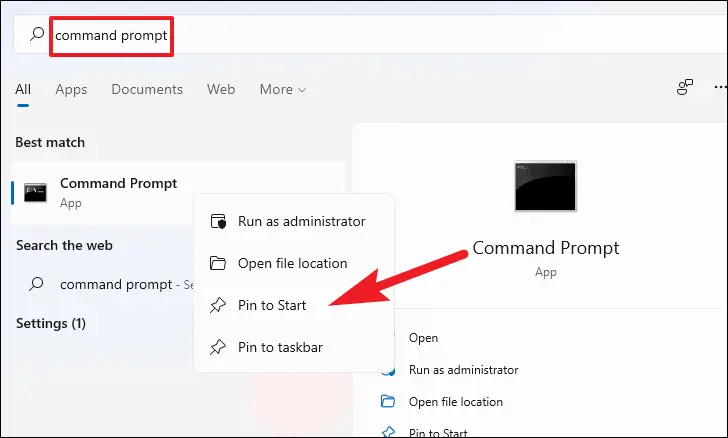
  • Open the Windows Start menu and type cmd
  • Right-click cmd and select Run as Administrator.
run as administrator
  • At the C:\ prompt, type: cd \windows\syswow64
  • Type the following command and press Enter:
    • regsvr32 MSXML6.dll
  • After registering, proceed to install QuickBooks Desktop.

Register MSXML with the following steps for a 32-Bit operating system

  • Press Windows + R to open the Run dialog.
  • Type cmd and press Enter.
  • In the Command Prompt, type:
    • regsvr32 MSXML6.dll, then press Enter
  • After the registration completes, install QuickBooks Desktop.

5. Set up the folder and Windows access permissions

QuickBooks Error 1317 occurs when Windows cannot create or access a required directory during installation or updates. As a result, the setup process may stop unexpectedly, files may fail to install correctly, and users may be unable to open or update the company file.

Properly configuring the folder and Windows access permissions and ensuring full system access helps prevent installation interruptions, reduces the risk of recurring errors, and allows QuickBooks to run and update without directory-related conflicts.

6. Repair QuickBooks

Let’s make sure the software installation or program files are not damaged and are not causing problems when trying to install any updates, and are not causing QuickBooks error 1317: 

Important Note: Download and install QuickBooks Tool Hub (1.6.0.8) in the most recent version available. 

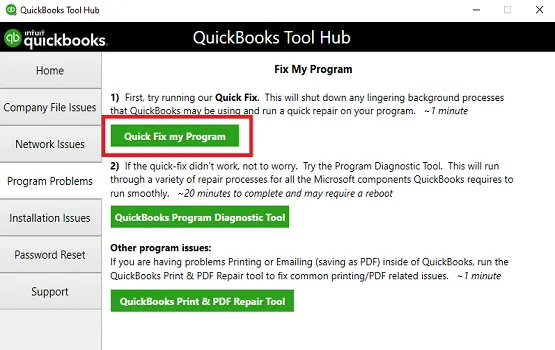
a. Run Quick Fix my Program 

The Quick Fix tool stops any QuickBooks background processes and performs a quick repair to fix common program issues.

  • Open the QuickBooks Tool Hub.
  • Select Program Problems.
  • Click Quick Fix my Program.
Quick Fix my Program
  • When the repair finishes, open QuickBooks Desktop and open your company file to verify that the issue is resolved.

b. Run the QuickBooks Install Diagnostic tool 

If QuickBooks didn’t install correctly, it can trigger errors when opening or using the program. Running the QuickBooks Install Diagnostic Tool can automatically detect and fix common installation problems.

QuickBooks Install Diagnostic Tool
  • After the tool finishes, restart your computer.
  • Open QuickBooks Desktop and access your company file.
  • Update QuickBooks to the latest release to ensure you have the most recent fixes and security updates.

7. Reinstall QuickBooks Desktop

Reinstalling QuickBooks Desktop, specifically using a “clean install” process, resolves error 1317 (which indicates an inability to create a file/folder due to permission restrictions or damaged files) by resetting system permissions, deleting corrupted installation files, and re-registering components. This process ensures the application has the necessary access to the installation drive.

Conclusion 

Whether it’s the software installation or updates, both are equally crucial, and any interruption can make it challenging to get started managing your business with QuickBooks. By following this guide, you may be able to resolve QuickBooks Error 1317 and ensure the installation runs smoothly.

If anything comes up in between or you need further assistance, reaching out to QuickBooks professionals is recommended. Dial the +1 (866) 500-0076 to connect with a certified expert now!

Frequently Asked Questions 

What is error code 1317 in QuickBooks?

QuickBooks Error 1317 is an installation or update error occurring when the software cannot create a necessary directory (folder) on your computer, often manifesting as “Error 1317: An Error occurred while attempting to create the directory.”

How do I fix error code 3371 in QuickBooks?

To fix QuickBooks error 3371 (license/registration issue), the most effective solution is to use the QuickBooks Tool Hub and run the 3371 Error Fix tool. Alternatively, you can delete the EntitlementDataStore.ecml file to force a re-registration, or run Windows Updates. 

How to fix QuickBooks error 1317?

To fix QuickBooks error 1317, run the QuickBooks Tool Hub, specifically the Program Diagnostic Tool, adjust folder permissions for “Everyone” to “Full Control,” or run the installer as an administrator. 

Can QuickBooks error 1317 affect company files?

No, this error generally occurs during installation or update. It does not directly damage your company files, but you won’t be able to use QuickBooks properly until the issue is resolved.

Does antivirus software cause QuickBooks error 1317?

Yes, sometimes antivirus or firewall programs may block installation files from creating the required folders. Temporarily disabling security software during installation may help.

About The Author

Lana Creston

Lana Creston is an experienced technical and accounting writer with a total of 9 years of experience. She currently works on QuickBooks accounting and technical guides at QuickBookSupportNet. Lana has a passion for reading and writing about various technical topics, especially exploring new accounting methods and software, while continuously expanding her expertise in the ever-evolving field of finance and technology.

Quick, clear, and hassle-free QuickBooks assistance.

Get a Free Consultation with Our QB Tax Experts
Connect with Our Certified QuickBooks Professionals - Dial Tollfree: +1(866)500-0076