Learn to Fix QuickBooks Error 6000 on Desktop and Server 

Jan 19, 2026

Admin |

Estimated Read Time : 5 MIN

Facing QuickBooks Error 6000? When your QuickBooks application fails to open the company file, the error occurs. When there is a wrong network setup, or there is damage to your company file. The error may seem like a common error, but it is complicated when you risk losing all your data. 

In such a situation, we always recommend applying the steps safely, and if you find it complicated, contact a QuickBooks Expert immediately. Now, we will start with the solution part, where the first two solutions are the same for desktop and server. Then, we separated the solutions based on whether you open your file locally or over a network. 

Solutions to Fix the QuickBooks Desktop Error 6000.

Solution 1: Update QuickBooks.

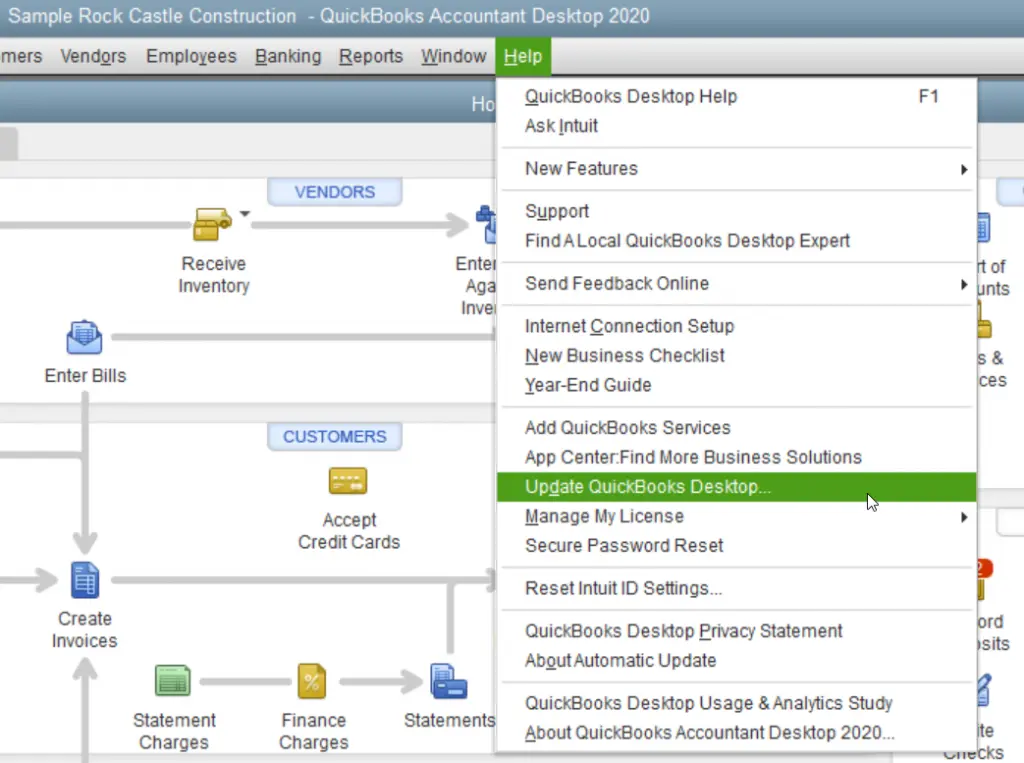
Step 1: Again, download the Updates

Update QuickBooks Desktop
  • Close and reopen QuickBooks to install the update again. 

Step 2: End task on the following processes.

  • Close the QuickBooks application.
  • Press simultaneously Ctrl + Alt + Delete and open the Task Manager.
  • Under the details tab, look for the background process and click on the End Task option for each:
    • QBW32.exe or QBW.exe
    • QBCFMonitorService.exe
    • qbupdate.exe
    • QBDBMgr.exe or QBDBMgrN.exe
    • QBMapi32.exe
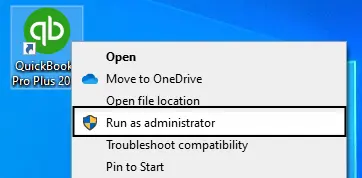
  • Right-click on QuickBooks and click Run as administrator.
  • Again, run the updates.

Open your company file and check if the QB error 6000 is resolved or not. 

Solution 2: Run the QuickBooks File Doctor from the QuickBooks Tool Hub.

  • Close the QuickBooks application.
  • Download QuickBooks Tool Hub (1.6.0.8) with its latest version. 
  • Save the downloaded file in an easy-to-reach folder, for example, on your desktop or in the downloads folder. 
  • Launch the downloaded file QuickBooksToolHub.exe.
  • To install the application, proceed with the on-screen instructions.
  • Agree to their Terms and Conditions.
  • Once the installation process is finished, double-click on the QB Tool hub’s icon on your Windows desktop and open it. 
qb tool hub

Note:- If your desktop does not have the icon, use the search option and type QuickBooks Tool Hub. It will appear as shown in the image below, and click on the program.

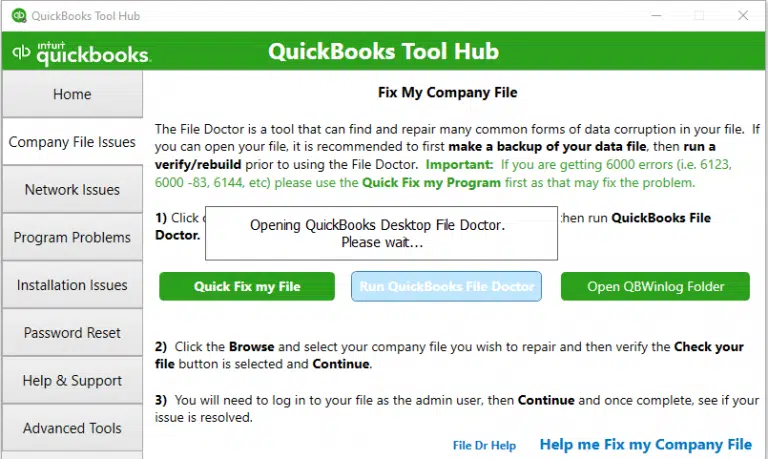
  • Run the QuickBooks file Doctor.
  • Select the company File Issues tab from the tool hub window.
  • Click on Run QuickBooks File Doctor.
QuickBooks File Doctor Tool

Note:- The File doctor may take one minute to open.

  • In the QuickBooks file doctor, choose your company file. In any case, if the file is not within the drop-down menu, use the Browse and search option to fetch your file.
  • Click Check your file and hit Continue.
  • Now, enter the QuickBooks admin password.
  • Click Next.

Check if the error QuickBooks 6000 is fixed or not. Below, we have shared the solutions depending on whether you are working on desktop and server. 

If you open the file locally.

Solution 3: Rename.ND and TLG Files, and from the Tools Hub, run the QuickBooks Database Server Manager. 

Step 1: Rename the .ND and .TLG files

Renaming the.ND and TLG files have been seen to fix the QuickBooks Error Code 6000. Sometimes, the error occurs when there is an issue while fetching these files. Scan with QuickBooks Database Server Manager, and QuickBooks will create.ND and TLG files again, and when you open your company file.  

Rename the Transactions Log file (.TLG) and Network Data (.ND) file.

  • Open the folder containing your company file.
  • Search for the files with the same file name as the company files. Ensure to search with the extension .TLG and ND.
  • company_file.qbw.nd
  • company_file.qbw.tlg
  • Now, right-click on each of the files and click on Rename. Simply add an extension OLD in each file name. For example, you rename your file as company_file.qbw.nd.OLD. 

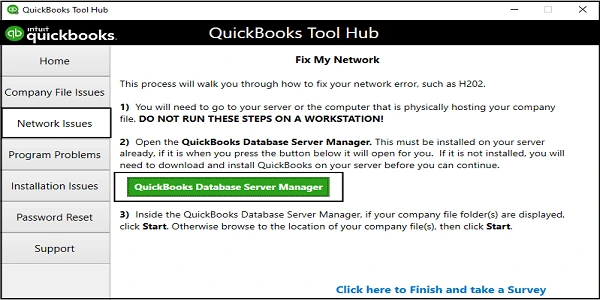
Step 2: Using QuickBooks Tools Hub, Run the QB Database Server Manager

QuickBooks Database Server Manger
  • Click on Start Scan in the QB Database Server Manager in case you see your company file(s). 
  • If you did not find the file, use the Browse option to fetch the file and click on Start Scan
  • Again, launch QuickBooks and log in to your company file. 

Check and confirm if the 6000 Error QuickBooks is fixed or if it still requires another effort to fix. Proceed with solution 4 if the error continues to trouble you. 

Solution 4: Open a sample company file

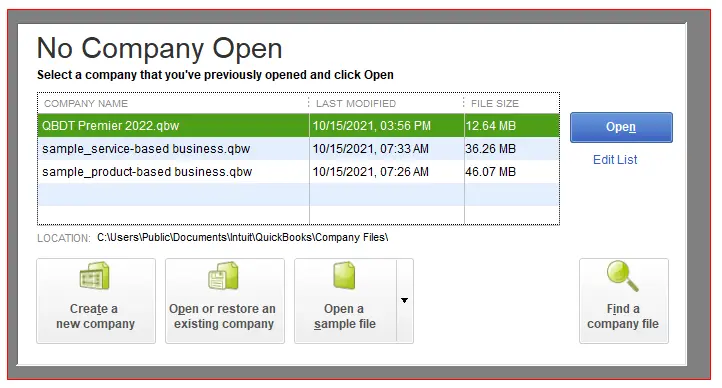
Sample company file is a test to check if there is any issue with your company file or if it is with QuickBooks. Open a sample company file, and if it does not open and shows an error, it means there is damage in the QuickBooks installation. It is required to repair the installation.

  • Click on Open a Sample file in the No Company Open window.
No Company Window
  • Now, choose any file from the list of sample company files.
  • If the sample files open successfully, continue with solution 5. 
  • In case there is an error message while opening the sample file, you need to repair your QuickBooks installation files. 

Solution 5: Copy the QuickBooks file to the Desktop 

Opening the company file directly from the desktop ensures that there is no issue with the company file location or that the issue is with the file itself.
If the files successfully open up from the desktop, it signifies the location issue.

Solution 6: Use a UNC path 

  • Right-click on the QuickBooks icon.
  • Press and hold the Ctrl key.
  • Click on Run as Administrator.
Run as Administrator

Note:- Hold down the Ctrl key to prevent QuickBooks from automatically opening the company file.

  • Click on the File menu.
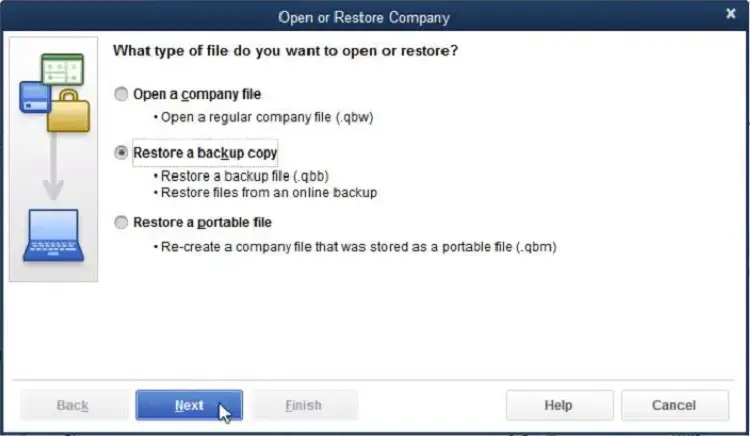
  • Choose the option Open or Restore Company.
Open or Restore Company
  • Click on Open a company file.
  • Finally, click on Next
  • Click on Network in the left pane and browse your company file.

Note:- If you cannot find the company file’s folder, you are required to set folder permissions.

  • Select the company file and open it. 

Open the File Over a Network 

Solution 1: Configure Firewall and Anti-Virus Software

We will use a port exception to fix your QB Error 6000. In this solution, we will add a port exception to your Windows firewall for QuickBooks.

  • Click on the Windows Start.
  • Search for Windows Firewall and open it.
  • Click on Advanced Settings.
  • Right-click on the Inbound Rules tab.
  • Click on New Rule and select Port.
  • Finally, hit Next and select TCP only.

You would be seeing a field-specific local port. Simply add the ports you need for QuickBooks year version:

  • QuickBooks Desktop 2021
  • QuickBooks Desktop 2022
  • Click Next once you enter the port number.
  • Click on Allow the Connection.
  • Hit Next and select all profiles.
  • Click Next and create a new rule.
  • Rename it in the format QBPorts(year) and click on Finish.

Use the above steps to create an outbound rule as well. Instead of selecting Inbound Rules, right-click on Outbound Rules.

Solution 2: Close all QuickBooks processes

  • On your server computer, log in as an Administrator
  • Open the task manager, press Ctrl + Shift + Esc. 
  • Show processes for all users. Choose Users.
  • You are required to choose each QuickBooks process 
    • QBW32.exe. 
    • Qbupdate.exe 
    • QBDBMgr.exe
  • After selecting, click on End Task.
  • In a multi-user mode, open the company file.

Confirm if the error is resolved or if you are still facing the QuickBooks Desktop Error 6000. Try solution 3 if the error continues to trouble you. 

Solution 3: Check the folder permission manually

  • Click on the Windows Start menu. 
  • Open File Explorer
  • Right-click on the Company file’s folder and then select Properties.
  • Click on Advanced on the Security tab.
  • Choose QBDataServiceUserXX and click on Edit.

Configure the following settings to Allowed:

  • Traverse Folder/Execute File
  • List Folder/Read Data
  • Read Attributes
  • Read Extended Attributes
  • Create Files/Write Data
  • Create Folders/Append Data
  • Write Attributes
  • Write Extended Attributes
  • Read Permissions

In case the permissions set are incorrect:

  • Right-click on the company file’s folder and click on Properties.
  • Select Security and click on Edit.
  • Select QBDataServiceUserXX and click on Full Control, and then choose Allow.
  • Click on Apply and finally hit OK

Solution 4: Change folder permissions

  • Click on the Windows Start menu.
  • Open File Explorer.
  • Find and right-click on the folders listed below: 
C:\Program Data\Intuit\Entitlement Client\v8
C:\Program Data\Intuit\Entitlement Client\v6.0
C:\Program Data\Intuit\Entitlement Client\v5
C:\Program Data\Intuit\Entitlement Client\v3
C:\Program Data\Intuit\Entitlement Client
C:\Program Data\Intuit\QuickBooks Enterprise Solutions X.0 (X = version) or C:\Program Data\Intuit\QuickBooks 20XX (XX = year)
C:\Program Data\COMMON FILES\INTUIT
C:\Program Data\COMMON FILES\INTUIT\QUICKBOOKS
C:\Users\Public\Public Documents\Intuit\QuickBooks\FAMXX (XX = year)
C:\Users\Public\Public Documents\Intuit\QuickBooks\Company Files
C:\Users\Public\Public Documents\Intuit\QuickBooks\Sample Company Files\QuickBooks Enterprise Solutions X.0 (X = version) or C:\Users\Public\Public Documents\Intuit\QuickBooks\Sample Company Files\QuickBooks 20XX (XX = year)
  • Right-click on the folder and choose Properties.
  • Click Everyone on the Security tab.

Note:- Click Add if Everyone is not listed in the Group or User Name and type in Everyone. Finally, click on OK

Solution 5: Open a sample company file from a workstation

  • Open a Sample company file.
  • Now, select from the list of sample company files.
  • In case the sample company files open, then proceed with solution 6 to carry on with the process. 

Solution 6: Copy the QuickBooks file to the Desktop 

Copy the company file to the desktop and open it. When you do so, it confirms if there is an issue with the location of the company file or not.

  • If your company file gets opened from the desktop, it signifies that there could be an issue with the location where you have saved your file. 
  • Another reason could be that the company file might be saved in multiple folders, and this would have exceeded the limitation of the file system path.
  • After changing the location of the file, if it still does not open, it means that the file is corrupt.
  • Fetch and open the folder that contains the company file.
  • Find the file that has the extension of .QBW.
  • Right-click on the .QBW file and click on Copy. Navigate to the Desktop and use Ctrl + V to paste it there.
  • Launch QuickBooks by holding down the Ctrl key. This would take you to the No Company Open window.
  • Click on Open or restore an existing company
  • Go back to the desktop and open the concerned company file.

Check if the above solution fixed the QuickBooks online error 6000. If not, turn off the hosting. 

Solution 7: Confirm if the Hosting Feature is ON for all workstations 

We recommend that you host your company files only on one computer or server. 

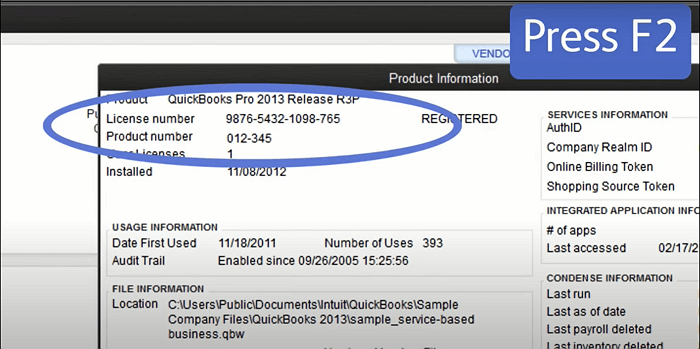
  • To view Product information, press F2.
License Information and a product key

Solution 8: Recover recent transactions using the original.TLG file with .QBW.adr file

  • On your desktop, create a new folder and name it QBTest.
  • Launch the folder that has your company file. 
  • In your company file’s folder, take a look at the .tlg file. The name must be similar to your company file.
  • In case you are not able to identify the transaction log file, use these steps to show your file extension. 
  • Press Windows + E and open File Explorer.
  • Click on Organize and select Folder and search options.
  • Click on Hide extensions for known file types.
  • Click on Apply > OK.
  • Now, you need to copy the .tlg file of the company file.
  • Paste it in the QBTest folder.
  • Open the folder QuickBooksAutoDataRecovery
  • Copy the .QBW.adr file.
  • Paste it into the QBTest folder. Now, you must be having a QBW.adr and a .tlg file in your QBTest folder. 
  • Right-click on the .QBW.adr file and click on Rename.
  • Now, you need to delete the .adr extension file.
  • Launch QuickBooks.
  • Open the company file that you have saved in your QBTest folder
  • You are required to register your account to verify that all transactions are there. 
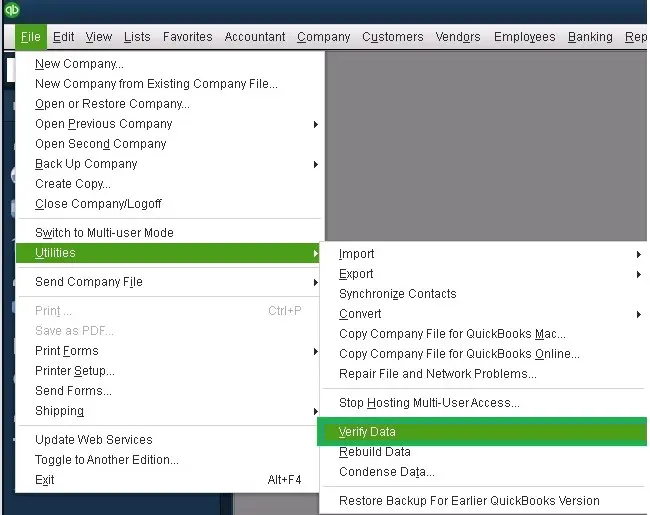
  • Click on the File and select Utilities.
  • Now, click on Verify Data and check the data integrity of the recovered file.
verify and rebuild company file data

Now, check and confirm if the Error 6000 in QuickBooks is fixed. We have tried multiple time-tested solutions, and if the error continues to trouble you, it is time to contact QuickBooks experts. 

Conclusion

It is clear from the QuickBooks error that when your QuickBooks application fails to open the company file, QuickBooks error 6000 occurs. In addition to this, there are more circumstances, including incorrect network setup, file path location issues, and more.

We hope that the QB Error Code 6000 is successfully fixed. In case the situation you are facing requires an advanced technical solution, contact our team of QuickBooks experts from QuickBookSupportNet at +1(866)500-0076. 

You can also check: Fix QuickBooks Closes Unexpectedly, Freezes and Crashes & QuickBooks Error 350: Verify and Rebuild Data in QuickBooks

FAQs 

What is QuickBooks Error 6000?

The error 6000 in QuickBooks Desktop happens when there is damage in the data or a file is missing. In addition to this, there could be other issues as well, such as file path, hosting or network issues, or preventing access to the data file. It indicates QuickBooks cannot open the company file due to a file path, hosting, or network issue, preventing access to the data file.

Can I lose my company data due to an QuickBooks error 6000 windows 11 in my desktop?

There are higher chances that you may lose data if you are dealing with the QuickBooks Error Code 6000 in the wrong way. Not only this, but sometimes you may require an advanced technical solution to fix the error. 

Where should I contact to reach QuickBooks professionals?

QuickBook Support Net is a top-notch solution provider for any QuickBooks issue you are facing. Contact +1(866)500-0076 and get a timely resolution.

Is 6000 specific to a network problem or a local issue?

It can be either a network/path problem, missing or corrupted files, or hosting/permissions issues on the server or workstation.

When should I see Error 6000?

When QuickBooks is unable to access the company file at startup or during a multi-user/open operation.

Can I fix it by simply restarting QuickBooks?

Restarting is one solution that may help if a temporary lock or network glitch caused the error. However, we recommend that you follow the targeted steps shared in this blog on QuickBookSupportNet to fix error 6000.

About The Author

Lana Creston

Lana Creston is an experienced technical and accounting writer with a total of 9 years of experience. She currently works on QuickBooks accounting and technical guides at QuickBookSupportNet. Lana has a passion for reading and writing about various technical topics, especially exploring new accounting methods and software, while continuously expanding her expertise in the ever-evolving field of finance and technology.

Quick, clear, and hassle-free QuickBooks assistance.

Get a Free Consultation with Our QB Tax Experts
Connect with Our Certified QuickBooks Professionals - Dial Tollfree: +1(866)500-0076