Learn to Recover Lost QuickBooks Files
Apr 9, 2026


Jan 2, 2026
Admin |
Estimated Read Time : 5 MIN
In today’s fast-paced business world, efficiency is key. The Pipedrive QuickBooks integration offers a seamless connection between your sales pipeline and accounting system, streamlining processes and reducing manual work. By syncing customer data, invoices, and payment details, this integration ensures that your sales and accounting teams stay aligned.
With the power of automation, you can focus more on growth while saving time on administrative tasks. Let’s dive into how Pipedrive integration with QuickBooks can enhance your business operations.
Pipedrive is a visual, cloud-based CRM software designed to help small and medium-sized businesses. Manage leads, track deals, automate tasks, and close more sales efficiently by focusing primarily on the sales pipeline.
The software has a drag-and-drop interface that lets customers visualize sales stages, making it easy for teams to access where deals stand, automate follow-ups, and get detailed insights into performance. Ultimately, reducing admin work and boosting the overall sales productivity.
Here’s how Pipedrive’s cloud applications can enhance your business management during QuickBooks integration:
Pipedrive’s all-in-one sales software helps you manage all your sales and related operations, such as invoicing and much more.
Grow your business not just with spreadsheets, but with advanced tools that empower salespeople to collaborate, optimize their sales process, and predict sales cycles.
Finish with a project that includes proper planning and a progress tracker! Manage your project using multiple Excel spreadsheets and dashboards to track progress!
Create your to-do lists while assigning tasks or subtasks, and track projects with labels, custom fields, and filters. Pipedrive’s online project management software lets you stay on top of all tasks!
Connect your business e-commerce system with the third-party Pipedrive QuickBooks integration marketplace. Connect over 500 apps with your CRM and automate data transfer, such as syncing products, prices, orders, and inventory in real-time, centralizing management, reducing manual errors, and expanding reach to more customers from a single dashboard.
Automate sales, enhance client engagement and communications, and get detailed insights with AI Sales Assistance.
Pipedrive’s AI integration with CRM features, Email Generator, and Sales Assistant saves time and lets you focus on what’s most important. Find relevant apps and automate tasks to streamline the sales process.
One of the first and foremost things Pipedrive considers for all of its clients is data security and privacy.
Enjoy robust privacy and security with strong encryption (AES-256/TLS), data segregation, AWS hosting, and compliance with GDPR, SOC 2, and ISO 27001, plus features like SSO/SAML, MFA, and IP restriction.
Capture leads through customizable web forms, chatbots, and integrations, all directly in a visual pipeline.
This enriches data with its Prospector tool, automating qualification and distribution, and providing insights to help sales reps focus on high-potential prospects, moving them from initial contact to closed deals seamlessly.
Pipedrive’s Web Visitors helps you see which companies visit your website, even if they don’t fill out a form. It works by adding a small tracking script to your site.
You can view what pages they visit, how engaged they are, and turn interested businesses into leads or deals.
Using Pipedrive and QuickBooks as well? Integrate both systems for better data management, task automation, and real-time data updates, and boost the business’s efficiency. Let’s learn how the QuickBooks Pipedrive integration benefits your business:
Here’s how to perform Pipedrive QuickBooks Online integration for seamless invoicing and data management:
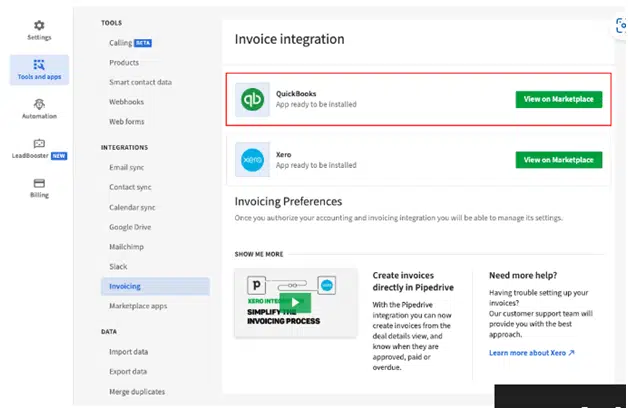
Check the common use cases of the Pipedrive QuickBooks integration:
In essence, it bridges the gap between sales (Pipedrive) and finance (QuickBooks) for seamless, error-free financial processes
Pipedrive enhances the overall business management, but also has some drawbacks. Make sure to analyze these limitations before the integration:
Finally, we are ending this blog here with the features and benefits of Pipedrive QuickBooks integration and detailed steps on how to perform the integration. You will also learn about the cons of this integration, along with the use cases.
In case you get stuck somewhere or get an error, you must get in touch with QuickBooks professionals at Call Us : +1(866)500-0076. Talk to an expert now!
Does Pipedrive integrate with QuickBooks?
Yes, Pipedrive integrates with QuickBooks Online (QBO) natively through the Pipedrive Marketplace for core functions like creating invoices from won deals, syncing contacts/products, and tracking payment statuses.
How do I connect my QuickBooks account to Pipedrive?
To connect QuickBooks to Pipedrive, go to Pipedrive’s Marketplace, find the official QuickBooks integration, click “Install,” and follow the prompts to log in to your QuickBooks account, grant access, select your company, and map your Pipedrive fields to QuickBooks fields for seamless data flow.
Can I add a Pipedrive integration to my plan?
Yes, you can add Pipedrive integrations to your plan, as Pipedrive offers many built-in integrations available via their Marketplace, and even provides an API for custom solutions, with basic access on all plans and advanced features on higher tiers
Is Pipedrive cheaper than Salesforce?
Yes, Pipedrive is generally much cheaper than Salesforce, especially for small to medium businesses, with entry-level plans starting significantly lower and offering more value in basic tiers, though Salesforce offers powerful, scalable enterprise solutions with higher costs for advanced features and marketing tools.
How much does QuickBooks charge per Invoice?
QuickBooks doesn’t charge to send an invoice, but charges processing fees when customers pay it via QuickBooks Payments, typically around 2.9% + 25¢ for credit cards (invoiced) and 1% (max $10) for ACH bank transfers, with rates varying by card type (Amex is higher) and payment method (swiped vs. keyed-in).


Quick, clear, and hassle-free QuickBooks assistance.
Learn to Recover Lost QuickBooks Files
Apr 9, 2026
Learn to Add Inventory Products in QuickBooks
Apr 8, 2026