Resolve QuickBooks Error 6094 When Opening a Company File
Feb 13, 2026
Admin |
Estimated Read Time : 5 MIN
When you try to open your company file in QuickBooks Desktop, you may encounter the following message:
“An error occurred when QuickBooks tried to start the database server that manages access to the QuickBooks company file. Error (-6094, 0).”
QuickBooks error 6094, 0 commonly occurs when the QuickBooks Database Server Manager (QuickBooksDBXX) fails to start. In many cases, this happens after a recent antivirus or security update, as programs like AVG, PC Tools, SpyHunter, and others may mistakenly block essential QuickBooks services.
Understanding the causes behind this error is the first step toward restoring smooth access to your accounting system.
Explore the possible reasons that prevent QuickBooks from accessing or hosting the company file and trigger error code 6094 in QuickBooks:
Anti-Virus or security software interference
Blocked or disabled QuickBooks Database service
Corrupted or incomplete QuickBooks installation
Renamed or altered QuickBooks files
Installation folder path issues
Outdated QuickBooks software
System configuration issues
Learn to Fix QuickBooks Error 6094 (6010, 2) When Starting the Database
QuickBooks error 6094 (6010, 2) usually appears when QuickBooks tries to start the database server (QuickBooksDBXX), and something blocks it—most commonly antivirus or firewall software. Let’s make sure to update the antivirus and perform the relevant steps to resolve the issue:
Perform these troubleshooting steps to resolve the issue:
Ensure your antivirus software is up to date.
Restore qbdmgr.exe and qbdmgrN.exe from the virus vault or quarantine.
Prevent the QuickBooks Desktop Directory from being scanned by adding it to your antivirus software’s exceptions list.
For PC Tools Internet Security:
To recover items that were placed in quarantine:
Open the Settings menu, then click Quarantine.
Highlight the files you want to restore and select Restore.
Confirm by clicking Yes, then press OK.
To add an exception so the QuickBooks folder is not scanned:
Open the PC Tools Internet Security menu, then open Settings.
Click on Global Action List, then select Add to choose the files or folders you want excluded from scanning.
Click OK to save the changes.
For AVG Anti-Virus:
To stop AVG from scanning the QuickBooks folder:
Exit QuickBooks Desktop and launch the AVG Anti-Virus interface.
Open Resident Shield, then click Manage Exceptions.
Select Add Path and enter C:\Program Files\Intuit. Note: If QuickBooks is installed in another location, add that specific folder path instead.
Click OK, then Save Changes. Note: You may also need to restore any QuickBooks files that AVG previously placed in quarantine.
To verify whether any QuickBooks files were quarantined:
Open the AVG Anti-Virus interface and go to History.
Select Virus Vault and look for any QuickBooks-related files that were quarantined (for example: qb.exe, qbw32.exe, qbdbmgr.exe, qbdbmgrn.exe).
Choose the appropriate files and click Restore, then Close.
Restart QuickBooks Desktop.
To check for renamed files in the QuickBooks installation folder:
Close QuickBooks Desktop.
Navigate to C:\Program Files\Intuit\QuickBooks and look for files that may have been renamed.
Example: QBDBMGRN_AVG_RESTORED
Change the file name back to its original form (for example, rename it to qbdbmgrn.exe).
Open QuickBooks Desktop again.
For SpyHunter Malware Software:
Launch the SpyHunter application and navigate to System Guard.
Open the User-Added tab and look through the list for any QuickBooks files.
If you locate a QuickBooks file, change its status to Allowed.
If no QuickBooks files appear under the User-Added tab, return to the previous section and review the PUP category.
If any QuickBooks files are blocked under PUP, update their status to Allowed.
Repair QuickBooks Desktop
Let’s use different utilities in the QuickBooks Tool Hub to fix incorrect installations, corrupt or damaged program files or folders:
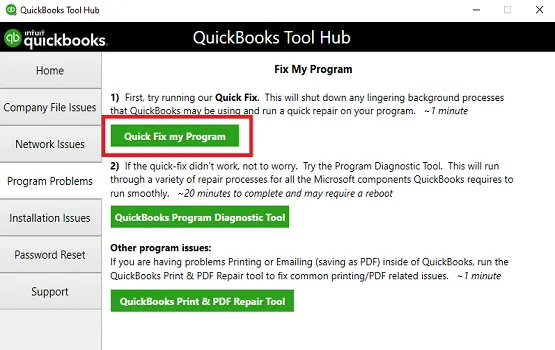
a. Run Quick Fix my Program
The Quick Fix my Program will shut down the open background processes that QuickBooks uses. This will also run a quick repair to the program.
Open QuickBooks Desktop and then open the company file.
b. Run the QuickBooks Install Diagnostic tool
If something goes wrong during software installation, it can cause issues when using the software. To fix the common installation issues using the QuickBooks Install Diagnostic Tool:
Note down the QuickBooks Desktop product and license info
a. Switch to Selective Startup
To prevent other applications from interfering, use Selective Startup mode. If you’re not confident performing these steps, consider reaching out to your computer manufacturer or a Windows specialist for assistance.
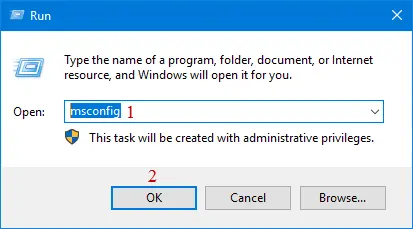
Launch the Run Command by pressing the Windows+R keys.
Type msconfig in the search and click OK.
Move to the General tab.
Choose Selective startup and Load system services.
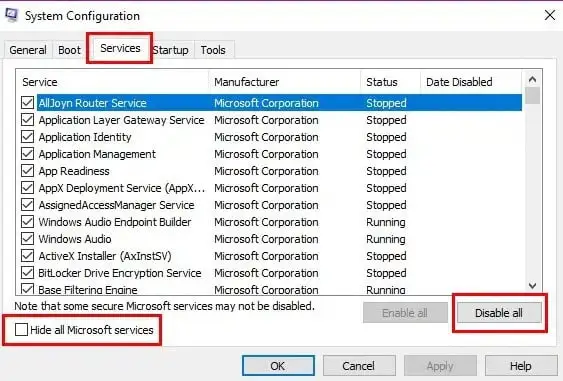
Go to the Services tab.
Mark the Hide all Microsoft Services checkbox.
Click on Disable all.
Clear the Hide all Microsoft services checkbox.
From the list of services, choose Windows Installer.
Click OK.
Choose Restart on the System Configuration window.
Press the Windows+R keys together to open the Run command.
In the Run field, type msconfig and click OK.
Move to the General tab.
Choose Normal startup.
Now, click OK.
On the prompted System Configuration window, select Restart.
Conclusion
We are ending this blog with detailed instructions on how to resolve antivirus issues that also trigger QuickBooks error 6094. We hope the above information lets you easily start the server manager and open your company file without interruption.
If the error persists or you need professional assistance, we recommend consulting QuickBooks ProAdvisors at QuickBookSupportNet. Dial +1(866)500-0076 to talk to a certified ProAdvisor now!
Frequently Asked Questions
What does error -6094 0 mean in QuickBooks?
Error -6094 0 in QuickBooks is a company file error that occurs when QuickBooks fails to run the database due to antivirus or firewall blocking, or because the security application is outdated.
What causes error -6094 0 when opening QuickBooks Desktop?
QuickBooks Desktop error -6094.0 typically occurs when security software (antivirus or firewall) prevents QuickBooks from accessing company files. It can also be caused by corrupt QuickBooks installation files, incorrect hosting settings, or network problems that prevent proper communication between QuickBooks and the server hosting the company files.
Why can’t I switch to multi-user mode and get QuickBooks error 6094?
QuickBooks Error 6094 usually occurs when antivirus software (such as AVG, PC Tools, or SpyHunter) incorrectly flags and quarantines critical QuickBooks files (qbdmgr.exe or qbdmgrN.exe), preventing the database server from starting.
About The Author
Lana Creston is an experienced technical and accounting writer with a total of 9 years of experience. She currently works on QuickBooks accounting and technical guides at QuickBookSupportNet. Lana has a passion for reading and writing about various technical topics, especially exploring new accounting methods and software, while continuously expanding her expertise in the ever-evolving field of finance and technology.
Effortlessly handle data tasks or get expert assistance with: