What is QuickBooks Password Reset Tool and How to Use It?
Sep 9, 2025
Admin |
Estimated Read Time : 5 MIN
Have you forgotten your QuickBooks Desktop password and are unable to access your company file? Whether you are a user or an admin, this guide will walk you through a detailed process for recovering your QuickBooks password.
Intuit offers the QuickBooks Password Reset tool, which recovers a forgotten admin password using one-time password authentication. For a QuickBooks non-admin user, we have also covered how to reset the password manually. Explore this detailed blog to learn about the QuickBooks automated reset password tool, including how to use it and the manual steps to recover your password.
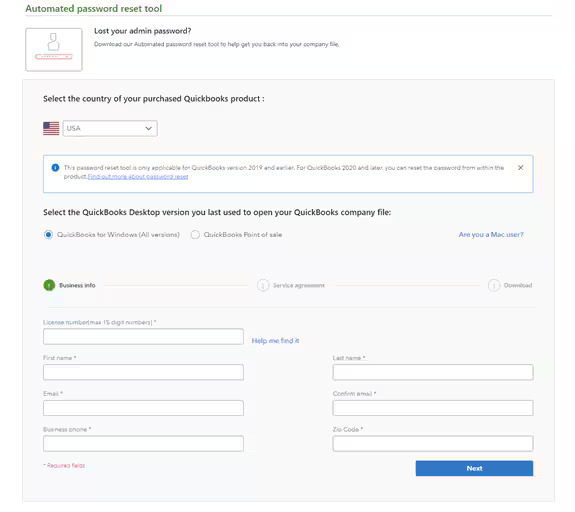
The QuickBooks Automated Reset Password tool is a password recovery tool that helps you get back to your company file. To reset a forgotten admin password, the user must submit their license number and business information online for validation and then receive a unique password reset code via email.
The tool is not compatible with QuickBooks Online or QuickBooks Desktop 2024 and later. For QuickBooks Online, users typically recover their account by requesting a verification code through the sign-in help page.
Use the Automated Password Reset Tool for QuickBooks Desktop
Let’s walk you through the steps below to recover your password using the QuickBooks Password Reset tool if you failed to recover the password manually:
Fill in the QuickBooks license number and business info used when you registered QuickBooks, and then select Next.
If you get a message that says the details you’ve provided didn’t match, log in to your Intuit account at https://camps.intuit.com. Make sure these pieces of info are correct:
Authorized user’s name and email address (name is not case-sensitive)
Primary mailing address (particularly the ZIP code)
License number (found under Products and Services; no dash required)
Phone number (listed under Account Details)
Note: All provided details must exactly match our system records, including the email address, main business phone number, and ZIP code of the primary contact. The access token will be sent exclusively to the primary contact’s email address.
Accept the license agreement to trigger the Automated Password Reset tool download. (If auto-download fails, click Download now.) Important: When prompted to Run or Save, select Save and store the file on your Desktop.
Launch the Automated Password Reset tool and input the token number sent to your email.
From the QuickBooks Desktop Products drop-down, choose the matching QuickBooks version.
Click Browse for Company File, then select the company file for password reset.
Important: Provide the correct Company File Admin User Name (if not “Admin”).
Enter and confirm your New Password. Note: Use a temporary password, as QuickBooks will prompt for another change upon opening the company file.
Click Reset Password to finalize.
You can now log in to your company file with the new password. The QuickBooks password reset tool is single-use; complete the verification form again for a new token. If you still need to change your password, proceed to the section below to manually get back to your company file.
Click OK. If your details are correct, a code will be sent to the primary email associated with your CAMPS account. Check your spam or junk folders if the code doesn’t appear in your inbox.
Follow QuickBooks’ prompts to set up a new admin password.
If the password reset doesn’t work
Verify your information. Review for any typos and ensure the information matches what’s in the CAMPS.
If you encounter an error or need help with the password, try the Automated Password Reset tool.
If you still require help, choose Search for something else, type your password, and select Search to contact us or dial +1(866)500-0076.
If you are an administrator of your company file, learn how to reset your password:
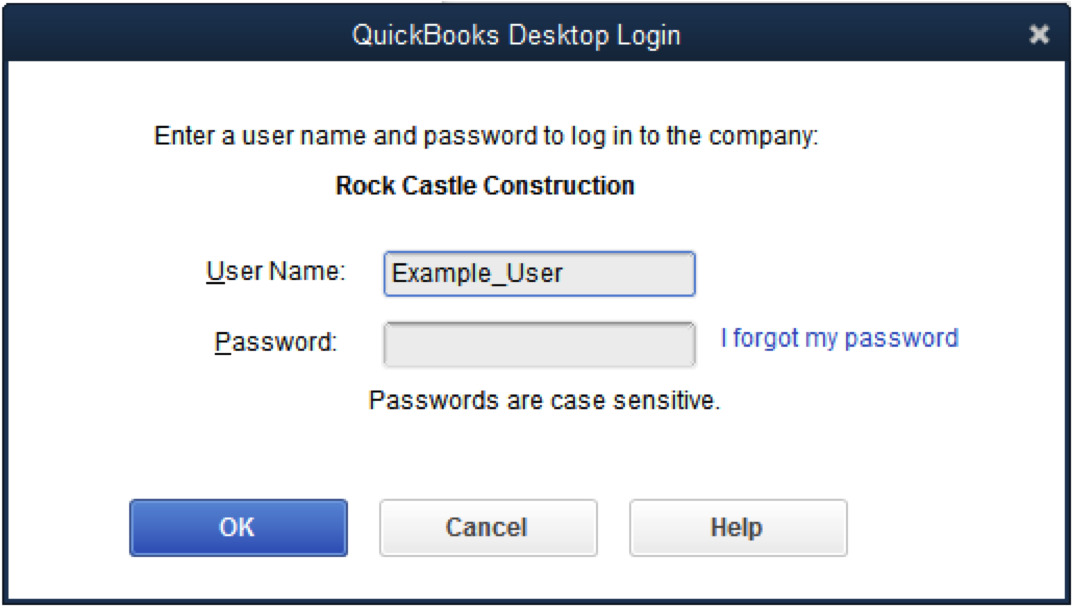
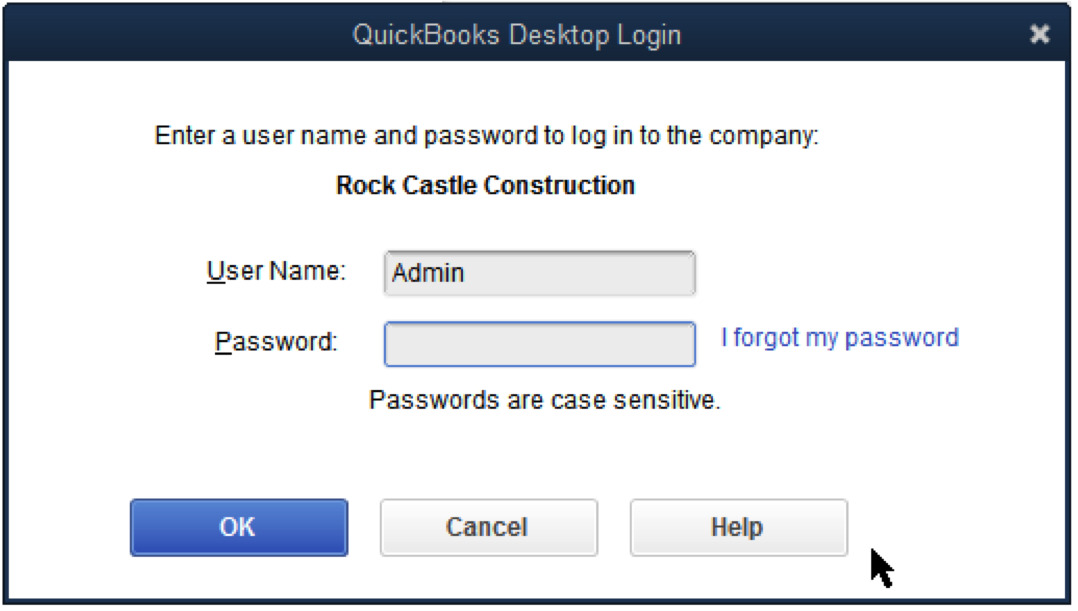
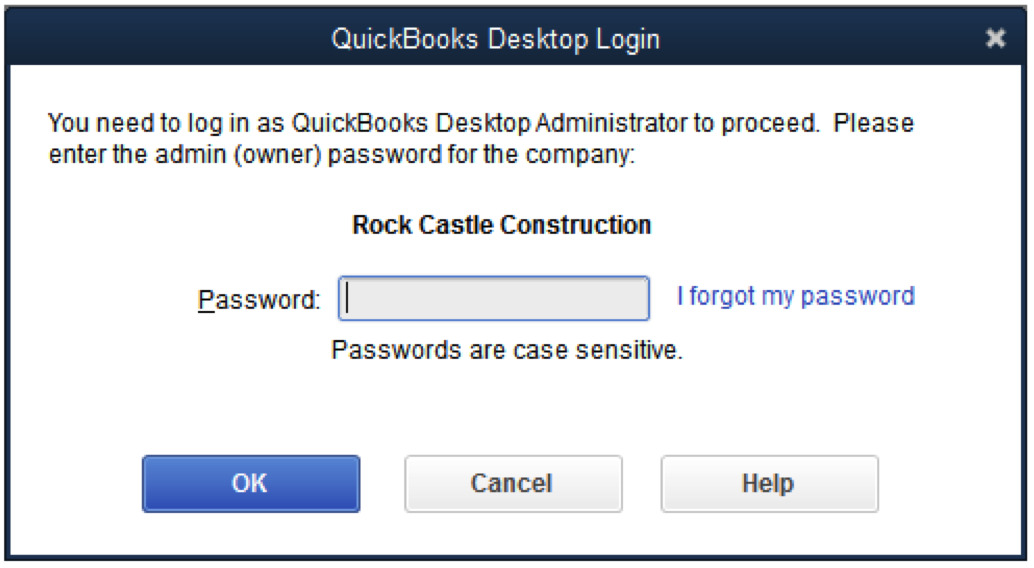
Select the lock icon in the Password field. A pop-up menu will appear listing recovery email addresses.
Choose an email address you already have access to and click OK.
You will receive an email from QuickBooks that will guide you through creating a new admin password.
Reset a non-admin password
Reset a user or non-admin password. Only an admin user can change the password for non-admin users.
Sign in to your company file as an administrator.
Select Users and Passwords from the Company menu at the top.
Choose the user whose password you wish to change, then click Edit.
Click on the lock icon, then enter your new password.
Finally, click Save.
Conclusion
Finally, we conclude this blog with detailed steps on what to do if you forget your QuickBooks password. This guide covers the QuickBooks Password Reset tool and manual methods for recovering passwords for both admin and non-admin users.
We hope this has been helpful for you and that you can now easily access your company file. For further assistance, it is recommended to connect with a QuickBooks professional at +1(866)500-0076. Talk to an expert now!
Frequently Asked Questions
What to do if you forgot your QuickBooks password?
To reset a forgotten QuickBooks password, sign in to QuickBooks as an administrator. Go to Company> Set Up Users and Passwords> Set Up Users, then enter the admin password. Choose the user you are changing the password for> Edit user. Now, enter a new password, click Next twice, then Finish.
How do I unlock a locked administrator account in QuickBooks?
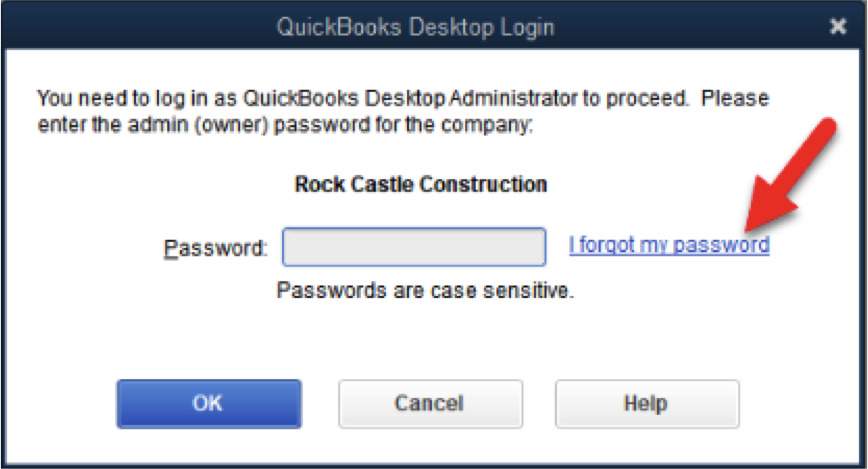
To unlock the QuickBooks administrator account in QuickBooks Desktop, select the “Forgot my password” link on the login screen of the software. You will receive a verification code via email or SMS, then follow the instructions to reset your password.
Does QuickBooks require password changes?
Yes, QuickBooks requires password changes, particularly if sensitive data like credit card information is stored in the company file, with a mandatory change every 90 days for these instances. For other company files, it is recommended to change the password every 90 days for security purposes.
Is there a way to reset your QuickBooks?
Yes, Intuit offers the QuickBooks Automatic Password Reset tool, which allows you to change both admin and non-admin user passwords manually.
About The Author
Lana Creston is an experienced technical and accounting writer with a total of 9 years of experience. She currently works on QuickBooks accounting and technical guides at QuickBookSupportNet. Lana has a passion for reading and writing about various technical topics, especially exploring new accounting methods and software, while continuously expanding her expertise in the ever-evolving field of finance and technology.
Effortlessly handle data tasks or get expert assistance with: