Sep 25, 2025
Admin |
Estimated Read Time : 5 MIN
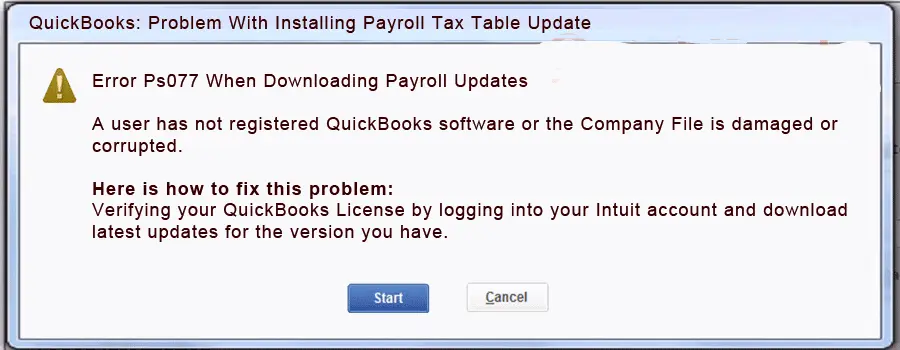
Payroll updates are important to ensure that tax rates and tax calculations are correct and that payroll management is running smoothly. However, not updating payroll services can cause QuickBooks error PS077 to appear, accompanied by a warning message that says,
“Error PS077 When Downloading Payroll Updates”

This error is one of the PSXXX series that appears due to failure of payroll update due to several reasons, like inactive payroll subscription, outdated QuickBooks, etc. In this detailed guide, we will discuss all the possible ways and different methods to deal with this error. Let’s read this guide carefully…
Table of Contents
ToggleYou may see the update error PS077 in QuickBooks Desktop due to several factors, which we are discussing one by one in the section below:
In this section, we will discuss various methods for resolving QuickBooks error PS077 when downloading payroll updates. After finding out the root cause, proceed to the solutions below and resolve the error immediately:
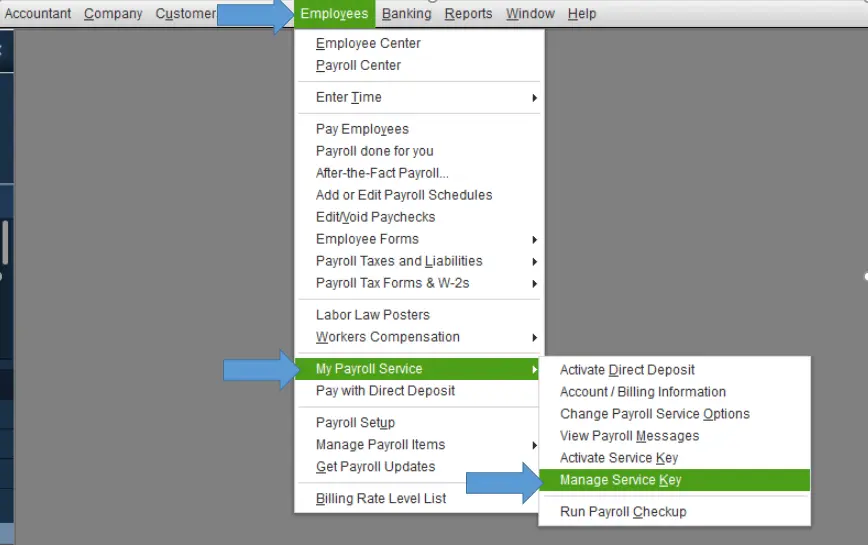
An active payroll subscription is required to receive payroll services updates. This ensures you have the latest tax tables and accurate tax calculations available:

If you still encounter QuickBooks error PS077, proceed to the next step.
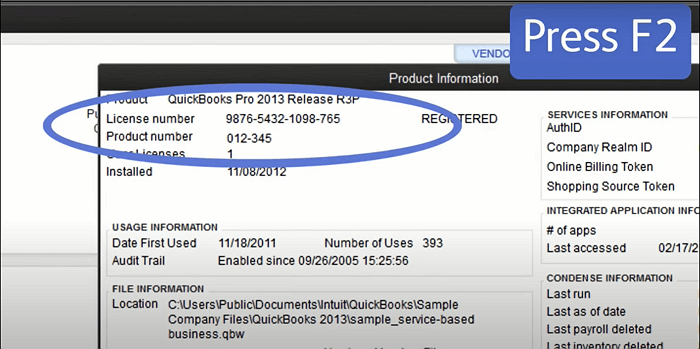
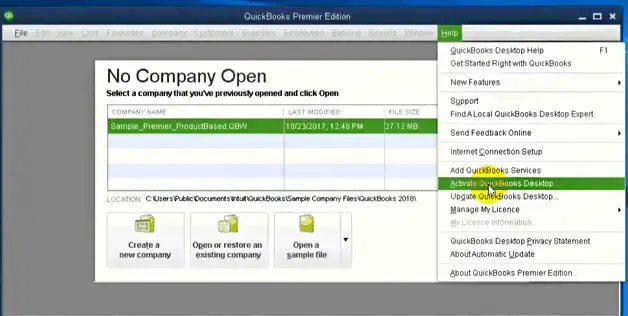
To receive the latest security and software improvement updates, you must ensure that the software is registered.

If it’s not activated, here’s how to register QuickBooks Desktop

An outdated version of QuickBooks means the support services might be discontinued, and you may not receive the payroll updates or fail when trying to download, ultimately ending with a QuickBooks error PS077. Keep your QuickBooks Desktop to the latest release for the features and continued support.
Also, make sure to keep the payroll tax table up-to-date

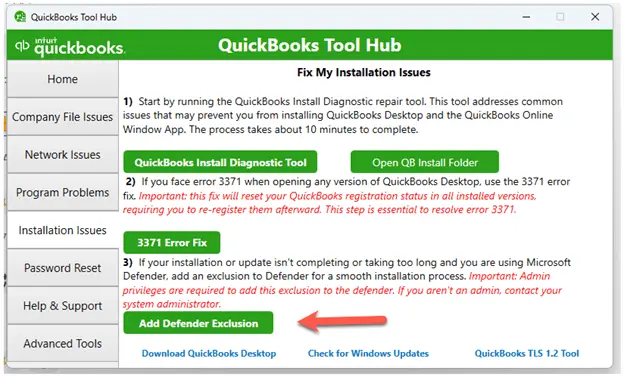
To ensure it is not blocked, create a QuickBoks exception in Microsoft Defender, and you can run all QB operations without any hindrance:
To resolve this, QuickBooks Tool Hub now offers a feature to exclude specific QuickBooks files from Microsoft Defender scans. By adding these files to an exclusion list, Defender skips them during installation, ensuring updates proceed smoothly. Follow these steps to use this feature:
Note: You must be logged into Windows as an admin to add exclusions. If you’re not an admin, the Add Defender Exclusion option will be disabled, and you’ll need to request your admin to add the exclusion for you.

Note: You must download and install the latest release of QuickBooks Tool Hub (1.6.0.8) available. For an enhanced experience, it is recommended that you use Tool Hub on Windows 10 (64-bit).

If something went wrong during the installation or the files are damaged, it can cause problems when trying to use it. Run the QuickBooks Install Diagnostic Tool to repair QuickBooks Desktop:

The QuickBooks File Doctor verifies the company file data for possible data damage and network connectivity issues and runs a quick repair on them. Let’s see how to run QB File Doctor in the Tool Hub:

Note: If the QuickBooks File Doctor doesn’t open, search in the Windows Search for QB Desktop File Doc and open it manually.
The scan time usually depends on the size of the company file and can take up to 10-15 minutes. Even if the issues are fixed, the scan was successful. When the scan is complete, open QuickBooks and open the company file.
Clean installing QuickBooks Desktop involves removing the program files and folders, then getting a fresh QuickBooks installation. This fixes software errors, resolves bugs, and prevents corrupted program files by removing all QuickBooks installation components and then reinstalling the software from scratch. This type of installation eliminates pending system or registry files that may be causing glitches, ensuring a fresh start for the accounting program and improving overall performance.
Modify the UAC settings in Windows 10 by following these steps:
| Note: Disabling UAC settings can be necessary when troubleshooting QuickBooks Desktop issues. We recommend that you turn it back on to prevent security risks on your computer. |

So, you must have reviewed the information above, the different reasons why you see QuickBooks error PS077, and the troubleshooting steps to get past the error. We hope the information has been helpful for you, and you are good to go with QuickBooks Payroll.
However, if you still failed to update QuickBooks payroll and are wondering what to do, you must get in touch with QuickBooks professionals at +1(866)500-0076. Talk to an expert now!
How to fix QuickBooks error PS077/PS032?
Download the most recent tax table and QuickBooks update, resolve corrupted files, repair the QuickBooks installation, verify and update your billing information in your Intuit account, and make sure your Windows operating system is current to fix QuickBooks error PS077/PS032.
Why am I getting a payroll error code in QuickBooks Desktop?
There could be multiple reasons why you might end up with a payroll error:
How do I fix service key error in QuickBooks?
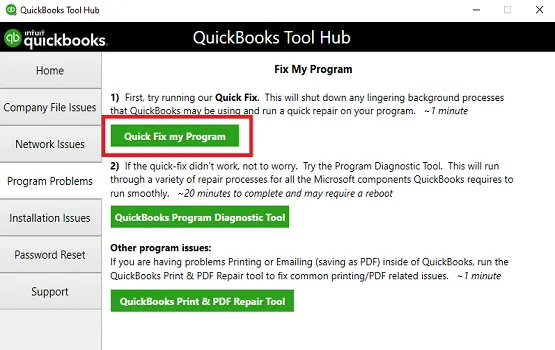
To fix a QuickBooks service key error, update your payroll service key by going to Employees > My Payroll Service > Manage Service Key and verifying the key number and status, or try running the QuickBooks Tool Hub’s Quick Fix my Program tool to close background processes.
How to manually update QuickBooks payroll?
To manually update your QuickBooks payroll:
How do I resync payroll in QB?
Let’s resync your payroll data in QuickBooks:
Lana Creston is an experienced technical and accounting writer with a total of 9 years of experience. She currently works on QuickBooks accounting and technical guides at QuickBookSupportNet. Lana has a passion for reading and writing about various technical topics, especially exploring new accounting methods and software, while continuously expanding her expertise in the ever-evolving field of finance and technology.
Quick, clear, and hassle-free QuickBooks assistance.
A Quick Guide to Troubleshoot QuickBooks Error 50004
Jan 14, 2026