A Quick Guide to Troubleshoot QuickBooks Error 6144 82

Oct 27, 2025

Admin |

Estimated Read Time : 5 MIN

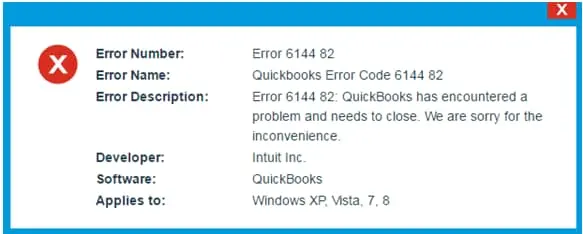
QuickBooks error 6144 82 is one of the company file errors that appears when trying to open the company file on the network, probably due to incorrect hosting settings. The error also displays a warning message that states, 

Error 6144 82: QuickBooks has encountered a problem and needs to close. We are sorry for the inconvenience.

QuickBooks Error 6144 82

It is one of the QB 6XXX series errors that appear due to the same reasons and require the same troubleshooting steps. Explore this guide to find all the relevant information you need to resolve the error and return to your business operations. 

What Causes Company File Error 6144 82 in QuickBooks?

Let us discover each reason one by one in the section below: 

  • The QuickBooks Desktop version is not up-to-date 
  • Data damages, corruption, or common network connectivity issues
  • Hosting settings might be incorrect  
  • Damaged or corrupted .ND and .TLG files 
  • The file you are hosting isn’t scanned through the QB Database Server Manager
  • The data file is saved in too many locations, or damage to the default one
  • QuickBooks processes running in the background linger with current operations
  • Incorrect folder permissions 
  • Windows Firewall or antivirus software is blocking QuickBooks 

Instant Ways to Resolve QuickBooks Error 6144 82 When Opening a File

Below, we have mentioned different methods that will help you resolve QuickBooks error 6144 82 and open a company file on the network seamlessly: 

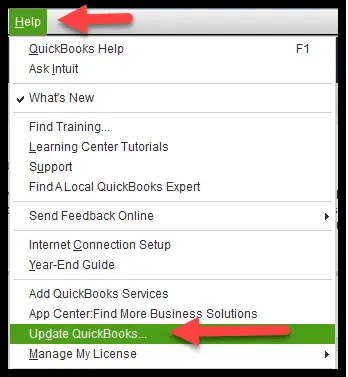
1. Update QuickBooks 

Keeping QuickBooks updated is crucial for smooth performance, enhanced security, bug fixes, and more. Interruptions during QuickBooks processes can prevent you from opening company files or completing tasks. Ensure you update QuickBooks to the latest version available.

Update QuickBooks Desktop

2. Run QuickBooks File Doctor

Note: Make sure to download and install QuickBooks Tool Hub to the latest release (1.6.0.8) available. For a better experience, we recommend using Tool Hub on Windows 10, 64-bit.

  • Open the QB Tool Hub.
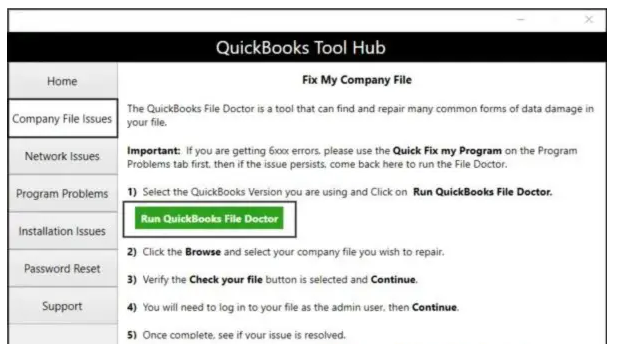
  • In the left pane, select Company File Issues.
  • Click on Run QuickBooks File Doctor. It may take up to one minute or more for the file doctor to open. 
Run QuickBooks File Doctor

Note: If the QuickBooks File Doctor doesn’t open, search for QB Desktop File Doc and open it manually. 

  • Choose your company file from the drop-down menu in QuickBooks File Doctor. If you don’t see the file, click Browse to find the company file. 
  • Hit on Check your file (middle option only) and then Continue.
  • Type the QuickBooks admin password to allow access and click Next

3. Check if Hosting is on for all workstations

We recommend that you use one computer or the server to host your company files. 

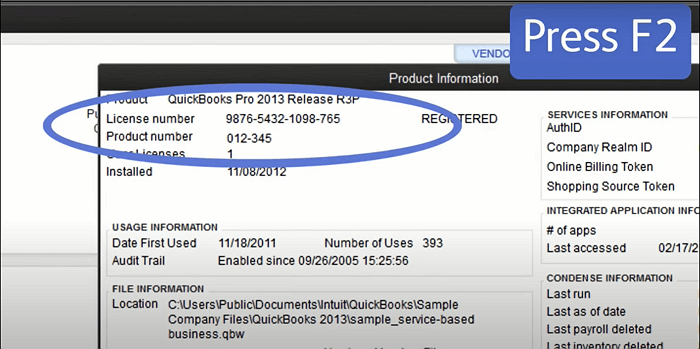
  • Launch the Product Information window by pressing F2.
License Information and a product key
  • Look for Local Server Information. Hosting should be turned off on the workstation.

4. Rename the .ND and .TLG files and run the Database Server Manager 

Rename the .ND and .TLG files and run the QuickBooks Database Server manager for seamless hosting: 

a. Rename the .ND and .TLG files 

  • Open the folder where you saved the company file. 
  • Look for the files with the same name as your company file, but with extensions such as .ND and .TLG.
    • company_file.qbw.nd
    • company_file.qbw.tlg
  • Right-click on each file, then select Rename. Add .OLD word at the end of each file name, such as company_file.qbw.nd.OLD.

b. Run QuickBooks Database Server Manager

  • Launch the QuickBooks Tool Hub.
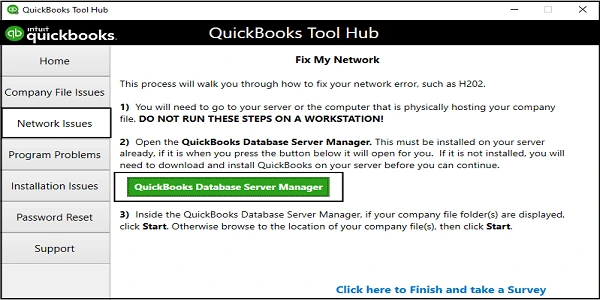
  • Click on Network Issues in the left pane.
  • Select the QuickBooks Database Server Manager button. You may be prompted to install QuickBooks on the server if you haven’t already done so. 
QuickBooks Database Server Manger
  • If you see your company file in QuickBooks Database Server Manager, select Start Scan. If you don’t click Browse to your company file location, then select Start Scan.  

5. Open a sample company file from a workstation

  • Open a Sample File from the list of sample company files. 
  • If the sample company files open, go to Solution 6. 
  • If you get the error when opening the sample file, you must repair the QuickBooks installation files. 

Repair the QB installation files using QuickBooks Install Diagnostic Tool

Run the QuickBooks Install Diagnostic Tool to resolve the common installation issues: 

  • Open the QB Tool Hub. 
  • In the left menu bar, select Installation Issues.
  • Click on QuickBooks Install Diagnostic Tool. Let the utility run; it may take more than 20 minutes. Wait until it finishes. 
QuickBooks Install Diagnostic Tool
  • Once done, restart your computer, open QuickBooks Desktop, and open the data file. 
  • Keep your QuickBooks Desktop up to date to the latest release to ensure you have the most recent fixes and security updates. 

6. Copy the QuickBooks file to the Desktop 

  1. If the file opens from the desktop, it means the file location is damaged. 
  2. The file might be in too many folders and exceed the file system path limitation.   
  3. If you fail to open the company file after changing the location, the file might be damaged. 
  • Locate the file folder where the company file is saved. 
  • Find the file with the .QBW extension. 
  • Right-click on the file and select Copy. Go to your Desktop, right-click anywhere on the screen and select Paste
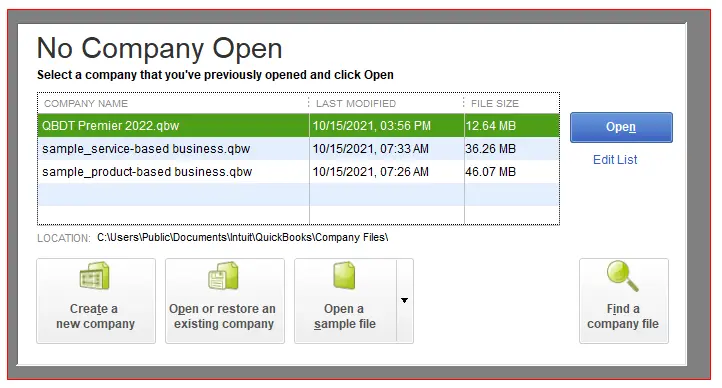
  • Press the Ctrl key and hold down and open QuickBooks. This will redirect you to the No Company Open window. 
No Company Window
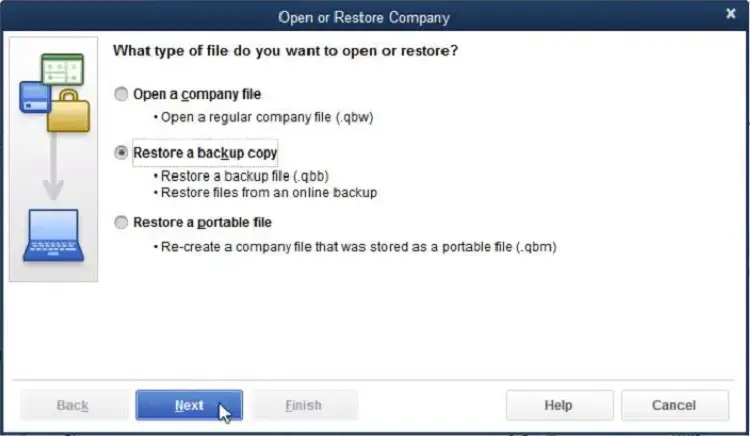
  • Hit Open or restore an existing company. Move to the desktop and look for the company file to open it. 
Open or Restore Company

7. Close all QuickBooks processes

  • Sign in to the server computer as an Administrator.
  • Open the Task Manager by pressing Ctrl+Shift+Esc.
  • Select Show process for all users and click Users
  • Now, End Task for the following QuickBooks processes: QBW32.EXE, qbupdate.exe, and QBDBMgr.exe.
  • Try opening the company file in multi-user mode.  

Learn More – Fix QuickBooks Error 6000 95 When Opening the Company File

8. Check the folder permission manually

Important Notes: 
Review the detailed steps before starting. Make sure the installation directories have enough permissions. For Microsoft Windows Home Edition, you may not see the security tab in normal mode. Restart in the Safe to proceed:
–  Restart your computer and press F8 until you see the Advanced Boot menu.
–  From the Advanced Boot menu, select Safe mode and press Enter. The QBDataServiceUserXX may change as per QuickBooks Desktop version.
Example: QuickBooks Desktop 2019 uses QBDataServiceUser29; 2018 uses QBDataServiceUser28.If multi-user access is enabled on a workstation, it may accidentally go into alternate hosting mode, taking control of company files and preventing other users from accessing them.

a. Set up folder permissions

Verify that permissions are set correctly

  • Open the Windows Start menu by pressing the Windows logo key.
  • Type File Explorer in the Windows search and press Enter
  • Right-click on the folder with your company file and select Properties.
  • Go to the Security tab and select Advanced.
  • Select the QBDataServiceUserXX service, then click Edit.
  • Now, configure the following settings to Allowed
    • Traverse Folder/Execute File
    • List Folder/Read Data
    • Read Attributes
    • Read Extended Attributes
    • Create Files/Write Data
    • Create Folders/Append Data
    • Write Attributes
    • Write Extended Attributes
    • Read Permissions

If the file permissions are incorrect: 

  • Right-click on the folder and select Properties.
  • Click Edit in the Security tab. 
  • Choose QBDataServiceUserXX and select Full Control> Allow
  • Select Apply, then OK

Change folder permissions

Adjust the folder permissions if they are incorrect: 

  • Open the Windows Start menu. 
  • Search for File Explorer and press Enter
  • Find the file folders below and right-click on each: 
    • C:\Program Data\Intuit\Entitlement Client\v8
    • C:\Program Data\Intuit\Entitlement Client\v6.0
    • C:\Program Data\Intuit\Entitlement Client\v5
    • C:\Program Data\Intuit\Entitlement Client\v3
    • C:\Program Data\Intuit\Entitlement Client
    • C:\Program Data\Intuit\QuickBooks Enterprise Solutions X.0 (X = version) or C:\Program Data\Intuit\QuickBooks 20XX (XX = year)
    • C:\Program Data\COMMON FILES\INTUIT
    • C:\Program Data\COMMON FILES\INTUIT\QUICKBOOKS
    • C:\Users\Public\Public Documents\Intuit\QuickBooks\FAMXX (XX = year)
    • C:\Users\Public\Public Documents\Intuit\QuickBooks\Company File
    • C:\Users\Public\Public Documents\Intuit\QuickBooks\Sample Company Files\QuickBooks Enterprise Solutions X.0 (X = version) or C:\Users\Public\Public Documents\Intuit\QuickBooks\Sample Company Files\QuickBooks 20XX (XX = year)

Perform the steps below for each folder. Keep in mind that you may not have all of them, as some are specific to certain versions of QuickBooks Desktop:

  • Right-click on each file folder and select Properties
  • Go to the Security tab and click on Everyone

Note: if you don’t see the Everyone option in the Group or User Name checkbox, click Add and type in Everyone, then OK.

  • Select Full Control> Apply and OK.

Read More – QuickBooks Error 6000 80

b. Set Windows access permissions to share company files

QuickBooks must have the correct level of access permissions to avoid problems when hosting your company file in the future.

Note: These steps are only applicable for Windows 10 OS.

  • Open the Windows Start menu. 
  • Search for File Explorer and press the Enter key. 
  • Locate to the QuickBooks file folder and right-click on it. 
  • Choose Properties> Sharing> Share Add.
  • For your QuickBooks version, select the corresponding QBDataServiceUserXX service.
  • Configure the permissions level for both users to Full Control and click Share.

9. Configure the Windows Firewall and Anti-Virus Software

Windows Firewall and antivirus software safeguard your computer from viruses, malware, and cyber threats by managing data ports to prevent damage to files. If QuickBooks is flagged as a threat, it may be blocked, hindering tasks like opening company files. To fix this, add a Windows Firewall port exception for QuickBooks files and folders, and remove these files from the antivirus quarantine.

Conclusion 

Now, you must be familiar with what causes QuickBooks error 6144 82, different methods to resolve the error, and more. Hopefully, this information has helped you open the company file on the multi-user network successfully.

If the error persists or you require professional assistance, it is recommended that you connect with QuickBookSupportNet experts. Dial +1(866)500-0076 and talk to a QuickBooks ProAdvisor now!

Frequently Asked Questions 

  1. What tool can help fix QuickBooks error code 6144? 

To fix QuickBooks Error Code 6144, use the QuickBooks Tool Hub to run the QuickBooks File Doctor, which can repair damaged company files and network issues. If that doesn’t work, try renaming the .ND and .TLG files associated with your company file to allow QuickBooks to create new ones. 

  1. How to fix a corrupted Windows registry file in QuickBooks? 

To fix a corrupted Windows registry affecting QuickBooks, run the System File Checker (SFC) and Deployment Image Servicing and Management (DISM) tools using Command Prompt to repair corrupted Windows system files, then restart your computer. 

  1. What is QuickBooks error 6144 82? 

QuickBooks error 6144 82 indicates an issue with accessing your company file, often caused by network problems, a corrupted or damaged company file, or incorrect file permissions. The error arises when the company file is damaged, or when there are issues with the supporting network data files (.ND) and transaction log files (.TLG), or other network connectivity problems.

  1. How to fix QuickBooks registration error?

To fix a QuickBooks registration error, download the QuickBooks Tool Hub and run the Installation IssuesQuickBooks Install Diagnostic Tool or Program Problems > Quick Fix my Program.

About The Author

Lana Creston is an experienced technical and accounting writer with a total of 9 years of experience. She currently works on QuickBooks accounting and technical guides at QuickBookSupportNet. Lana has a passion for reading and writing about various technical topics, especially exploring new accounting methods and software, while continuously expanding her expertise in the ever-evolving field of finance and technology.

Quick, clear, and hassle-free QuickBooks assistance.

Get a Free Consultation with Our QB Tax Experts
Connnect with Our Certified QuickBooks Professionals - Dial Tollfree: +1(866)500-0076