A Quick Guide to Troubleshoot QuickBooks Error C 184
Mar 26, 2026
Admin |
Estimated Read Time : 5 MIN
QuickBooks error C=184 is an “Unexpected Error” that typically appears when you try to open a company file, restore a backup, or generate reports. This issue commonly occurs when the QuickBooks data file becomes damaged or corrupted, or when there are network connectivity problems—especially if the file is stored in an invalid or inaccessible location.
Such issues can put your important financial data at risk and may even lead to permanent data loss if not addressed promptly. To prevent this, it is essential to identify potential causes and resolve them promptly. In this blog, we will walk you through the key reasons behind error code C=184 and the step-by-step solutions to help you fix the issue and restore seamless access.
What Causes Company File Error C 184 in QuickBooks?
Before troubleshooting, it’s important to determine why you’re getting QuickBooks company file error C 184:
Reports you are opening might be mismatched
.ND and .TLG files might be damaged or corrupted
The location where the company file is saved might not be the default
Possible damages, corruption, or common network connectivity issues
5 Easy Solutions to Troubleshoot QuickBooks Error C 184 Instantly
Let’s explore five easy and effective solutions that can help you troubleshoot and resolve QuickBooks error C 184 without hassle:
1. Manual changes to mismatched reports
QuickBooks error C 184 typically occurs during leap years when February has 29 days. In such cases, the report date may fall outside the date range selected by the user. To fix this issue, you need to manually update or adjust the report’s date range.
2. Rename the .ND and .TLG files
The .ND and .TLG files are the configuration files that allow QuickBooks Desktop to access your company file in the multi-user environment. Any damage or corruption to these files can cause errors when opening QuickBooks Desktop or performing related operations.
To resolve this, rename these files so QuickBooks can create new files and replace them when you open the company file, or scan the company files using QuickBooks Database Server Manager.
If the error message continues to appear, try changing the location of your company file and follow the steps below:
Copy the company file and paste it into a different location on your computer.
After moving the file, update its path in QuickBooks.
Open the company file from the new location and check whether the problem has been resolved.
If the error still occurs, navigate to the QuickBooks installation folder and locate the company file with the .qbw extension.
Rename the file and add .OLD to the end of the file name.
You can also move the company file to another folder if the current one is damaged. Create a new folder, move the company file into it, and then update the folder path in QuickBooks Desktop.
4. Verify and Rebuild the company file data
The Verify tool verifies company file data for potential damage and, if any is found, rebuilds the damaged data using the Rebuild Data utility:
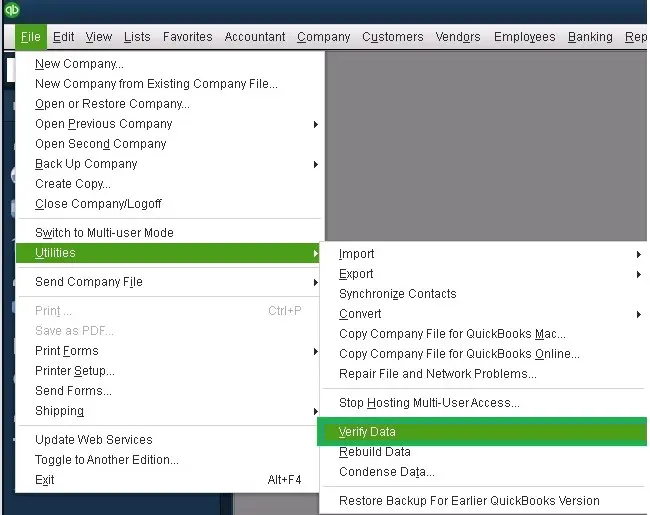
a. Verify your company data
Scan your company for possible errors or data damage using the Verify Data tool:
Navigate to Window and select Close All.
Go to the File menu.
Choose Utilities.
Finally, click on Verify Data.
Results:
“QuickBooks detected no problems with your data”: it means your data is clean and you don’t need to do anything else.
An error message: Search for the specific error message on our website for instructions on how to fix the error.
“Your data has lost integrity”: Data damage was found in your company file, and you must rebuild it using the Rebuild Data utility.
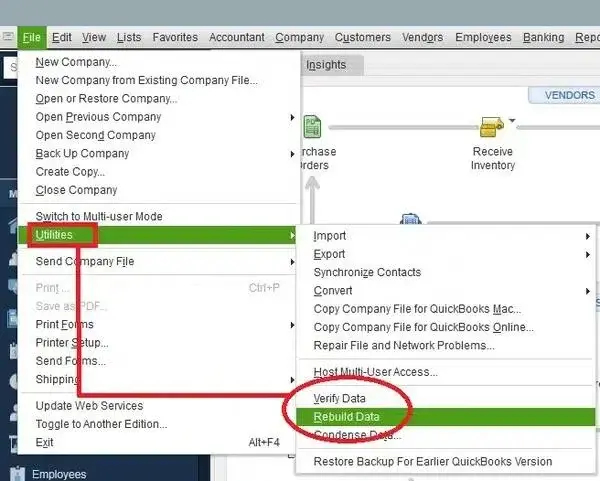
b. Rebuild the data damages
The Rebuild Data utility lets you repair the company file by rebuilding the damaged data. A backup is necessary before rebuilding.
Note: If you are an Assisted Payroll user, contact us before rebuilding the data.
In the left menu bar, select File.
Choose Rebuild Data.
Now, QuickBooks will ask you to create a backup before rebuilding the company file.
Click OK.
Choose the location where you wish to save the backup copy and click OK. Make sure not to replace the backup file with the existing one.
Enter a new name in the File name and click Save.
When you see the “Rebuild has completed” message, click OK.
5. Run QuickBooks File Doctor
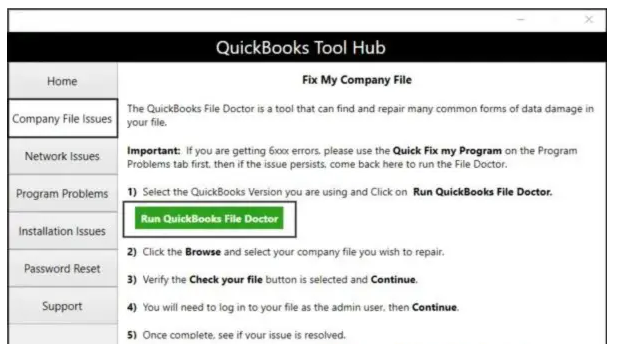
The QuickBooks File Doctor utility verifies the company file for possible data damage and network connectivity issues. If anything is detected, it runs a quick repair on your company file.
In QuickBooks File Doctor, choose your company file from the dropdown menu. If you don’t see the company file, click Browse and search to locate it.
Select Check your file and then click Continue.
Enter the QuickBooks admin password, then click Next.
The scan time usually depends on your company file size and may take 10-15 minutes. It may even say the scan is unsuccessful even after fixing the issue. When the scan finishes, open QuickBooks Desktop and your company file.
Conclusion
Company files are an essential part of any business. Data damage, corruption, or location issues can lead to permanent data loss. In this detailed guide, you’ll learn why QuickBooks error C184 occurs and how to fix it, including steps to repair data damage and restore the default location.
For further assistance, contact QuickBooks ProAdvisors and consult on your issues. Speak to a certified expert by dialing (866) 500-0076 now!
Frequently Asked Questions
How do I fix QuickBooks error C 184?
To fix QuickBooks error C 184, restart your computer and repair the data damage or corruption using the QuickBooks File Doctor utility. If the error persists, try using the Verify and Rebuild Data utility, and renaming the.TLG and .ND files might also help.
How do I change the location of my QuickBooks company file?
To change your QuickBooks company file location, close QuickBooks, locate your .qbw file in Windows File Explorer, copy it, and paste it into the new folder. Open QuickBooks, select “Open or restore an existing company,” browse to the new location, and select the file. Ensure all users are logged out before moving.
Why can’t QuickBooks find my company file?
QuickBooks cannot find your company file (.QBW) typically because it was moved, renamed, deleted, or stored in an inaccessible network location. Common causes include network disconnection, improper file extensions, damaged files, or outdated software.
How to repair a QuickBooks company file?
To repair a QuickBooks company file, use the built-in Verify and Rebuild Data utilities for minor issues, or the QuickBooks Tool Hub’s File Doctor for deeper corruption. Key steps include running File > Utilities > Verify Data, followed by Rebuild Data, or using the Company File Issues tab in the Tool Hub.
About The Author
Lana Creston is an experienced technical and accounting writer with a total of 9 years of experience. She currently works on QuickBooks accounting and technical guides at QuickBookSupportNet. Lana has a passion for reading and writing about various technical topics, especially exploring new accounting methods and software, while continuously expanding her expertise in the ever-evolving field of finance and technology.
Effortlessly handle data tasks or get expert assistance with: