
How Do I Fix QuickBooks Won’t Back Up? Complete 2026 Guide

Aug 4, 2026

Admin |

Estimated Read Time : 5 MIN

QuickBooks won’t back up your company file data, and you’re stuck with safety issues? This is one of the common interruptions businesses experience when using the QB software. This mainly happens when the company’s file data is corrupted or damaged, or when your system doesn’t have enough space. Not backing up your QuickBooks data puts your financial records at risk.

In this blog, we’ll explore the most common causes of backup failures and provide step-by-step troubleshooting tips to help you resolve the issue and get your QuickBooks back on track. Let’s dive in!

Why is QuickBooks Backup Not Working?  

Learn about the different reasons why backing up company file data in QuickBooks Desktop might fail:

  • Corrupted company file data
  • Incorrect file/folder paths
  • Special characters or long names in file names
  • Insufficient storage space
  • Antivirus/firewall interference
  • Missing or disabled Microsoft .NET Framework components
  • Outdated QuickBooks version
  • Compatibility issues with the Windows version
  • Issues with QuickBooks installation
  • Problems with scheduled backup settings (e.g., Intuit Data Protect issues)

Try These solution When QuickBooks won’t back up the Company File Data 

It’s essential to back up your company files so that if you lose the original file or your data becomes corrupted, you’ll still have a secure copy of your business records.

See below to learn how to resolve these issues and ensure data security:

1. Verify and rebuild your company file data 

The Verify and Rebuild Data utility verifies your company file for potential damage and then runs a quick rebuild to repair it.

Run the Verify Data and Rebuild Data utility by following the steps below: 

a. Verify your data 

Run the Verify Data utility to scan your company file for possible errors or data damage.  

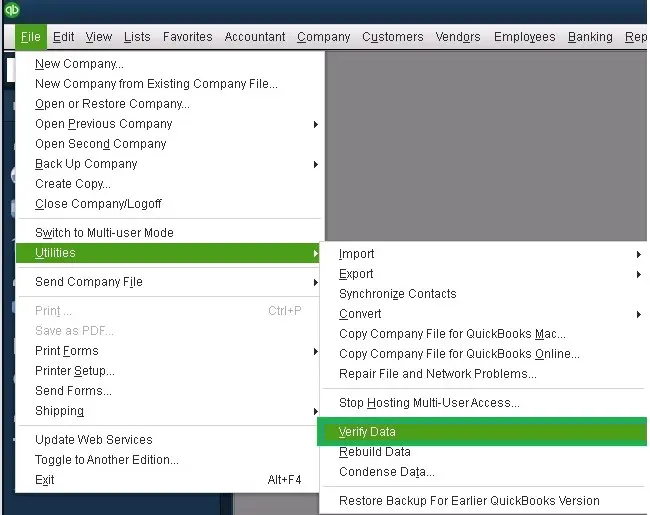
  • Navigate to Window and select Close All
  • Go to File at the top and select Utilities.
  • Click on Verify Data.
verify and rebuild data

Results:

  • “QuickBooks detected no problems with your data”: Your data is clean and undamaged, and you do not need to do anything else. 
  • An error message: Look for the specific error messages on our website for instructions on troubleshooting them.  
  • “Your data has lost integrity.”: Data damage is detected in the file. Proceed below to rebuild the company file data and fix the issues. 

b. Rebuild the data damages 

If possible, data damage is detected, you must repair the company file using the Rebuild Data utility. A backup is necessary before you can rebuild. 

Note: If you use Assisted Payroll, contact us before using the Rebuild Data utility.

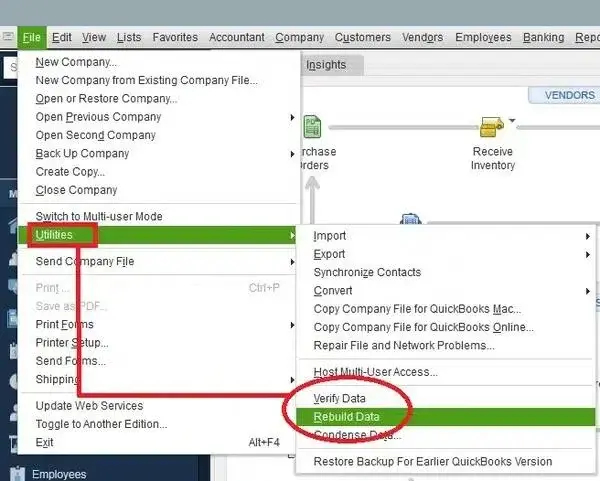
  • Go to File at the top. 
  • Select Utilities and then Rebuild Data.
Rebuild Data
  • Now, QuickBooks will ask you to create a backup before rebuilding the company file. 
  • Click OK.
  • Choose a location to save the backup copy, then click OK. Make sure not to replace the existing company file. 
  • Enter a new name in the File name section and click Save
  • Click OK when you see the “Rebuild has completed” message. 

2. Update QuickBooks

An outdated version of QuickBooks can cause compatibility issues with the system or operating system, and some features might not function if updates are not applied. This prevents you from backing up or restoring the company file. Make sure to keep QuickBooks software up to date to the latest release available.  

3. Run QuickBooks File Doctor 

The QuickBooks File Doctor verifies the company file for possible corruption or network connectivity issues and repairs any damage or corruption to the company file and network connectivity issues.

Note: Make sure to download and install QuickBooks Tool Hub in the latest release available (1.6.0.8).  

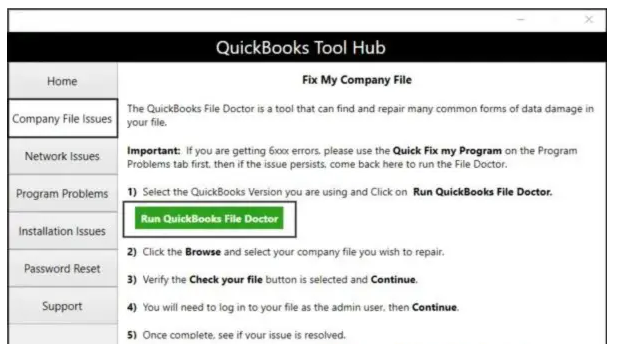
  • Open the QuickBooks Tool Hub. 
  • Go to Company File Issues
  • Hit on Run QuickBooks File Doctor. The tool can take up to a minute to open the file doctor. 
Run QuickBooks File Doctor

Note: If the QuickBooks File Doctor fails to open, search for QuickBooks Desktop File Doc and open the tool manually. 

  • Choose your company file from the dropdown menu in QuickBooks File Doctor. If you don’t see the company file, click Browse and search to locate it.
  • Click Check your file (the middle option only), then Continue.
  • Enter the QuickBooks admin password to allow access, then click Next.

The scan time depends on your company file size and may take 10-15 minutes. The scan may have been unsuccessful even after fixing the issues. When done, open QuickBooks, then your company file. 

4. Risk Disk cleanup 

The Disk Cleanup tool can free up disk space and improve computer performance by removing unnecessary files, such as temporary files, system logs, and old update files. 

  • Launch the Windows Start menu. 
  • Type Disk Cleanup and press Enter
  • Choose your drive/folder or file, and mark the checkboxes for the files you want to delete (e.g., Temp files, Recycle Bin, System files).
  • Press Enter or click OK to clean. 
  • Delete system restore points to recover significant storage space.
  • Automate system cleanups with Task Scheduler to keep your system running smoothly regularly.
  • Use command-line options like /sageset and /sagerun for more advanced, scheduled cleanups.
  • Always back up important files before performing major cleanup tasks to avoid losing data.

5. Verify the company file name 

You won’t be able to schedule data backups in QuickBooks if the company file does not have a valid name. Here’s how you can ensure the proper name on your company file:

  • Press and hold Ctrl and double-click on the QuickBooks Desktop icon. 
  • In the No Open Company Open window, select Find a Company File.
  • Choose Find a company file on the screen.
  • Note down the company file location. The default location is: C:\Users\Public\Documents\Intuit\QuickBooks\CompanyFileFolder\compfilename.qbw.
  • Press Windows + E to launch File Explorer, then navigate to the company file location. 
  • Locate the company file, then right-click it. 
  • Select Rename and verify the company file’s name. Make sure it does not exceed 65 characters.
  • Remove all the special characters and spaces from the company file name. 
  • Press Enter to save the changes. 
  • Exit File Explorer and try to save the backup copy again. 

6. Run QuickBooks in compatibility mode 

If QuickBooks isn’t in compatibility mode with Windows 10, you won’t be able to create a company file backup. Here’s how to ensure your QuickBooks Desktop is in compatibility mode with the Windows OS: 

  • Update Windows 10 on your computer. 
  • Locate the QuickBooks Desktop icon on your screen. 
  • Right-click the QB Desktop icon, then choose Run QuickBooks in compatibility mode.
  • Open the Compatibility Mode menu, then select Compatibility.
  • Mark the checkbox labeled “Run this program in compatibility mode.”
  • Go to the drop-down tab and select Windows 10
  • Select the Privilege Level section, then check the Run this program as an administrator checkbox.
  • Select Apply, then OK, and try backing up the company file again. 

7. Enable the Microsoft .NET Framework component

The scheduled backup feature won’t function in QB if certain Microsoft .NET components remain disabled. Here’s how you can enable important .NET Framework components:

  • Launch the Run prompt by pressing Windows + R.
  • Type Control Panel and press Enter
  • In the left pane, select Uninstall a Program.
  • Click on Turn Windows features on or off.
  • Mark the checkbox for .NET Framework 3.5. Also, ensure the .NET Framework 4.5 checkbox is marked.
  • Click OK
  • Reboot your computer, then try backing up your company file again. 

8. Repair QuickBooks Desktop

The QuickBooks processes in the background, incorrect installation, and Windows components can cause problems when running QuickBooks Desktop.

Let’s repair the QuickBooks program using different tools in the QuickBooks Tool Hub: 

a. Run Quick Fix my Program 

Quick Fix will close any QuickBooks processes running in the background and then perform a quick repair on the program.

  • Launch QuickBooks Tool Hub. 
  • Go to Program Problems in the left pane. 
  • Hit on Quick Fix my Program.
  • Launch QuickBooks Desktop and open your company file. 

b. Run the QuickBooks Install Diagnostic tool 

If something went wrong during the installation, you might experience problems when using the software. Run the QuickBooks Install Diagnostic Tool to fix common installation issues.

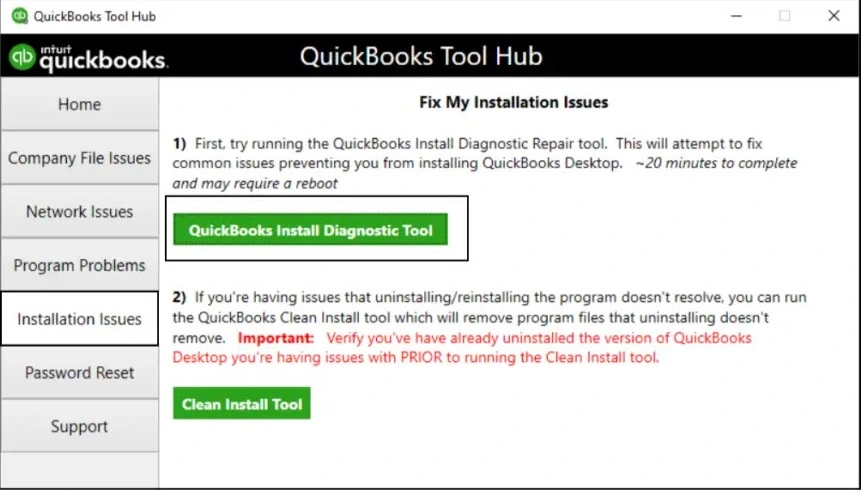
  • Launch the QuickBooks Tool Hub. 
  • Go to Installation Issues in the left menu bar. 
  • Hit on QuickBooks Install Diagnostic Tool. Let the utility run until it finishes. The tool might take up to 20 minutes; make sure to wait until then.
QuickBooks Install Diagnostic Tool

9. Disable your firewall or antivirus program for a moment

Disabling your firewall or antivirus to fix QuickBooks backup issues is not recommended for security reasons. Instead, check if your firewall or antivirus is blocking QuickBooks access to the backup location. 

You can try adding QuickBooks to the exception list or temporarily disabling specific features related to file protection. Always ensure your system is secure and re-enable protections once you’ve fixed the issue. 

Conclusion 

In conclusion, QuickBooks backup issues can often be resolved with a few troubleshooting steps, including verifying and rebuilding the company file, updating QuickBooks, running the QuickBooks File Doctor, and ensuring your system is compatible. 

For any persistent issues or detailed assistance, don’t hesitate to reach out. Dial 866-500-0076 to speak with QuickBookSupportNet professionals for fast, reliable support!

Frequently Asked Questions 

Can QuickBooks be backed up?

QuickBooks can’t back up company files due to corrupted data, incorrect file/folder paths, special characters in file names, insufficient storage/permissions, or antivirus/firewall interference.

Why is QuickBooks unable to back up company files?

QuickBooks can’t back up company files due to corrupt data, incorrect file/folder paths, file naming issues (special characters, long names), insufficient storage, Windows permissions, or antivirus/firewall interference blocking access to crucial files like .ND or .QBW.

What is a QuickBooks backup failed error?

A QuickBooks backup failed error means your crucial financial data couldn’t be saved, often due to a corrupted company file, storage issues, incorrect file paths, special characters in the filename, or interference from other programs/permissions, putting your data at risk and preventing online backups or restores.

Does QuickBooks have a backup option?

Yes, QuickBooks offers built-in backup options for both Desktop and Online versions, including automatic scheduling, manual local backups, and cloud storage integration to protect your financial data from loss.

Why is QuickBooks scheduled backup not working?

QuickBooks scheduled backups fail due to Windows permissions, corrupted files, conflicting apps, or incorrect settings (like firewall, Power Options), often related to Admin rights or Intuit Data Protect service issues.

About The Author

Lana Creston

Lana Creston is an experienced technical and accounting writer with a total of 9 years of experience. She currently works on QuickBooks accounting and technical guides at QuickBookSupportNet. Lana has a passion for reading and writing about various technical topics, especially exploring new accounting methods and software, while continuously expanding her expertise in the ever-evolving field of finance and technology.

QuickBooks Desktop 2023 is ending — Upgrade QuickBooks Desktop 2023 to 2024 for continued performance and support.

Get a Free Consultation with Our QB Tax Experts