
How to Fix QuickBooks Error PS038 (Paychecks Stuck Online to Send)

Oct 22, 2026

Admin |

Estimated Read Time : 5 MIN

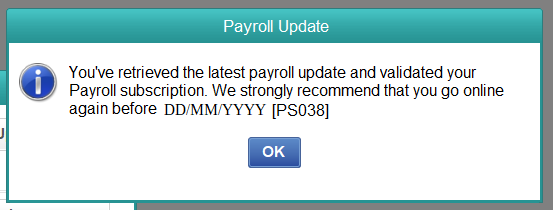
QuickBooks Error PS038 happens in QuickBooks Desktop Payroll when one or more of your paychecks are held in the ‘Online to send’ status. Because these paychecks never successfully send their data to Intuit, the program can’t complete a payroll update, and you may get a message indicating that your paychecks are stuck or that the payroll update hasn’t finished.

The good news is that the error can be corrected and that your company’s data is not at any risk. Usually, you can fix the problem yourself within about 30 to 60 minutes by finding the paychecks in question, checking your company file and rebuilding it, resending your payroll data, and, if needed, turning the stuck paychecks on and off. The guide explains how to carry out each step in the order Intuit recommends, explains the error, and tells you how to prevent it from happening again.

QuickBooks Error PS038 (Paychecks Stuck Online to Send)

Table of Contents

A Quick Overview – QuickBooks Error Code PS038

The following table provides a summary of the points mentioned in this article regarding error code PS038 in QuickBooks.

ErrorPayroll Error PS038
Product affectedQuickBooks Desktop with an active Payroll subscription (Pro, Premier, Enterprise)
What you seeA message saying one or more paychecks are stuck, or that the payroll update could not be completed
Main causePaychecks remain in the “Online to send” status and never reach Intuit’s payroll servers
Other possible causesOutdated software, damaged company data, inactive subscription, unstable connection, firewall interference
Time neededRoughly 30 to 60 minutes, depending on how many paychecks are affected
Skill levelBeginner to intermediate
Before you beginCreate a backup of your company file and install the latest QuickBooks Desktop update
Is your data lost?No. The error blocks the payroll update; it does not delete your records

What is QuickBooks Error PS038?

The information in the paychecks you prepare using QuickBooks Desktop Payroll is sent to Intuit to ensure your tax returns, tax payments, and payroll records remain accurate. Each paycheck has a status; one that has been created but not yet transmitted shows as ‘Online to send’.

QuickBooks error PS038 occurs when a paycheck remains in that state and cannot be cleared; because QuickBooks considers the paycheck unsent, any further attempt to download a payroll update or send the payroll data leads to the same problem. The error will likely reappear until the stuck paychecks are cleared.

You may notice one or more of these signs:

  • If you try to send the payroll data or download a payroll update, the error message will show the code PS038.
  • The paychecks that you set up several days ago are still shown as unsent.
  • Some payroll updates stop before they finish or never complete.
  • Tax returns or tax obligations do not take into account your most recent paychecks.

Why Does Payroll Error PS038 Happen in QuickBooks Desktop?

Several conditions can cause a paycheck to get stuck. If you know which one applies to your situation, you can then decide where to direct your efforts.

  • The transmission was interrupted: the connection was lost, or QuickBooks closed down before the paycheck had finished being sent.
  • An outdated version of QuickBooks: earlier versions might not communicate properly with the current payroll service.
  • If your company file is damaged, QuickBooks can’t mark the paycheck record as sent.
  • If the Payroll subscription is inactive or has lapsed, then the Payroll features require an active subscription and will not accept any data.
  • A poorly stable internet connection can cause a transmission to be stopped before it is finished.
  • A send failure might be caused by a firewall or security software blocking QuickBooks from accessing Intuit’s servers.
  • If the Payroll Update component is damaged and the downloaded payroll files are incomplete, the update could still fail even if the paychecks themselves are okay.

Before You Begin with QuickBooks Error PS038 Troubleshooting

Spending a few minutes preparing before you start troubleshooting error code PS038 in QuickBooks will save you time and help keep your records safe.

Confirm your subscription

  • Under the Employees section, select My Payroll Service and then pick Account/Billing Information.
  • Log in using your Intuit account and make sure your Payroll subscription is active.

Update QuickBooks Desktop

Install the most recent release and also apply the most recent update to the payroll tax table. Intuit advises you to remain on a supported version.

Check your internet connection

To check that your connection is working, open a web page in your browser. Remember, a wired connection is more reliable than Wi-Fi for payroll transmissions.

Switch to single-user mode

When going through these steps, only one person should be in the company file; if other users are logged in, ask them to log out.

Sign in as the Admin

Because many of the steps below require administrator privileges, log in as an administrator before running payroll or correcting QuickBooks error PS038.

Back up your company file

Tip: If your payroll deadline falls within the next 24 hours, complete the steps below as quickly as possible, and contact Intuit Support early rather than waiting until the last minute.

Since rebuilding and editing paychecks will change your data, keep a recent backup; if anything unexpected happens while you resolve Payroll update Error PS038 in QuickBooks, you can restore it and try again.

  • Log in to your company file in QuickBooks Desktop using the Admin account.
  • Go to the File menu and choose Switch to Single-user Mode.
  • Go to the File menu, select Back Up Company, and then pick Create Local Backup.
  • Choose ‘Local backup’ and then click Next.
  • To select Local Backup Only, click Browse and then choose the folder in which you want to store the backup; select a location that has sufficient free space, for example, an external drive.
  • To enable QuickBooks to keep more than one copy, set the number of backups you want to retain.
  • Ensure that Complete verification is selected so that QuickBooks can check the backup for any problems.
  • Press OK and then select ‘Save it now’ before clicking Next.
  • After QuickBooks finishes, a message will appear indicating that the backup has been created. Just click OK.

If you also wish to have automatic backups later on, make sure to select ‘Save it now’ and then arrange your future backups in the last step. You can set QuickBooks to back up each time you close the company file or on a schedule you select.

Note that when setting up a scheduled backup in QuickBooks, if it asks for your Windows sign-in credentials, then you should enter your Windows password so that the backup can be run automatically.

How to Fix QuickBooks Error PS038: Detailed Steps for the Payroll Problem

In this section, we’ll have a look at the various components and aspects involved in resolving QuickBooks error PS038; go through the steps which are given in detail and carry them out as instructed.

Solution 1: Update QuickBooks Desktop and Resend Payroll Data

The most straightforward explanation is that the version is outdated or the transmission was interrupted, and this remedy covers both.

Update QuickBooks Desktop

  • Make sure to close any windows that are currently open in QuickBooks.
  • You should choose ‘Update QuickBooks Desktop‘ from the Help menu.
  • Go to the Update Now tab, choose Get Updates, and wait until the download is complete.
  • If you are prompted to restart QuickBooks, then restart it so that the update can be installed.

Send your payroll data

  • Under the Employees menu, choose My Payroll Service.
  • Click on Send Usage Data; if that option is not available, then select Send Payroll Data from the Employees menu.
  • In the Send/Receive Payroll Data window, select ‘Send All‘.
  • When you are prompted, enter your payroll service PIN and click OK.
  • Once the confirmation shows up, press OK.

Download the payroll update

  • Under the Employees menu, choose Get Payroll Updates.
  • Choose ‘Download Entire Update‘ and then click Update.
  • Once the download is complete, press OK.

If the update downloads without any message, your paychecks will be sent, and the error will be resolved. If the QuickBooks error message PS038 appears once again, go to Solution 2.

Solution 2: Find the Stuck Paychecks

First, determine precisely which paychecks are stuck and make a list of them since you will need this list in the subsequent solutions.

  • Under the Edit menu, choose Find.
  • Click the Advanced tab.
  • In the Choose Filter list, pick Detail Level and then choose Summary only.
  • Go back to the Choose Filter list and pick Online Status.
  • To send a message, select ‘Online‘ from the Online Status dropdown menu.
  • Click Find.

The list QuickBooks produces includes all transactions that have not yet been sent. Identify the oldest paycheck that has not been sent and note the number of matches displayed in the window. Also, record the employee’s name and the date for each paycheck on the list. After that, close the Find window.

If the search produces no results, you likely have no stuck paychecks, and the issue is probably your subscription, your connection, or a faulty component. You should then proceed with Solution 4 and the solutions that come after it to resolve update error PS038 in QuickBooks Desktop.

Solution 3: Verify and Rebuild Your Company File

Damaged data in the company file may prevent paychecks from being sent. The Verify Data and Rebuild Data utilities will check your file and fix many common problems.

Run Verify Data

  • Make sure to close any windows that are currently open, including the Find window.
  • Under the File menu, choose Utilities and then click Verify Data.
  • Wait until QuickBooks finishes, as large files may take a few minutes.
  • When QuickBooks says it has detected no problems, click OK and go to Solution 4.
  • When QuickBooks detects a problem, click the Rebuild Now option.

Run Rebuild Data

  • Under the File menu, choose Utilities and then click Rebuild Data.
  • When QuickBooks asks you to back up your file, click OK and save a new backup.
  • Let the rebuild process complete without being interrupted. Don’t close QuickBooks or turn off your computer.
  • When the process is complete, please click OK.
  • Check Verify Data again to make sure that the issues have been resolved.

After the rebuild, try downloading the payroll update again, as outlined in Solution 1. However, if error code PS038 still shows up and you have paychecks that are listed as stuck from Solution 2, then proceed to the following solution.

Important – if the rebuild process is interrupted, then restore the backup that you made before the rebuild started and attempt it once again.

Solution 4: Toggle Each Stuck Paycheck

To toggle a paycheck, make a small temporary change and then reverse it; this causes QuickBooks to update the paycheck status so it can be sent. For each paycheck on the list that you prepared in Solution 2, carry out this solution starting with the oldest one.

Before you start:

Note the net pay and tax figures; they must be the same at all stages.

Add a temporary earnings item

  • Open the paycheck that is the oldest and stuck.
  • Click Paycheck Detail.
  • In the Earnings section, consider the final item listed there. For instance, the item could be Hourly Rate.
  • Add a line for that item; for example, another line for Hourly Rate.
  • When the Net Pay Locked message is displayed, you should click No to keep the net pay from changing.
  • Make sure that the net pay and tax amounts have not changed, and then click OK.
  • When a Past Transaction message is displayed, please click Yes.
  • Press Save & Close. If a warning about a Recording Transaction comes up, then click Yes.

Remove the temporary earnings item

  • Go to the same paycheck once more.
  • Click Paycheck Detail.
  • In the Earnings section, remove the extra line you added.
  • Make sure that the net pay and the tax amounts still agree with the original paycheck.
  • Press OK and then choose Save & Close. If QuickBooks shows a warning, click Yes.

After you switch all the stuck paychecks, send your payroll information and download the payroll update again, as shown in Solution 1.

Warning: do not alter the pay or tax amounts on a paycheck; if you are uncertain that your edit has left these amounts unchanged, then stop and get in touch with Intuit Support or your accountant before saving.

Solution 5: Verify Your Payroll Subscription and Service Key

For QuickBooks to confirm you are entitled to use its payroll features, you need an active subscription and a valid service key; payroll updates may fail if either is missing or incorrect, even if your paychecks are fine.

Check your subscription status

  • Under the Employees menu, choose My Payroll Service.
  • Select Manage Service Key.
  • Check the Status column; if it says Active, then your subscription is up to date, but if it shows Inactive or Expired, you must renew your subscription before proceeding.

Confirm your service key

  • For your payroll service in the Service Name list, choose it and then click Edit.
  • Check the service key that is shown against the one in your Intuit account or the confirmation email. If the keys do not match, enter the correct one.
  • Click Next, deselect the box that enables Payroll Setup, and then click Finish.
  • Let QuickBooks check the service.
  • Under the Employees section, choose Get Payroll Updates and then click Download Entire Update.

The update should now go through if you had the wrong key and have since corrected it. If this doesn’t fix QuickBooks error PS038, move to the next solution.

Solution 6: Rename the CPS Folder

The folder CPS uses contains the payroll update files QuickBooks downloads. Whenever these files are damaged, the updates may fail repeatedly. By renaming the folder, QuickBooks will create a new copy the next time you carry out an update.

  • Close QuickBooks completely.
  • To open File Explorer and navigate to the folder in which QuickBooks is installed, you will need to know the location since this varies according to your version and the way Windows is set up. A typical path is C:\Program Files (x86)\Intuit\QuickBooks [year]\Components\Payroll\CPS; however, the path could be different on 64-bit installations or if a custom installation was made.
  • Click the right mouse button on the CPS folder and choose Rename.
  • To append OLD to the name, for instance, CPSOLD. Do not remove the folder since you might need it if there’s a problem.
  • Open QuickBooks and click on Employees, then select Get Payroll Updates.
  • Press Download Entire Update and then press Update.

When QuickBooks sets about downloading, it creates a new CPS folder; after the update has been successfully carried out, you should carry out a test of the payroll to make sure that the error is no longer there.

Note that if Windows prompts you for administrative permission to rename the folder, you should grant the request; if you don’t have administrative rights, then you should ask your IT contact for assistance.

Solution 7: Repair QuickBooks Desktop With QuickBooks Tool Hub

The issue could be due to a problem with QuickBooks itself. A free Intuit utility called QuickBooks Tool Hub brings several repair tools together in one place.

Install QuickBooks Tool Hub

  • Close QuickBooks.
  • Get the most recent version of QuickBooks Tool Hub from Intuit’s official website. If it is available, make sure you are using version 1.6.0.3 or a later one.
  • After downloading the file, follow the instructions that appear on the screen and accept the terms.
  • Once the installation is complete, click the Tool Hub icon on your desktop.

Run Quick Fix my Program

  • Go to the Program Problems tab in the Tool Hub.
  • Choose Quick Fix my Program.
  • Make sure the tool has finished, then reopen QuickBooks.
  • Attempt to download the payroll update once more.

Run the QuickBooks Install Diagnostic Tool

  • If the error persists, quit QuickBooks and then reopen Tool Hub.
  • Click on the Installation Issues tab.
  • Click the QuickBooks Install Diagnostic Tool and let it run. This may take as long as 20 minutes.
  • Restart the computer after the tool finishes.
  • Try carrying out the payroll update again by opening QuickBooks.

Solution 8: Repair Your Company File With QuickBooks File Doctor

If you rebuilt your file and Verify Data still shows problems, the QuickBooks File Doctor can locate and repair further damage.

  • Open QuickBooks Tool Hub.
  • Go to the Company File Issues tab.
  • Run the QuickBooks File Doctor. It might take a minute to open.
  • From the drop-down list, choose your company file. If the file isn’t there, click Browse and find it.
  • Select ‘Check your file‘ and then click Continue.
  • Type in your QuickBooks Admin password and then click Next.
  • Let the scanning process continue until it is finished, although this may take several minutes depending on the size of your file.
  • Open QuickBooks and attempt the payroll update once more.

If the PS038 error in QuickBooks Desktop persists, consider restoring a backup you made before the error occurred. Since restoring brings your file back to an earlier state, you must review any transactions you entered after the backup was created.

Solution 9: Check Your Firewall, Antivirus, and Internet Settings

To send paychecks and download updates, QuickBooks must connect to Intuit’s servers, but security software or outdated internet settings can block that connection.

Check your firewall

  • Open the firewall settings in Windows or in a third-party firewall.
  • Make sure that ports 80 and 443 are open for outgoing traffic.
  • Include QuickBooks programs, such as QBW32.exe, in the list of exceptions or allowed programs.

If you’re not sure the firewall is the cause, turn it off for a moment, run the payroll update, then turn it back on immediately. Always avoid leaving your firewall off.

Check your antivirus

  • In your antivirus program, check the list of exceptions or allowed programs.
  • Include QuickBooks along with its payroll features in the list.
  • Carry out the payroll update once more.

Check your internet settings

  • Go to the Windows Control Panel to select Open Internet Options.
  • Select the Advanced tab.
  • Make sure that TLS 1.2 is checked, then click Apply and OK.
  • Make sure the date and time on your computer are set correctly, since incorrect settings may cause secure connections to fail.
  • Try restarting QuickBooks and then reattempt the payroll update.

The QuickBooks Tool Hub has a Network Issues tab which contains further tools for dealing with connection problems.

How to Confirm That QuickBooks Payroll Error PS038 Is Resolved

When you have finished carrying out the solutions that apply to you, make sure that all of them work.

  • Run the search as in Solution 2, and the Online to Send filter should show no paychecks.
  • Under the Employees section, choose Get Payroll Updates and download the full update, making sure that it finishes without any errors.
  • Check the Payroll Summary or Payroll Liability Balances report to make sure that your most recent paychecks show the right amounts.
  • Take care of your next paycheck and ensure that it is sent successfully.

What Not to Do When Troubleshooting Error Code PS038 in QuickBooks

Well-intentioned shortcuts can make it harder to fix payroll problems such as error code PS038.

  • You should not cancel or invalidate a paycheck just to get the message out, since doing so may create gaps in your tax returns and employee records.
  • Do not omit your backup, since rebuilding the data and altering the paychecks will change your company file.
  • When switching between paychecks, do not alter the net pay or the tax amounts.
  • Let the CPS folder stay and instead rename it so that you may restore it if necessary.
  • You should not have your firewall or antivirus turned off, even temporarily for testing.
  • Don’t use unofficial downloads or tools that claim to repair payroll errors; use only the features provided by QuickBooks and advice from Intuit.
  • Don’t repeat a step that has failed; if you’ve tried it twice or three times, ask for help so you don’t make the problem worse.

How to Prevent Error PS038 in QuickBooks Desktop Payroll

A couple of simple habits will keep your paychecks from getting stuck again and prevent the QuickBooks error PS038.

  • After you prepare your paychecks and send the payroll data, close QuickBooks only after you receive the confirmation message.
  • Make sure that QuickBooks is up to date by installing QuickBooks Desktop updates and payroll tax table updates as soon as they become available.
  • Each week, check your unsent paychecks; a quick search for the ‘Online to send’ status will help you catch problems early.
  • Check your data regularly; running a Verify Data operation once a month will help you detect damage before it worsens.
  • Use a stable connection and avoid sending payroll over weak or unreliable networks.
  • Check your security settings to ensure that your firewall and antivirus program permit QuickBooks to access the internet.
  • Make sure your subscription stays active, and verify your billing information to avoid your payroll service ending.
  • Back up your data frequently, since scheduled backups provide a safe restore point if problems occur.

When to Contact a QuickBooks Expert

Reach out to a QuickBooks professional and seek assistance for QuickBooks Payroll Error PS038 if any of the following applies:

  • Your payroll deadline is within the next 24 hours, and the error is still preventing you from completing it.
  • You’ve tried all the solutions above, and the error still appears.
  • Verify Data keeps reporting problems, even after a rebuild and File Doctor.
  • Your subscription status or billing information looks incorrect.
  • You are not comfortable editing paychecks and would like an expert to review them first.

Moreover, if self-troubleshooting feels like a hassle, takes too much time, or you get stuck or have a question, it is best to speak to a seasoned professional.

However, before you call or chat, gather your QuickBooks version, the exact wording of the error message, your list of stuck paychecks, and your payroll service PIN. This helps the advisor team resolve your case faster. You can speak to a QuickBooks professional at Call Us : +1(866)500-0076.

Summing Up

QuickBooks Error PS038 means paychecks are stuck in the “Online to send” status and can’t reach Intuit. Start by backing up your company file, updating QuickBooks, and resending your payroll data. If the error persists, locate the stuck paychecks, verify and rebuild your data, and toggle each paycheck while keeping net pay and taxes unchanged. If that still doesn’t work, check your subscription and service key, rename the CPS folder, repair QuickBooks with Tool Hub, run File Doctor, and review your firewall and internet settings.

With regular updates, timely payroll data submission, and periodic data checks, you can keep payroll running smoothly. If you get stuck at any point, Intuit Support can help you finish the job.

Frequently Asked Questions

What is Error PS038 in QuickBooks Desktop Payroll?

Error PS038 is a payroll error that appears when one or more paychecks remain in the “Online to send” status and cannot be sent to Intuit. Because QuickBooks treats those paychecks as unsent, it blocks payroll updates and the tax table download. The error does not remove anything from your company file. It simply means the stuck paychecks must be cleared before your payroll service can work normally again.

Will I lose data because of Error PS038?

No, this error does not delete or damage your data. PS038 stops paychecks from sending and blocks payroll updates, but your employee records, company file, and past paychecks remain intact. You should still create a backup before you verify, rebuild, or edit anything, because those actions modify your file. With a recent backup, you can restore your records and start over if something goes wrong.

How do I find the paychecks that are stuck?

Open the Edit menu, choose Find, and go to the Advanced tab. Set the Detail Level filter to Summary only, then add the Online Status filter and select Online to send. Click Find, and QuickBooks will list every paycheck waiting to be sent. Write down the number of matches, along with each employee name and date, because you will need that list to toggle the paychecks.

Is it safe to edit a paycheck to fix the error?

Yes, it is safe if you follow the steps carefully. Toggling a paycheck means adding a temporary duplicate earnings line and then removing it, which refreshes the paycheck status without changing the employee’s pay. The key is to make sure net pay and tax amounts stay the same before you save. Create a backup first, and start with the oldest paycheck before moving on to newer ones.

What does renaming the CPS folder do?

The CPS folder stores payroll update files downloaded by QuickBooks. If those files become damaged, updates can fail repeatedly. Renaming the folder, for example to CPSOLD, tells QuickBooks to create a new one the next time you download the full update. Because you rename it instead of deleting it, you can always restore the original. This solution works best when your paychecks are not stuck.

Why does Error PS038 keep coming back?

The error usually comes back when the underlying cause hasn’t been fixed. Common reasons include an unstable internet connection, a firewall or antivirus program blocking QuickBooks, an outdated version of the software, an inactive subscription or incorrect service key, or a damaged company file. Review the prevention tips in this guide, send payroll data right after creating paychecks, and contact Intuit Support if the problem continues.

About The Author

Lana Creston

Lana Creston is an experienced technical and accounting writer with a total of 9 years of experience. She currently works on QuickBooks accounting and technical guides at QuickBookSupportNet. Lana has a passion for reading and writing about various technical topics, especially exploring new accounting methods and software, while continuously expanding her expertise in the ever-evolving field of finance and technology.

QuickBooks Desktop 2023 is ending — Upgrade QuickBooks Desktop 2023 to 2024 for continued performance and support.

Get a Free Consultation with Our QB Tax Experts