Print Your W-2 and W-3 Forms in QuickBooks For Your Employees
Oct 10, 2025
Admin |
Estimated Read Time : 5 MIN
Employers provide the W-2 and W-3 forms to individual employees, detailing overall income, deductions, taxes, and other important information. Accurate completion of these tax forms ensures the proper administration of payroll and tax systems for both employers and employees.
QuickBooks allows you to file both forms in all versions and easily print copies to share with your employees and the relevant administration.
In this guide, we will explore the importance of these forms, provide instructions on how to file them correctly, and offer step-by-step guidance on printing your W-2 and W-3 forms in QuickBooks. Let’s get started with this comprehensive guide.
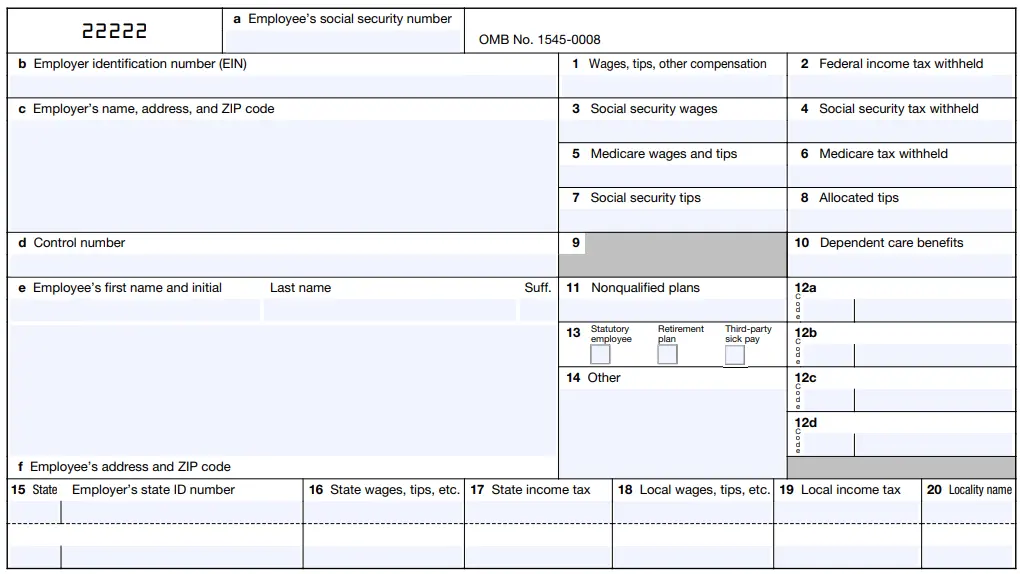
The W2 form is a Wage and Tax Statement issued by the employer to an employee at the end of the year. It states the total wages earned for the year, tax deductions, and other deductions from the paycheck. Issuing the W-2 form is important, as it enables employees to file their personal income tax return.
On the other hand, the W-3 form is a Transmittal of Wage and Tax Statements that is submitted by an employer to the Social Security Administration (SSA) and the Internal Revenue Service (IRS).
This tax form includes a summary of all the W-2 forms that the employer has issued to their employees. The W-3 form is important because it allows the SSA and the IRS to verify the information on the W-2 forms and ensure that taxes have been reported correctly.
Learn How to Print Your W-2 and W-3 Forms in QuickBooks
Whether you use QuickBooks Desktop, Online, or a separate Payroll subscription, the following steps will guide you through printing the W-2 and W-3 tax forms. Continue below to share the tax details with your employees:
1. Buy W-2 paper (if applicable)
If your employee lost their tax form or didn’t get their original W-2 or W-3, you will need a copy of your records. Use the pain paper to take a printed copy, as in Step 2.
If you are printing and emailing official copies of W-2s to your employees from QuickBooks, consider purchasing W-2 paper to ensure accuracy and compliance with tax regulations. We recommend ordering W-2 kits (including W-2s and envelopes) through us to ensure the W-2s print correctly.
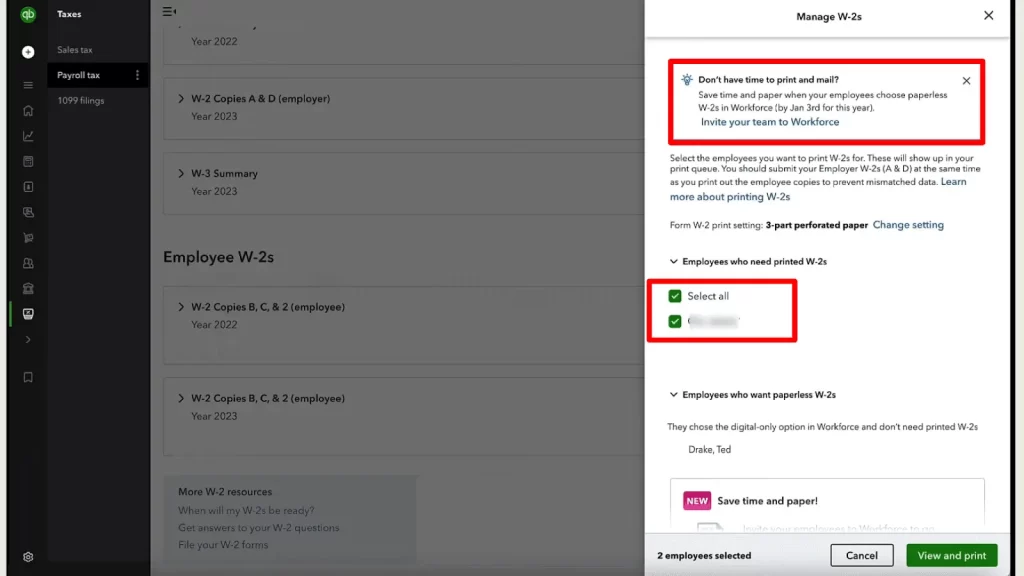
W-2 forms will be available to print starting January 10. If you’re choosing Intuit Print, you’ll only need to print your W-2 forms if your employee has lost or not received their original W-2 form.
Go to Employees.
Select Payroll Center
Navigate to the File Forms tab.
Choose View/Print Forms & W-2s.
Enter the payroll PIN and click OK.
Move to the W-2s tab.
Choose the year, then all or individual employees.
Hit the Open/Save Selected button.
Select the appropriate reason for which you are printing the W-2.
Click on File in Adobe Reader and select Print.
Note: If your employees lost their W-2 or didn’t get the original tax form, write REISSUED STATEMENT at the top to re-print and include a copy of the W-2 instructions.
c. QuickBooks Desktop Payroll Enhanced and QuickBooks Desktop Payroll Standard
Your W-2s will be available for printing after January 1.
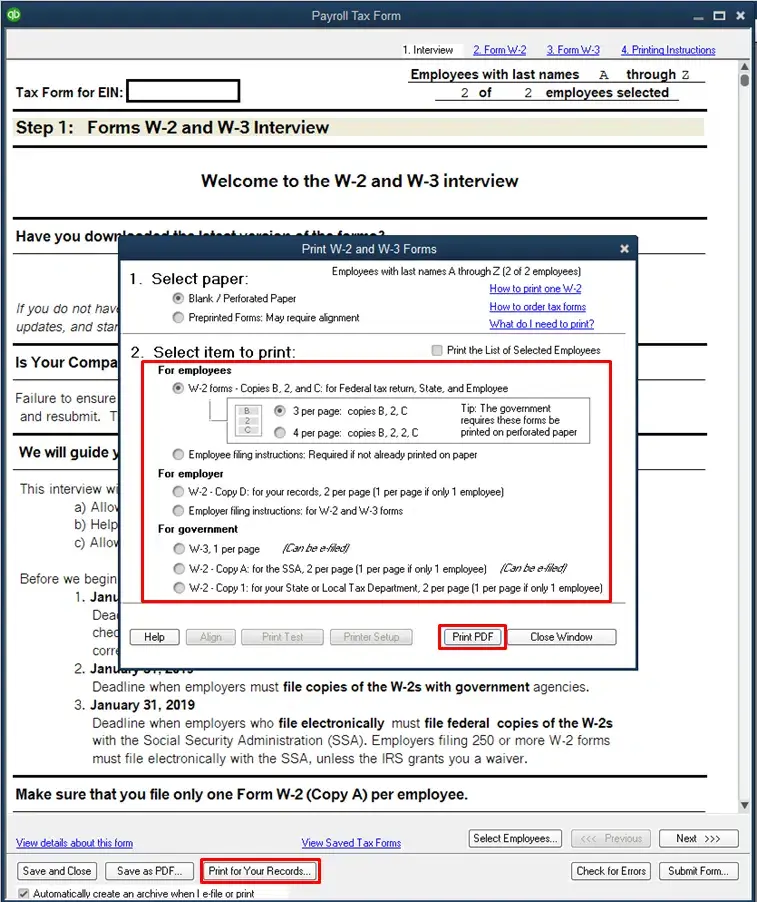
Select Payroll Tax Forms & W-2s, then Process Payroll Forms.
In the File Forms tab, move down and choose Annual Form W-2/W-3 – Wage and Tax Statement/ Transmittal.
Click on Create Form.
Either choose all or individual employees to file.
Enter the year to see the form and click OK.
Select all or individual employees to print the documents.
Click on Review/Edit to review each W-2.
You will see the reviewed W-2s have a checkmark in the Reviewed column.
When done, choose Submit Form and follow the steps on your screen to print and file the forms.
Note:If your employees lost their W-2 or didn’t get the original tax form, write REISSUED STATEMENT at the top to re-print and include a copy of the W-2 instructions.
Conclusion
A printed copy of the W-2 and W-3 tax forms allows businesses to share them with their employees in case they have lost or require a physical copy, as well as for record-keeping purposes. The above steps outline how to print your W-2 and W-3 forms in QuickBooks.
For further assistance, we recommend consulting with QuickBooks professionals at +1(866)500-0076. Speak with an expert and consult with us now!
Frequently Asked Questions
How to print W-2 and W-3 in QuickBooks Online?
Here’s how to print W-2 and W-3 in QuickBooks Online:
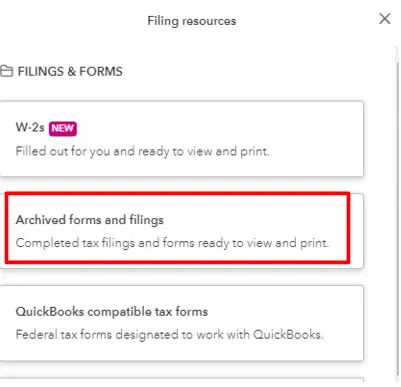
Go to Fillings.
Select Resources > W-2s.
Now, follow the on-screen steps.
Select the steps according to your preference.
Hit on View and print.
Hit the Print icon on the Adobe Reader toolbar.
Finally, click Print.
Where to find W-2 forms on QuickBooks Desktop?
There are two ways to find W-2 forms in QuickBooks Desktop: either through the QuickBooks Workforce app or the web version. Check these steps for the app:
Go to Taxes or More.
Select W-2s.
Click Download.
Choose the W-2 you want to view or print.
How to export W-2 from QuickBooks to Excel?
Here’s how you can export W-2 from QuickBooks to Excel:
Under Export/Print drop-down, choose Export to Excel.
Save the file in the Download folder or your desktop.
Where to find W3 in QuickBooks Online?
Find your W3 in QuickBooks Online:
Go to Taxes > Payroll Tax.
Go to the Forms section > Annual Forms.
Choose W-3, and then View.
About The Author
Lana Creston is an experienced technical and accounting writer with a total of 9 years of experience. She currently works on QuickBooks accounting and technical guides at QuickBookSupportNet. Lana has a passion for reading and writing about various technical topics, especially exploring new accounting methods and software, while continuously expanding her expertise in the ever-evolving field of finance and technology.
Effortlessly handle data tasks or get expert assistance with: