How to Fix QuickBooks Error 00000 XXXXX in Payroll Setup?

Jan 13, 2026

Admin |

Estimated Read Time : 5 MIN

Setting up your payroll with the Payroll Setup Wizard in QuickBooks Desktop Payroll, but it’s not opening? You may encounter an error code or warning message in the QuickBooks error 00000 XXXXX format, which is the main reason the payroll setup wizard fails to launch.

If you’re trying to open the Payroll Setup Wizard in QuickBooks Desktop Payroll and see an error message with a code like 00000 XXXXX, don’t worry. We’ll help you identify the cause and resolve it. Check the exact error you’re receiving and follow the steps to troubleshoot it.

Different Errors 00000 XXXXX During the Payroll Setup in QuickBooks 

When the payroll setup wizard fails to open or doesn’t proceed further, you will get QB error 00000 XXXXX, the XXXXX number varies greatly depending on what triggers such an error. Let’s get a detailed overview of type errors you may see: 

Error CodesError CodesError Codes
00002 7132800000 3804900000 97340
00002 2012300000 8857900000 88703
00000 1700200000 3877200000 40370
00000 9986700000 8870300000 34289

QuickBooks Error 00000 XXXXX: Identify Specific Error Code and Fixes 

When the payroll setup wizard fails to open or doesn’t proceed, you will see QB error 00000 XXXXX; the XXXXX number varies depending on what triggers the error. Let’s get a detailed overview of type errors you may see: 

1. Find the error message

Let’s first identify the specific error message you encounter in a report found on the error prompt:

  • Select the View Report link in the error message. 
  • Locate and right-click on the ReportHeader.xml file.
  • Press the CTRL+F keys to open the search box.
  • In the search box, type Exception String 0

This will open the error message on the report. You will see the specific error message after the phrase “Exception String 0“. 

For example: 

  • Exception String 0 System.Exception: exception thrown in background thread —> System. ArgumentException: Item has already been added. 
  • Key in dictionary: ‘(unnamed employee)’ 
  • Key being added: ‘(unnamed employee)’ at System.Collections.SortedList.Add(Object key, Object value) 

2. Fix the errors

Now, select the error message that is similar to the one on your QuickBooks Desktop screen.  

a. Item has already been added. Key in dictionary: “[Vendor or payroll item name]” Key being added

It means a specific vendor name or payroll item is causing the issue, and it will appear in this error message. This either means there’s a duplicate vendor or the payroll item with the same name.

Let’s fix the duplicate vendor or payroll item:

  • Go to Vendors > Vendor Center, or select Items> Payroll Item List.
  • Look for the Vendor or Payroll Item name stated in the error message. If there is more than one item, skip to step 4, and don’t continue to the next one. 
  • Click on Show Inactives. This will display the potential duplicate items.
  • Now, try to delete the duplicate item, but if you have already used it in any transactions in QuickBooks, you won’t be able to delete it. In that case, edit the item, rename it, and then save it. 

b. Item has already been added. Key in dictionary: ‘(unnamed employee)’ Key being added

This simply means there’s at least one duplicate employee in the employee list.

Let’s fix the duplicate employee:

  • Go to Employees, then choose Employee Center.
  • Choose All Employees under the View drop-down to include inactive employees.
  • Look for the duplicate employee names. 
  • Right-click the duplicate name, then choose Delete Employee.  
  • If you fail to delete a duplicate employee because of their existing payroll transactions, locate the transactions to the first employee listed. Now try deleting the duplicate employee again. If you don’t find any payroll transactions for the employee, then the time card data might be corrupted. Go to Employees > Enter Time and find any entries that have odd or invalid characters.

c. Item has already been added. Key in dictionary: ‘(unnamed employee)’ ‘the specified special account already exists.’

This error message means either there’s a blank space in front of or at the end of the employees’ first or last name, or you have forgotten to enter the name in the name fields on one or more employee profiles (the name only shows in the Print on check as field in the employee profile). Employee name simply displays in the employee list as normal; you must review each employee’s name and correct it. 

Let’s fix the employee names

  • Go to Employees, and then choose Employee Center.
  • Select All Employees from the View drop-down to include inactive employees. 

Open the profile of each employee to review the first and last name fields. Delete the blank spaces before or after the employee’s first and last name, or just enter a first and last name if they are missing, and only show in the Print on check as field.

d. Value does not fall within the expected range

This error usually appears with a specific error code:  

QuickBooks payroll error 00000 99867: This means an employee doesn’t have a state set up in their employee profile. 

Look for the employee with the missing state and fix 

  • Go to Employees and choose Employee Center.
  • Right-click anywhere on the employee list and choose Customize Columns
  • Choose State Lived from the Available Columns list, then click on Add.
  • Choose State Worked in the Available Columns list, then select Add
  • Now, click OK
  • Double-click on the employee with the missing state(s). 
  • Select Payroll Info > Taxes.
  • Go to the State tab and choose the correct state. 
  • Repeat the steps 6-9 for all employees with the missing state(s).

Error 00000 88703: This means the first and last name fields are blank on one or more employee profiles (the name only shows in the Print on check as field in the employee profile). The employee names will show in the employee list as normal, so you’ll need to review each employee profile.  

  • Go to Employees and choose Employee Center.
  • Select All Employees from the View drop-down to include inactive employees. 
  • Open each employee’s profile to review the employee’s first and last name fields. Now, type the first and last name if they’re missing, and only show in the Print on check as field. 

If you don’t see the error with a specific code, this simply means a payroll item might have an unexpected amount. Locate and update the amount using the Payroll Checkup that doesn’t fall within the expected range.

e. Font ‘Arial does not support style ‘Regular’…

This error means the Arial font in your Windows OS is corrupted or missing. Reach out to IT professionals for help resolving this issue, or simply dial +1(866)500-0076.

f. The storage category map is invalid for the Local tax payroll item

This means you have added local tax incorrectly to an employee profile. You must create and review a couple of reports to find the local tax item that doesn’t have type Other in the QuickBooks payroll setup error 00000 XXXXX.

Let’s find the incorrect local tax item and fix:

  • First, create an Employee Withholding report.
    • Go to Reports > Employees & Payroll, and then click Employee Withholding.
    • Choose Customize Report.
    • Now, remove the checkmarks from the Columns of current items and select the following items: Employee, Local Tax 1, Local Tax 2, Local Tax 3, Local Tax 4, Local Tax 5, Local Tax 6, Local Tax 7, Local Tax 8, Local Tax 9, Local Tax 10, Local Tax 11, Local Tax 12.
    • Go to the Filters tab.
    • Select Active Status and click All.
    • Hit OK.
    • Leave this report open, Print or click Excel, then hit Create New Worksheet to export to Excel.
  • Now, you will need to create a Payroll Item Listing report. 
    • Go to Reports, then Employees & Payroll, and then choose Payroll Item Listing.
    • Click on Customize Report.
    • Clear the checkmarks from all the items except Payroll Item and Type.
    • Choose Active Status and click All.
    • Go to the Filters tab.
    • Hit OK.
    • Now, leave the report open, click Print or Excel > Create New Worksheet to export to Excel.
  • Now, compare the two reports. Find Local Taxes that don’t have type Other
  • Look for each employee with a tax item that should not be typed Other. In the Employee Withholding report, double-click on the employee to open their profile. 
  • Choose Payroll Info > Taxes.  
  • Go to the Other tab and remove all the items that do not have a type Other.    
  • Click OK twice to save the changes. 

g. System.IO.FileNotFoundException:Could not load file or assembly…

This means the QuickBooks program file is missing or corrupted. To fix, repair QuickBooks Desktop using the QuickBooks Install Diagnostic tool, and if this doesn’t work, you will need to Clean Install QuickBooks Desktop in Selective Startup, following the steps below: 

Before starting, make sure: 

i. Switch to Selective startup

To make sure no apps get in the way or interrupt the installation or uninstallation, switch to Selective Startup. If you are uncomfortable doing these steps, consult your computer’s manufacturer or a Windows expert.

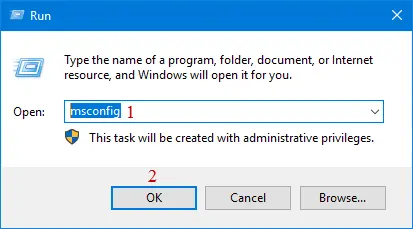
  • Press Windows + R to open the Run command.
  • In the Run, type msconfig and click OK.
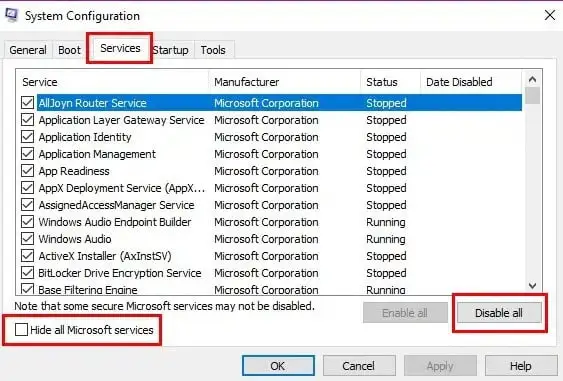
  • Go to the General tab, choose Selective startup, and Load system services.
  • Navigate to the Services tab, then select the Hide all Microsoft Services checkbox. 
  • Click on Disable all.
Hide-all-Microsoft-services
  • Clear the checkbox for Hide all Microsoft services.
  • From the list of services, choose Windows Installer.
  • Click OK.
  • Select Restart on the System Configuration window.

ii. Uninstall or install QuickBooks Desktop

msconfig
  • Go to the General tab and choose Normal startup.
  • Click OK.
  • Select Restart on the System Configuration window.

h. Error Code 00000 11234 when completing payroll setup

This error states that there’s space before the first, middle, or last name, or you might have used any special characters in one or more employee profiles. 

To fix this, remove the spaces or invalid characters in the employee profile

  • Go to Employees and choose Employee Center.
  • Select All Employees from the View drop-down to include inactive employees.
  • Open each employee profile to review the employee’s first and last name fields. 
  • Remove the spaces between the name or invalid characters.

Conclusion 

This blog provides a thorough guide to QuickBooks error 00000 XXXXX, including how this code varies, any specific error message, and what interrupts the payroll setup. You will also learn the compatible troubleshooting for all to ensure the payroll setup wizard opens.

Still failed in setting up the payroll? Contact QuickBookSupportNet at +1(866)500-0076 to speak with a QB ProAdvisor for troubleshooting help. 

Frequently Asked Questions 

What is the QuickBooks error code 00000 XXXXX? 

Users may encounter QuickBooks unrecoverable error 00000 XXXXX during payroll setup when the setup wizard won’t launch or cannot continue the process. This error presents varying codes and messages, including examples like 00000 88579 and 00000 34289, depending on system conditions at the time of use.

How to fix the QuickBooks payroll service server error?

To fix a QuickBooks payroll service server error, you can resolve it by making sure you are in single-user mode, updating your payroll tax table and software, and checking your system’s date and time settings.

What are the different error codes with error 00000 in QuickBooks? 

QuickBooks payroll setup error 00000 appears in many variations, such as 00002 71328, 00000 38049, 00000 97340, 00002 20123, 00000 88579, 00000 88703, 00000 17002, 00000 38772, 00000 40370, and others, each signaling issues typically tied to payroll setup or company files today.

About The Author

Lana Creston

Lana Creston is an experienced technical and accounting writer with a total of 9 years of experience. She currently works on QuickBooks accounting and technical guides at QuickBookSupportNet. Lana has a passion for reading and writing about various technical topics, especially exploring new accounting methods and software, while continuously expanding her expertise in the ever-evolving field of finance and technology.

Quick, clear, and hassle-free QuickBooks assistance.

Get a Free Consultation with Our QB Tax Experts
Connnect with Our Certified QuickBooks Professionals - Dial Tollfree: +1(866)500-0076