Fix “The File You Specified Cannot Be Opened” Error in QuickBooks
Jan 14, 2026
Admin |
Estimated Read Time : 5 MIN
Did you fail to update payroll, pay your taxes, or open state or federal forms? You may also get the following errors:
The file you specified cannot be opened, or
The file exists
This states that your computer cannot open or read the file you are trying to open, often because it is corrupted, missing, or has incorrect permissions required for payroll updates or related processes.
Read this in detail to identify the reasons triggering the issue and the different steps to resolve it promptly.
Why Does QuickBooks Payroll Update Fail with “The file exists?”
Here’s a list of different reasons that can hamper the payroll updates and trigger “The File You Specified Cannot Be Opened” and “The file exists” in QuickBooks:
Not having the proper admin rights
QuickBooks might not have enough Windows permissions
UAC settings in Windows may be blocking the payroll updates
Windows Firewall might be blocking QuickBooks Desktop
Windows components might be causing issues when updating payroll
Incorrect installation or damaged program files of QuickBooks
How to Fix “The File You Specified Cannot Be Opened” and “The file exists?”
When you encounter the error “The File You Specified Cannot Be Opened” or “The file exists” in Windows or certain applications, it usually points to issues related to file access or permissions. Here are some steps you can take to resolve the issue:
1. Run as an administrator
Without proper administrator rights, the software can’t make the necessary changes when running various processes, such as payroll updates. Let’s run QB as an administrator to fix this issue:
Launch the Windows Start menu.
In the Windows search, type “QuickBooks.”
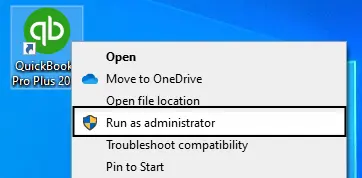
Right-click on your version of QuickBooks.
Select Run as administrator.
Now, try again to run the payroll update.
When done, close and open QuickBooks like you normally would.
2. Update Windows permissions
Windows permissions are required to update payroll software to ensure data integrity, security, and compliance. Let’s update these permissions with the following steps:
Launch the Windows Start menu.
In the Windows search, type File Explorer. Select File Explorer in the search result to open.
Now, look for your QuickBooks program file. It should look like this:
Processor Type
File Path for QBW32.EXE
32-bit
C:\program files\intuit\quickbooks (year)
64-bit
C:\program files x86\intuit\quickbooks (year)
Right-click on your QuickBooks program (QBW32.EXE) file.
Select Properties.
Go to the Security tab and click on Edit.
Click Add.
In the prompted window, type “Everyone” and click OK.
Mark the checkbox for Full Control and click OK in the Security window.
Click Add again.
Type in “Users’ in the window and click OK.
In the Security window, mark the checkbox for Full control and click OK.
When done, select Apply and click OK to close the settings.
3. Change User Account Control (UAC) in Windows
Modify the UAC settings in QuickBooks Desktop (Windows 10):
Press the Windows+R keys to open the Run command.
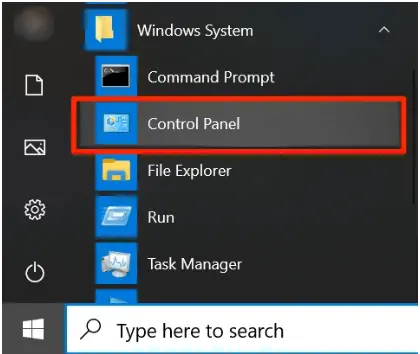
In the Run prompt, type Control Panel and press Enter.
Click on User Accounts and then User Accounts (Classic View).
Select Change user account control settings.
Note: Click Yes to continue when prompted by UAC.
Move the UAC slider.
Set the bar to Never Notify and click OK to turn UAC OFF
Set the bar to Always Notify and click OK to turn UAC ON
Note: Click Yes to continue when prompted by UAC.
Finally, restart your computer.
4. Configure the Windows Firewall settings
Windows Firewall, a built-in security feature in Windows, manages network traffic through rules applied to system ports. If it identifies a potential threat, it may block relevant apps, files, or folders, leading to the error message “the file you specified cannot be opened” during payroll updates.
To resolve this, configure the Windows Firewall to allow QuickBooks Desktop by adding exceptions for its specific files, folders, and ports. This will ensure QuickBooks can communicate effectively and complete updates without obstruction.
5. Run Reboot.bat
Running reboot.bat fixes payroll update errors in QuickBooks by first stopping all background processes related to QuickBooks, then forcing a system restart. This cleans corrupted and locked files, ensuring a smooth payroll update in QB.
Close QuickBooks Desktop.
Go to your desktop, right-click the QuickBooks Desktop icon.
From the drop-down menu, choose Properties, then click Open file location.
Find the reboot.bat file, right-click it, and select Run as Administrator. Make sure to run reboot.bat as an Administrator. The file may appear as reboot.bat or just reboot, depending on your Windows Folder Options settings.
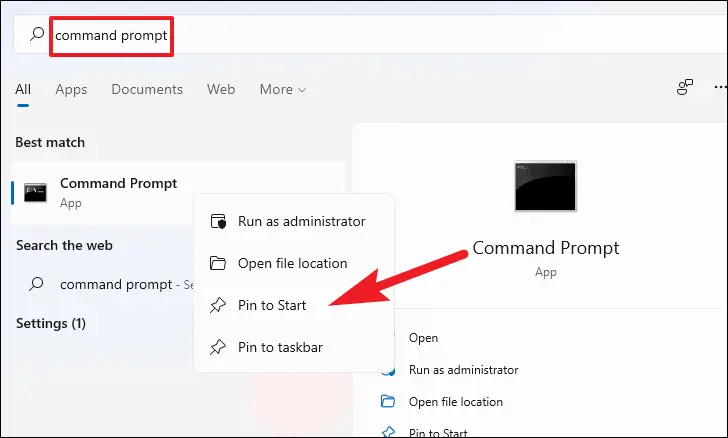
A Command (DOS) prompt window will appear with rapidly scrolling file names.
Do not close this window manually; it will close automatically once the reboot.bat utility re-registers the files.
Restart your computer.
6. Repair QuickBooks Desktop
You may encounter the “The file you specified cannot be opened” error due to incorrect installation or damaged program files. Let’s repair QuickBooks Desktop using different tools in the Tool Hub.
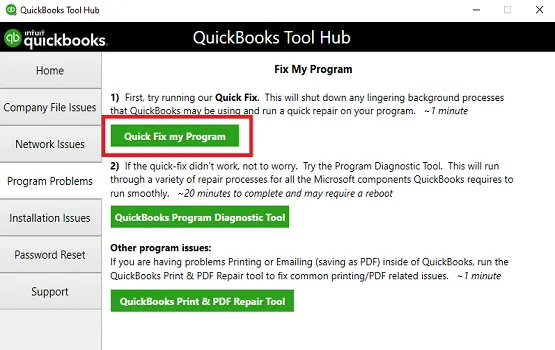
The Quick Fix my Program will close all the open background processes that QuickBooks uses, then run a quick repair to your program.
Launch the QuickBooks Tool Hub.
In the left pane, select Program Problems.
Hit on Quick Fix my Program.
Open QuickBooks Desktop and try to open the company file.
b. Run the QuickBooks Install Diagnostic tool
The QuickBooks Install Diagnostic Tool is an automated utility that fixes errors and issues with QuickBooks Desktop installations by automatically repairing corrupt or missing Microsoft components, such as .NET Framework, C++, and MSXML, which can cause issues when trying to update payroll services.
Finally, we are ending this blog here with suitable methods to resolve the “The file you specified cannot be opened” in QuickBooks Desktop. We hope you can easily identify the root cause and resolve the issues hampering payroll updates.
However, if you find it challenging or need further help, you must talk to a QuickBooks professional. Dial +1(866)500-0076 to talk to an expert now!
Frequently Asked Questions
What does ‘the file I specified cannot be opened’ mean?
The error “The file you specified cannot be opened” means that your computer cannot access or read the file you are trying to open, often because the file is corrupted, not found, or has incorrect permissions.
Why can’t I open a company file in QuickBooks?
You can’t open a QuickBooks company file due to issues like a damaged or corrupted file, restrictions from antivirus or firewall software, an incorrect file path or name (including special characters), or the file being in use by another user on a network.
How to fix ‘the file I specified cannot be opened’ error in QuickBooks?
To fix the QuickBooks error, first try running QuickBooks as an administrator to resolve permission-related issues. If that doesn’t work, use the QuickBooks Tool Hub to run QuickBooks File Doctor to repair potential file corruption.
About The Author
Lana Creston is an experienced technical and accounting writer with a total of 9 years of experience. She currently works on QuickBooks accounting and technical guides at QuickBookSupportNet. Lana has a passion for reading and writing about various technical topics, especially exploring new accounting methods and software, while continuously expanding her expertise in the ever-evolving field of finance and technology.
Effortlessly handle data tasks or get expert assistance with: