QuickBooks Migration Failed Unexpectedly? Let’s Fix It

Dec 19, 2025

Admin |

Estimated Read Time : 5 MIN

Switching between different QuickBooks editions or moving QuickBooks to a new computer can be a hassle — but that’s where the QuickBooks Migration Tool comes in handy. This tool allows you to easily transfer your company file from one system to another. However, it does have some limitations: it won’t migrate Intuit Data Protect files or any custom preferences you’ve set up in QuickBooks.

Unfortunately, many users have reported encountering the error “QuickBooks migration failed unexpectedly” while running the Move_QuickBooks.bat file from a flash drive. If you’ve faced the same issue, don’t worry — we’re here to help.

In this guide, we’ll walk you through how to identify the cause of the migration error, the steps to resolve it, and a manual method to successfully migrate your QuickBooks data. Let’s dive in!

Why is QuickBooks Migration Failed Unexpectedly?

Your QuickBooks migration can suddenly fail for several reasons. Let’s take a closer look at each of these:

  • QuickBooks might not be up-to-date 
  • Incompatible or outdated Windows OS 
  • Incorrect installation or program files might be damaged 
  • Different QuickBooks background processes may hamper the migration 
  • Damaged Windows files or folders

Troubleshooting Steps for QuickBooks Desktop Migration Failed Unexpectedly

The steps below are suitable for resolving the root causes of QuickBooks Migration failing unexpectedly. If the steps don’t work, you move the file manually or try reinstalling QuickBooks Desktop on the new computer. 

1. Update QuickBooks Desktop 

Updating QuickBooks Desktop to the latest release ensures access to recent security patches, bug fixes, software enhancements, and improved functionality. If outdated, it may cause operational conflicts and lead to migration failure.

2. Update Windows OS 

The Windows components might be incompatible due to an outdated version. Let’s update the operating system to resolve this: 

  • Select the Start icon in the Windows Taskbar. 
  • In the search box, type Settings, then press Enter.
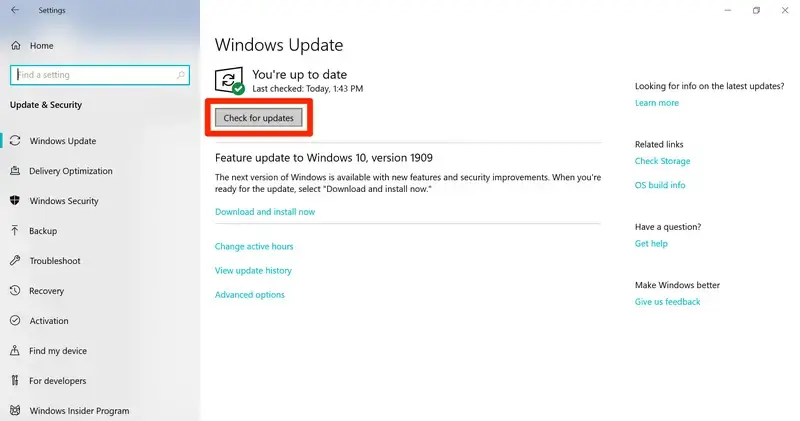
  • Choose Windows Update in the left pane. 
  • Click on Check for Windows updates
Windows update
  • If it shows updates are available, click Download & Install.
  • When done, restart your computer to apply the updates. 

3. Repair QuickBooks 

Repair QuickBooks installation issues, corrupted or damaged program files, and resolve errors causing QuickBooks migration to fail unexpectedly.

Note: Download and install the latest QuickBooks Tool Hub (version 1.6.0.8). For the best experience, we recommend using Tool Hub on Windows 11, 64-bit.

a. Run Quick Fix my Program 

The Quick Fix my Program will shut down the QuickBooks processes in the background and run a quick repair to your program. 

  • Launch QuickBooks Tool Hub. 
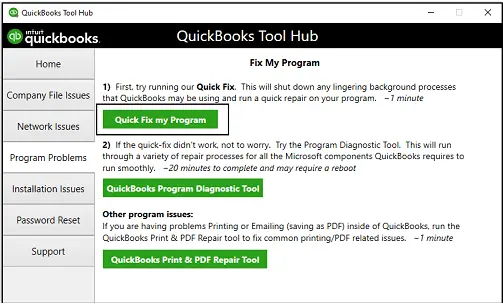
  • Select Program Problems in the left menu bar. 
  • Hit on Quick Fix my Program.
Fix My program
  • Open QuickBooks Desktop and open your company file.

b. Run the QuickBooks Install Diagnostic tool 

If there’s a problem with QuickBooks installation, it can hamper regular software operations, such as updates, opening the company file, or migration. Run the QuickBooks Install Diagnostic tool to fix such common installation problems. 

  • Launch the QuickBooks Tool Hub. 
  • Go to the Installation Issues menu.
  • Click on QuickBooks Install Diagnostic Tool. The tool may take more than 20 minutes to finish; let it run until then. 
QuickBooks Install Diagnostic Tool
  • Once the tool finishes, restart your computer and launch QuickBooks Desktop. Then, open your company file.
  • Update QuickBooks Desktop to the latest release to ensure you have the most recent fixes and security updates.

4. Run QuickBooks Migration in compatibility mode

Incompatibilities between the migrator tool and Windows can cause a QuickBooks migration failed unexpectedly. Learn how to fix compatibility issues during migration.

  • Open the folder where the QuickBooks Migration file is saved. 
  • Right-click on the .exe file.
  • Go to the Properties tab. 
  • Select the Compatibility menu.
  • Mark the checkbox for Run this Program in Compatibility Mode.
  • Click OK on the Properties window.
  • Now, try again to run the migrator tool. 

5. End all the background processes 

Ending QuickBooks processes refreshes the connection, resolves common conflicts, and frees up system resources. End these processes with the following steps: 

  • Right-click on the Windows Taskbar
  • Select Start Task Manager
  • Go to the Processes tab and click on the Image Name tab. 
  • Choose each QuickBooks process one by one and click End process
  • Now, close the Task Manager.
  • Exit SmartVault from the system tray.

6. Run the System File Checker 

The System File Checker is a Windows utility that verifies the integrity. It replaces damaged files, helping to resolve issues that might cause Windows to stop working correctly.

  • Press the Windows + X keys on your keyboard. 
  • In the Quick Link menu, choose Command Prompt (Admin).

NOTE: You can also use System File Checker (SFC)from Windows PowerShell (Admin).

  • Click Yes on the User Account Control (UAC) prompt. 
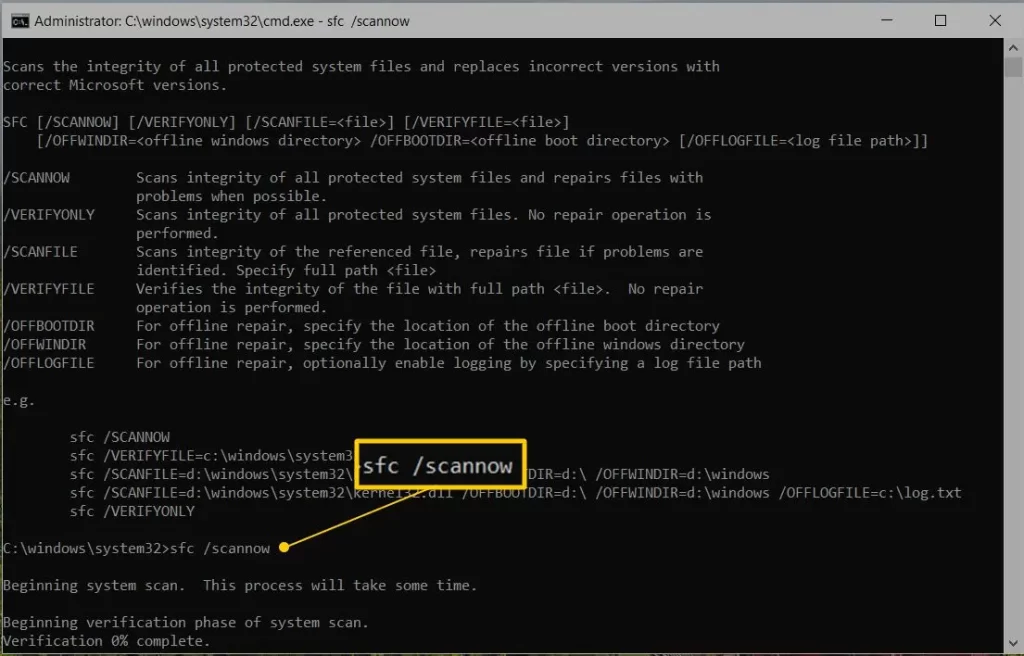
  • In the command prompt window, type SFC /scannow and press Enter.
sfc scannow
  • The System File Checker will verify the integrity of Windows system files and run a quick repair on them if it detects any issues. 
  • When done, reboot your computer. 

7. Move or reinstall QuickBooks Desktop to another computer

When you have tried all the fixes, consider moving QuickBooks Desktop to a new computer using the Migrator tool or reinstalling the software manually using the steps below. 

What you will need: 

  • Company Admin access in QuickBooks Desktop.
  • Keep your new computer connected to the internet. 
  • The US version of QuickBooks Desktop 2023 or newer. 
  • Updated version of Windows 10 or later. 
  • Have an external storage device such as a USB flash drive with enough space to hold your QuickBooks files. The Migrator will tell how much free space is required. Usually it’s between 150 and 250 MB.
  • Keep the QuickBooks Desktop license and product number handy. You will find all these details in your Intuit Account or the original purchase confirmation email. 

1. Move QuickBooks Desktop to the new computer using the Migrator tool 

As a single user, you can move up to three company files to another computer using the Migrator tool to move QuickBooks Desktop. 

  • Open QuickBooks Desktop. 
  • Go to the File menu and choose Utilities.
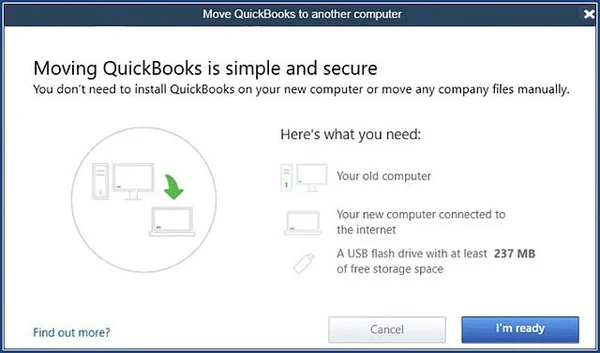
  • Select Move QuickBooks to another computer.
Move QuickBooks to another computer
  • Click I’m ready, then create a one-time password. You will need this password only once for the QuickBooks migrator tool. 
  • Follow the on-screen steps to choose the USB flash drive you will use and wait until the file gets copied. 
  • When done, insert the USB flash drive into your new computer. The Migrator tool will not open automatically due to Windows security restrictions. 
  • Open the flash drive to see the files and double-click on the file Move_QuickBooks.bat to start the migrator tool. 
  • Enter the one-time password you created and click Let’s go
  • Wait until the Migrator Tool finishes.
    Note: The migration time depends on the speed of your computer and internet, and the size of your company file(s).
    Note: If the migrator tool fails to open after selecting and running the Move_QuickBooks.bat file, you may need to update Windows 10. 

Once the migration is done, the Migrator tool automatically removes the QuickBooks files copied on the USB flash drive. There will still be files on your old computer. It is highly recommended to change the company file name on your old computer to avoid using the wrong file. 

2. Reinstall or move your QuickBooks Desktop installation

  • Keep the product, license information handy.  
  • Remove or uninstall QuickBooks Desktop before trying a reinstall. 
  • Download the installation file or insert the CD where you want your QuickBooks Desktop installed. 
  • Install QuickBooks Desktop on the new computer as you normally would.

Conclusion 

In conclusion, migration allows you to move from one QuickBooks version to another or to a new computer. If the “QuickBooks Migration Failed Unexpectedly” error occurs, follow the steps above to identify the root cause and resolve it quickly.

However, if you get stuck or need professional assistance, contact QuickBooks support. Dial the toll-free number Call Us : +1(866)500-0076 to speak with an expert today! 

Frequently Asked Questions 

What to do when QuickBooks migration failed unexpectedly?

When QuickBooks migration fails unexpectedly, first update QuickBooks Desktop and Windows OS to ensure compatibility and run the QuickBooks Tool Hub. If the problem persists, consider repairing the QB program or try manually moving using a backup file. 

Why can’t I migrate my files to QuickBooks Online? 

You may fail to migrate files to QuickBooks Online due to a variety of reasons, such as outdated QuickBooks or Windows OS, incorrect or damaged installation, QuickBooks background process, or trying to move data more than the USB flash drive’s capacity.

What files cannot be migrated using the QuickBooks migration tool?

The following will not be copied using the QuickBooks migrator tool: 

  • Any of the multi-user setup configurations. 
  • The payroll & payment setup. To protect your data, you will have to sign in again on your computer and verify the details.
  • The company files that have not been recently opened. You can consider moving these files manually or restoring from Intuit Data Protect. 
  • Manual backup files. 
  • Intuit Data Protect. Either use it on the old computer or set it up on the new computer separately.

About The Author

Lana Creston

Lana Creston is an experienced technical and accounting writer with a total of 9 years of experience. She currently works on QuickBooks accounting and technical guides at QuickBookSupportNet. Lana has a passion for reading and writing about various technical topics, especially exploring new accounting methods and software, while continuously expanding her expertise in the ever-evolving field of finance and technology.

Quick, clear, and hassle-free QuickBooks assistance.

Get a Free Consultation with Our QB Tax Experts
Connnect with Our Certified QuickBooks Professionals - Dial Tollfree: +1(866)500-0076