QuickBooks Install Diagnostic Tool

Oct 30, 2025

Admin |

Estimated Read Time : 5 MIN

QuickBooks, with its decade of journey, has brought many utility features for QuickBooks users’ daily use. One of the important and essential utility features is the QuickBooks Install Diagnostic tool. You must be wondering how you can use the diagnostic tool. 

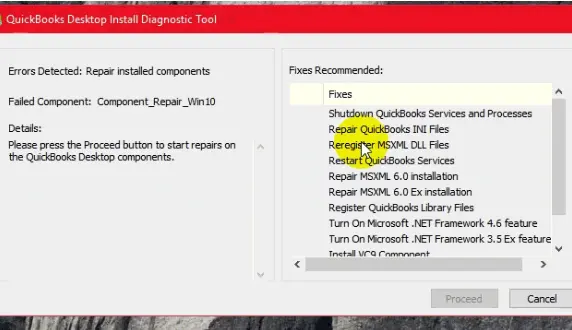
QuickBooks Desktop Install Diagnostic Tool

We have carefully crafted this blog to bring everything to one place. This guide will help you get everything regarding the QuickBooks install diagnostic tool.

What are the functions the QuickBooks install diagnostic tool can perform?

  • Diagnose installation errors: This tool scans for corrupt files and resolves various issue that restricts QuickBooks Desktop from getting installed properly.
  • Repair corrupt or damaged Microsoft components: The tool repairs essential Microsoft components like MSXML, .NET Framework, and C++ that cause installation failures. 
  • Fixes common errors: There are certain errors, such as C++ and MSXML, that the install diagnostic tool can fix, and even problems, such as QuickBooks has stopped working.
  • Automatic troubleshooting: This automatic feature of the installation diagnostic tool ensures that you do not need to fix common errors manually, which are time-consuming and brainily hectic. 

Common Error that QuickBooks Install Diagnostic Tool could resolve: 

Error code 1603 MS .NET Framework errors MSXML damage errors
QuickBooks error 1935 Error 1903 Error 1334
Damaged C++ related errors Error 15106 QuickBooks error 1722
QuickBooks Error 1904 ABS PDF driver errors Error 1712
Unrecoverable Desktop Error in QuickBooks Errors in verifying your subscription QuickBooks has stopped working while opening QuickBooks

How Can I Use QuickBooks Install Diagnostic Tool? 

QuickBooks Install Diagnostic Tool

Step 1: Install the QuickBooks tool hub.

The QuickBooks Tool Hub is used to correct common errors; close the QuickBooks program before use.

We recommend using the QB tool hub on Windows 10, 64-bit.

Download QuickBooksToolHub
  • Save your download to a short file location path. You could save it to your desktop screen.

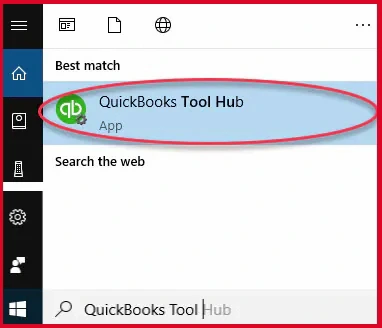
Note:- Click on the Windows Start menu, if there is no shortcut icon on the desktop, and search for QuickBooks Tool Hub. Now, open the application. 

QuickBooks Tool Hub
  • Open your downloaded file, QuickBooksToolHub.exe, and follow the on-screen instructions to install the application. 
  • Agree to their terms and conditions
  • After the application gets installed, double-click on the icon that would have appeared on your Windows desktop and open the tool hub.
qb tool hub

Step 2: From QuickBooks Tool Hub, Run QuickBooks Install Diagnostic Tool 

  • Click on the Installation Issues
  • Now, you will get the option of the QB Install Diagnostic Tool. 
QuickBooks Install Diagnostic Tool
  • Click on QuickBooks Install Diagnostic Tool.
  • The QB tool will start scanning the files and any issues related to QuickBooks. 

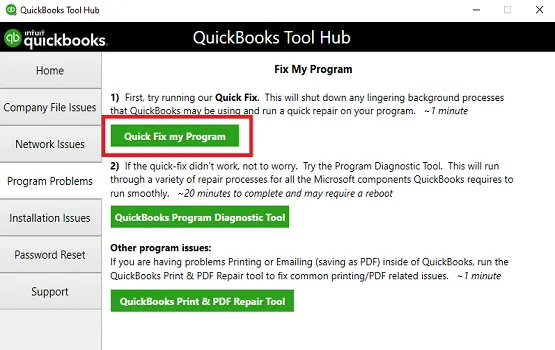
Step 3: Run Quick Fix my Program

When you perform this solution, it will shut down all the open background processes you must be using. This feature will run a quick repair on your program. 

  • Click on the Program Problem.
  • Select Quick Fix my Program.
Quick Fix my Program
  • Launch QuickBooks Desktop & open your data file.

Conclusion

QuickBooks Install Diagnostic Tool is an essential feature that QuickBooks users use to avoid common errors. Considering the hundreds of queries on the installation diagnostic tool, we drafted this piece of content to fulfill all your requirements. 

For more information on QuickBooks and its features, dial us at +1(866)500-0076

Frequently Asked Questions

What is the QuickBooks Install Diagnostic Tool?

QuickBooks developed a feature called the QB install diagnostic tool in its QuickBooks Tools Hub application. The diagnostic tool fixes multiple issues that include .NET Framework, MSXML, and/or C++.  

How can I install QuickBooks Tool Hub’s latest version?

If you are looking for a complete solution on QuickBooks Tool Hub, visit our site https://www.quickbooksupportnet.com/.

How to fix the QuickBooks Install Diagnostic tool?

To fix the QB Install Diagnostic tool, try the following methods: 

  • Run as administrator: Try right-clicking the QuickBooks icon on your desktop and selecting “Run as administrator” to see if it helps launch the program.
  • Contact our support: If the error persists, you may need to contact an IT expert or Microsoft support, especially for errors related to the “Windows Installer” service. For QuickBooks-related errors, contact our senior QuickBooks specialist at +1(866)500-0076.

About The Author

Lana Creston

Lana Creston is an experienced technical and accounting writer with a total of 9 years of experience. She currently works on QuickBooks accounting and technical guides at QuickBookSupportNet. Lana has a passion for reading and writing about various technical topics, especially exploring new accounting methods and software, while continuously expanding her expertise in the ever-evolving field of finance and technology.

Quick, clear, and hassle-free QuickBooks assistance.

Get a Free Consultation with Our QB Tax Experts
Connnect with Our Certified QuickBooks Professionals - Dial Tollfree: +1(866)500-0076