
May 6, 2026
Admin |
Estimated Read Time : 5 MIN
QuickBooks error 6147 0 is one of the common 6XXX series errors that appears when trying to restore the company file backup. The error suddenly pops up on your screen with a warning message displaying,
“You open the company file or restore a company backup (.QBB).”
The primary cause why the backup restore fails is damage or corruption to the company file or the configuration files. The following guide covers all the possible factors why error 6147 0 appears and the detailed steps to troubleshoot it. Let’s dive deep into it.
Table of Contents
ToggleBelow is a list of possible reasons that cause QuickBooks error code 6147 0 when you try to restore a company file backup:
Repairing the company file is the primary method to resolve QuickBooks Error 6147, 0. However, additional troubleshooting steps may be required to fully fix the issue. Follow the methods below to restore the company file successfully.
Update QuickBooks Desktop to the latest release to ensure the software is compatible with the Windows OS and all system components, so nothing interferes with QuickBooks Desktop operations and might cause error code 6147 0.
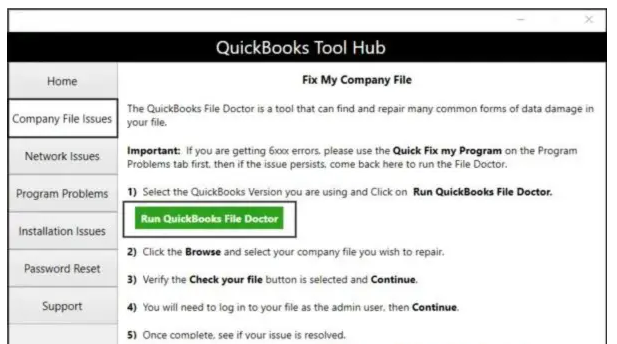
The QuickBooks File Doctor is a utility in the Tool Hub that scans the company file to identify and resolve common company file and network connectivity problems.
Important Note: You are required to download and install QuickBooks Tool Hub (1.6.0.8) in its latest available version. For a better experience, use Windows 11 (64-bit).

Note: If you fail to open the QuickBooks File Doctor, search for QuickBooks Desktop File Doc and open the tool manually.
The .ND and .TLG are configuration files of the main QuickBooks company file. These files allow QuickBooks to access a company file in the network or multi-user environment.
Any damage to these company files can cause errors when you open your QuickBooks files. Renaming these files will replace the existing company file with the new one. This happens when once scanned by QuickBooks Database Server Manager and when you open your company file.
Example: company_file.qbw.nd.OLD
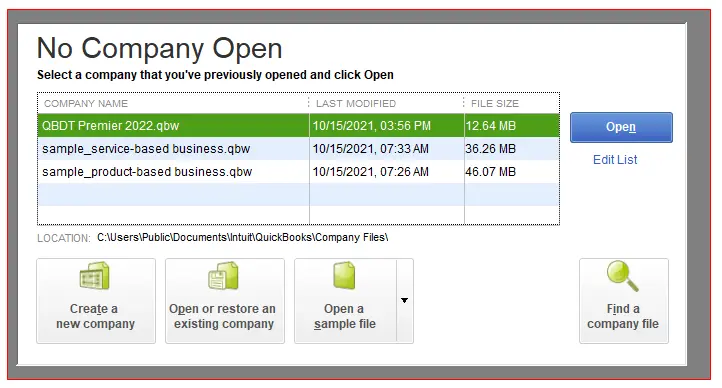
Opening a sample company file will test whether there is a problem with your company file or QuickBooks Desktop. If you fail to open the sample company file and it gives you an error, it’s a sign that the QuickBooks installation is damaged and you must repair it.

Let’s repair QuickBooks Desktop program files and installation using the following tools in the QuickBooks Tool Hub:
The Quick Fix my Program closes all the QuickBooks processes in the background and then runs a quick repair to the program.
If something went wrong during the QuickBooks install, it could cause problems when you try to use it. Run the QuickBooks Install Diagnostic Tool to fix common install issues. This tool scans your system, repairs missing components, resolves conflicts, and helps restore QuickBooks functionality quickly and reliably without hassle.
When you copy the file to the Desktop and open it, you test if there’s a problem with the location of the company file.
If the file opens from the desktop, it means there may be damage to the location you save your file to. Your file might be in too many folders and exceed the file system path limitation. If the file still doesn’t open after you change the location, you might have file damage.
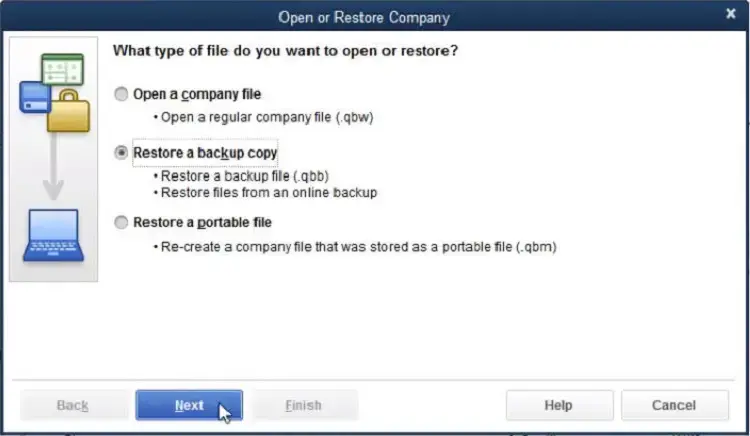
When you restore, QuickBooks uses the backup company file (.qbb) to create a new company file (.qbw).
Important: If your backup company file is on an external device like a USB or a hosting service like Box, you’ll need to move it to your local hard drive first. Then follow the steps.

Note: If you open the backup in the same folder as your existing company file, you may overwrite your data.
To avoid overwriting anything, you can rename your existing company file or the backup so the names are unique. Or you can save the backup in a completely separate folder.
If you get an error when you restore the backup, follow these steps:
Auto Data Recovery helps restore lost or damaged QuickBooks company files by using automatically created backup components. When restoring, it rebuilds essential data elements, which can resolve QuickBooks errors 6147 and 0 by repairing file corruption that prevents successful backup restoration.
Restoring a backup copy ensures your data is safe and protected when something goes wrong with the primary company file; however, QuickBooks error 6147 0 can make it challenging. Repairing the company file, updating QuickBooks, or repairing the software files or installation might help you in a successful restore.
For further assistance, you must consult a certified QuickBooks ProAdvisors. To get help, dial 866-500-0076 to speak with a QuickBooks SupportNet professional.
To fix QuickBooks error 6147 0, you must repair the company file using QuickBooks File Doctor and rename the .TLG and .ND configuration files. If this doesn’t work, repair the QuickBooks installation or restore your company file data using the Auto Data Recovery tool.
Run the Verify and Rebuild Data utilities to fix the damaged company file in QuickBooks. If the issue persists, run QuickBooks File Doctor and also make sure to repair the .TLG and .ND configuration files, which often hamper general company file-related operations in QuickBooks.
To restore a QuickBooks company file, go to File > Open or Restore Company. Then, choose “Restore a backup copy,” select your .qbb file, and follow the wizard to save the restored .qbw file to a new location.
To fix QuickBooks already has a company file open, first end all the QuickBooks processes in the Task Manager and end QBW32.exe, restart QuickBooks Desktop, and then try to open a company file again.
To reset the company file password in QuickBooks Desktop, click on the “I forgot my password” login screen to receive a code via email or text, or you can simply use Intuit’s Automated Password Reset Tool and then enter the license and business info to get a code and create a new password.
Lana Creston is an experienced technical and accounting writer with a total of 9 years of experience. She currently works on QuickBooks accounting and technical guides at QuickBookSupportNet. Lana has a passion for reading and writing about various technical topics, especially exploring new accounting methods and software, while continuously expanding her expertise in the ever-evolving field of finance and technology.
How to Fix QuickBooks Error 15311 During Updates
Oct 22, 2026
How to Fix QuickBooks Payroll Error 15301
Oct 22, 2026