
Fix QuickBooks Error 6000, -305 When Opening a Company File

Oct 7, 2026

Admin |

Estimated Read Time : 5 MIN

QuickBooks Error 6000 -305 occurs when there is a wrong network setup or there’s damage to your company file. This is the error of the 6XXX series and requires you to understand what exactly the issue is.

When managing your company’s finances, tools like QuickBooks can be incredibly helpful. However, encountering errors like QuickBooks Error 6000-305 can be frustrating and disrupt your workflow. In this guide, you will explore the issues of QuickBooks Error 6000-305, the factors that influence it, its impact on business operations, and ultimately, how to address and resolve it effectively.

Common Causes Behind the QB Error Code 6000, 305.

  • Corrupt Company File.
  • Wrong Network Setup.
  • Insufficient Permission.
  • Incorrect Hosting Configuration.
  • Corrupt or Damaged .TLG Files.
  • Use of Outdated Software.
  • Network Issue.

Solutions to Fix the QuickBooks Desktop Error 6000- 305.

Solution 1: Update QuickBooks

Step 1: Again, download the Updates

Step 2: End task on the following processes

  • Close QuickBooks application.
  • Press simultaneously Ctrl + Alt + Delete and open the Task Manager.
  • Under the details tab, look for the background process and click on End Task option for each:
  • QBW32.exe or QBW.exe
  • QBCFMonitorService.exe
  • qbupdate.exe
  • QBDBMgr.exe or QBDBMgrN.exe
  • QBMapi32.exe
  • Right-click on the QuickBooks and click Run as administrator.
  • Again, run the updates.

Open your company file and check if the QB error 6000, -305 is resolved or not.

Solution 2: Run the QuickBooks File Doctor from the QuickBooks Tool Hub

  • Close the QuickBooks application.
  • Download QuickBooks Tool Hub (1.6.0.8) with its latest version.
  • Save the downloaded file in an easy-to-reach folder, for example, on your desktop or in the downloads folder.
  • Launch the downloaded file QuickBooksToolHub.exe.
  • To install the application, proceed with the on-screen instructions.
  • Agree to their Terms and Conditions.
  • Once the installation process is finished, double-click on the QB Tool hub’s icon on your Windows desktop and open it.

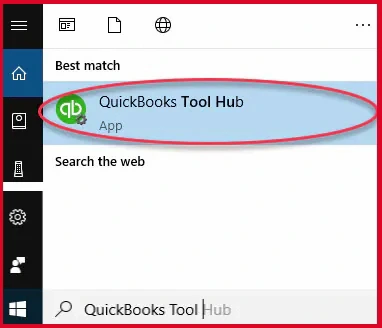
Note:- If your desktop does not have the icon, use the search option and type QuickBooks Tool Hub. It will appear as shown in the image below, and click on the program.

QuickBooks Tool Hub
  • Run the QuickBooks file Doctor.
  • Select the company File Issues tab from the tool hub window.
  • Click on Run QuickBooks File Doctor.

Note:- The File doctor may take one minute to open.

  • In the QuickBooks file doctor, choose your company file. In any case, if the file is not within the drop-down menu, use the Browse and search option to fetch your file.
  • Click Check your file and hit Continue.
  • Now, enter the QuickBooks admin password.
  • Click Next.

Solution 3: Rename.ND and TLG Files and from the Tools Hub, run the QuickBooks Database Server Manager

Step 1: Rename the .ND and .TLG files

TLG and ND files are support files generated by QuickBooks that are essential for the program’s functionality, especially in a multi-user environment. TLG files are transaction logs that record changes since the last backup, while ND files are network data files that help QuickBooks locate and access the company file on a network.

So, we will rename these files to fix the error code 6000, – 305. QuickBooks creates these files when the user scans it with the Database Server Manager.

Rename the Transactions Log file (.TLG) and Network Data (.ND) file.
  • Open the folder containing your company file.
  • Search for the files with the same file name as the company files. Ensure to search with the extension .TLG and ND.
  • company_file.qbw.nd
  • company_file.qbw.tlg
  • Now, right-click on each of the files and click on Rename. Simply add an extension OLD in each file name. For example, you rename your file as company_file.qbw.nd.OLD.

Step 2: Using QuickBooks Tools Hub, Run the QB Database Server Manager

  • Click on Network Issues.
  • Click on QuickBooks Database Server Manager. On your server, install QuickBooks it it is not already installed.
  • Click on Start Scan in the QB Database Server Manager in case you see your company file(s).
  • If you did not find the file, use the Browse option to fetch the file and click on Start Scan.
  • Again, launch QuickBooks and log in to your company file.

Check and confirm if the issue is fixed or if it still requires another effort to fix. Proceed with solution 4 if the error continues to trouble you.

Solution 4: Use a UNC path

  • Right-click on the QuickBooks icon.
  • Press and hold the Ctrl key.
  • Click on Run as Administrator.

Note:- Hold down the Ctrl key to prevent QuickBooks from automatically opening the company file.

  • Click on the File menu.
  • Choose the option Open or Restore Company.
  • Click on Open a company file.
  • Finally, click on Next.
  • Click on Network in the left pane and browse your company file.

Note:- If you cannot find the company file’s folder, you are required to set folder permissions.

  • Select the company file and open it.

Solution 5: Configure Firewall and Security Software

We will use a port exception to fix your QB Error 6000, – 305. In this solution, we will add a port exception to your Windows firewall for QuickBooks.

  • Click on the Windows Start.
  • Search for Windows Firewall and open it.
  • Click on Advanced Settings.
  • Right-click on the Inbound Rules tab.
  • Finally, hit Next and select TCP only.

You would be seeing a field-specific local port. Simply add the ports you need for QuickBooks year version:

  • QuickBooks Desktop 2021
  • QuickBooks Desktop 2022
  • Click Next once you enter the port number.
  • Click on Allow the Connection.
  • Hit Next and select all profiles.
  • Click Next and create a new rule.
  • Rename it in the format QBPorts(year) and click on Finish.

Use the above steps to create an outbound rule as well. Instead of selecting Inbound Rules, right-click on Outbound Rules.

Solution 6: Close all QuickBooks processes

  • On your server computer, log in as an Administrator.
  • Open the task manager, press Ctrl + Shift + Esc.
  • Show processes for all users. Choose Users.
  • You are required to choose each QuickBooks process
  • QBW32.exe.
  • Qbupdate.exe
  • QBDBMgr.exe
  • After selecting, click on End Task.
  • In a multi-user mode, open the company file.

Confirm if the error is resolved or if you are still facing the QuickBooks Error 6000, -305 Code. Try solution 7 if the error continues to trouble you.

Solution 7: Check the folder permission manually

  • Click on the Windows Start menu.
  • Open File Explorer.
  • Right-click on the Company file’s folder and then select Properties.
  • Click on Advanced on the Security tab.
  • Choose QBDataServiceUserXX and click on Edit.

Configure the following settings to Allowed:

  • Traverse Folder/Execute File
  • List Folder/Read Data
  • Read Attributes
  • Read Extended Attributes
  • Create Files/Write Data
  • Create Folders/Append Data
  • Write Attributes
  • Write Extended Attributes
  • Read Permissions

In case the permissions set are incorrect:

  • Right click on the company file’s folder and click on Properties.
  • Select Security > Edit.
  • Select QBDataServiceUserXX and click on Full Control > Allow.
  • Click on Apply and finally hit OK.

Change folder permissions

  • Click on the Windows Start menu.
  • Open File Explorer.
  • Find and right-click on the folders listed below:
C:\Program Data\Intuit\Entitlement Client\v8
C:\Program Data\Intuit\Entitlement Client\v6.0
C:\Program Data\Intuit\Entitlement Client\v5
C:\Program Data\Intuit\Entitlement Client\v3
C:\Program Data\Intuit\Entitlement Client
C:\Program Data\Intuit\QuickBooks Enterprise Solutions X.0 (X = version) or C:\Program Data\Intuit\QuickBooks 20XX (XX = year)
C:\Program Data\COMMON FILES\INTUIT
C:\Program Data\COMMON FILES\INTUIT\QUICKBOOKS
C:\Users\Public\Public Documents\Intuit\QuickBooks\FAMXX (XX = year)
C:\Users\Public\Public Documents\Intuit\QuickBooks\Company Files
C:\Users\Public\Public Documents\Intuit\QuickBooks\Sample Company Files\QuickBooks Enterprise Solutions X.0 (X = version) or C:\Users\Public\Public Documents\Intuit\QuickBooks\Sample Company Files\QuickBooks 20XX (XX = year)
  • Right-click on the folder and choose Properties.
  • Click Everyone on the Security tab.

Note:- Click Add if the Everyone is not listed in the Group or User Name and type in Everyone. Finally, click on OK.

Solution 8: Open a sample company file from a workstation

  • Open a Sample company file.
  • Now, select from the list of sample company files.
  • In case the sample company files open, then proceed with solution 9.

Solution 9: Copy the QuickBooks file to the Desktop

Copy the company file on the desktop and open it. When you do so, it confirms if there is an issue with the location of the company file or not.

  1. If your company file gets opened from the desktop, it signifies that there could be an issue with the location where you have saved your file.
  2. Another reason could be that the company file might be saved in multiple folders, and this would have exceeded the limitation of the file system path.
  3. After changing the location of the file, if it still does not open, it means that the file is corrupt.
  • Fetch and open the folder that contains the company file.
  • Find the file that has the extension of .QBW.
  • Right-click on the .QBW file and click on Copy. Navigate to the Desktop and use Ctrl + V to paste it there.
  • Launch QuickBooks by holding down the Ctrl key. This would take you to the No Company Open window.
  • Click on Open or restore an existing company.
  • Go back to the desktop and open the concerned company file.

Bonus Tips to Avoid QuickBooks Error Code 6000, – 305 Further

  • Save the company file in an easily accessible folder.
  • Be sure to keep the QuickBooks Tool Hub active to fix common errors that occur in the background.
  • Be sure to configure the correct host settings.
  • Use the QuickBooks File Doctor to fix any company file issues on a priority basis.
  • If you find the error remains unresolved, contact a QuickBooks expert at +1(866)500-0076 immediately.

Conclusion

We hope that the QuickBooks error 6000, -305 is resolved and you must have proceeded with your accounting workflow. Walking through this guide, you must have understood the reasons behind QB error code 6000, -305. This can help you in preventing the error from occurring in the future. These errors if not diagnose timely could lead to loosing of data.

If you are still struggling with the error, contact our senior QuickBooks specialist at +1(866)500-0076.

Frequently Asked Questions

What is QuickBooks Error 6000, – 305?

When the error 6000 -305 occurs, it means there can be any issue from the list that includes file location issues, corrupt company files, hosting configuration, and more. It indicates QuickBooks cannot open the company file due to a file path, hosting, or network issue, preventing access to the data file.

Can I lose my company data due to an error in QuickBooks 6000?

There is a chance that you may lose your QuickBooks company data if you force the resolution with repeated steps or attempts. In such cases, you need to contact a QuickBooks expert.

Where should I contact to reach QuickBooks professionals?

If you want to get a quick fix of the error code 6000 -305 in QuickBooks, or you do not want to lose data of your company file, contact a senior QuickBooks specialist at +1(866)500-0076.

Is 6000-305 specific to a network problem or a local issue?

It can be either a network/path problems, missing or corrupted files, or hosting/permissions issues on the server or workstation.

When should I see Error 6000,-305?

When QuickBooks cannot access the company file at startup or during a multi-user/open operation.

Can I fix it by simply restarting QuickBooks?

Restarting may help if a temporary lock or network glitch caused the error, but follow targeted steps for a proper fix.

What is the first quick check I should do?

Verify you are opening QuickBooks with the correct company file path and that the file is accessible on the network or local drive.

About The Author

Lana Creston

Lana Creston is an experienced technical and accounting writer with a total of 9 years of experience. She currently works on QuickBooks accounting and technical guides at QuickBookSupportNet. Lana has a passion for reading and writing about various technical topics, especially exploring new accounting methods and software, while continuously expanding her expertise in the ever-evolving field of finance and technology.

QuickBooks Desktop 2023 is ending — Upgrade QuickBooks Desktop 2023 to 2024 for continued performance and support.

Get a Free Consultation with Our QB Tax Experts